AutoLISP: Block Count With A Table

As I promised in an earlier post, here is the block counter that places a table with a preview of the block within the table. An additional feature is to specify the text size of the text within the table which gives you extra control over the size of the table (notice that I set the text style to 4″ instead of the default 6″).

Also note that to load the lisp, I just drag & dropped it into the drawing area.

  • BLKQTY <enter> to start
  • Select blocks by either individual picks or with a window selection.
  • <enter> to accept the selection set.
  • Specify text height: default is 6″
  • Place table


;; free lisp from cadviet.com
;; Altered by Greg Battin 1/10/2011 for english use
;;Find replace 10 with 8
(defun c:BlkQty (/ blk_id blk_len blk_name blks ent h header_lsp height i j TOTAL
		len0 lst_blk msp pt row ss str tblobj width width1 width2 x y
)
;;  By : Gia Bach, gia_bach @  www.CadViet.com
;;
(vl-load-com)
(defun TxtWidth (val h msp / txt minp maxp)
  (setq	txt (vla-AddText msp val (vlax-3d-point '(0 0 0)) h))
  (vla-getBoundingBox txt 'minp 'maxp )
  (vla-Erase txt)
  (-(car(vlax-safearray->list maxp))(car(vlax-safearray->list minp)))  )
(defun GetOrCreateTableStyle (tbl_name / name namelst objtblsty objtblstydic tablst txtsty)
  (setq objTblStyDic (vla-item (vla-get-dictionaries *adoc) "ACAD_TABLESTYLE") )  
  (foreach itm (vlax-for itm objTblStyDic
		(setq tabLst (append tabLst (list itm))))
    (if (not
	  (vl-catch-all-error-p
	    (setq name (vl-catch-all-apply 'vla-get-Name (list itm)))))
      (setq nameLst (append nameLst (list name)))  )  )
  (if (not (vl-position tbl_name nameLst))
    (vla-addobject objTblStyDic tbl_name "AcDbTableStyle"))
  (setq objTblSty (vla-item objTblStyDic tbl_name)
	TxtSty (variant-value (vla-getvariable *adoc "TextStyle")))
  (mapcar '(lambda (x)(vla-settextstyle objTblSty x TxtSty))
	      (list acTitleRow acHeaderRow acDataRow) )
  (vla-setvariable *adoc "CTableStyle" tbl_name) )
(defun GetObjectID (obj)
  (if (vl-string-search "64" (getenv "PROCESSOR_ARCHITECTURE"))
    (vlax-invoke-method *util 'GetObjectIdString obj :vlax-false )
    (vla-get-Objectid obj)))  
;main
  (if (setq ss (ssget (list (cons 0 "INSERT"))))
    (progn
      (vl-load-com)
      (setq i -1 len0 8)
      (while (setq ent (ssname ss (setq i (1+ i))))
	(setq blk_name (cdr (assoc 2 (entget ent))))
	(if (> (setq blk_len (strlen blk_name)) len0)
	  (setq str blk_name len0 blk_len) )	
	(if (not (assoc blk_name lst_blk))
	  (setq lst_blk (cons (cons blk_name 1) lst_blk))
	  (setq lst_blk (subst (cons blk_name (1+ (cdr (assoc blk_name lst_blk))))
			       (assoc blk_name lst_blk) lst_blk)))	    )
      (setq lst_blk (vl-sort lst_blk '(lambda (x y) (< (car x) (car y)) ) ))
      (SETQ TOTAL 0)
      (FOREACH I LST_BLK (SETQ TOTAL (+ TOTAL (CDR I))))
      (or *h* (setq *h* (* (getvar "dimtxt")(getvar "dimscale"))))
      (initget 6)
      (setq h (getreal (strcat "\nText Height <" (rtos *h*) "> :")))      
      (if h (setq *h* h) (setq h *h*) )
      (or *adoc (setq *adoc (vla-get-ActiveDocument (vlax-get-acad-object))))
      (setq msp (vla-get-modelspace *adoc)
	    *util (vla-get-Utility *adoc)
	    blks (vla-get-blocks *adoc))      
      (setq width1 (* 4 (TxtWidth "    " h msp))
	    width (* 2 (TxtWidth "Text Height" h msp))
	    height (* 2 h))
      (if str
	(setq width2 (* 1.5 (TxtWidth (strcase str) h msp)))
	(setq width2 width))
      (if (> h 3)
	(setq width (* (fix (/ width 8))8)
	      width1 (* (fix (/ width1 8))8)
	      width2 (* (fix (/ width2 8))8)
	      height (* (fix (/ height 5))5)))
      (GetOrCreateTableStyle "CadEng")
      (setq pt (getpoint "\nPlace Table :")
	    TblObj (vla-addtable msp (vlax-3d-point pt) (+ (length lst_blk) 3) 4 height width));CHANGE 5 TO 4
      (vla-put-regeneratetablesuppressed TblObj :vlax-true)
      (vla-SetColumnWidth TblObj 0 width1)
      (vla-SetColumnWidth TblObj 1 width2)
      (vla-put-vertcellmargin TblObj (* 0.75 h))
      (vla-put-horzcellmargin TblObj (* 0.75 h))
      (mapcar '(lambda (x)(vla-setTextHeight TblObj x h))
	      (list acTitleRow acHeaderRow acDataRow) )
      (mapcar '(lambda (x)(vla-setAlignment TblObj x 8))
	      (list acTitleRow acHeaderRow acDataRow))      
      (vla-MergeCells TblObj 0 0 0 3);change 4 to 3
      (vla-setText TblObj 0 0 "Block Count Table")
      (setq j -1 header_lsp (list "    " "Block Name" "Quantity" "Preview"));;;;;;;;;;;;;;;;;;;;;;REMOVE "DON VI"
      (repeat (length header_lsp)
	(vla-setText TblObj 1 (setq j (1+ j)) (nth j header_lsp)))
      (setq row 2 i 1)    
      (foreach pt lst_blk
	(setq blk_name (car pt) j -1)
	(mapcar '(lambda (x)(vla-setText TblObj row (setq j (1+ j)) x))
		(list i blk_name  (cdr pt)));;;;;;;;;;;;;;;;;;;;;;;;;;;;;;;;;;;;;;;;;;;;;;;;;;;;;;;REMOVE "CAI"
	(vla-SetBlockTableRecordId TblObj row 3 (GetObjectID (vla-item blks blk_name)) :vlax-true);CHANGE 4 TO 3
	(vla-SetCellAlignment TblObj row 1 7)
	(vla-SetCellAlignment TblObj row 2 9);;;;;;;;;;;;;;;;;;;;;;;;;;;;;;;;;;;;;;;;;;;;;;;;;;;;;;;CHANGE 3 TO 2
	(setq row (1+ row) i (1+ i))	)
        (VLA-SETTEXT TBLOBJ ROW 1 "TOTAL")
        (VLA-SETTEXT TBLOBJ ROW 2 TOTAL)
	(vla-SetCellAlignment TblObj row 1 7)
	(vla-SetCellAlignment TblObj row 2 9)
      (vla-put-regeneratetablesuppressed TblObj :vlax-false)
      (vlax-release-object TblObj) )  )
  (princ))
Posted in AutoLISP, Blocks, TIPS | 38 Comments

AUTOLISP: Select By Layer

Here is an AutoLISP routine that I use a lot. It is a quick way to select an object and then make a selection set of everything on that layer. I know that there is the new command in AutoCAD 2011 called “SELECT SIMILAR” but sometimes this works better for me.

The picture below shows me making a selection set of the Dimensions layer and deleting it.

  1. SEL <to start>
  2. Select an object on the layer to make a selection set of everything on that layer.
  3. <enter> to accept that layer
  4. <enter> again to make the selection set

Now everything on that layer is selected and can be edited/modified.

Note: I did not create this routine, I am just sharing it here with you…

~Enjoy


;;=============================================================

;;     Sel.lsp by Charles Alan Butler

;;   found at www.theswamp.org

;;

;;    Version 1.0 Beta  July 23,2004

;;    Version 1.1 Beta  July 13,2005

;;

;;   Creates a selection set of objects on a layer(s)

;;   User picks objects to determine the layer(s)

;;   Then User selects objects for ss or presses enter to

;;   get all objects on the selected layer(s)

;;   You may select the selection set before starting this

;;   routine. Then select the layers to keep in the set

;;=============================================================

(defun c:sel (/ ent lay ss lay:lst lay:prompt ss:first ent:lst)

;;  get anything already selected

(setq ss:first (cadr(ssgetfirst))

ss (ssadd))

;;  Get user selected layers

(if ss:first

(setq lay:prompt "\nSelect the object to choose layers to keep.")

(setq lay:prompt "\nSelect object for layer filter.")

)

(while (setq ent (entsel lay:prompt))

(setq ent:lst (cons (car ent) ent:lst))

(setq lay:lst

(cons (setq lay (cdr(assoc 8 (entget (car ent))))) lay:lst))

(prompt (strcat "\n*-* Selected Layer -> " lay))

)

;;  Un HighLite the entities

(and ent:lst (mapcar '(lambda (x) (redraw x 4)) ent:lst))

(if (> (length lay:lst) 0); got layers to work with

(progn

(setq lay "")

(setq lay:lst (vl-sort lay:lst '<)) ; removes douplicates

(foreach itm  lay:lst ; combine lay names into one , del string

(setq lay (strcat lay itm ",")))

(setq lay (substr lay 1 (1- (strlen lay)))); remove the last ,

(if ss:first ; ALREADY GOT SELECTION SET

(while (setq ent (ssname ss:first 0))

(if (member (cdr(assoc 8 (entget ent))) lay:lst)

(ssadd (ssname ss:first 0) ss)

)

(ssdel (ssname ss:first 0) ss:first)

)

(progn ; else get a selection set to work with

(prompt (strcat "\nOK >>--> Select objects for Selection set or "

"ENTER for All objects on layer(s) " lay))

;;  get objects using filter with user select

(if (null (setq ss (ssget (list (cons 8 lay)))))

;; or get ALL objects using filter

(setq ss (ssget "_X" (list (cons 8 lay))))

)

)

)

(if (> (sslength ss) 0)

(progn

(prompt (strcat "\n" (itoa (sslength ss))

" Object(s) selected on layer(s) " lay

"\nStart an ACAD command."))

(sssetfirst nil ss)

)

(prompt "\n***  Nothing Selected  ***")

)

)

)

(princ)

)

(prompt "\nSelect on Layer loaded, Enter Sel to run.")

Posted in AutoLISP, TIPS | 1 Comment

OVERKILL Is Your Friend

It’s been a little over a week since I last posted. My wife and I had our second child and I picked up some contract drafting work so I’ve been a little busy. But doing the contract work is helping me find even more practical uses to some AutoCAD “tips & tricks.”

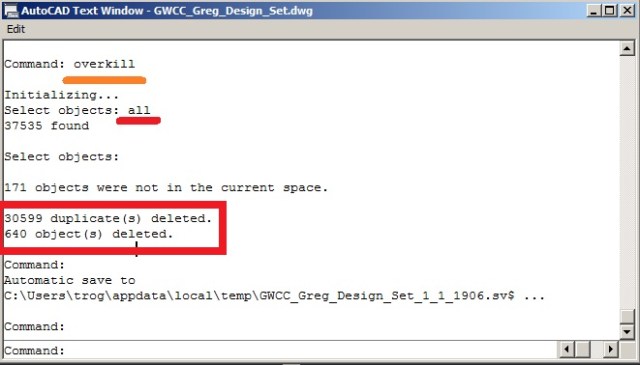
I received a .dwg file that was not made with  and Autodesk product. It was converted from a program called VectorWorks to a .dwg format. When I received the file, the file size was 7.96 mb and contained 37525 objects. After I ran the Express Tool OVERKILL, it deleted 30599 useless/overlapped objects and reduced the file size to .98 mb. and sped up the computer’s performance a lot.

To do this:

  • OVERKILL <enter>
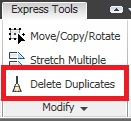
  • Or on the Ribbon: Express Tools > Modify panel > “Delete Duplicates” button

  • ALL <enter> to select all objects in the drawing
  • <enter> once more to accept the selection set

The OVERKILL dialog box is where you can see all of its glorious power. Here you can tell OVERKILL to ignore certain properties and at the bottom is where my favorite features are located. Polylines that have too many vertices will be simplified and overlapped objects of the same layer and length will be deleted.

  • After choosing your settings, click OK and wait. On the file that I cleaned up using OVERKILL, it took a couple of minutes because it was just that bad of a drawing…

I would suggest using this command along with PURGE and maybe even an AUDIT just to be safe. You may want to use this before sending this to other people or before you file away a completed project just to reduce the file size. So try this on a file and see if it speeds up you life. It surely worked for me.

To clarify what the “settings” dialog box does:

The upper portion called “Object Comparison Settings” are all unchecked by default. These are properties that if checked, Overkill will ignore. The “Numeric Fuxx” is the “Fuzz factor” and it is set to 0 (zero) by default. This looks for how closely objects are overlapped. So if you have two lines that look overlapped, but one is ever so slightly off – you can increase this “fuzz factor” and overkill will look for objects that are ever so slightly overlapped.

Posted in Express Tools, Settling In, TIPS | 6 Comments

Easy Way To Speed Up Your Computer

With a simple setting change, my computer is easily twice as fast. AutoCAD starts up about 3 times faster and when working on projects in AutoCAD, Revit & SketchUP I have noticed an amazing difference.

To do this, you need to change your computer’s theme. The default Windows theme is called an “Aero” theme which looks really cool. At the top & bottom of an open document or program or even a window, there is a cool transparency effect… Well, this cool effect is sucking up you needed graphics memory. So all you need to do is change to a “Basic” theme and you will be loving your computer once again. you may feel a little retro with the style, but there aint nothing retro about the speed at which you’ll be working.

In the above picture, notice the transparency of the “Aero” category of themes.

To change this: Click the “Start” button > Control Panel > Appearance & Personalization (Change the Theme). You will see a window like the picture below. Select a “Basic” theme. You can still have a custom custom background picture… It’s just that the “theme” or appearance of an open folder or a program will appear differently.

Now go and enjoy your faster computer!!!

Posted in TIPS | 19 Comments

Rotating your UCS

Thanks to LIZ for this tip. Hope it helps…

If you’ve had a drawing that isn’t completely based around 90 degree angles, this tip will halp you from tilting your head and straining you neck…

The drawing shown above has about 1/3 of the plan in an angle other than the 90 degree angle that makes drafting easier. This drawing was done before I knew how to rotate the UCS and match the view of the screen. So this drawing may look nice but is not correct. This could have been avoided if would have done what this tutorial is going to teach… So lesson learned…

Why is this helpful?
When you have the UCS rotated and the view to match, you are able to turn on ortho and draw correct lines that match the needed angle without having to set various polar angles and having to process over think perpendicular walls to that angle.

  • How do you do this?
    First set the UCS (User Coordinate System)
    UCS <enter>
  • 1st click specifies the new axis location for the UCS
  • 2nd click specifies the new angle of the X axis (as seen below)

The 3rd click specifies which side of the new X axis will the Y axis be facing. The cursor (cross-hairs) should now be aligned with the new specified angle (as seen below)

  • You can work this way and Ortho will draw lines accurately lined up with this new angle, but you may start to tilt your neck or got sick of the way it looks. To rotate the view to match the new UCS angle:
  • PLAN <enter>

in the command line you will see options and one should say <Current> just hit <enter> to accept this option and your plan-view will now rotate to match the “current” UCS.

To switch back to your normal UCS and rotate you view to match:

UCS <enter>

P <enter> (for previous)

PLAN <enter>

<enter> to accept <Current>

Posted in TIPS | 44 Comments

Line-Type Scale

When you are in Model-Space, and place a dashed line, you may not see the dashed line. In order to see the dashed line, you need to adjust the LTSCALE (Line Type Scale). The scale factor that you set when you did MVSETUP established the drawing scale factor and knowing the scale factor will help your linetype to appear correctly.

As a general rule: the LTSCALE should be set to half of your drawing “scale factor” in order to see your dashed lines to appear correctly. In the animated picture, my drawing “scale factor” is set to 48 so I set my LTSCALE to 24 and then I was able to see my dashed lines in model space.

Drawing Scale Factors available in MVSETUP:

  • (480) 1/40″=1′
  • (240) 1/20″=1′
  • (192) 1/16″=1′
  • (96)  1/8″=1′
  • (48)  1/4″=1′
  • (24)  1/2″=1′
  • (16)  3/4″=1′
  • (12)  1″=1′
  • (4)   3″=1′
  • (2)   6″=1′
  • (1)   FULL

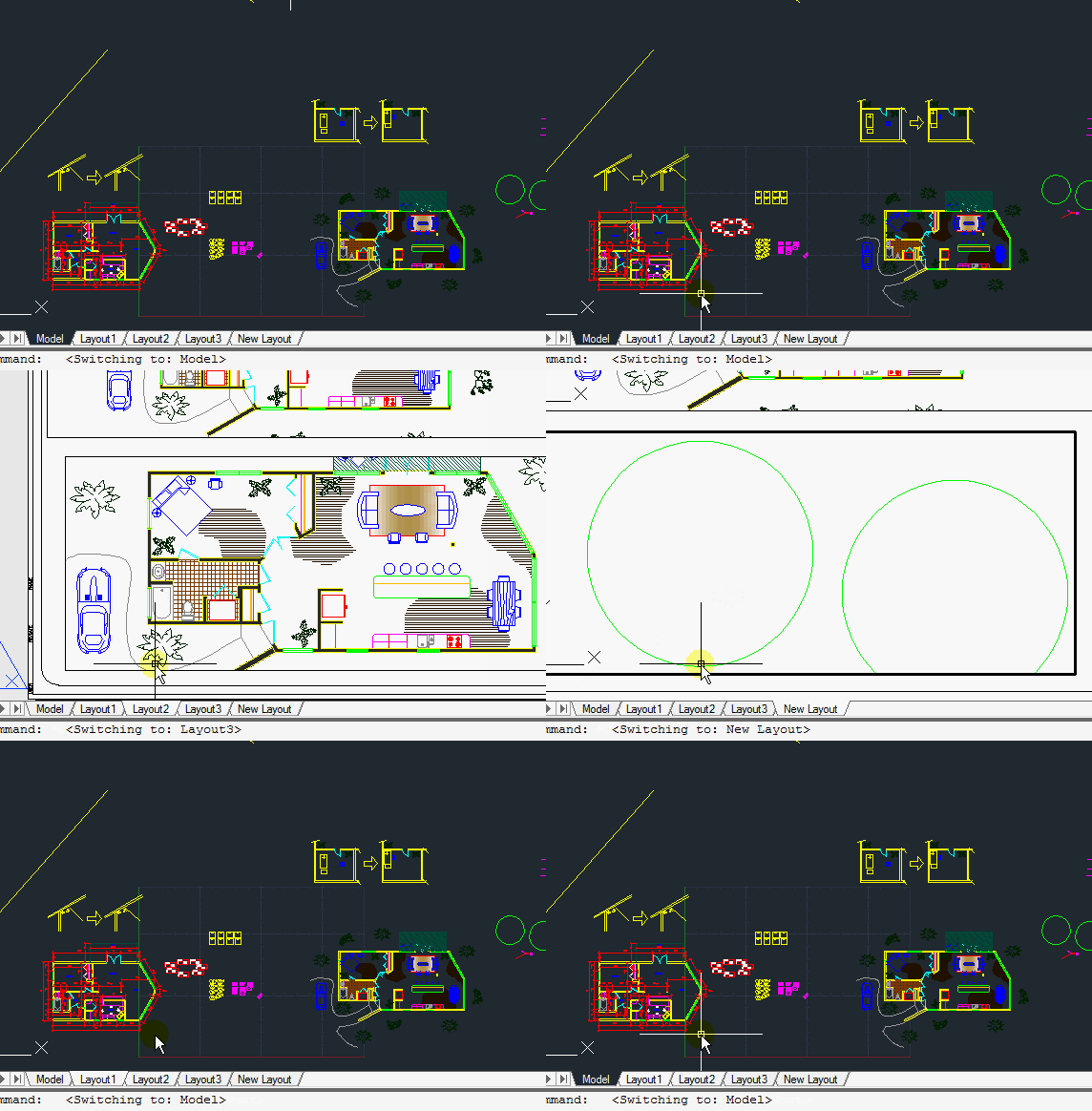
I then went to a layout tab and noticed that my dashed line did not appear correctly in the viewport. So I hover the cursor over the viewport and then entered MS <enter> to activate that viewport and am now in Model Space. While in the viewport, I set try setting 2 variables “MSLTSCALE” & “PSLTSCALE.” After setting the variable, I entered RE <enter> to regenerate the drawing so that I can see the changes. To be honest, I try these two variables until one of them works and usually the PSLTSCALE variable works. And I change the variable to the opposite of what it was et to. So either <0> or <1>.

  • These variables are either On or Off – <0> (zero) = off, <1> = on


Here is a description for the variables:

MSLTSCALE

  • Scales linetypes displayed on the model tab by the annotation scale.
  • <0> Linetypes displayed on the Model tab are not scaled by the annotation scale
  • <1> Linetypes displayed on the Model tab are scaled by the annotation scale
  • Note: MSLTSCALE is set to 0 when you open drawings created in AutoCAD 2007 and earlier.

PSLTSCALE

  • Controls the linetype scaling of objects displayed in paper space viewports.
  • 0 No special linetype scaling. Linetype dash lengths are based on the drawing units of the space (model or paper) in which the objects were created. Scaled by the global LTSCALE factor.1\Viewport scaling governs linetype scaling. If TILEMODE is set to 0, dash lengths are based on paper space drawing units, even for objects in model space. In this mode, viewports can have varying magnifications, yet display linetypes identically. For a specific linetype, the dash lengths of a line in a viewport are the same as the dash lengths of a line in paper space. You can still control the dash lengths with LTSCALE.
  • When you change PSLTSCALE or use a command such as ZOOM with PSLTSCALE set to 1, objects in viewports are not automatically regenerated with the new linetype scale. Use the REGEN or REGENALL command to update the linetype scales in each viewport.
Posted in BASICS, Layout, TIPS | 14 Comments

Tab thru Layout Tabs

Here’s a quick tip:

Hold the CTRL button and then hit the PAGE-UP or PAGE-DOWN buttons to “tab” through your layout tabs.

Posted in Layout, TIPS | Leave a comment

Copy, Re-order, and Rename Layout tabs

Here is a quick tip. After you have your layout setup the way that you want, as in the previous post, you can simply copy the layout tab and modify the viewport and text accordingly. This will save you a ton of time instead of going through the Layout Wizard process, inserting a title-block, filling in needed text….

To do this:
(The following steps follow the animated picture in this post)

  • Right click the Layout tab, click “Copy or Move…” from the right click menu.
  • When the “Move or Copy” dialog box opens, click the check-box in the lower left in order to make the copy.
  • Click “OK”

To move the new tab (to re-order):

  • Left-click and hold the mouse over the tab that you want to move.
  • Drag the tab to the new position and release the mouse.

To Rename the Layout tab:

  • Right click over the tab be renamed.
  • Select “Rename” from the right click menu.
  • Type the new name for the Layout tab. When you are done typing, click outside of the tab.
Posted in BASICS, Layout, Text | 8 Comments

Adding a new Layout

Creating layouts and viewports have been around for a while; Viewports were introduced in Release 12 (1992), even though they functioned differently than what is commonly used as viewports today… The Layout function was introduced in Release 2000 (1999). So they are not new to AutoCAD, yet it is amazing how many times I hear or read of companies/individuals who do not use the power of “Paper Space.”

Here is how to make a new Layout (with its own Layout tab)


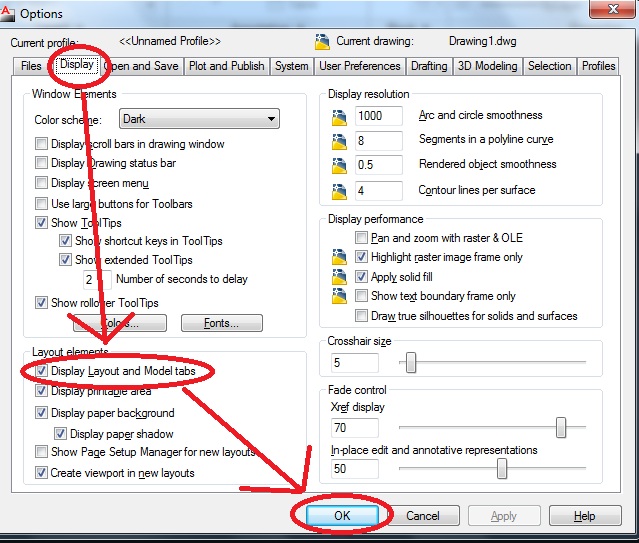
First off – If you do not see the default layout tabs, you may want to turn these on. enter OP<enter> to open the OPTIONS dialog box (or OPTIONS<enter>). Click the “Display” tab and then check the box next to “Display Layout and Model tabs” then click “OK” (seen below)

The easy way to make a Layout where you are confident in its settings is using a “wizard.” Some people are Wizard snobs and think that wizards are lame. But these wizards are very helpful. After all, our job requires us to strive for CLARITY & ACCURACY, not trying to be considered cool with the way we set up a layout…

After you go through the steps of the wizard and have your Layout, you can simply copy it and use it again without going through the wizard again.

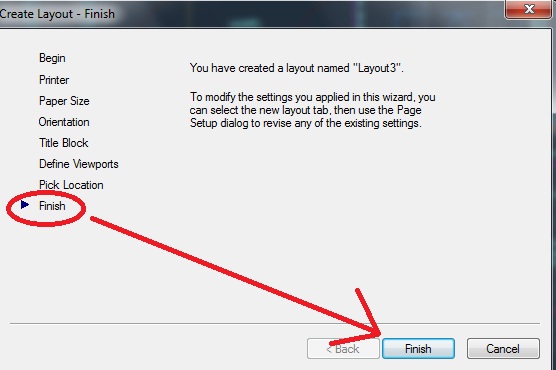
To start the wizard: type LAYOUTWIZARD <enter> in the command line. Notice when the dialog box appears, that there are 8 steps and the good thing about the wizard is that you have the “Next” & “Back” buttons at the bottom of the dialog box so that you can easily go back and make corrections…

If you are using the “MENUBAR” go to the “Insert” tab > “Layout” fly-out > “Create Layout Wizard” to start the wizard that way as well. (as seen below)

Step 1 is to name your new layout tab. By default, AutoCAD will give you 2 generic layouts and given them generic names.

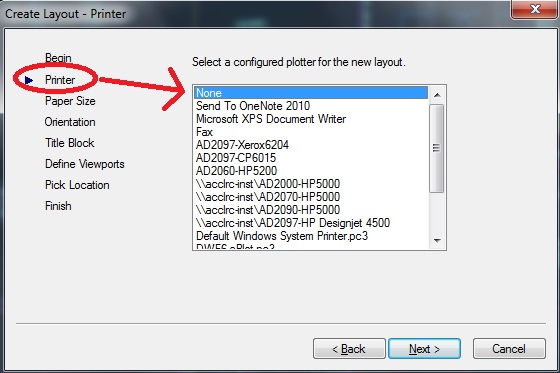
Step 2 is to assign the printer/plotter that you plan on using when printing this layout. If you are not connected to that  plotter or away from the office, use the “None” option. This way you have all of the sheet sizes available to you. Otherwise assign the plotters accordingly.

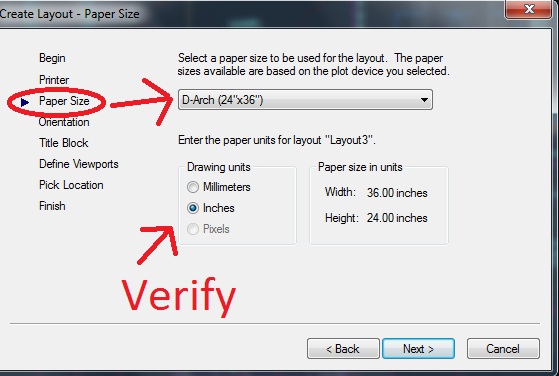
Step 3 is to choose the sheet size that you plan on plotting to. It is important that you choose the correct size because there are a lot to choose from. If you are doing and architectural drawing make sure that you choose the “ARCH” prefix. And don’t choose the “oversize” if available either.

Step 4 is to assign the orientation of the sheet. “Landscape” or “Portrait” are the options. Choose the “Landscape” option if it isn’t already selected.

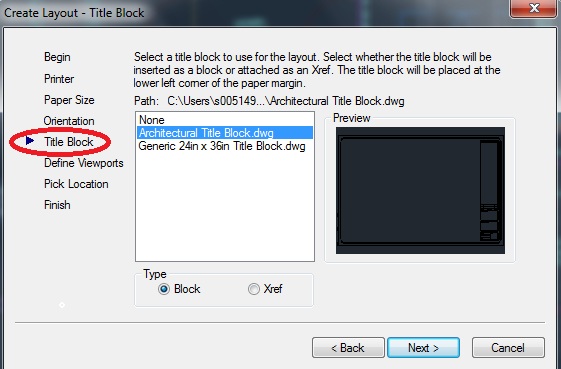
Step 5 is to assign a title-block to your layout. If you have your own title-block and it is not shown in the list, select the “None” option and insert it as a block later on. I will choose the generic title-block provided by AutoCAD for this tutorial.

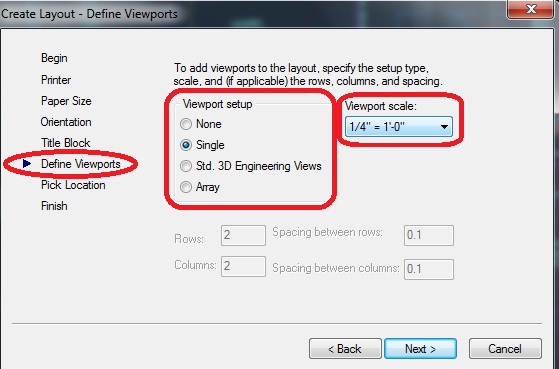
Step 6 is where you can setup a viewport. To be honest, sometimes this is a pain so I don’t do much setup in this portion. What I do is set the viewport later. But you can define the # of viewports and even set their scale before even placing them.


Step 7 Pick Location (Select Location ) Temporarily puts you in your new layout so that you can pick 2 points (like a rectangle) that will be the new viewport. After the 2nd point is picked, it will put you back in the Wizard. If you don’t click the “Select Location” button, it will place it for you and you will need to adjust it later to work for you.  


Copy a LAYOUT – After you have a layout setup the way that you want, and you want to copy the setting from that layout, Right click the layout tab that you want to copy and select “Move or Copy…” 


To copy a layout, make sure that the copy checkbox is checked. If you don’t do this, you will only move the layout. In this dialog box, you can select where you want the new layout tab to be placed. 

Posted in BASICS, Layout, TIPS | 12 Comments

Block Count

Here’s a way to count the blocks in your drawing.
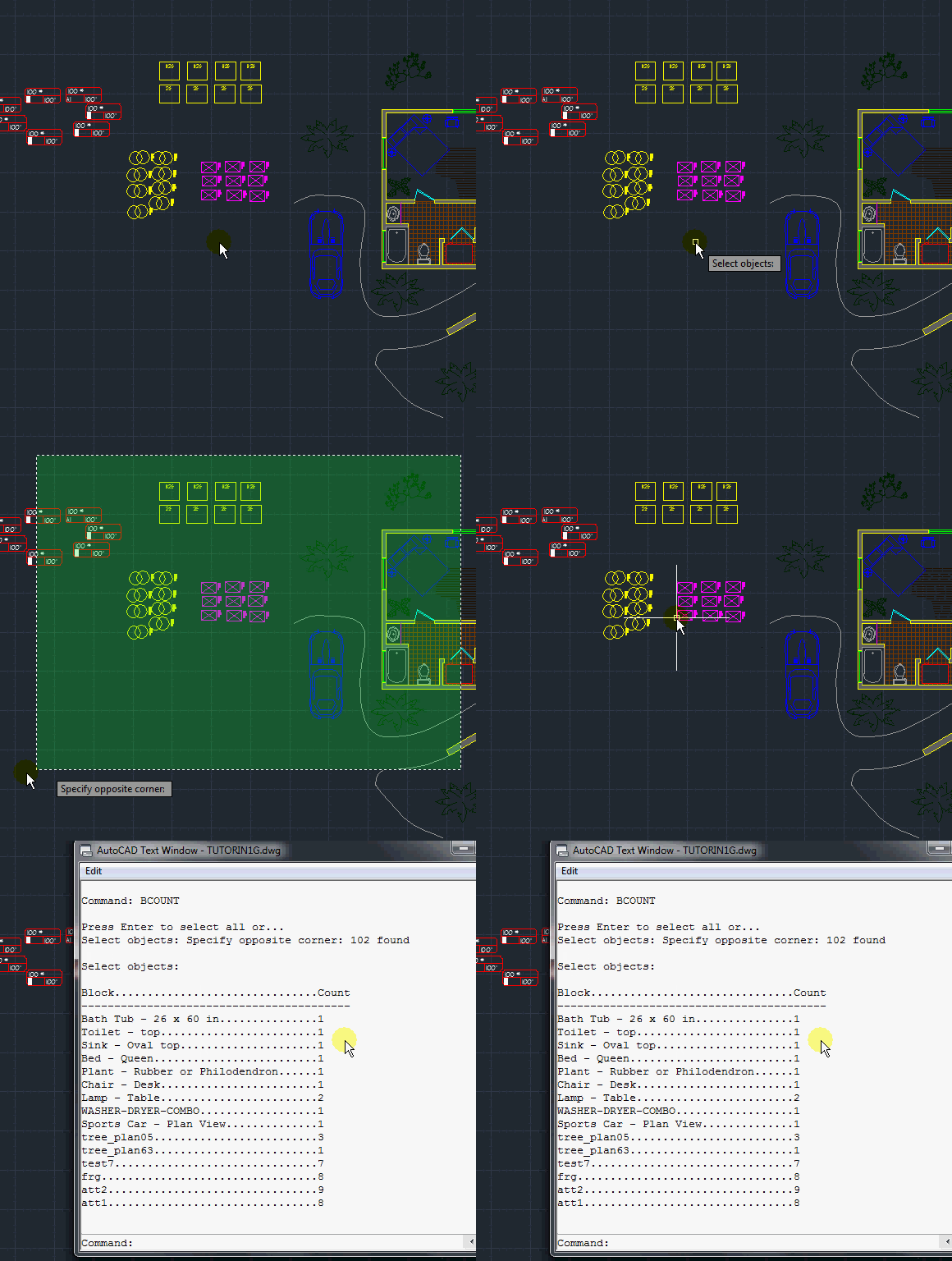
Use the command BCOUNT and you can individually select blocks, use a window selection or type ALL at the command line and every block in your drawing will be selected. After you make your selection set, hit <enter> and in the command line, a list will show the name of the block and the number of occurrences the block either appears in your selection set or if you entered “ALL,” it will show how many times every block appears in your drawing.

To see a more full list, hit F2 and a window will pop up. This window is your command line in a bigger format and it allows you to see your command history more easily. And in this case, allows you to see your list of blocks better.

From this list you can select the list and copy and paste it into a text editor if you needed a text file of your blocks (just an idea…)

(I promise, that when I figure out how to post code using the blog editor, I will post some AutoLISP/VisualLISP codes that do a better job at counting blocks)

Posted in Blocks, TIPS | 18 Comments