Set the Default Hatch Pattern

Link to original Post at www.autocadtips.wordpress.com

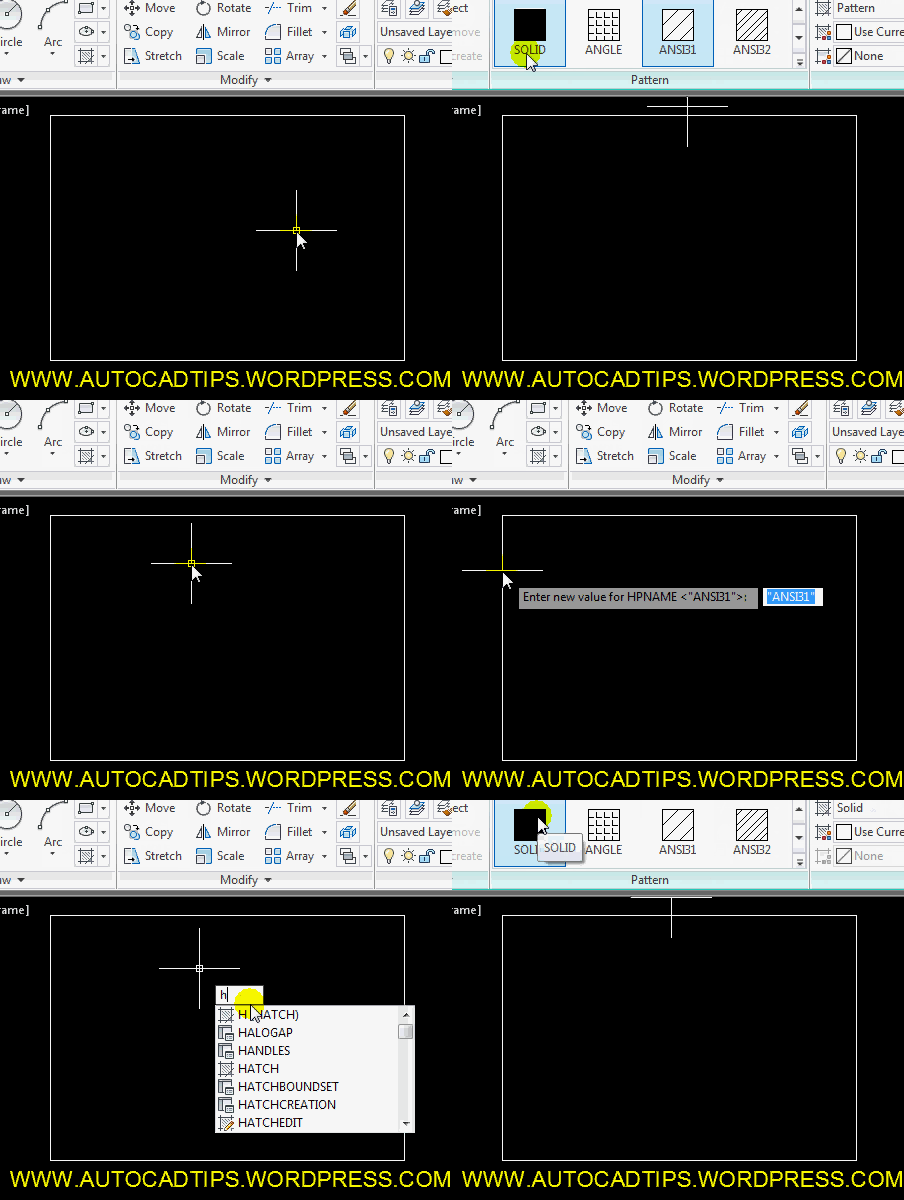
If you have ever used a lot of hatch patterns in a drawing, you’ll understand the frustration of setting a default hatch pattern. Here’s the scenario: Say you use the “SOLID” hatch pattern almost exclusively, so when you are in the hatch pattern dialog box or ribbon you set this hatch pattern as current. The next time you use the hatch command, the “SOLID” hatch pattern is the current hatch pattern and you are happy… But then you close that drawing and come back to it at a later time. When you start the hatch pattern it reverts to the default of “ANSI31” and you have to set the default to “SOLID” again…

This is a frustrating everyday annoyance that has only one solution. And that is to add a “setvar” for this in your acad.lsp file if you have one.

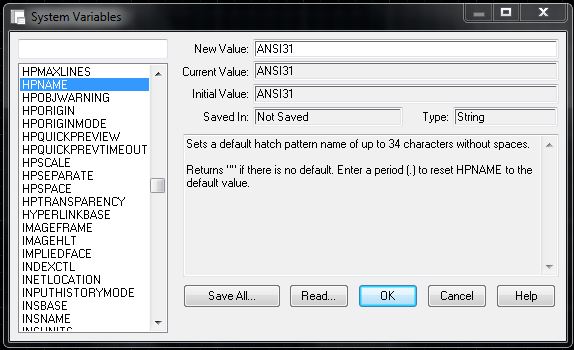
The system variable is called HPNAME (Hatch Pattern NAME)

Beware: When you change this variable from the command line, you are prompted to enter the NAME of the hatch pattern that you want to set as the default but you have no way of navigating to see what hatch patterns are available. So you have to know the name prior to starting the command.
This variable is not store in the registry or in the drawing. That’s why it always resets to ANSI31. So if you want to add a line to your acad.lsp file it will look like this:
(setvar “HPNAME”  “SOLID”)

If you do not plan on using an acad.lsp upon the startup of AutoCAD, the quickest way to set the default hatch pattern is not to use the command “HPNAME” in the command line. The fastest way to simply start the HATCH command or H <enter> and then select the hatch pattern from either the dialog box or ribbon.

Posted in Customization, Hatch | 7 Comments

The Select and Previous Commands in AutoCAD

http://wp.me/p1aURt-kp

Of coarse there is the PICKFIRST system variable that lets you select objects first, before starting a command… But here is another option for creating a selection set that is reusable. This command is aptly called the “SELECT” command and is a command in itself.

In this post the Select command will be used to create a selection set and then the selection set will be recalled by using the “Previous” option.

But first, Here’s how to use SELECT:

  • SELECT <enter>
  • Select objects <enter> when finished selecting objects
  • <enter> onve more to accept the selection set.

Note: You will see a total of the selected objects listed in the command line when the select command is finished.

PREVIOUS option

When asked to make a selection set in a command, if you have already made a selection set  of objects, you can use those objects by entering P <enter>. This will call the Previously selected objects.

Here’s how:

  • Start a command that requires you to “select objects:”
  • When prompted to “Select objects:”
  • P <enter>
  • <enter> again to accept the selection set for the command to use.

Posted in BASICS, Modifying, TIPS | 3 Comments

Remove From Selection Set Within a Command

http://wp.me/p1aURt-kl

Here is another way to deselect objects while making a selection set. You can find the previous post [HERE] that shows how to use the SHIFT key to do something similar.

While you are in the middle of a command and you are asked to select objects, it might be easier to select everything in the drawing by entering ALL when prompted to select objects and then deselect the some of the objects that you don’t want deleted.

After a selecting set has been made:

  • R <enter> to start Removing objects from the selection set
  • Then select objects that you want removed from the selection set.

Note:This tip is not limited to using the ERASE command or using the ALL option when selecting objects. They are just examples of its use.

~enjoy

Posted in BASICS, Modifying, TIPS | Leave a comment

AutoLISP: Bump Attributes Values

Here is another Lee-Mac routine. This routine is not on Lee’s website but is from the Augi forums [found here].

http://wp.me/p1aURt-kg

This routine is pretty awesome for moving attributes up or down in position. It will not “move” the entire attribute, it will move the VALUE only. The trick for this routine to work is to select the attributes in the order that you would like them to be “bumped” and to make a block for each of the attribute types. What I mean by “types” is shown in the example below: I have an example of a generic revision section for a title block. Let’s say that I want the most current revision to be located in the lower right of the revisions. So I need a way to move the previously made revisions up one space so that I can enter the new revision in its proper place. The thing that might be confusing for this routine to work is that each “type” of revision needs to be its own block. So the attributes for “Revision Name” needs to be its own block and the attributes for “Revision Description” needs to be its own block etc.

The beauty of this routine is that it is universal. You can use it on any block with attributes without having to know specific attribute tag names…

Here’s how:

  • BUMP <enter> to start
  • Select the Attributes  that you want to “BUMP”
  • Hit the + or – keys to move the attributes (plus or minus)

; found at http://forums.augi.com/showthread.php?t=130526&page=2
; by Lee-Mac
; This will "bump attributes in the order that they were selected
; great for title block revisions...
(defun c:bump ( / a g ) ;; Lee Mac 2011
(cond
( (setq a (ssget "_+.:S:E:L" '((0 . "INSERT") (66 . 1))))
(setq a (vlax-invoke (vlax-ename->vla-object (ssname a 0)) 'getattributes))
(princ "\nPress [+/-] to Bump Attributes Up & Down. <Done>")
(while (member (setq g (grread nil 10)) '((2 45) (2 95) (2 43) (2 61)))
(mapcar 'vla-put-textstring a
(mapcar 'vla-get-textstring
(if (member g '((2 45) (2 95))) (cons (last a) a) (append (cdr a) (list (car a))))
)
)
)
)
)
(princ)
)
(vl-load-com) (princ)
Posted in Attributes, AutoLISP, AutoLISP: Attributes, AutoLISP: Blocks, AutoLISP: Manage, AutoLISP: Modify | Leave a comment

AutoLISP: Control Xref Color

http://wp.me/p1aURt-jY

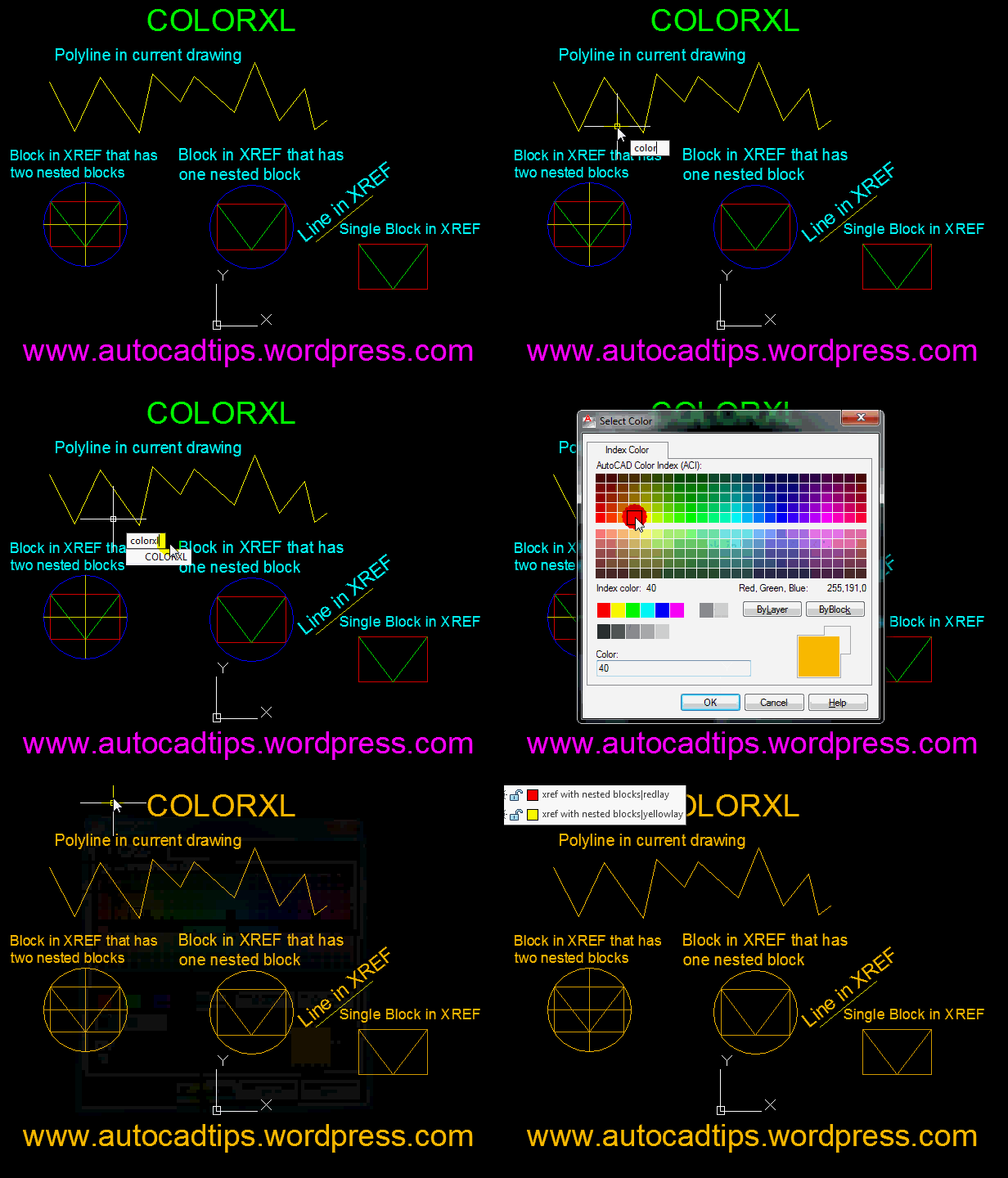
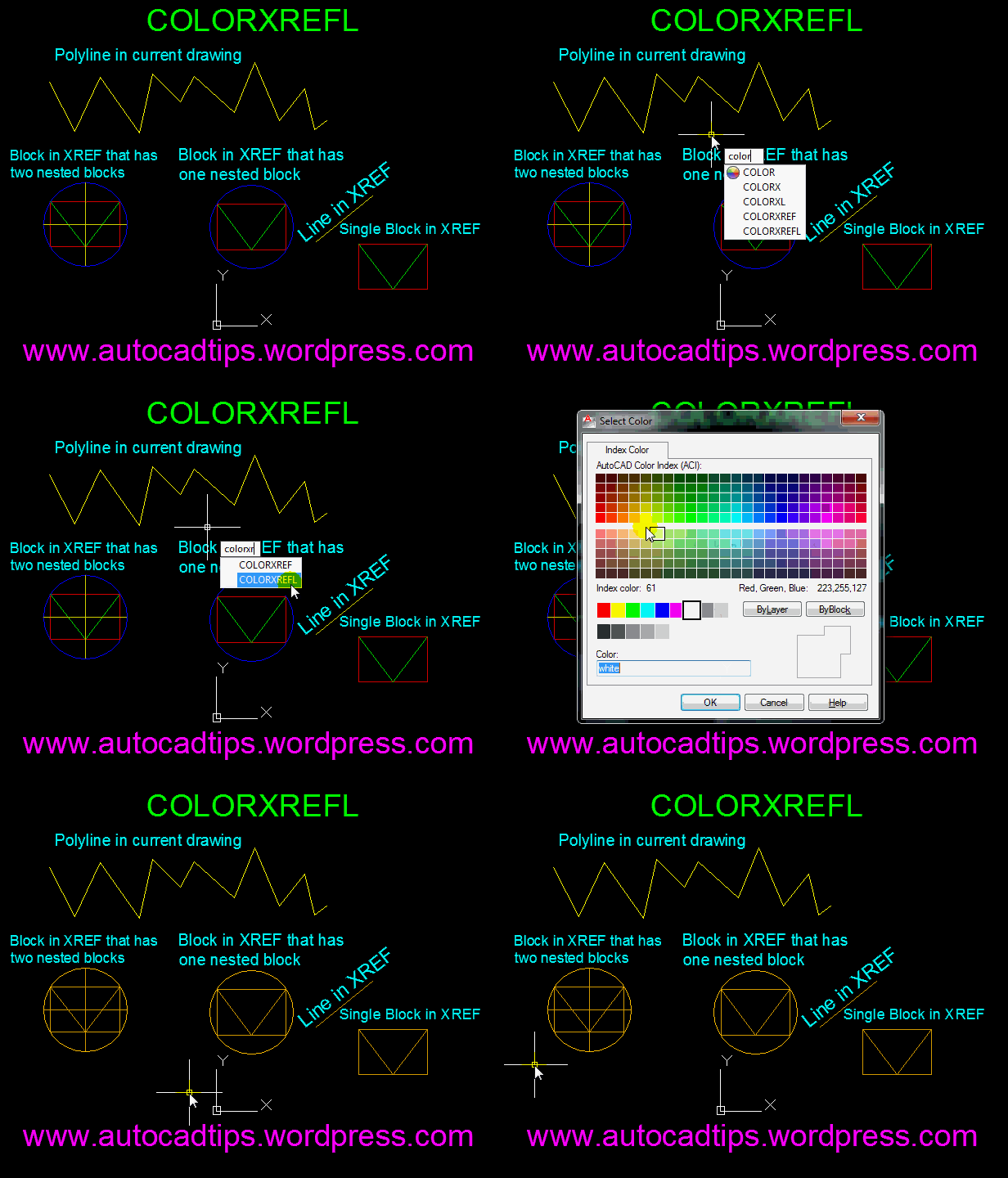
Here is a handy routine that has 4 functions in it. To be honest I don’t know why there are 4 functions – I can understand why 2 of them would be helpful. But it’s always nice to have options…

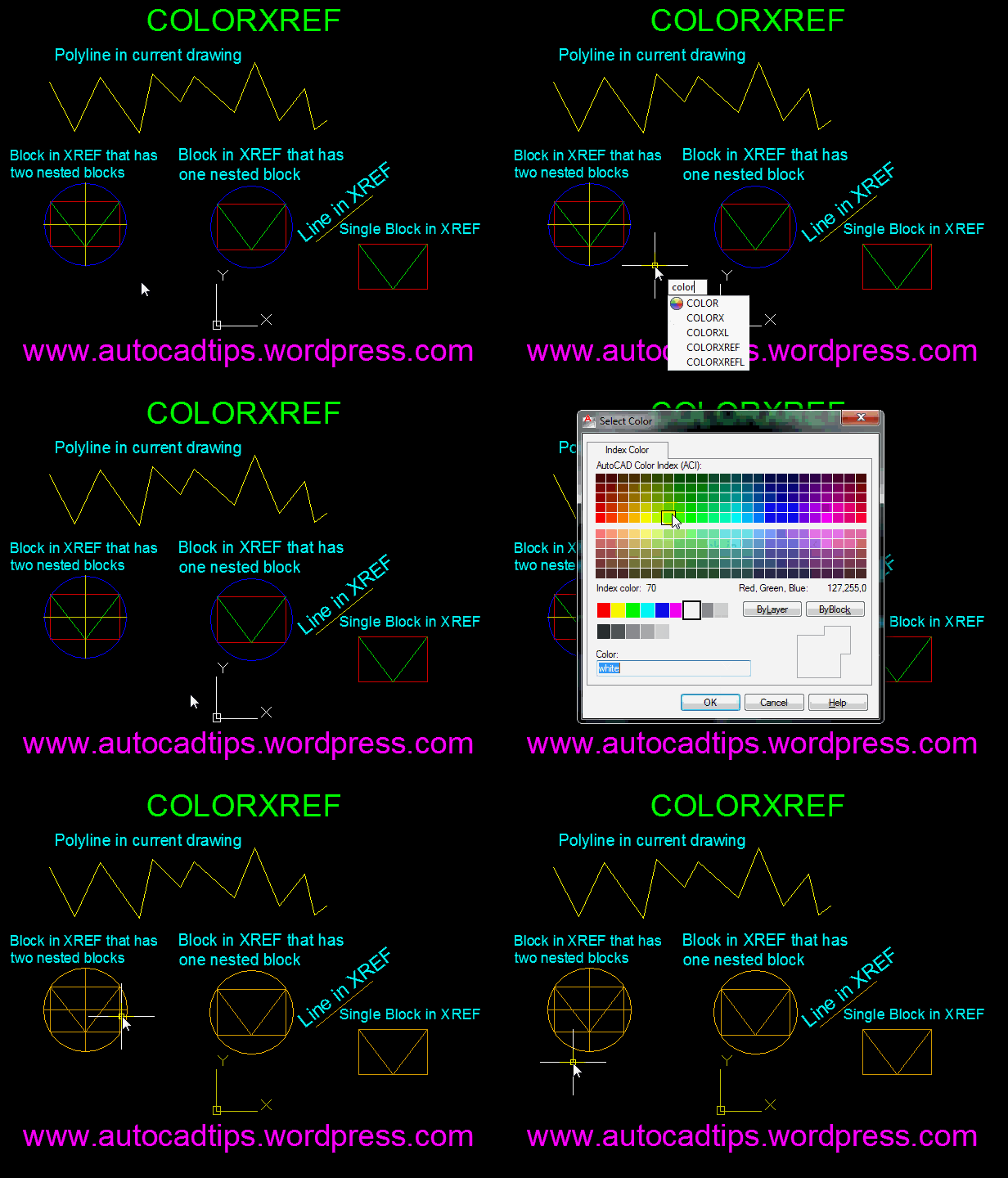
These routines will control the color of your XREFs. It is sometimes helpful if your entire XREF is a single color so that it is easier to distinguish between your current drawing. Or if you want to have more control over how your XREF looks when it is plotted.

The 4 functions in this routine are:

  • ColorX – change color all object of drawing. All layer unlock and thaw
  • ColorXREF change color xref only on a current session. All layer unlock and thaw
  • ColorXL – change color all object of drawing. Objects on the locked and frozen layers are ignored
  • ColorXREFL change color xref only on a current session. Objects on the locked and frozen layers are ignored

The 2 that I find the most helpful are COLORX and COLORXREF as these either change the entire XREF alone (COLORXREF) or change the entire model – both XREF & current drawing (COLORX).
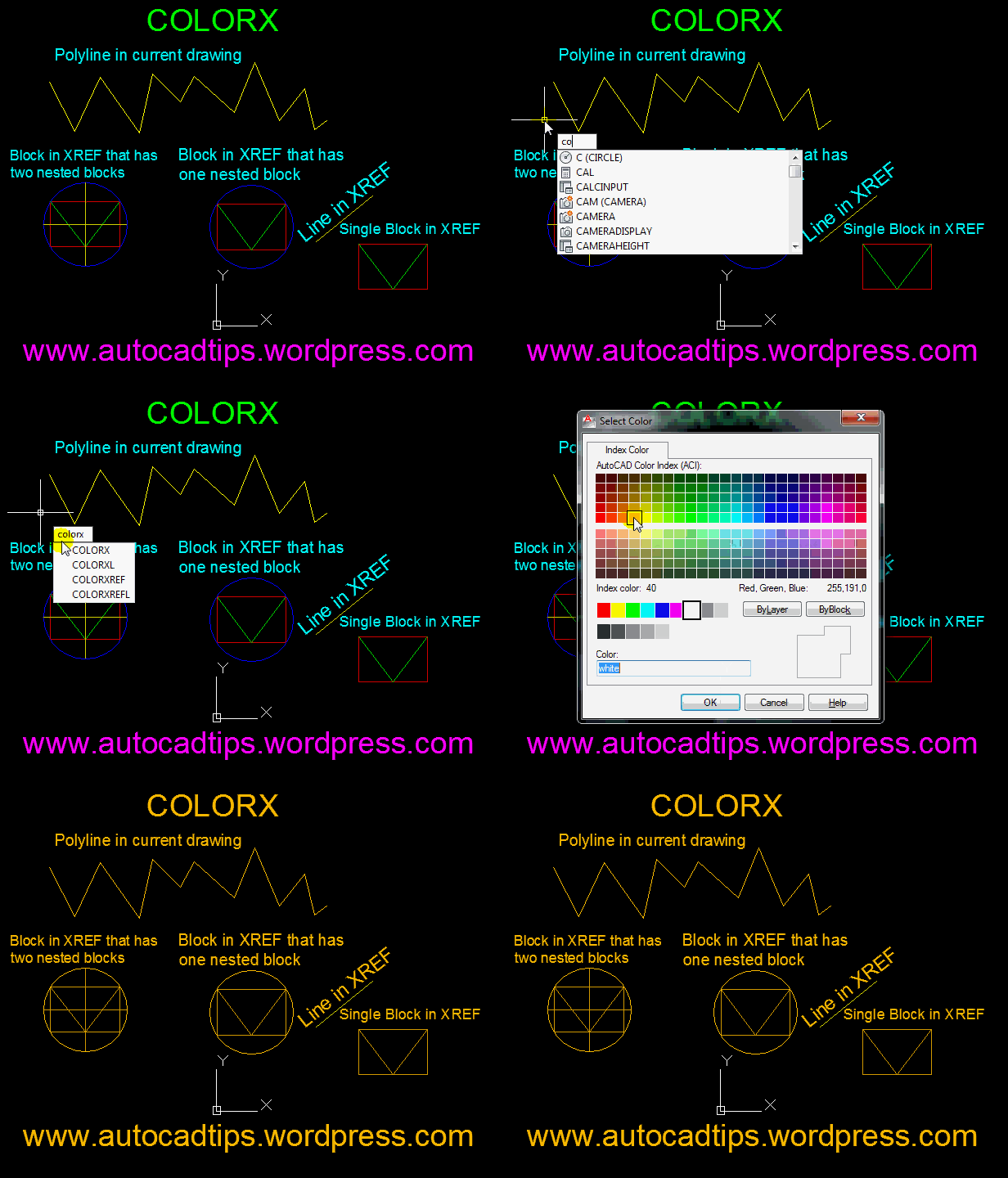
;;; Posted Vladimir Azarko (VVA)
;;; http://www.cadtutor.net/forum/showthread.php?t=533&page=2
;;;;;;ColorX - change color all object of drawing. All layer unlock and thaw
;;;;;;ColorXREF change color xref only on a current session. All layer unlock and thaw
;;;;;;ColorXL - change color all object of drawing. Objects on the locked and frozen layers are ignored
;;;;;;ColorXREFL change color xref only on a current session. Objects on the locked and frozen layers are ignored
(defun C:COLORX (/ doc col)
(vl-load-com)
(setq doc (vla-get-activedocument (vlax-get-acad-object)))
(vla-startundomark doc)
(mip:layer-status-save)
(if (setq col (acad_colordlg 7 t))
(ChangeAllObjectsColor doc col) ;_ col — color number
) ;_ end of if
(mip:layer-status-restore)
(vla-endundomark doc)
(princ)
) ;_ end of defun
(defun C:COLORXREF (/ doc col)
(vl-load-com)
(alert
"\This lisp change color xref\nONLY ON A CURRENT SESSION"
) ;_ end of alert
(setq doc (vla-get-activedocument (vlax-get-acad-object)))
(vla-startundomark doc)
(mip:layer-status-save)
(if (setq col (acad_colordlg 7 t))
(ChangeXrefAllObjectsColor doc col) ;_ col — color number
) ;_ end of if
(mip:layer-status-restore)
(vla-endundomark doc)
(princ)
) ;_ end of defun
(defun C:COLORXL (/ doc col)
(vl-load-com)
(setq doc (vla-get-activedocument (vlax-get-acad-object)))
(vla-startundomark doc)
(if (setq col (acad_colordlg 7 t))
(ChangeAllObjectsColor doc col) ;_ col — color number
) ;_ end of if
(vla-endundomark doc)
(princ)
) ;_ end of defun
(defun C:COLORXREFL (/ doc col)
(vl-load-com)
(alert
"\This lisp change color xref\nONLY ON A CURRENT SESSION"
) ;_ end of alert
(setq doc (vla-get-activedocument (vlax-get-acad-object)))
(vla-startundomark doc)
(if (setq col (acad_colordlg 7 t))
(ChangeXrefAllObjectsColor doc col) ;_ col — color number
) ;_ end of if
(vla-endundomark doc)
(princ)
) ;_ end of defun
(defun mip:layer-status-restore ()
(foreach item *MIP_LAYER_LST*
(if (not (vlax-erased-p (car item)))
(vl-catch-all-apply
'(lambda ()
(vla-put-lock (car item) (cdr (assoc "lock" (cdr item))))
(vla-put-freeze
(car item)
(cdr (assoc "freeze" (cdr item)))
) ;_ end of vla-put-freeze
) ;_ end of lambda
) ;_ end of vl-catch-all-apply
) ;_ end of if
) ;_ end of foreach
(setq *MIP_LAYER_LST* nil)
) ;_ end of defun
(defun mip:layer-status-save ()
(setq *MIP_LAYER_LST* nil)
(vlax-for item (vla-get-layers
(vla-get-activedocument (vlax-get-acad-object))
) ;_ end of vla-get-layers
(setq *MIP_LAYER_LST*
(cons (list item
(cons "freeze" (vla-get-freeze item))
(cons "lock" (vla-get-lock item))
) ;_ end of cons
*MIP_LAYER_LST*
) ;_ end of cons
) ;_ end of setq
(vla-put-lock item :vlax-false)
(if (= (vla-get-freeze item) :vlax-true)
(vl-catch-all-apply
'(lambda () (vla-put-freeze item :vlax-false))
) ;_ end of vl-catch-all-apply
) ;_ end of if
) ;_ end of vlax-for
) ;_ end of defun
(defun ChangeXrefAllObjectsColor (Doc Color / tmp txtstr)
(vlax-for Blk (vla-get-Blocks Doc)
(cond
((or (= (vla-get-IsXref Blk) :vlax-true)
(and (= (vla-get-IsXref Blk) :vlax-false)
(wcmatch (vla-get-name Blk) "*|*")
) ;_ end of and
) ;_ end of or
(vlax-for Obj Blk
(if (and (vlax-write-enabled-p Obj)
(vlax-property-available-p Obj 'Color)
) ;_ end of and
(vla-put-Color Obj Color)
) ;_ end of if
(if (and (vlax-write-enabled-p Obj)
(vlax-property-available-p Obj 'TextString)
) ;_ end of and
(progn
(setq txtstr
(if (vlax-method-applicable-p Obj 'FieldCode)
(vla-FieldCode Obj)
(vlax-get-property Obj 'TextString))
)
(setq tmp 0)
(while (setq tmp (VL-STRING-SEARCH "\\C" txtstr tmp))
(setq txtstr
(vl-string-subst
(strcat (substr txtstr (1+ tmp) 2)(itoa Color) ";")
(substr txtstr (1+ tmp) (- (1+ (VL-STRING-SEARCH ";" txtstr tmp)) tmp))
txtstr
tmp)
)
(setq tmp (+ tmp 3))
)
(vla-put-Textstring Obj txtstr)
)
) ;_ end of if
(if (and (vlax-write-enabled-p Obj)
(= (vla-get-ObjectName obj) "AcDbBlockReference")
(= (vla-get-HasAttributes obj) :vlax-true)
) ;_ end of and
(foreach att (vlax-safearray->list
(vlax-variant-value (vla-GetAttributes obj))
) ;_ end of vlax-safearray->list
(if (and (vlax-write-enabled-p att)
(vlax-property-available-p att 'Color)
) ;_ end of and
(vla-put-Color att Color)
) ;_ end of if
) ;_ end of foreach
) ;_ end of if
(if (and (vlax-write-enabled-p Obj)
(wcmatch (vla-get-Objectname Obj) "*Dimension*,AcDb*Leader")
) ;_ end of and
(progn
(vl-catch-all-apply 'vla-put-ExtensionLineColor (list Obj Color))
(vl-catch-all-apply 'vla-put-TextColor (list Obj Color))
(vl-catch-all-apply 'vla-put-DimensionLineColor (list Obj Color))
(if (vlax-property-available-p Obj 'LeaderLineColor)
(progn
(setq tmp (vla-getinterfaceobject(vlax-get-acad-object)(strcat "AutoCAD.AcCmColor."
(substr (getvar "ACADVER") 1 2))))
(vla-put-colorindex tmp Color)
(vl-catch-all-apply 'vla-put-LeaderLineColor (list Obj tmp))
)
)
) ;_ end of progn
) ;_ end of if
) ;_ end of vlax-for
)
((= (vla-get-IsLayout Blk) :vlax-true)
(vlax-for Obj Blk
(if
(and (vlax-write-enabled-p Obj)
(vlax-property-available-p Obj 'Color)
(vlax-property-available-p Obj 'Path)
(wcmatch (strcase (vla-get-ObjectName Obj)) "*BLOCK*")
) ;_ end of and
(vla-put-Color Obj Color)
) ;_ end of if
) ;_ end of vlax-for
)
(t nil)
) ;_cond
) ;_ end of vlax-for
(vl-cmdf "_redrawall")
) ;_ end of defun
(defun ChangeAllObjectsColor (Doc Color / txtstr tmp txt count)
(vlax-for Blk (vla-get-Blocks Doc)
(if (= (vla-get-IsXref Blk) :vlax-false)
(progn
(setq count 0 txt (strcat "Changed " (vla-get-name Blk)))
(grtext -1 txt)
(vlax-for Obj Blk
(setq count (1+ count))
(if (zerop(rem count 10))(grtext -1 (strcat txt " : " (itoa count))))
(if (and (vlax-write-enabled-p Obj)
(vlax-property-available-p Obj 'Color)
) ;_ end of and
(vla-put-Color Obj Color)
) ;_ end of if
(if (and (vlax-write-enabled-p Obj)
(vlax-property-available-p Obj 'TextString)
) ;_ end of and
(progn
(setq txtstr
(if (vlax-method-applicable-p Obj 'FieldCode)
(vla-FieldCode Obj)
(vlax-get-property Obj 'TextString))
)
(setq tmp 0)
(while (setq tmp (VL-STRING-SEARCH "\\C" txtstr tmp))
(setq txtstr
(vl-string-subst
(strcat (substr txtstr (1+ tmp) 2)(itoa Color) ";")
(substr txtstr (1+ tmp) (- (1+ (VL-STRING-SEARCH ";" txtstr tmp)) tmp))
txtstr
tmp)
)
(setq tmp (+ tmp 3))
)
(vla-put-Textstring Obj txtstr)
)
) ;_ end of if
(if (and (vlax-write-enabled-p Obj)
(= (vla-get-ObjectName obj) "AcDbBlockReference")
(= (vla-get-HasAttributes obj) :vlax-true)
) ;_ end of and
(foreach att (vlax-safearray->list
(vlax-variant-value (vla-GetAttributes obj))
) ;_ end of vlax-safearray->list
(if (and (vlax-write-enabled-p att)
(vlax-property-available-p att 'Color)
) ;_ end of and
(vla-put-Color att Color)
) ;_ end of if
) ;_ end of foreach
) ;_ end of if
(if (and (vlax-write-enabled-p Obj)
(wcmatch (vla-get-Objectname Obj) "*Dimension*,AcDb*Leader")
) ;_ end of and
(progn
(vl-catch-all-apply 'vla-put-ExtensionLineColor (list Obj Color))
(vl-catch-all-apply 'vla-put-TextColor (list Obj Color))
(vl-catch-all-apply 'vla-put-DimensionLineColor (list Obj Color))
(if (vlax-property-available-p Obj 'LeaderLineColor)
(progn
(setq tmp (vla-getinterfaceobject(vlax-get-acad-object)(strcat "AutoCAD.AcCmColor."
(substr (getvar "ACADVER") 1 2))))
(vla-put-colorindex tmp Color)
(vl-catch-all-apply 'vla-put-LeaderLineColor (list Obj tmp))
)
)
) ;_ end of progn
) ;_ end of if
) ;_ end of vlax-for
)
) ;_ end of if
) ;_ end of vlax-for
(vl-cmdf "_redrawall")
) ;_ end of defun
(princ
"\nType ColorX, COLORXREF, ColorXL, COLORXREFL in command line"
) ;_ end of princ
Posted in AutoLISP, AutoLISP: Blocks, AutoLISP: Manage, AutoLISP: Modify, Layers, Modifying, TIPS, Uncategorized, XREFs | 10 Comments

Super Secret: Edit Those Un-editable Blocks

http://wp.me/p1aURt-jT

This one’s for you Eric.

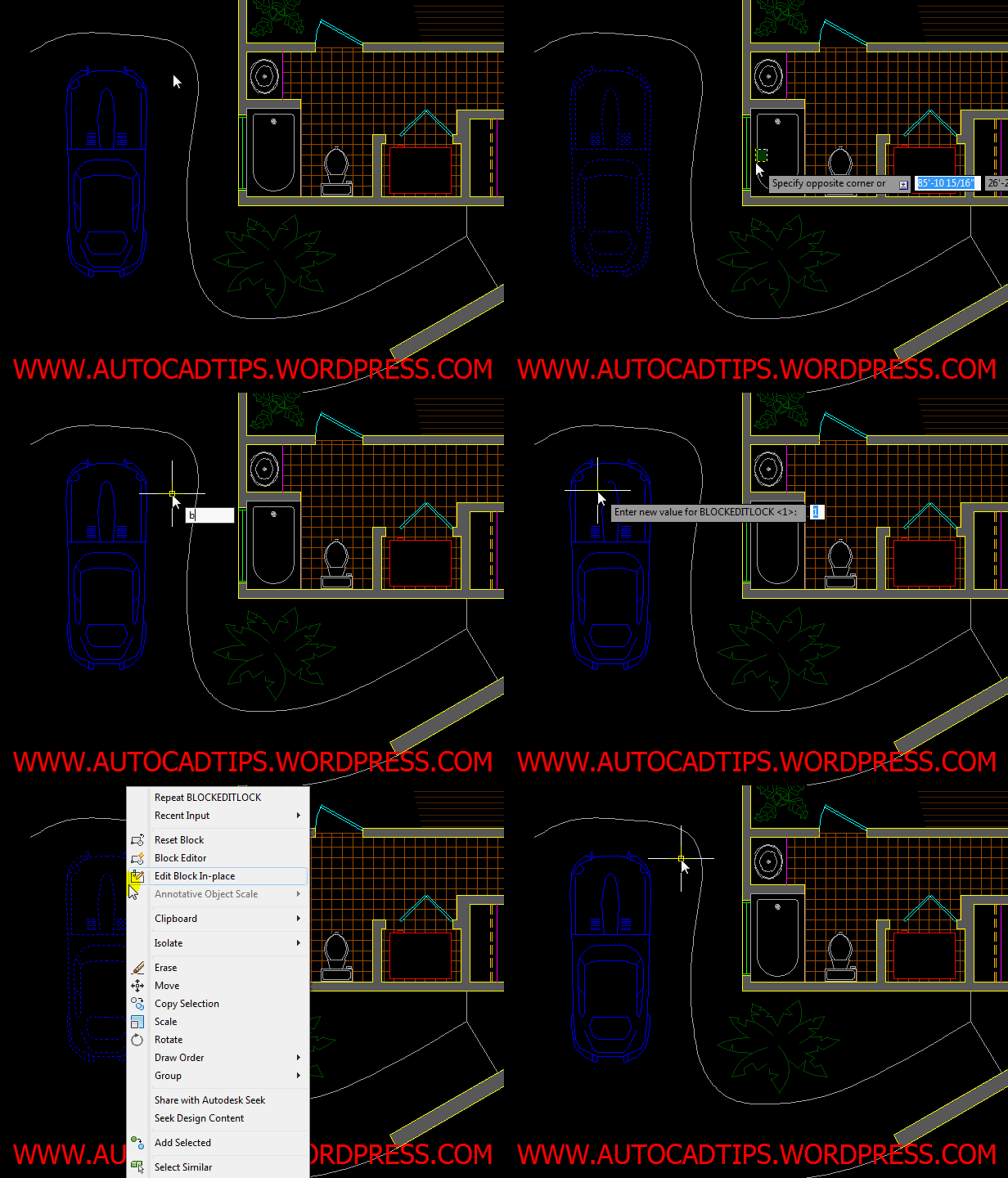
Intead of knocking over your cubicle because you can’t edit a block, there is an AutoCAD system variable that lets you lock your blocks from being able to edit them in the Block Editor. So if you cannot explode a block or edit in the block editor, this tip is for you.

  • The system variable is BLOCKEDITLOCK and can be set to either 1 or 0 (zero)
  • <0> = Off – Block Editor can be opened
  • <1> = On – Block Editor cannot be opened

~enjoy

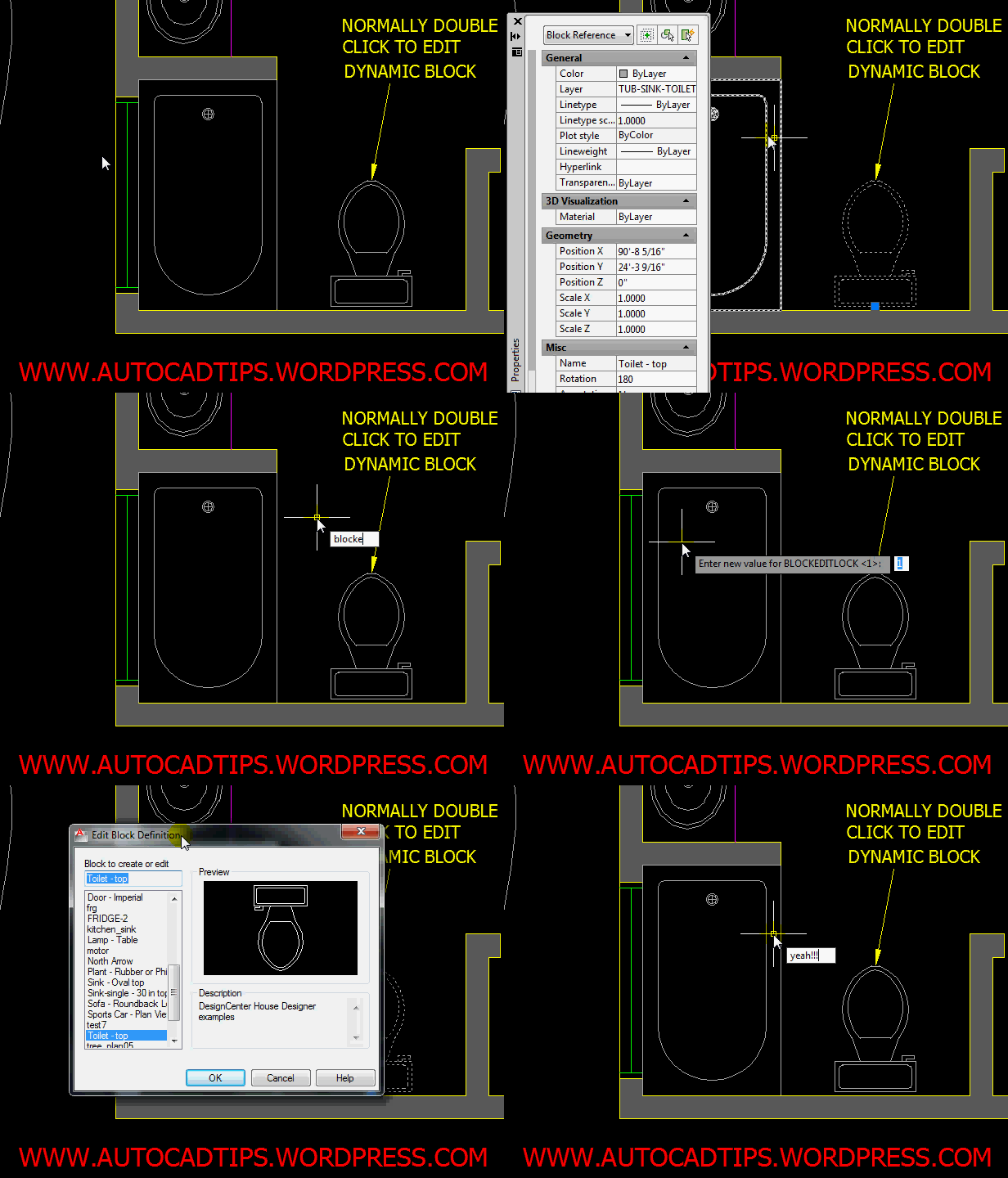
Below shows how this variable affects “Dynamic Blocks” Usually you double click a dynamic block in order to select the block from a list and then that block will open in the block editor. But with this System Variable turned on, a double-click will only bring up the properties box.

Posted in Blocks, Customization, Modifying | 8 Comments

AutoLISP: Set PSLTSCALE for All Viewports

http://wp.me/p1aURt-jN

The system variable PSLTSCALE (Paper Space LineType SCALE) has been mentioned [here] so this LISP routine is a great example of automating the process of changing this setting in all of your viewports for you.

Here’s how:

  • PS0 <enter> to start (note: PS zero, not o “oh”)

That’s it.

; Sets the Paper Space LTScale (PSLTSCALE) to zero
(defun c:PS0()
(foreach lay (layoutlist)
(command "_LAYOUT" "_Set" lay "PSLTSCALE" 0)
(command "_pspace")
(command "_zoom" "extents")
(command "REGENALL")
);end foreach
(princ)
);endPS0 (c:PS0)
Posted in AutoLISP, AutoLISP: Modify, Layout, Modifying, Paper Space, Viewports | 2 Comments

Add Annotation Scale by Match Properties

The original post can be found here:
http://wp.me/p1aURt-jH

Quick tip: This only works for ADDING annotation scales to objects, not deleting them…

I will post on how to create Annotation scales shortly.

The new Annotation scaling feature is great for the AutoCAD users who place annotations (e.g. text dimensions…) in model space. If you have multiple viewports that show the same object, yet the viewports are set to different “viewport scale factors” the whole routine to add the various scales to multiple annotation objects gets tiresome. Well not anymore….

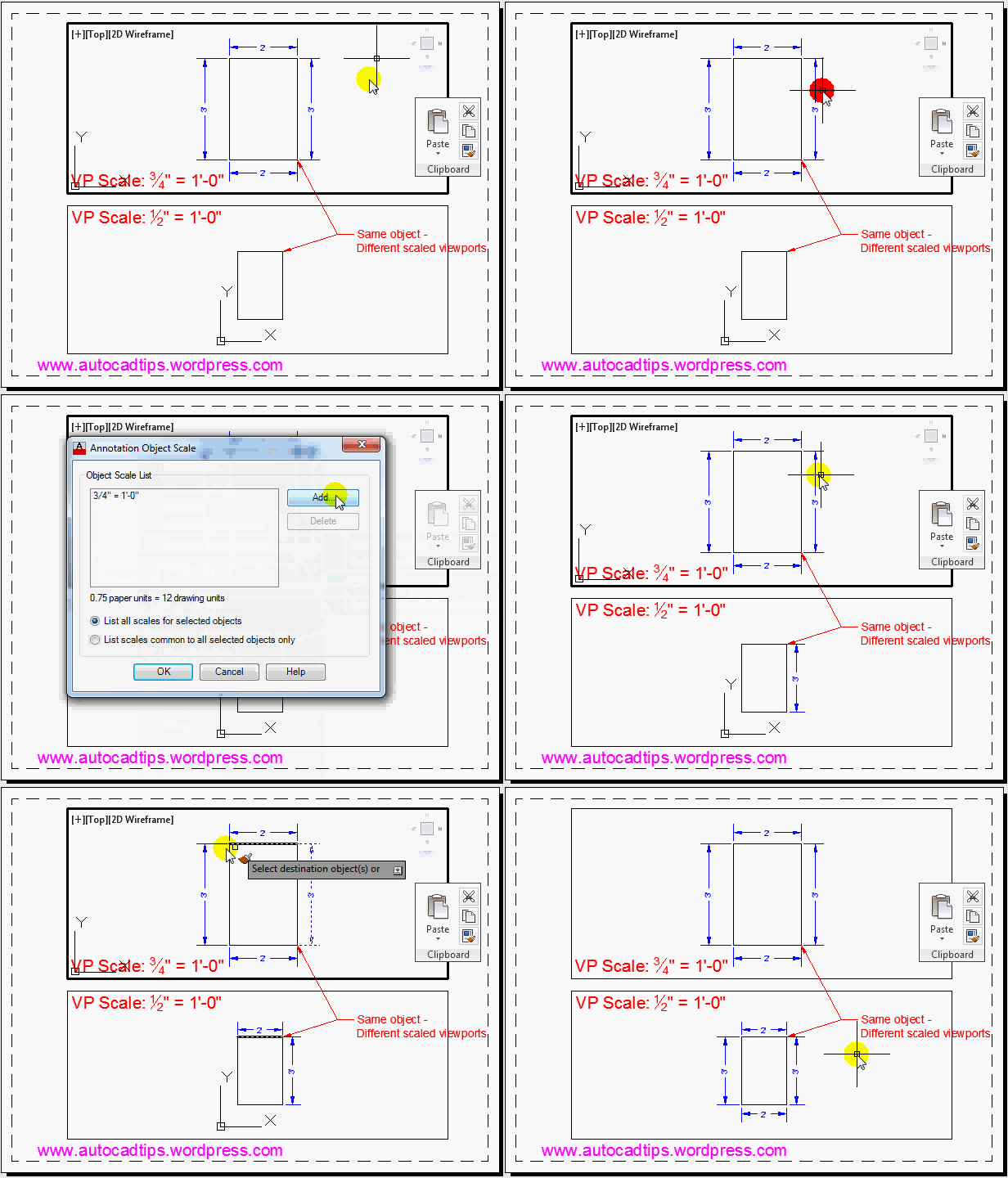
The MATCHPROP command will help save you from repeating the tedious steps when adding scale factors to your annotation objects.

The MATCHPROP command has been mention briefly here.

You can use the command MATCHPROP <enter> or

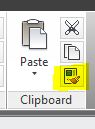
  • On the ribbon go to the “Home” tab > “Clipboard” panel (all the way to the right) > click the paint-brush looking tool (reminds me of the “format painter” found in Microsoft Office)
  • Select the annotation object that has the annotation scales currently set to it
  • Select the objects that you want to also inherit those annotation scales

~enjoy

Posted in Dimensions, Hatch, Layout, Manage, Modifying, Text, TIPS, Viewports | Leave a comment

AutoLISP: Rectangle from the Midpoint of sides

Sidenote: there is a blog that has been stealing my content without any recognition of who actually made the content and then collecting $ off its ads. Because of this, I am going to start adding watermarks in my pictures and a direct link into my posts so that if they want to modify my posts without permission, it will be very obvious that they are stealing from this blog. http://wp.me/p1aURt-jr

https://autocadtips.wordpress.com/2011/12/08/auotlisp-rectangle-from-the-midpoint-of-sides/ ‎

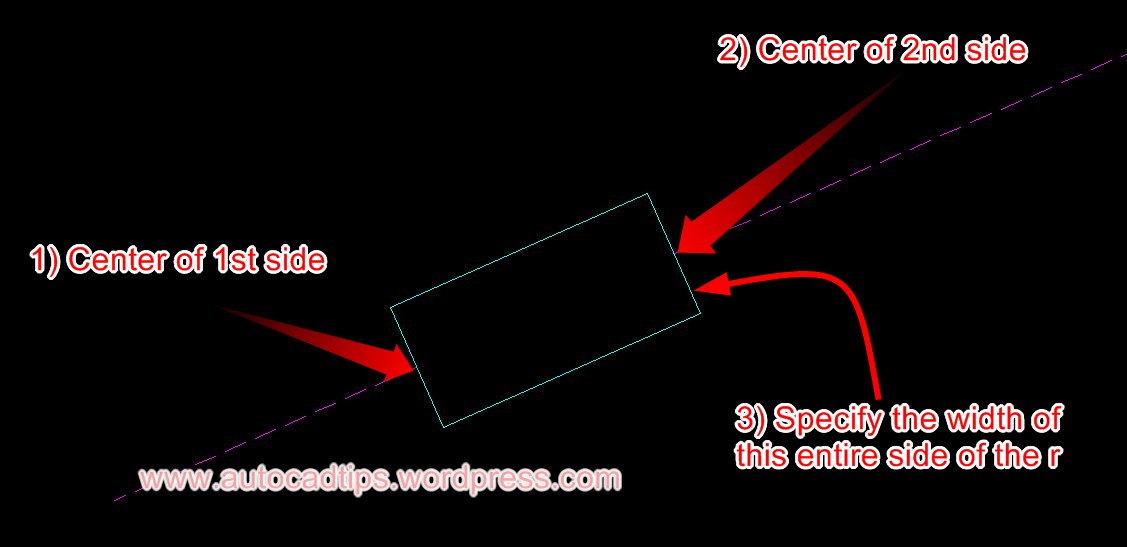
If you need create any type of lines (cable, wire, piping…) this may be a helpful routine. It simply lets you create a rectangle by picking to points that define the midpoints of the opposing sides and then define the length of those sides. the great thing is that it works at any angle.

Here’s how:

  • RECT3V <enter> to start
  • Specify the midpoint of the 1st side
  • Specify the midpoint of the 2nd side
  • Specify the overall length of the side (which will apply to both sides)

; David Bethel

; found at http://www.cadtutor.net/forum/showthread.php?63494-Lisp-for-rectangle

; Creates a rectangle from the mid points of opposing sides and then specify the length of the sides

(defun c:rect3v (/ p1 p2 d1 c1 c2 c3 c4)

(initget 1)

(setq p1 (getpoint "\nCenter Of 1st Side: "))

(initget 1)

(setq p2 (getpoint p1 "\nCenter Of 2nd Side: "))

(grdraw p1 p2 2 1)

(initget 7)

(setq d1 (getdist "\nOpposing Width: "))

(setq c1 (polar p1 (+ (angle p1 p2) (* pi 0.5)) (* d1 0.5))

c2 (polar p1 (+ (angle p1 p2) (* pi -0.5)) (* d1 0.5))

c3 (polar p2 (+ (angle p2 p1) (* pi 0.5)) (* d1 0.5))

c4 (polar p2 (+ (angle p2 p1) (* pi -0.5)) (* d1 0.5)))

(entmake (list (cons 0 "POLYLINE")(cons 66 1)(cons 70 1)(list 10 0 0 0)))

(foreach v '(c1 c2 c3 c4)

(entmake (list (cons 0 "VERTEX")

(cons 10 (eval v)))))

(entmake (list (cons 0 "SEQEND")))

(prin1))
Posted in AutoLISP, AutoLISP: Creating, Polylines | 2 Comments

Saved per Drawing or in the Registry

https://autocadtips.wordpress.com/2011/12/08/saved-per-draw…n-the-registry/

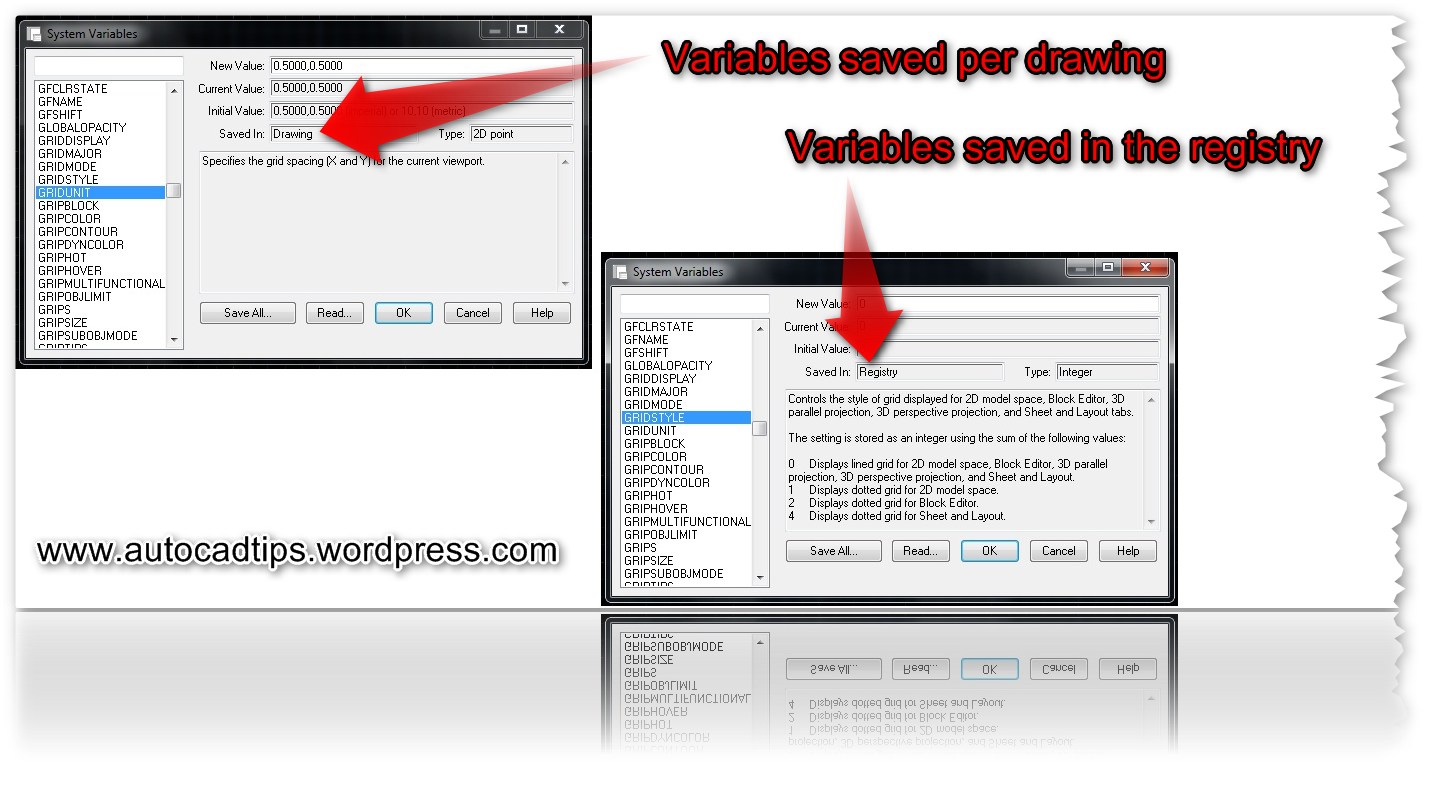
I have previously mentioned the System Variable dialog box [here] and I mentioned in another post that some system variables are either stored in a drawing or in the system registry [here]. But I just realized that the System Variable Dialog box shows what variables are stored where – either in the drawing or in the registry. So this makes guessing what variables are stored where very easy to find out.

Here’s how to get to the System Variable Dialog box:

  • SYSVDLG <enter>

Or

  • On the Express Tools tab of the ribbon > Tools panel > System variables

Why is this important? If you have ever changed a system variable while in one drawing and then moved on to another drawing and wondered why the variable didn’t carry over to the other drawing, it is because that system variable is saved per drawing. Whereas other variables are saved in the computer’s registry and will carry over to other drawings.

To set variables that are saved per drawing, it may be good to make a template that has the desired variables settings saved in it.

Variables that are saved in the registry aren’t a problem because they transfer from one drawing to another. One problem that could interfere with variables that are saved in the registry is if you are switching profiles. Profiles depend on registry settings and depending on what the profile does, it could undo a system variable.

Posted in Customization, Express Tools, TIPS | 1 Comment