

The command line is perhaps the most notable change in 2013 and I love it. It takes up less room on the screen and yet performs the same for those who don’t want change and yet performs very differently.
The rumors that you here about Autodesk planning to get rid of the command line are simply not true as demonstrated by the development of this new command line. If they were planning on getting rid of it, they certainly wouldn’t spend time on developing a new command line…
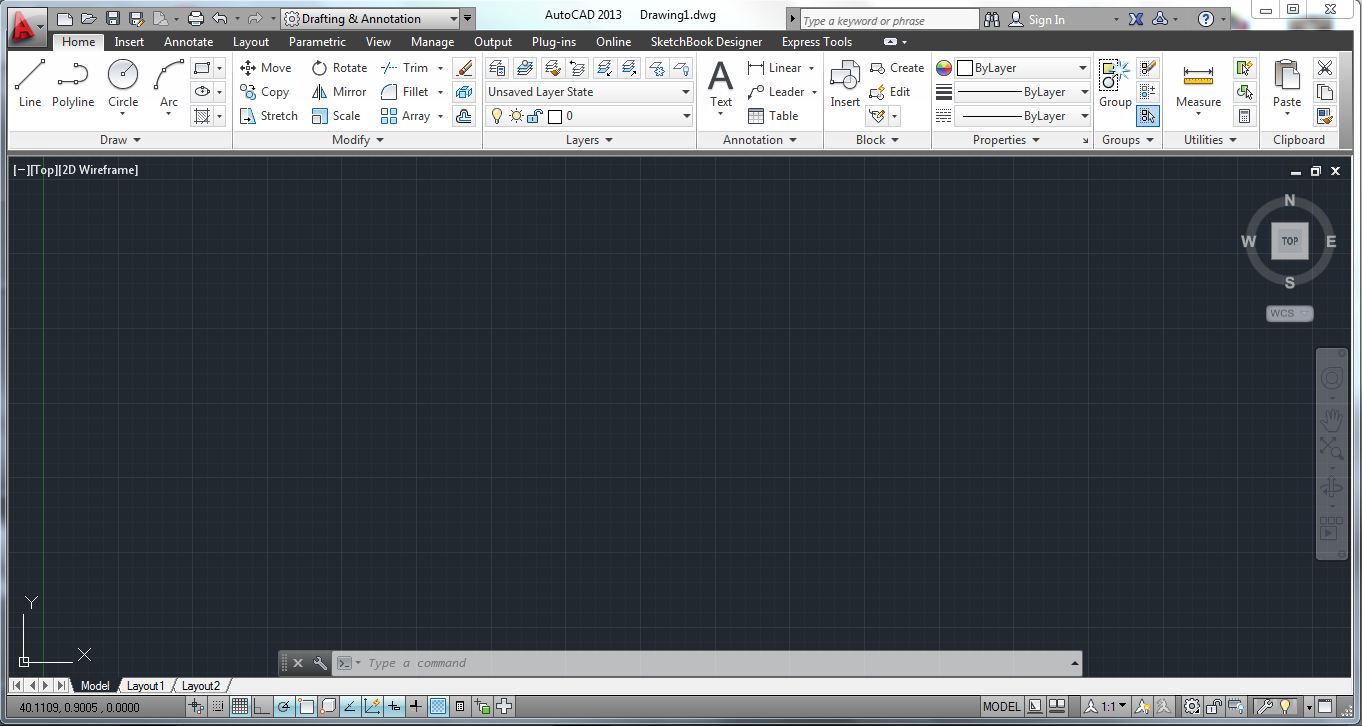
Below is a screen shot of the overall AutoCAD 2013 screen as it has been opened for the first time on my computer:

Here are some of the command line’s new features:
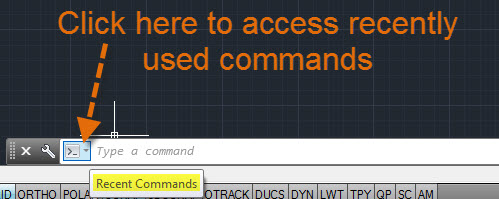
Command Line looks and acts like a toolbar:

Click on the command prompt icon to access recently used commands
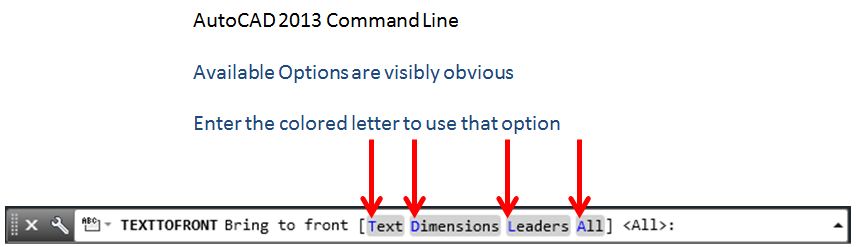
As Shown below, when options of a command are available, these options are now made more obvious by the making the options colored blue.
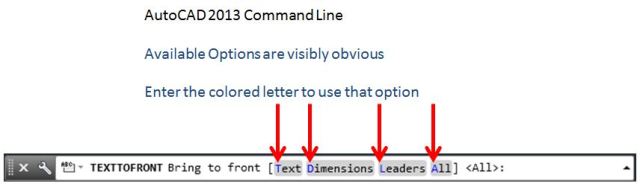
If that isn’t cool enough, you’ll love this – The options in the command line are selectable:
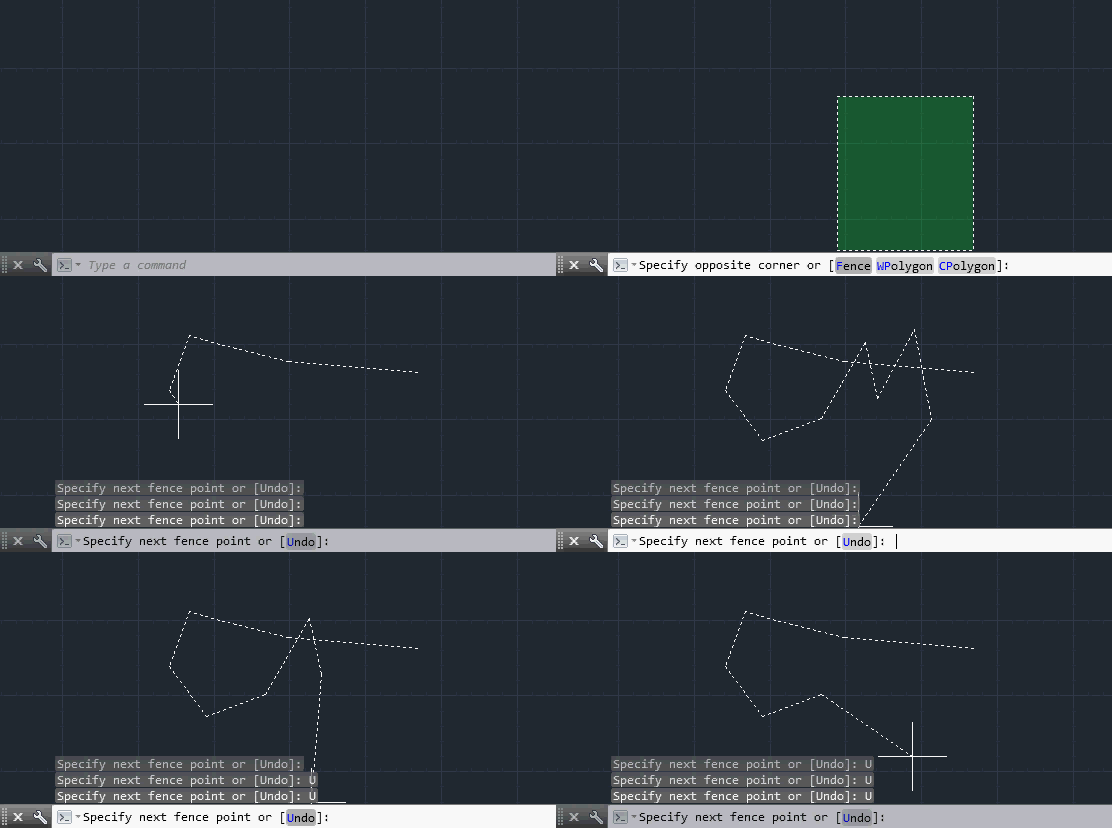
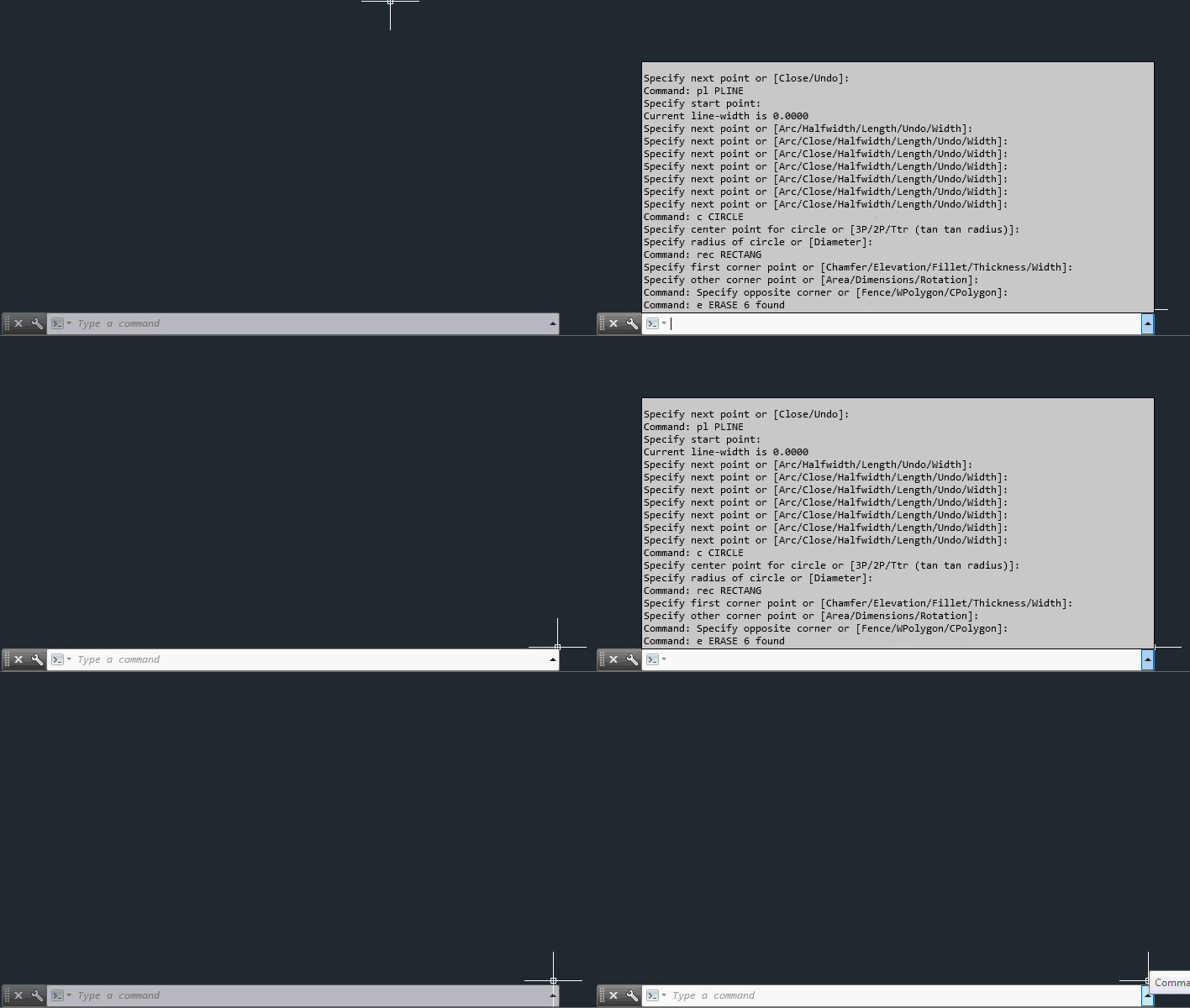
There are now 2 ways of viewing the history of command window
1) is to bring up the command history that that will automatically collapse after a few moments by clicking the arrow that is located all the way to the right on the command line:

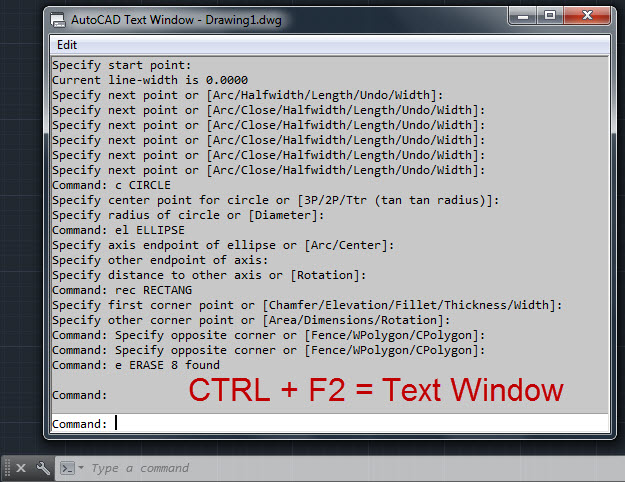
2) To bring up the actual command window (text window) is to use CTRL + F2. So no longer does the funtion key F2 bring up the command line’s text window:
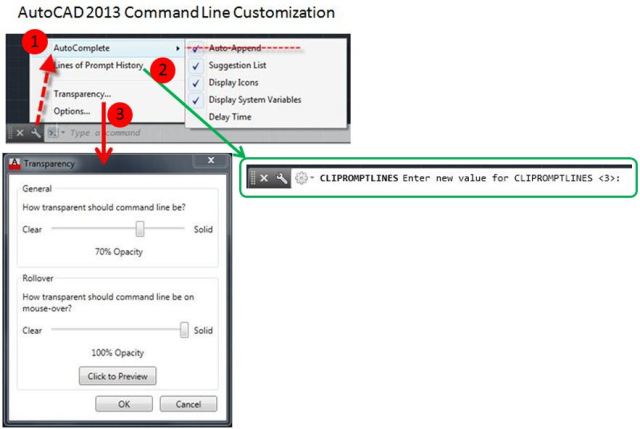
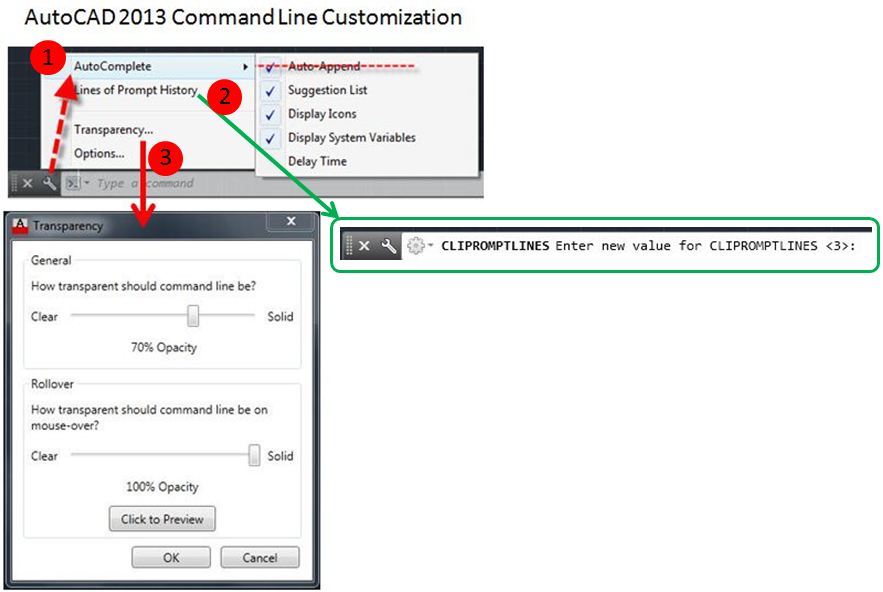
Below are some of the options to customize the new command line. To get to this menu, you click on the wrench icon in the command line.
1) This is a personal preference but I think that most people will do this as well. By default, the AutoComplete > Auto Append function is turned on. This will fill in a command as you are typing it in. This is annoying because if you are entering a command alias that is only one or two letters, the Auto Append feature will fill in the a command that also starts with those one or two letters.
2) Customize the number of lines in the command line history. This number represents the lines that pop up and fade away above the command line.
3) Customize the transparency of the command line
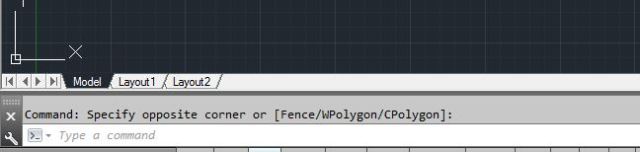
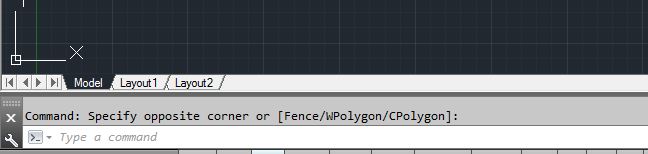
The command line can be docked into its old position by simply dragging it to the bottom of the screen.
This tip applies to tool palettes and toolbars as well – If you hold the CTRL button while dragging the command line, it will prevent them from snapping or auto-docking to certain areas in the drawing area. This will allow to place the command line precisely where you want it.
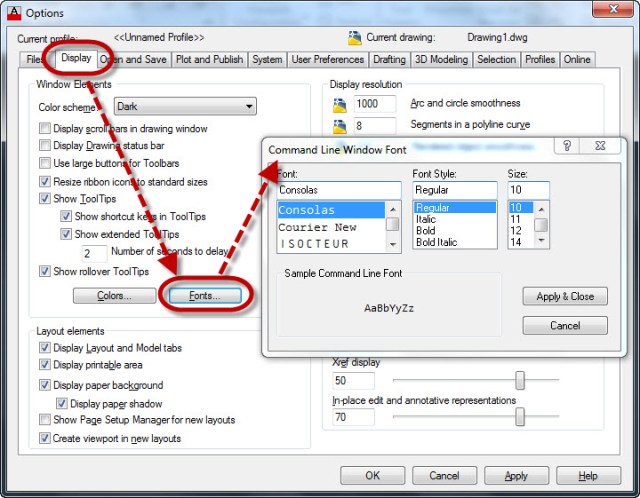
You can specify the font of the command line.
Options dialog box [OP <enter>] > Display tab > Fonts button:














 AutoCAD Tips