AutoLISP: Heal – Erase Block & Heal Polyline

Just like the previous post that heals lines, this routine will work on polylines.

it will erase the selected block and then join the two polylines into one.

Note: If the block is placed on a curved segment of a polyline, the joined area/distance will be made as a straight polyline segment.

There are 2 advantages of using this version over the routine that only works with lines:

1) The polyline routine lets you select any other type of object as well as polylines. And these objects will be turned into polylines.

2) It will join segments even when the block is obscuring the vertex (corner). the line routine will not do this.

Here’s how:

  • HEAL <enter>
  • Select the block that needs to be erased

That’s it


(defun c:heal  (/ block ll ur p1 p2)
      (vl-load-com)
      (setq block (car (entsel "\nSelect Block:")))
      (vla-getboundingbox (vlax-ename->vla-object block) 'll 'ur)
      (command "_.erase" block "")
      (command
            "_.pedit"
            "_m"
            (ssget "C"
                   (setq p1 (vlax-safearray->list ll))
                   (setq p2 (vlax-safearray->list ur)))
            ""
            "_join" "_Joint" "_Both"
            (distance p1 p2)
            "")
      (princ)
      )

Posted in AutoLISP, AutoLISP: Blocks, AutoLISP: Modify, AutoLISP: Polylines, Blocks, Polylines | 4 Comments

AutoLISP: HEAL – Erase Block & Heal Line

If you have blocks that lie upon a line and where they are on the line it has been trimmed, this routine might be of some use. this routine will let you simply select the block that rests on your line and will delete the block and join the lines into one line.

Here’s how:

  • HEAL2 <enter>
  • Select the block that needs to be erased

that’s it!!!


(defun c:HEAL2 (/ block ll ur objecttojoin)
      (vl-load-com)
      (setq block (car (entsel "\nSelect Block:")))
      (vla-getboundingbox (vlax-ename->vla-object block) 'll 'ur)
      (command "_.erase" block "")
      (setq objecttojoin
                 (ssget "C"
                        (vlax-safearray->list ll)
                        (vlax-safearray->list ur)))
      (command
            "_.join"
            (ssname objecttojoin 0)
            (ssname objecttojoin 1)
            "")
      )
Posted in AutoLISP, AutoLISP: Modify, Blocks | 1 Comment

Free ways to convert PDFs to DWG

Here are two ways to convert PDF documents into .DWG (drawing) files.

These are in fact free and they do a great job for the price. They both work the same in that the free versions will not process layer information if it is included in the PDF.

These converters are great alternatives to buying a full product that is dedicated to doing this and if you rarely need to convert a PDF to CAD these are especially great.

Both of these converters use your email address to send the file to you when it is finished converting.

http://www.convertpdftoautocad.com/

http://www.cometdocs.com/

One thing to note: Cometdocs has a cool feature that lets you register with them (for free) and this will allow you to store your converted documents on their server and have access to them wherever you have internet access. Otherwise, the files get erased after 24 hours.

Plus Cometdocs doe s a great job of retaining Text

Posted in Manage, Modifying, PDF | 14 Comments

AutoLISP: Make a Block Quickly

Here is a handy routine that will let you quickly create a block of selected objects – it will even automatically name the block for you.

Here’s how:

  • QB <enter> to start (Quick Block)
  • Select the objects that you want the block to be made of <enter>
  • Specify an Insertion point
  • The routine will automatically give the block a generic name “MyBlock” followed by a number. Each time you use the routine to create a quick block, the number will increase incrementally  (ex. MyBlock1, MyBlock2, MyBlock3…)
  • Note – Use on blocks that do not have attributes – use on geometry only

~enjoy


; Quick Block
; Creates a block instantly out of the objects that you select
; Found at http://forums.autodesk.com/t5/Visual-LISP-AutoLISP-and-General/Quick-block/td-p/3454228
(defun c:QB (/ selectionset insertionpoint number Blockname)
  ;;; Tharwat 11. May. 2012 ;;
  (if (and (setq selectionset (ssget "_:L"))
           (setq insertionpoint (getpoint "\n Specify insertion point :"))
      )
    (progn
      (setq number    1
            Blockname (strcat "MyBlock" (itoa number))
      )
      (while (tblsearch "BLOCK" Blockname)
        (setq Blockname
               (strcat "MyBlock" (itoa (setq number (1+ number))))
        )
      )
      (command "_.-Block" Blockname insertionpoint selectionset "")
      (command "_.-insert" Blockname insertionpoint "" "" "")
    )
    (princ)
  )
  (princ)
)
Posted in AutoLISP, AutoLISP: Blocks, AutoLISP: Creating | 14 Comments

Adding OLE Objects and Make Them Print

OLE is “Object Linking & Embedding” and it is pretty powerful. If you have an excel spread sheet or an image that resides outside of AutoCAD and you need these files inside of AutoCAD, adding these objects as an OLE object lets you insert them in your drawing and they can retain a link to the original file so that any updates that are done to the original file will also be shown in the AutoCAD file. For today’s tip, we will insert an excel spread sheet as an OLE object and also make an adjustment so that it will print/plot. The silly thing is that by default the settings for OLE objects are such that they might not plot.

Here’s how:

  • Have an excel spread sheet saved somewhere that AutoCAd can find it either on your hard drive or on a network location
  • Click the “OLE Object” button that is in the “Date Link” panel on the “Insert” tab.
  • Then select the “Create from file”
  • Then browse to find the file
  • Then, if you want the OLE object to reatin a link to the original file so that updates to the O.G. file (Original Gansta”;) are also shown in the AutoCAD file; click the check box next to “Link”

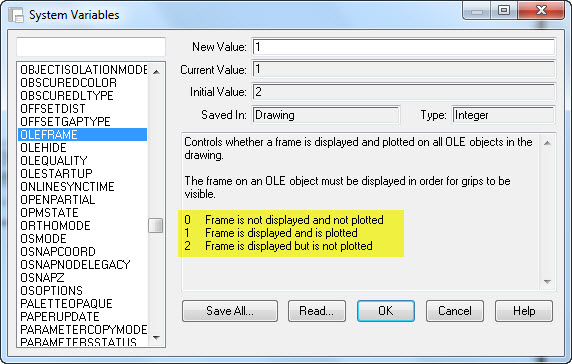
After the OLE object is in your drawing you will most likely want to move it into position. If you are not able to select the OLE object check the system variable OLEFRAME (shown below). The description of the system variable might be confusing – When it says that it is “shown,” that means that it is selectable…

Now that you have the OLE object positioned and you are ready to plot, change the setting of the “Plot Quality”

To do this:

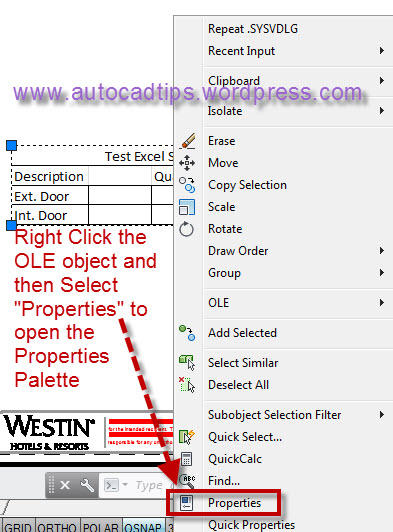
  • Select the OLE object
  • Right click & select Properties to open the properties palette

Under the “Misc” Section in the properties palette, Click the ‘Plot Quality” section and select either “Low Graphics” or “Monochrome” from the list.

Shown below is the PDF that was created by using the Monochrome setting for the OLE object.

Posted in Customization, Manage, OLE Objects, TIPS | 13 Comments

Lock the Position of your Toolbars and Palettes

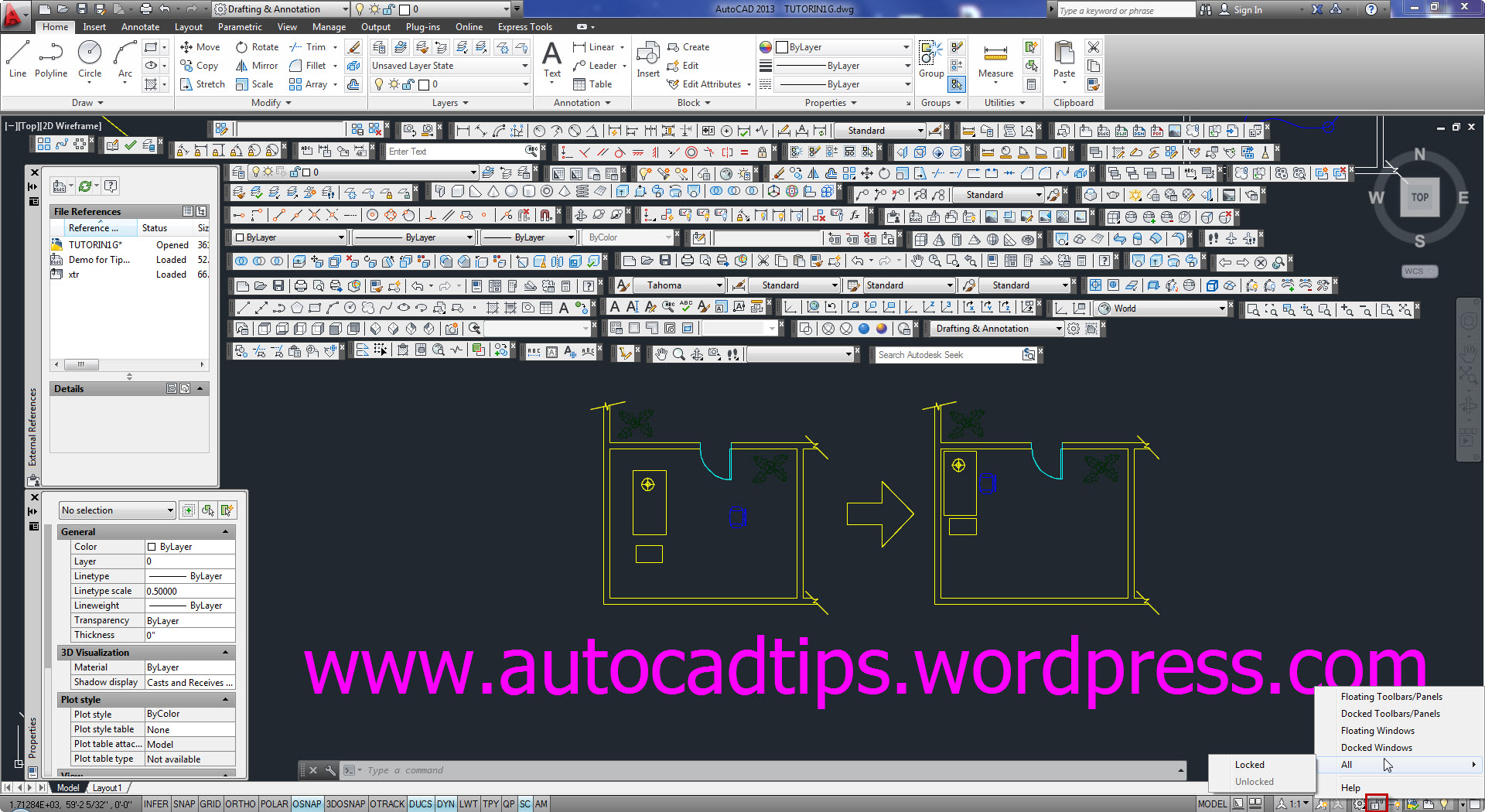
Once you get your toolbars and palettes in place, you’ll want them to stay put right? Here is a way to lock there position. Below is an extreme example with every toolbar placed on the screen and 2 palettes are open as well.

Notice that in the bottom right of the screen in the above picture, there is a little lock with a red square around it (shown below as well):

You can either left or right click on this lock icon and the options shown above will appear.
“Docked” means when you drag a palette/toolbar near the edge of the screen and they snap to the under side of the ribbon or to the side of the screen.

“Window” means palette

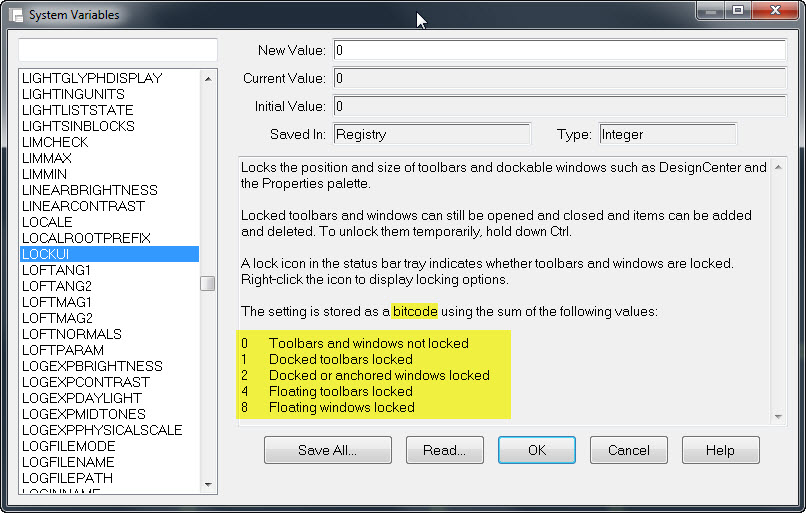
The above interface is a user-friendly  way of adjusting the system variable LOCKUI as shown below. Notice that the system varibale is a bitcode which means that you can choose multiple options and simply add their values together as their value that you enter…

Also – After you have set the position of your toolbars and palettes, don’t forget to save your “workspace.”

Posted in BASICS, Customization, Settling In, TIPS, Tool Palletes, Workspaces | 19 Comments

XREF Status Bar Button

If you open drawings and want to know if there are any XREFs in the drawing, you do not need to open the XREF manager. Simply look at the bottom right corner of the screen in the status bar. If a button appears with a piece of paper (document) and a paper clip (as shown below) the drawing does have XREFs.

You can click this button and it will open the XREF Manager. It performs the same function as using the command XREF <enter> or the alias XR <enter>

Shown below: XREF manager:

Posted in BASICS, Settling In, TIPS, XREFs | 1 Comment

Intro to Chamfer

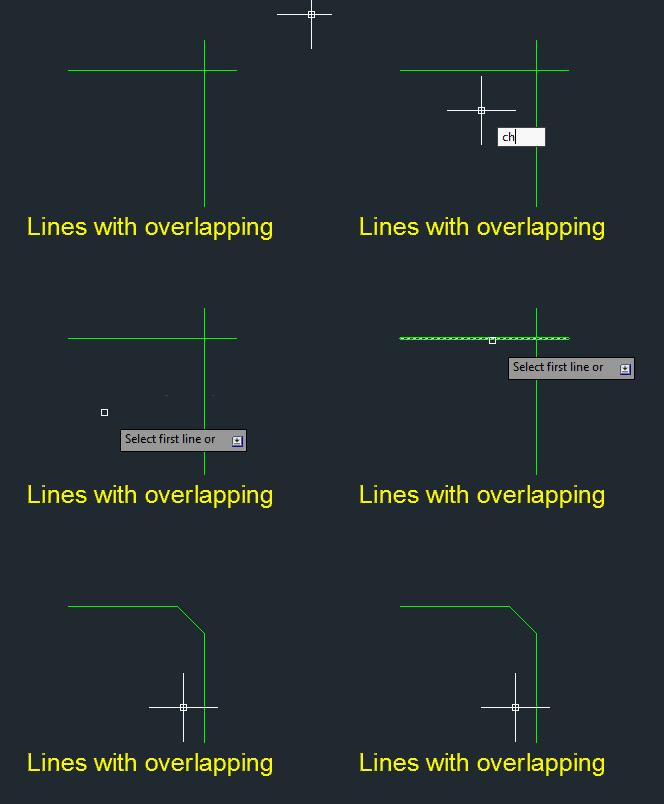
Here is an overview of the CHAMFER command. This command will create a beveled edge between two selected lines. It can be defined by specifying a distance away from the intersection of the selected lines. It can also be defined by an angle.


See this link to learn about the new “preview” function:

https://autocadtips.wordpress.com/2011/03/24/fillet-chamfer-preview-in-autocad-2012/

Here’s how:

  • In the “Modify” panel on the “Home” ribbon, click the dropdown list where you find the tools “Fillet,” “Chamfer” and “Blend.” The last used tool will be shown as the tool on the button. Select the CHAMFER tool.

  • CHAMFER <enter> or CHA <enter> to start

Notice the options that are available in the command line:

Below illustrates how to use the common method of this tool which is to define the distance.

Applying the chamfer with a distance of 1 for both lines picked. These lines overlap each other and the chamfer will clean up these lines.

Applying a chamfer with a distance of 1 to both lines. This time, the lines do not intersect and the chamfer will again clean up the intersection.

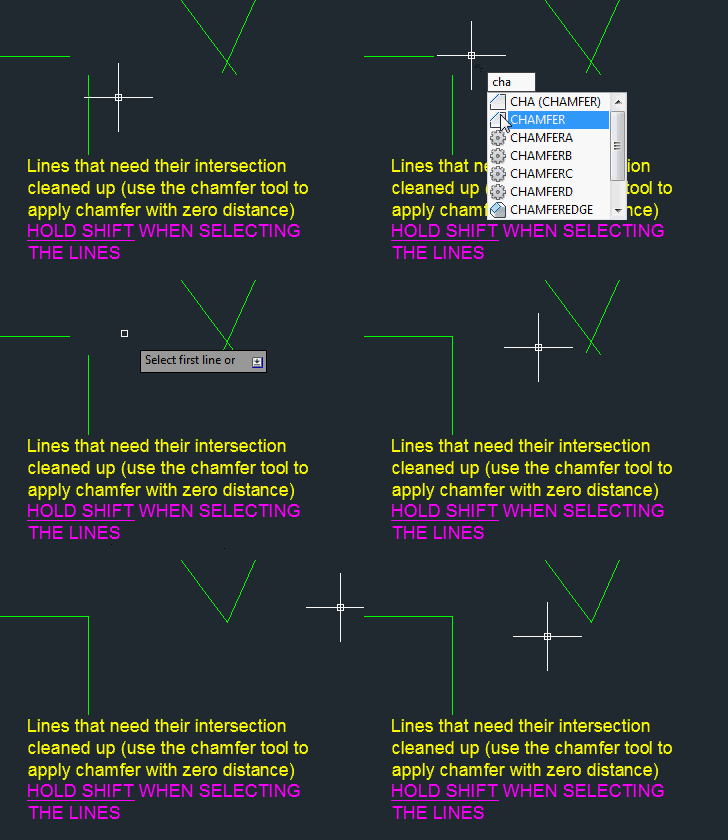
Below, illustrates how to use this command to not actually apply a chamfer to the two selected lines. When asked to select the two lines, you simply hold the SHIFT button and select the lines. This overwrites the defined distance and will simply clean up the intersection and trim/extend the lines so that their endpoints meet.
Another method to use in order to achieve the same result to multiple lines is to actually set the distance for both lines to 0 (zero) and then use the M option (for “multiple). This will allow you to keep selecting lines in order to clean up their intersections without having to restart the command.

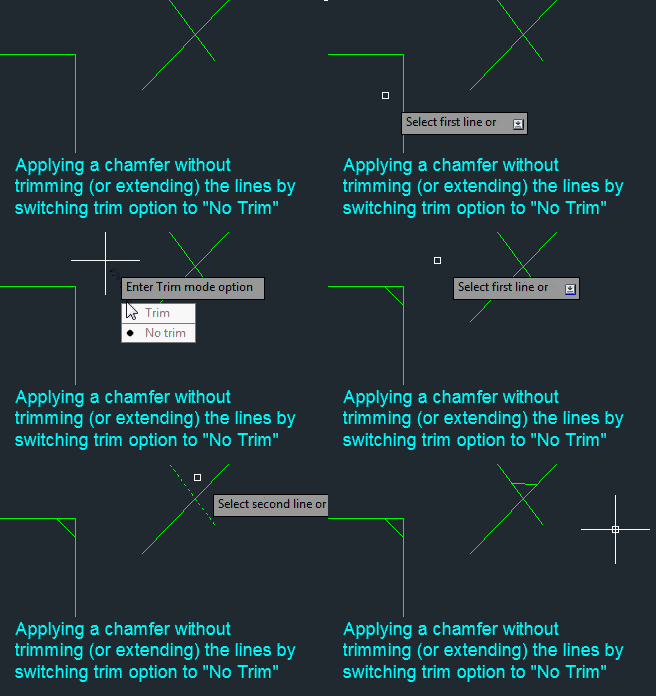
Below shows the “Trim” option and how to apply a chamfer without trimming the overlapping segments.
Note: this uses the system variable TRIMMODE <0> = OFF, <1> ON

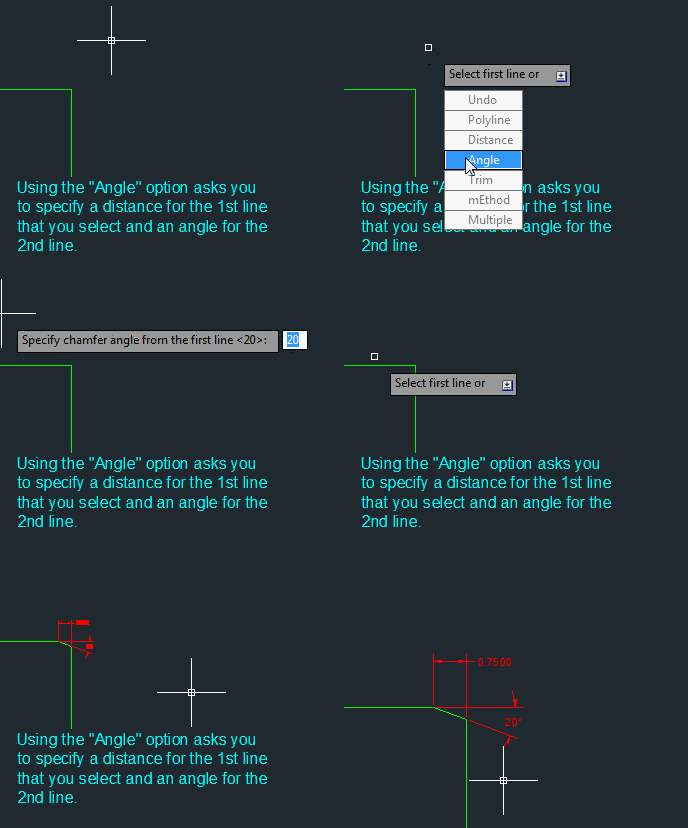
Below shows how to use the “Angle” option. Note that when it asks you to define it, it is asking for both a distance and an angle. The distance that you define will be applied to the first line that you select. the angle that you define will be applied from the point of the first line to the second line that you select.

Posted in BASICS, Modifying | 3 Comments

Adding Lisp Files to a Tool Palette

If you have some lisp routines that you would like to have available when you are working in various drawings here is a way to have them available in all your drawings. This method of adding the .lsp files to a tool palette makes them available and will load them only when they are needed. Other methods like using an acad.lsp or acaddoc.lsp will load all the lisp files upon each drawing that you open and depending on how many lisp files you have may be a little slow.

First place your  lisp files and button images into a folder that will be a stable environment where it will not accidentally get moved or erased. Button images can be of various file types and sizes. In this example I have used 32×32 pixel bitmaps (.bmp).

Right click in the Tool Palette and select “New Palette” to place the new tools on. This will create a new tab on the tool palette… Give the new palette a unique name.

We now need to populate the new palette with content. The easiest way to do this is to simply drag something from the drawing area onto the palette and then modify its properties. Below, I have created a line and then dragged it onto the palette.

To change the tool’s properties from being just another line tool, right click and select “Properties”

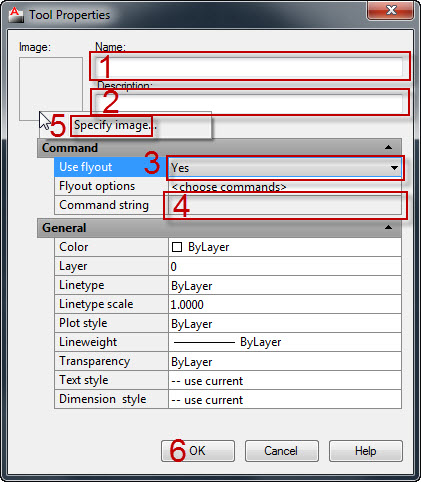
The 5 areas below need to be changed in order for this tool to be the new custom tool:

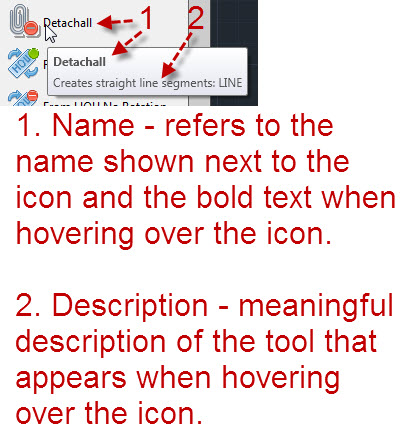
  1. Give the tool a unique and meaningful name
  2. Give the new tool a meaningful description so that when you hover over the tool it will tell you what it does
  3. Change the “Use flyout” option to “No”
  4. Fill out the command string to specify the path to where the .lsp file resides and what the command call is in order to start the lisp routine.
  5. Give the new tool a cool new image/button

To define an image to use as the button, simply right click in the square area in the upper left and select “Specify image” and then browse to the image, select it and click ok.


Posted in AutoLISP, Customization, Manage, TIPS | 10 Comments

Using Your Mouse to Move, Copy or Clear a Selection Set

I have posted about this topic before but I thought that it could be presented more clearly.

You can use your windows mouse to move, copy, copy as a block, clear a selection set and escape/cancel from a command all from the mouse.

To move objects, this method does not use OSNAPs so this method is an imprecise way of moving stuff out of the way.

  • Select the objects to move
  • Click & hold with the left mouse button over some geometry (not a grip) until your cursor changes from the cross-hairs to the windows arrow cursor and a little box appears next to the cursor.
  • Move your mouse and release.

To Copy objects:

  • Select the objects that are to be copied
  • Click and hold the right mouse button over some geometry (not grips) until your cursor changes from the cross-hairs to the windows arrow cursor and a little box appears next to the cursor.
  • Move your cursor and release the right mouse button
  • You will be prompted to do a number of things, Since you want to copy, select the copy option. But notice that you can Move, Copy, Paste as a block, and Cancel.

Shown below is an example of using all of the options in the right mouse button method with the exception of “Paste as block”

To use your mouse to clear a selection set:

  • After the objects have been selected
  • Simply click and hold the right mouse button in the same position for a few seconds. Your cross-hairs will change to the Windows arrow and a little box will appear next to the cursor. Simply release the mouse button and the selection set will be cleared. If you have moved your cursor, you will be prompted to either copy, move or cancel, just like the above tip. So be sure to not move your mouse.

If you are in the middle of a command and want to cancel without hitting the escape button on the keyboard:

  • After the command has been started, simply right click and select “Cancel” (as shown below)

Posted in BASICS, TIPS | 1 Comment