Express Tools for AutoCAD Architecture 2012

Inspired by a comment from Daniel in the same post for AutoCAD Arch 2011, I thought that I should walk through the complete steps as they seem to work more permanently than the simple tip that I initially suggested.

Once again, Autodesk forgot to load our favorite tools into AutoCAD Architecture 2012. So here’s how to get them back:

  • On your computer, go to the control panel and then go to the uninstall programs utility.
  • Select AutoCAD Architecture as though you are going to uninstall it. Then select the uninstall/change button as seen below.

You are not actually uninstalling the program. This is an instance where we are using the “change” option to the “uninstall/change” button.

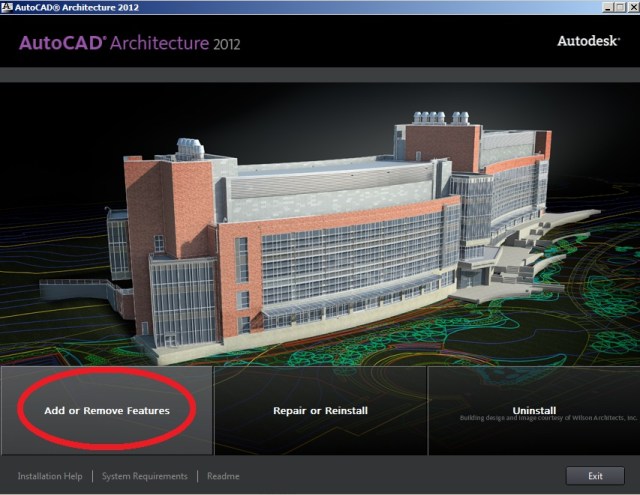
You will see the screen (as seen below) after a few seconds.

  • Select the “Add or Remove Features” button (as seen below)
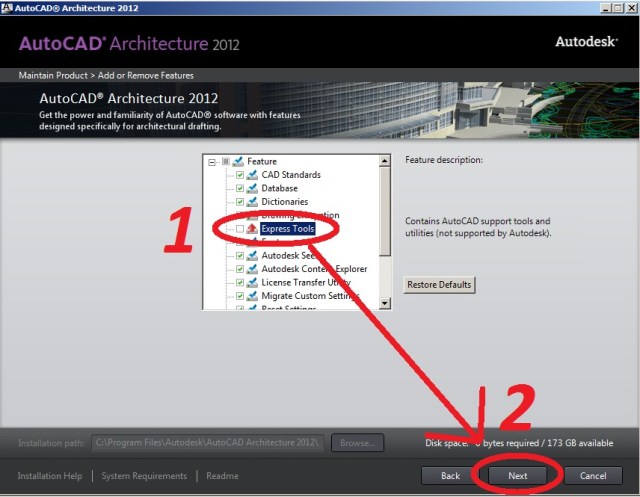
  • Now check the check-box next to “Express Tools” from the list of “features” to add.
  • Then click Next to load the cuix menu for Express Tools.
After this gets loaded and closes. Start AutoCAD Architecture like normal.

With AutoCAD Architecture open:

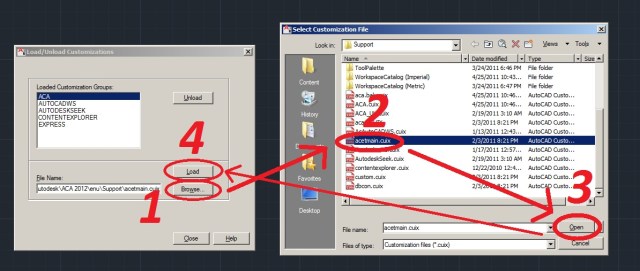
  • MENULOAD <enter> to load the cuix menu that we loaded earlier.

In the dialog box (as seen below):

  • Click the Browse button
  • Select “acetmain.cuix” (acetmain = Auto Cad Express Tools)
  • Click the “open” button
  • Select “Load”

Be patient as it loads and as always…..

~enjoy
Posted in Customization, Express Tools, New in 2012, TIPS | 28 Comments

REDEFINE oh how I love thee…

So there are a few features that have been disabled in AutoCAD 2012 and I have been waiting to post about them until I could find a solution. Well, I found a solution for one of them. This tip will also work on commands that have been “UNDEFINED” in previous versions of AutoCAD as well.

The command REDEFINE will make a command active/available after it has been UNDEFINED. Apparently, when AutoCAD gets rid of a command. They know people like me may have a hissy-fit and want the old command back. So what they do is just UNDEFINE the command so that it is no longer active. If you want to be mean to someone, you could run the UNDEFINE command and then it will ask what command you want to undefine…

To bring back the long-lost command:

REDEFINE <enter>

Enter command name to bring back <enter>

~Enjoy

PS – I used REDEFINE to bring back the command DSVIEWER

Posted in BASICS, Customization, Settling In, TIPS | Leave a comment

BPOLY Easy Way To Make Polylines

This tip is an easy way to convert lines into polylines. Although, it doesn’t actually convert the lines into Polylines, it finds a closed are (bounding area) and creates a polyline on top of the geometry.

To do this:

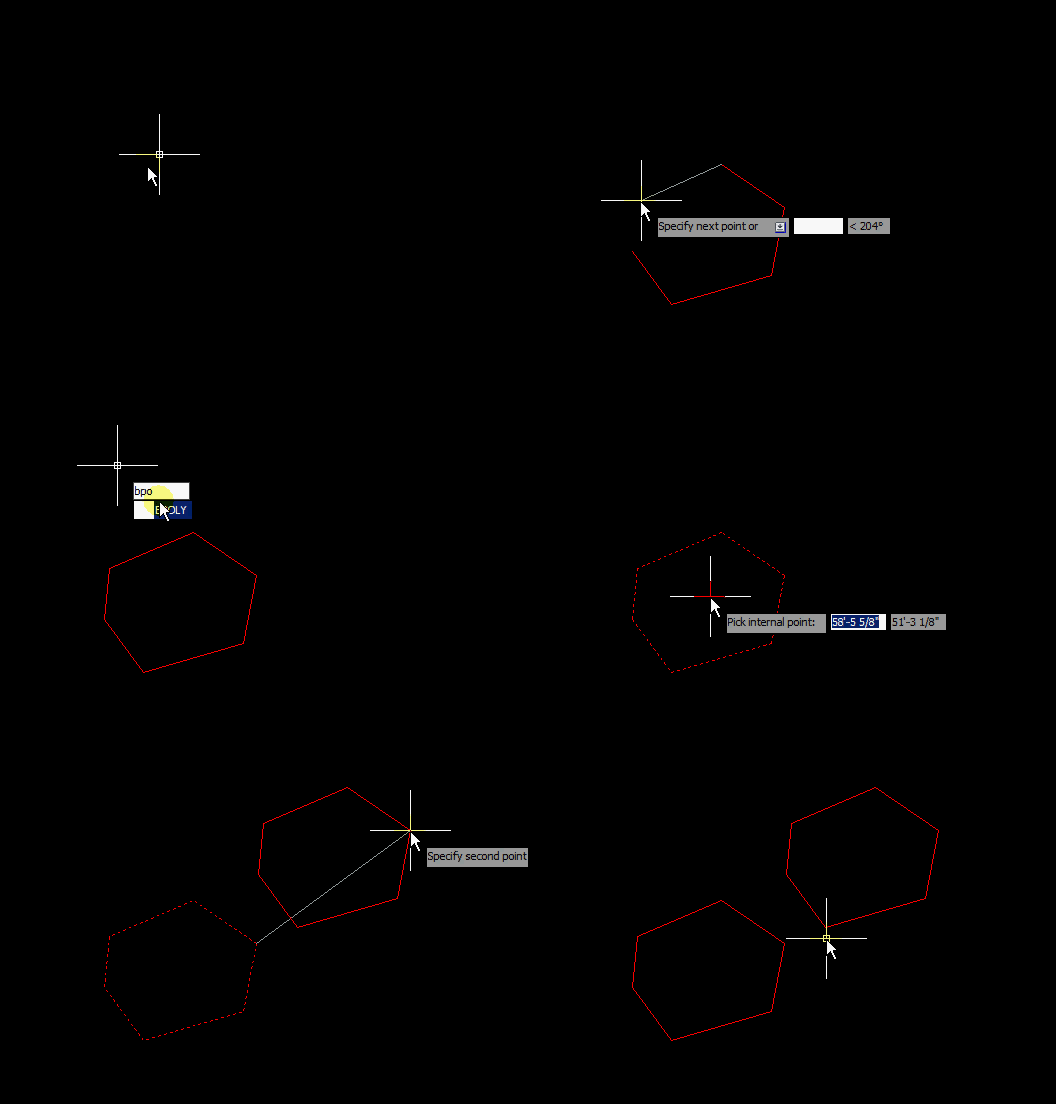
  • BPOLY <enter> to start the BPOLY command
  • Click the “Pick Points” button that appears in the dialog box.
  • Click within a closed (bounding) area.
  • This will create a copy of the bounded area as a polyline on top of the closed area. So either be prepared to move the polyline or erase the lines…

Posted in Modifying, TIPS | 3 Comments

AutoLISP: Change Block Insertion Point

Here is a great LISP routine created by Lee McDonnell from http://www.lee-mac.com Please make sure to check out his website if you are looking for some very helpful programs and if you want to learn about AutoLISP & VisualLISP.
Luckily, this routine can be found online at two places:

  • Lee’s website (click here)
  • The Autodesk App Store (click here)
    This app in the app store is free$$ and getting this program from the appstore will allow you to effortlessly install this LISP routine and it will place a button on the ribbon for easy use.

(Please copy the code from one of the two sources above, as the author routinely makes updates to his LISP code. Taking the code from the original source is the best place to check to make sure that you have the most up-to-date version)

This routine has 2 commands within it.

  • CBP – (Change Base Point)
    Change the block insertion point and repositions the block around where the original insertion point was located.
  • CBPR (Change Base Point Retain)
    Change the block insertion point and retain the position of the block. So that the only thing that moves is the insertion point.

image from lee-mac.com


Posted in AutoLISP, Blocks, Modifying, TIPS | 2 Comments

The MULTIPLE command

Here is a powerful tool that is honestly easily forgotten. The Multiple command lets you repeat a command that does not repeat by default. The LINE command is an example of a command that does repeat. You keep picking points and the command keeps going until you tell it to stop. The CIRCLE command or RECTANGLE command both do not repeat. So after you make the shape, the command ends and you have to restart the command.

Note: After I run the MULTIPLE command with another command the next time I use the command, it reverts to normal use (without the multiple option). This might be a great use for a LISP routine…

If you use the MULTIPLE command first, it will ask you what command do you want to use in a “multiple” manner. You then enter the command that you want to run. Then that command starts and continually runs until you either hit esc. or <enter>.

In the animated picture:

  • I make 2 circles without the multiple command to show that the circle command does work normally.
  • MULTIPLE <enter>
  • CIRCLE <enter> to define what command is to be used with the multiple option.
  • Then i pick a number of circles repeatedly without restarting the command.
  • I then start the MULTIPLE command again
  • REC <enter> to define the RECTANGLE command with the multiple command.
  • Then I pick 2 points to make a number of rectangles

Posted in BASICS, Modifying, TIPS | 1 Comment

Scale Objects with a Reference

Let’s say that you download an AutoCAD block like the table as seen below. When you open the block, you notice that it is not scaled correctly. Let’s also say that you want to scale it to a certain length.

In the example below, I have a block of a table. I opened it in the block editor and now I am going to Scale the block so that its length is 6 feet long. I don’t actually need to know the current length of the block. I just need to make a line that is the length that I want the table to be. I made this line at an angle to show you that the reference does not need to be in line with the table.

Here’s the steps:

(Note: this tip works in all workspaces like modelspace and paperspace. I used the block editor in this example instead of exploding the block.)

  • SCALE <enter> (or SC <enter>) to start the SCALE command.
  • Select the objects that you want to scale
  • <enter> when finished selecting
  • Specify a base point
  • R <enter> to use the “Reference” option
  • Pick 2 points on the object that is going to be scaled that you want to be scaled to the desired length.
  • P <enter> to use the “Points” option
  • Pick 2 points that establish the final length. In the example picture, I picked the diagonal line that is six feet long.

After the second point is picked, the table is scaled to the desired length. I then deleted the reference line.

The first 2 points that you pick establish the “before” length (reference) and the last 2 points that you pick scale the first 2 points picked.

Posted in BASICS, Modifying, TIPS | 43 Comments

Rotate with the Reference option to Align

You may know that there is the ALIGN command which is really helpful. But with the ALIGN command the object that you are aligning/rotating end up being moved to its reference object. So how do you rotate an object and basically leave it in its current location and use another object’s angle as a reference?

Here’s how:

  • ROTATE <enter> ( or RO <enter>) to start the rotate command
  • Select the object(s) to rotate <enter>
  • R <enter> to start the Reference option
  • Click 2 points on the object that is to be rotated. This basically sets the relative angle to zero.
  • P <enter>  for the “Points” option
  • Click 2 points on the reference object. This will set the new rotation angle for the object that is to be rotate.

Posted in BASICS, Modifying, TIPS | 5 Comments

AutoLISP: All Dimensions To A Layer

Here is a simple routine that searches for all dimensions in a drawing and asks the user to enter the name of the layer that you would like the dimensions to be on.

As seen Below:

There are some dimensions on the wrong layers.

  • DIMLAY <enter> to start
  • DIM <enter> this is the name of the dimension layer in my drawing. This will be different per drawing.


; This program selects all dimensions and places them

;	on a user-specified layer.

;

(defun C:DimLay (/ SETD LAY)						; Begin function

(setvar "CMDECHO" 0)						; Turn off command echo

(setq SETD (ssget "X" '((0 . "DIMENSION"))))			; Selection set of dims

(if (null SETD) 						; If there are no dims

(princ "\nThere are no associated dimensions.")			; THEN tell user

(progn								; ELSE begin (progn)

(setq LAY (getstring "\nTransfer to which layer? "))	; Get layer name

(command ".CHPROP" SETD "" "LA" LAY "")			; Change dimensions to layer

)								; End (progn)

)								; End (if)

(setvar "CMDECHO" 1)						; Turn on command echo

(princ)								; Clean exit

)									; End function

; - -( End of Program )- -


Posted in AutoLISP, Dimensions, Modifying, TIPS | 1 Comment

Autolisp: Deleting All Attributes In A Block

Unlike the previous post where you could only delete all but one attribute, this LISP routine allows you to delete all attributes in the selected blocks.

As seen below:

  • ATTDEL2 <to start>
  • Select blocks with attributes  <enter> all attributes from these blocks will be deleted.


; written by Tony Burba

; found @ http://forums.autodesk.com/t5/Visual-LISP-AutoLISP-and-General/Need-lisp-to-delete-all-attributes-from-set-of-blocks/td-p/1565037

(defun tl_fld (v1 v2) (cdr (assoc v1 v2)))

(defun c:attdel2 (/	     ss		cnt	   blk

blkdat     blknam	blktblnam  blknewdat

blktbldat  newblkdat	atk_dbug   nextent

nextentdat nextenttyp	endblklst

)

(command "undo" "group")

(setq atk_dbug nil)

;;  (setq atk_dbug T)

(if (setq ss (ssget (list (cons 0 "insert") (cons 66 1))))

(progn

(setq cnt -1)

(repeat (sslength ss)

(setq blk	(ssname ss (setq cnt (1+ cnt)))

blkdat	(entget blk)

blknam	(tl_fld 2 blkdat)

newblknam	(strcat blknam "_na")

blknewdat	(subst (cons 2 newblknam)

(assoc 2 blkdat)

blkdat

)

blknewdat	(subst (cons 66 0)

(assoc 66 blknewdat)

blknewdat

)

)

(if (not (tblsearch "block" newblknam))

(progn

(setq blktblnam (tblobjname "block" blknam)

blktbldat (entget blktblnam)

newblkdat (subst (cons 2 newblknam)

(assoc 2 blktbldat)

blktbldat

)

newblkdat (subst (cons 70 (- (tl_fld 70 blktbldat) 2))

(assoc 70 blktbldat)

newblkdat

)

)

(if	(entmake newblkdat)

(progn

(if atk_dbug

(princ "\nStarting new block definition . . . ")

)

(setq nextent	 (entnext blktblnam)

nextentdat (entget nextent)

nextenttyp (tl_fld 0 nextentdat)

)

(while (and nextenttyp (/= nextenttyp "ENDBLK"))

(if (/= nextenttyp "ATTDEF")

(if	(not (entmake nextentdat))

(princ "\nCan't make subentity.")

(if atk_dbug

(princ (strcat "\nAdding "

nextenttyp

" as subentity "

(itoa xcnt)

)

)

)

)

(if	atk_dbug

(princ "\nSkipping attribute definition.")

)

)

(setq	nextentdat

nil

nextenttyp nil

)

(if (setq nextent (entnext nextent))

(setq

nextentdat (entget nextent)

nextenttyp (tl_fld 0 nextentdat)

)

)

)

(setq endblklst	(list (cons 0 "endblk")

(cons 100 "AcDbBlockEnd")

)

)

(if (not (entmake endblklst))

(princ "\nCan't terminate block definition")

)

)

(princ "\nCan't start new block definition.")

)

)

)

(if (tblsearch "block" newblknam)

(progn

(entdel blk)

(entmake blknewdat)

)

)

)

(setq ss nil)

)

)

(command "undo" "end")

(tl_$tlp)

)


Posted in Attributes, AutoLISP, Blocks, Modifying, TIPS | 6 Comments

AutoLISP: Delete Attributes

If you need to delete attributes from a block, you can always use the command BATTMAN or you can use this LISP routine. Either way, you cannot delete all attributes from the block but at least you can remove what you don’t need.

With this lisp routine, you need to know the name of the block and the name of the tag. It will remove the attributes from all of the instances of that block in the drawing.

As seen below:

  • ATTDEL <enter> to start
  • BLOCK 1 <enter> to enter the block’s name
  • TAG1 <enter> to enter the attribute’s tag to be erased.
; found @ http://forums.augi.com/showthread.php?t=94696&highlight=attdel

; posted by inerb

;

; Modified by Greg B. to allow spaces for block name and attribute tag

;

;;; Command to delete an attribute from a block

;

(vl-load-com)

(defun c:ATTDEL (/ blkname attname bn bd en ed attlst)

;; Ask user for block name

(setq blkname (getstring T "\nEnter the block's name: "))

;; Check if block exists

(if (setq bn (tblobjname "BLOCK" blkname))

(progn

;; Get list of attributes

(setq bd     (entget bn) ;Block def's data

en     (cdr (assoc -2 bd)) ;1st entity insie block

attlst nil ;Initialize list to empty

) ;_ end of setq

(while en ;Step through all entities in block

(setq ed (entget en)) ;Get entity's data

;; Check if entity is an attribute definition

(if (= "ATTDEF" (cdr (assoc 0 ed)))

;; Add to list of attributes

(setq attlst (cons (cons (strcase (cdr (assoc 2 ed))) (vlax-ename->vla-object en)) attlst))

) ;_ end of if

(setq en (entnext en)) ;Get next entity

) ;_ end of while

&nbsp;

;; Ask user for attribute tag name

(setq attname (getstring T "\nEnter the attribute Tag Name: "))

;; Check if attribute exists

(if (setq en (assoc (strcase attname) attlst))

(progn

(setq ed (cdr en)) ;Get the VLA object of the attribute

(vla-Delete ed)

(princ

"\nAttribute successfully deleted from block definition.\nSynchronizing block references ..."

) ;_ end of princ

(command "_.ATTSYNC" "_Name" blkname)

) ;_ end of progn

(princ "\nThat Attribute doesn't exist in this drawing. Exiting ...")

) ;_ end of if

) ;_ end of progn

(princ "\nThat Block doesn't exist in this drawing. Exiting ...")

) ;_ end of if

(princ)

) ;_ end of defun


Posted in Attributes, AutoLISP, Blocks, TIPS | 2 Comments