AutoLISP: Select block by name

Even though, you can use the SELECTSIMILAR [found here] command to select a block and then this command will select the other blocks like the selected block…Here is a LISP rouinte that will make a selection set of a named block.

Here’s how:
Edit the below lisp routine to select that you want selected. To do this, change the word “test” to the name of your block within quotes.
Save the lisp routine…

SELECTBLOCK <enter>

that’s all…


Thanks to Tharwat and him being extremely patient, he made many variations to this program.

The code in its various revisions can be found here: http://forums.autodesk.com/t5/visual-lisp-autolisp-and-general/selection-set-by-block-name/m-p/5192827/highlight/true#M324878

Posted in AutoLISP, AutoLISP: Blocks, AutoLISP: Modify | 12 Comments

Autolisp: Find Blocks and Mark Them

This is a re-post of an earlier post that had an error in it. So here it goes again…

This routine will let you easily find blocks in your drawing. It does this by drawing lines from the insertion point of the blocks to a user specified point.

Here’s how:

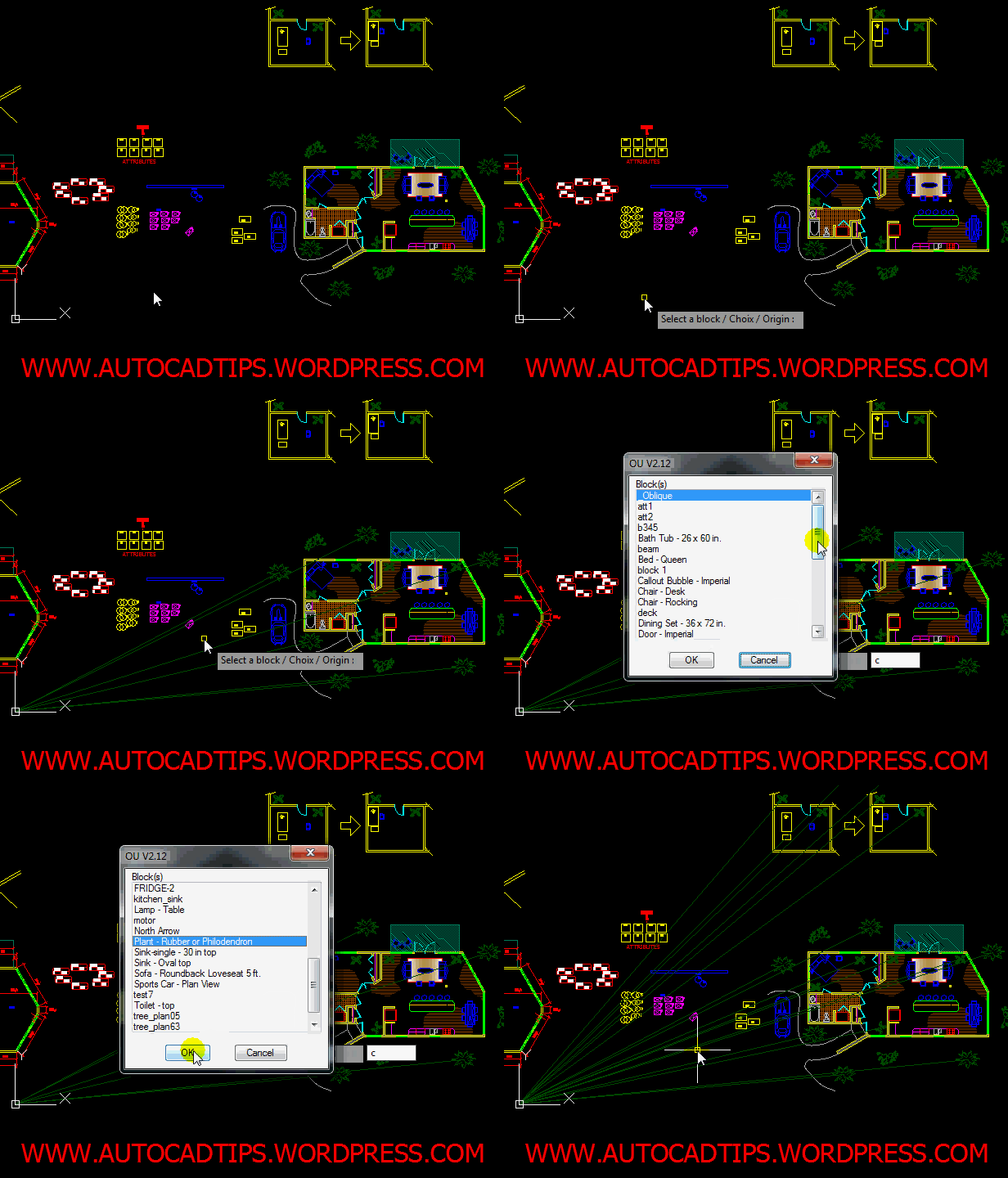
  • OU <enter> to start
  • Notice the options in the command line:
  1. select a Block – (default) Select a block from the drawing area
  2. Choose from list – select a  block by its name from a list
  3. Origin – Specify a point on screen that all of the lines will point to
  • After choosing one of these options, you should see lines from all of the instances of the specified block (from their insertion points) to the “origin”

This routine requires that you save 2 files: 1) the .lsp file (LISP) and 2) the .dcl file which is the dialog box for the routine.

Save the below code as OU.dcl


// =================================================================
//
//  OU.DCL V2.12
//
//  Copyright (C) Patrick_35
//
// =================================================================

ou : dialog {
  key = "titre";
  fixed_width = true;
  alignment = centered;
  is_cancel = true;
  width = 40;
  : list_box {label= "Bloc(s)"; key="bl"; height = 15; multiple_select = false;}
  spacer;
  ok_cancel;
}

Save the below code as OU.lsp


;;;=================================================================
;;;
;;; OU.LSP V2.12
;;;
;;; Localiser des blocs
;;;
;;; Copyright (C) Patrick_35
;;;
;;;=================================================================

(defun c:ou(/ bas cle doc ent fic lst nbl pos pt s sel tbl tot totg xd xt
	      *errjou* dessine_ligne msgbox recherche_nom)

  ;;;---------------------------------------------------------------
  ;;;
  ;;; Gestion des erreurs
  ;;;
  ;;;---------------------------------------------------------------

  (defun *errou* (msg)
    (or (member (strcase msg) '("FUNCTION CANCELLED" ""QUIT / EXIT ABORT"" "FONCTION ANNULEE" "QUITTER / SORTIR ABANDON"))
      (princ (strcat "\nErreur : " msg))
    )
    (vla-endundomark doc)
    (setq *error* s)
    (princ)
  )

  ;;;---------------------------------------------------------------
  ;;;
  ;;; Message
  ;;;
  ;;;---------------------------------------------------------------

  (defun MsgBox (Titre Bouttons Message / Reponse WshShell)
    (vl-load-com)  
    (setq WshShell (vlax-create-object "WScript.Shell"))
    (setq Reponse  (vlax-invoke WshShell 'Popup Message 0 Titre (itoa Bouttons)))
    (vlax-release-object WshShell)
    Reponse
  )

  ;;;---------------------------------------------------------------
  ;;;
  ;;; Filtre les blocs anonymes et ceux associés aux xrefs
  ;;;
  ;;;---------------------------------------------------------------

  (defun recherche_nom(ent)
    (or (wcmatch (vla-get-name ent) "`**,*|*")
	(eq (vla-get-isxref ent) :vlax-true)
      (setq tbl (cons (vla-get-name ent) tbl))
    )
  )

  ;;;---------------------------------------------------------------
  ;;;
  ;;; Dessine une ligne de 0,0 au point d'insertion du bloc
  ;;;
  ;;;---------------------------------------------------------------

  (defun dessine_ligne(ent / bl lay)
    (setq lay (vla-item (vla-get-layers doc) (vla-get-layer ent)))
    (if (vlax-property-available-p ent 'EffectiveName)
      (setq bl (vla-get-effectivename ent))
      (setq bl (vla-get-name ent))
    )
    (if (eq nbl bl)
      (setq totg (1+ totg))
    )
    (and (eq (vla-get-freeze lay) :vlax-false)
	 (eq (vla-get-layeron lay) :vlax-true)
	 (eq (vla-get-lock lay) :vlax-false)
	 (eq nbl bl)
	 (not (member (vlax-make-variant (vla-get-name lay)) lst))
	 (entmake (list (cons 0   "LINE")
			(cons 8   (vla-get-name lay))
			(cons 10  (trans pt 1 0))
			(cons 11  (vlax-get ent 'insertionpoint))
			(cons 410 (vla-get-name (vla-get-layout (vla-objectidtoobject (vla-get-database ent)(vla-get-ownerid ent)))))
		  )
	 )
      (setq tot (1+ tot))
    )
    (princ)
  )

  ;;;---------------------------------------------------------------
  ;;;
  ;;; Routine principale
  ;;;
  ;;;---------------------------------------------------------------

  (vl-load-com)
  (setq doc (vla-get-activedocument (vlax-get-acad-object))
	cle "HKEY_CURRENT_USER\\Software\\Autodesk\\Autocad\\Patrick_35"
	s *error*
	*error* *errou*
  )
  (if (vl-registry-read cle "Base_Ou_X")
    (setq pt (list (atof (vl-registry-read cle "Base_Ou_X"))
		   (atof (vl-registry-read cle "Base_Ou_Y"))
		   (atof (vl-registry-read cle "Base_Ou_Z"))
	     )
    )
    (setq pt '(0.0 0.0 0.0))
  )
  (vla-startundomark doc)
  (while (not bas)
    (initget "Choix Origine")
    (setq sel (entsel "\nSelect a Block / Choose from list / Origin : "))
    (if (eq sel "Origine")
      (progn
	(if (setq bas (getpoint (strcat "\nSpecify origin (" (rtos (car pt) (getvar "lunits") 2) "," (rtos (cadr pt) (getvar "lunits") 2) "," (rtos (caddr pt) (getvar "lunits") 2) ") : ")))
	  (progn
	    (setq pt bas)
	    (vl-registry-write cle "Base_Ou_X" (rtos (car pt)))
	    (vl-registry-write cle "Base_Ou_Y" (rtos (cadr pt)))
	    (vl-registry-write cle "Base_Ou_Z" (rtos (caddr pt)))
	  )
	)
	(setq bas nil)
      )
      (setq bas T)
    )
  )
  (if (eq sel "Choix")
    (if (setq fic (findfile "ou.dcl"))
      (progn
	(setq fic (load_dialog fic) pos "0")
	(vlax-map-collection (vla-get-blocks doc) 'recherche_nom)
	(new_dialog "ou" fic "")
	(start_list "bl")
	(mapcar 'add_list (setq tbl (acad_strlsort tbl)))
	(end_list)
	(set_tile "titre" "OU V2.12")
	(set_tile "bl" pos)
	(mode_tile "cancel" 2)
	(action_tile "bl"     "(setq pos $value)")
	(action_tile "accept" "(done_dialog 1)")
	(action_tile "cancel" "(done_dialog 0)")
	(if (eq (start_dialog) 1)
	  (setq nbl (nth (atoi pos) tbl))
	)
	(unload_dialog fic)
      )
      (msgbox "OU" 16 "Le fichier OU.DCL est introuvable.")
    )
    (if sel
      (if (eq (cdr (assoc 0 (entget (car sel)))) "INSERT")
	(progn
	  (setq ent (vlax-ename->vla-object (car sel)))
	  (if (not (vlax-property-available-p ent 'Path))
	    (if (vlax-property-available-p ent 'EffectiveName)
	      (setq nbl (vla-get-effectivename ent))
	      (setq nbl (vla-get-name ent))
	    )
	  )
	)
	(princ "\nThis is not a block.")
      )
    )
  )
  (if nbl
    (if (ssget "x" (list (cons 0 "INSERT") (cons 2 (strcat nbl ",`**"))))
      (progn
	(if (not (vl-catch-all-error-p (vl-catch-all-apply 'vla-get-activepviewport (list doc))))
	  (progn
	    (vla-getxdata (vla-get-activepviewport doc) "" 'xt 'xd)
	    (setq lst (vlax-safearray->list xd))
	  )
	)
	(setq totg 0 tot 0)
	(vlax-map-collection (setq sel (vla-get-activeselectionset doc)) 'dessine_ligne)
	(vla-delete sel)
	(princ (strcat "\n" (itoa totg) " " nbl " and found " (itoa tot) " line(s) drawn."))
      )
    )
  )
  (vla-endundomark doc)
  (setq *error* s)
  (princ)
)

(setq nom_lisp "OU")
(if (/= app nil)
  (if (= (strcase (substr app (1+ (- (strlen app) (strlen nom_lisp))) (strlen nom_lisp))) nom_lisp)
    (princ (strcat "..." nom_lisp " chargé."))
    (princ (strcat "\n" nom_lisp ".LSP Chargé.....enter " nom_lisp " to start.")))
  (princ (strcat "\n" nom_lisp ".LSP Chargé......enter " nom_lisp " to start.")))
(setq nom_lisp nil)
(princ)

Posted in AutoLISP, AutoLISP: Blocks, AutoLISP: Manage | 3 Comments

Cycling Mode

With AutoCAD 2011 they introduced the selection cycling tool which is very helpful and I have posted about it here. There are times, however, when it is annoying. Take for example when you are simply zoomed out of a drawing and you do not have objects that are “overlapping” yet because the SC toggle is turned on, the blue icon appears next to your cursor as if there are stacked objects.

Luckily there is another way

Here’s how:

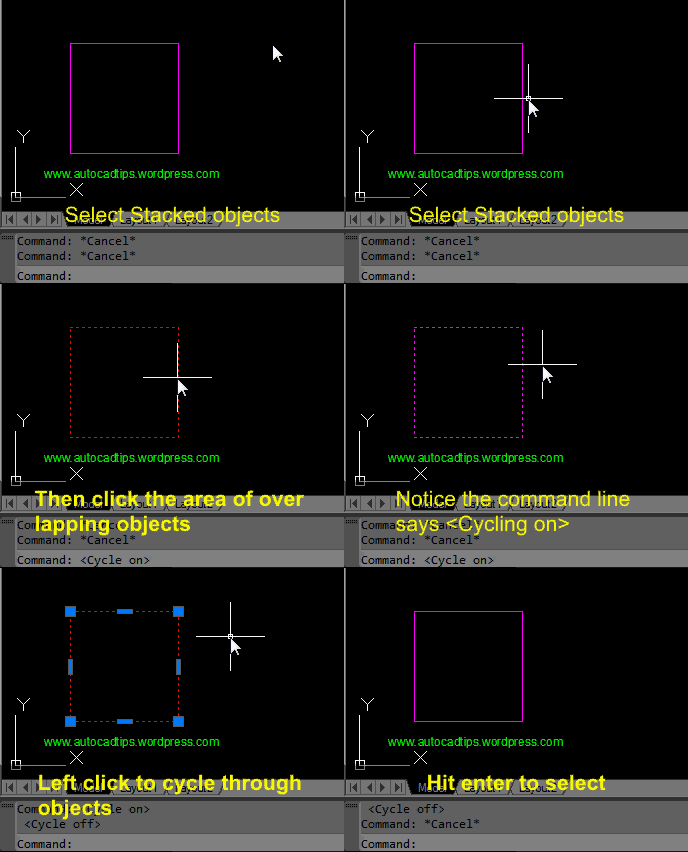
  • Hold the Shift button and then the Spacebar
  • place your cursor over the overlapping objects and left click
  • Notice the command line will say <Cycling on>
  • Left click to cycle through the stacked objects
  • When the desired object is highlighted hit <enter> to select it

Posted in BASICS, TIPS | 1 Comment

Add A Fillet or Chamfer With No Trim

There might be times when you need to use fillet or chamfer and you do not want these tools to trim the objects. This method will leave the original objects intact and simply apply the fillet or chamfer.

Here’s how:

  • Shown below is the fillet command
  • F <enter> to start the fillet command
  • T <enter> to get to the “trim mode”
  • N <enter> to set the trim mode to “No Trim”
  • Then set you Radius for the fillet and apply the fillet.

Normal Fillet behavior

Fillet command with the trim mode set to “No trim”

Note: When you set the trim mode for fillet or chamfer these tools share that trim mode. In fact the system variable for this setting is TRIMMODE (shown below).

This system variable is stored in your computer’s registry which means that this setting will carry over to other drawings. Just be aware of this….

Posted in BASICS, Customization, Modifying, TIPS | 3 Comments

Customize Dynamic Input Coordinates

In the previous post (found here) the various coordinate input methods are explained. And near the end of the post the dynamic input tool is briefly explained as being polar, relative by default which is different from when dynamic input is turned off. Being that AutoCAD is as customizable as it is today’s post shows how to make dynamic input act the same way as the command line.

Here’s how:

  • Right click on the dynamic input toggle in the status bar and select “Settings”
  • In the Drafting Settings dialog box, Select Settings in the “Pointer Input” area of the dialog box.
  • A new dialog box will appear called the “Pointer Input Settings”
  • The settings under the “Format” section are the settings that you will want to change. Be default they are set to “Polar format” and “Relative coordinates.” To change these to  behave the same way as when dynamic is turned off select “Cartesian format” and “Absolute coordinates.”


See the below chart for a comparison of the different ways to input coordinates (with or without dynamic input).

Posted in BASICS, Customization, Settling In, TIPS | 1 Comment

Intro To Coordinates

Note: I must first apologize for the lack of posts lately. I have started teaching AutoCAD for a local community college at night and it has been very demanding of my time. Teaching this class should help me focus on some of the more fundamentals of AutoCAD that I have usually not bothered to post here on the blog. These fundamentals are a good reminder for all drafters at any level so I think that covering these topics will be a good thing.

Coordinates:
Below is an excerpt from the AutoCAD 2002 user’s guide pg# 176-183
“When a command prompts you for a point, you can use the pointing device to specify a point, or you can enter a value on the command line. You can enter two-dimensional coordinates as either Cartesian (X,Y) or polar coordinates.

Cartesian and Polar Coordinates

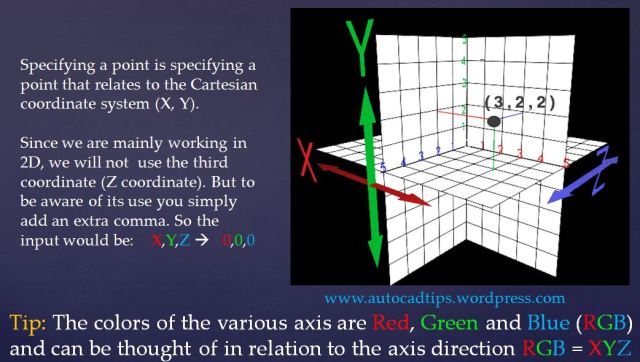
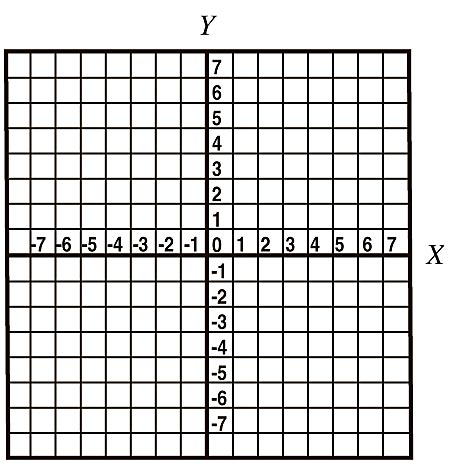
A Cartesian coordinate system has three axes X, Y, and Z. When you enter coordinate values, you indicate a point’s distance (in units) and its direction (- or +) along the X, Y and Z axes relative to the coordinate system origin (0,0,0).

In 2D, you specify points on the XY plane, also called the construction plane. The construction plane is similar to a flat sheet of grid paper. The X value of the cartesian coordinate specifies the horizontal distance, and the Y value specifies the vertical distance. The origin point (0,0) indicates where the two axes intersect.
 

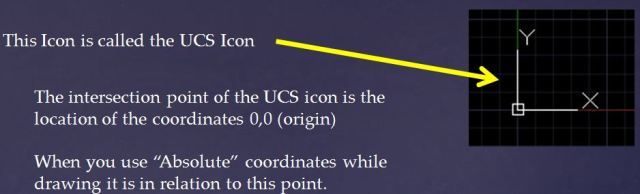
The origin is marked by an object known as the UCS icon UCS = User Coordinate System. This icon can be manipulated (moved and rotated) such that the origin point moves. But for the purposes of learning the basics of coordinates, this post will treat the UCS icon as a static object in a permanent position. Oddly enough, the UCS icon does have permanant position that it can always be re-positioned to. This position is called the “World coordinates.”
 

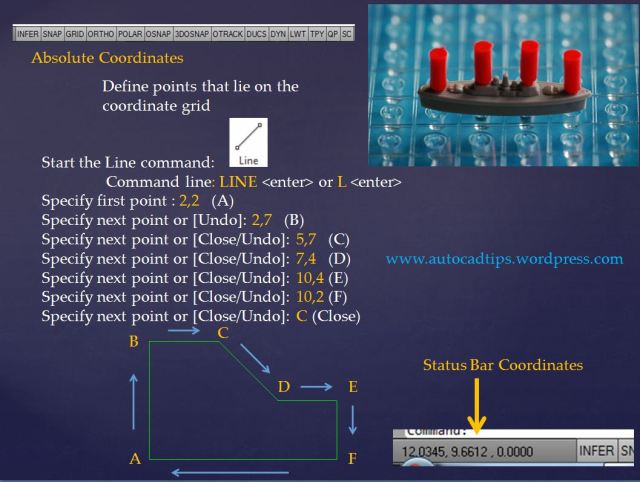
Absolute Coordinates let you type in a specific X and Y location on the construction plane.

Use the picture below to work through the use of using absolute coordinates to create the shape that is shown. Note that the coordinates that are shown in the lower left of the screen (status bar) displays the coordinates of your cursor.

Note the all of the Drafting Setting toggles are turned off. this is because when DYN (dynamic input) is turned on it changes how absolute and relative coordinates are entered.


Relative Coordinate entry is simply specifying the next point as it relates to your previously defined point whether you picked a point with the cursor or you entered a specific coordinate. Think of this method as the last point you specified being equal to the coordinate 0,0.
The way that you tell AutoCAD that you want to use relative coordinates is that you prefix the coordinate with the @ symbol. Note that the first point that is specified is an absolute coordinate since there is not a specified previous point.

Note the all of the Drafting Setting toggles are turned off. this is because when DYN (dynamic input) is turned on it changes how absolute and relative coordinates are entered.
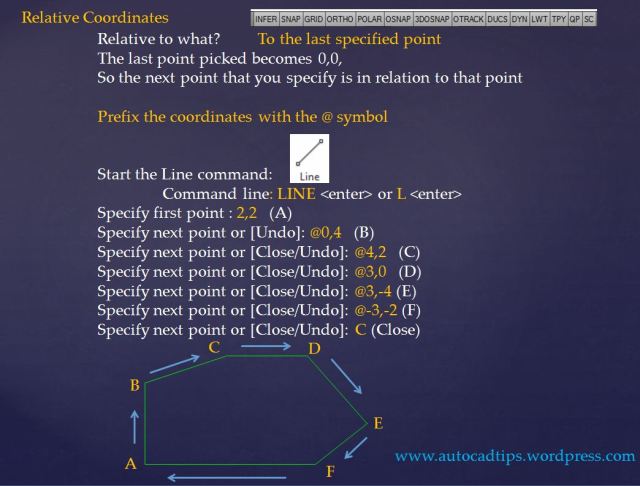
 

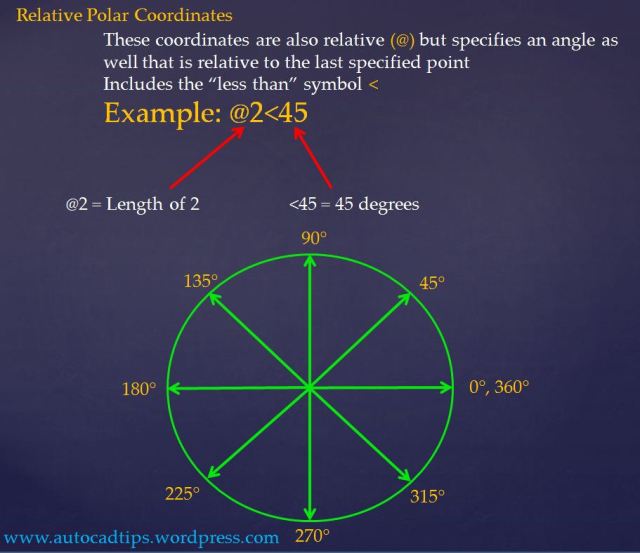
Relative Polar Coordinate entry is very useful but for some people it is easily forgotten. As shown above, Relative coordinates use the @ symbol when specifying a point. As shown in the picture below, relative polar uses the # symbol to specify the LENGTH of the object followed by the < symbol to specify the angle.
 

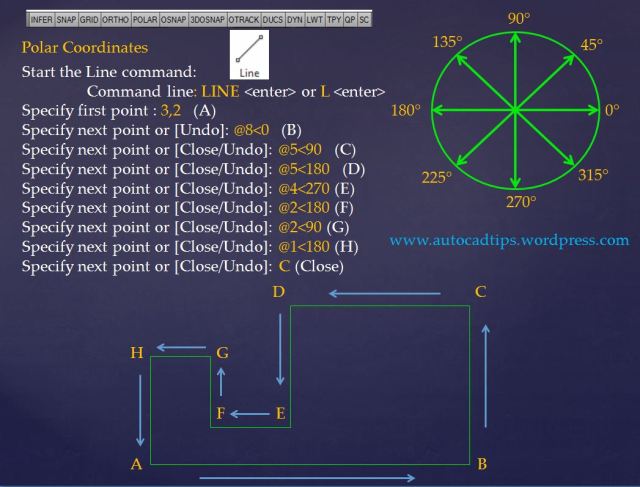
Use the below picture to create the shape that is shown using Relative Polar Coordinate entry. Turn off all toggles in the drafting settings.


As I have mentioned before each exercise, Dynamic Input when enabled turns your entry method to an automatic Relative Polar method. This is confusing because when DYN is turned on and say that you want to specify the coordinate of 0,0 you will not see anything happen. So in order to force Dynamic input to use Absolute coordinates use the # sign before the coordinates.


Posted in BASICS, Settling In, Uncategorized | 4 Comments

Temporary OSNAP Overrides (Including 3D Osnaps)

When you are in the middle of a command and you need to snap to something that is not currently set in your running OSNAPs, you can use a temporary OSNAP override that will let you snap to the desired OSNAP and only that OSNAP and afterwards, it will turn off. This is helpful so that you don’t end up with too many OSNAPs turned on and it will let ignore your running OSNAPs and focus only on the needed OSNAP.

You can access these temporary OSNAPs while in the middle of the command by holding down the SHIFT button and then right clicking and then selecting the desired OSNAP or you can use the 3-digit keyboard shortcut (the 3D keyboard shortcuts are 4 digits). The keyboard shortcuts are illustrated in the image below as red text.


Posted in 3D Intro, BASICS, New in 2011, Settling In, TIPS | 1 Comment

Intro to Isometric Drawing

AutoCAD has an isometric drawing mode that lets you drawing 3D-looking objects in 2D just like when you draw 3D objects on a flat sheet of paper. This means that even AutoCAD LT can draw 3D representations.

Q) What is an Isometric Drawing?

A) A pictorial representation of an object in which all three dimensions are drawn at full scale rather than foreshortening them to the true projection or vanishing point. An Isometric drawing therefore contains lines that remain paralell to each other. It is because these lines do not diminish into the horizon that they remain at full sclae and are therefore measurable.

Isometric planes:
Notice below, that when drafting in an Isometric plane, you are still drawing in the flat 2D plane. You can see this by looking at your view as it is shown in the viewcube.

The picture below shows the flat Iso-drawing when the view is rotated to a 3D view as shown by the rotation of the viewcube:


The Isometric planes are basically increments of 30 degrees and shown below:


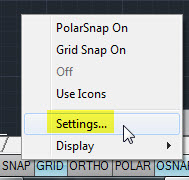
To turn on the Isometric mode, Right click on the “SNAP” button that is in the Drafting Settings buttons.


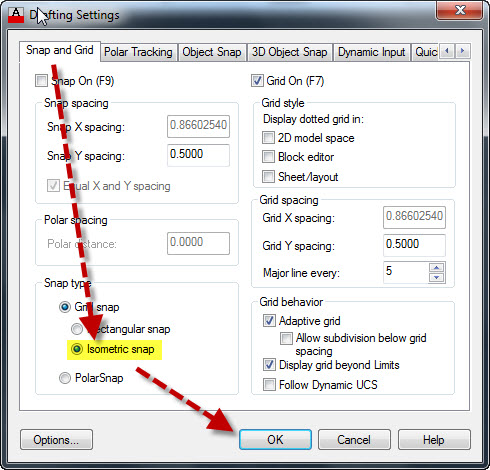
Select “Isometric Snap” from the dialog box and then click OK


Once the dialog box closes you will notice that your drawing cursor (cross hairs) will look funny. This is showing you that your cursor is in an Isometric mode.

To draft so that your lines are aligned with this Isometric mode make sure that ORTHO is turned on.

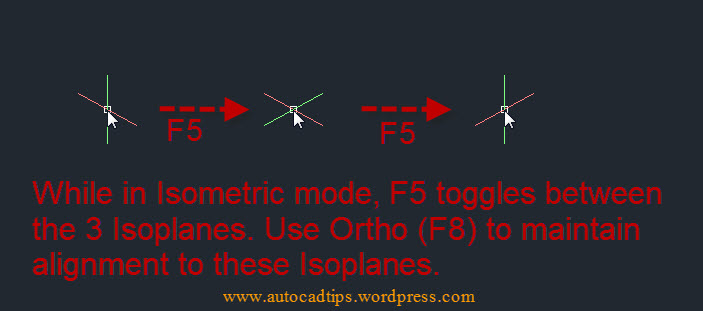
To change which Isometric mode you are in, use the F5 function button:


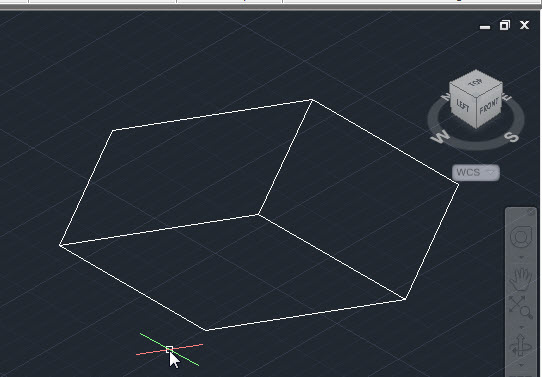
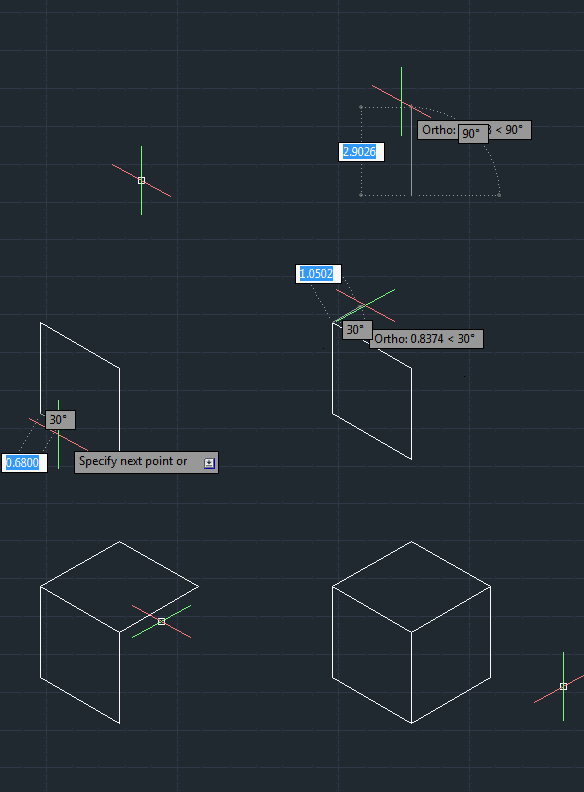
Shown below is an example of drawing a cube in Isometric mode:


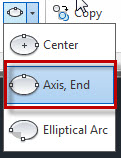
Isometrics are fun but they are a little difficult when it comes to rounded objects and rounded edges. When you need to create a circle, use an ellipse. And to be more specific, use the “Axis, End” ellipse tool. Using this tool while in an active isometric mode will show and extra sub-option in the command line. the sub-option that you need to select is the “Isocirlce” option. Drawing curved edges and objects while in Isometric mode will take some practice, so be patient and have fun.
~Greg


Posted in BASICS, Isometrics | 23 Comments

Intro to Polar Tracking

I might have the opportunity to teach AutoCAD at a local community college this coming fall so I have been focusing on the basics.
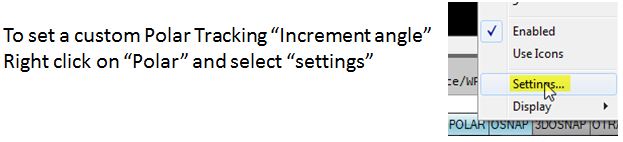
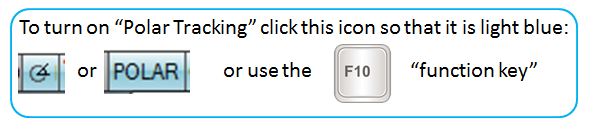
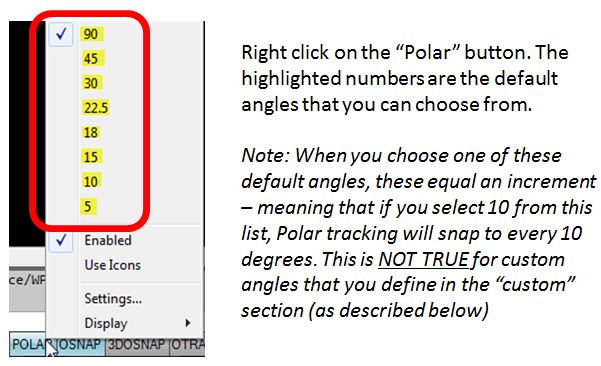
Polar Tracking is a great way to define a specific angle while drafting.
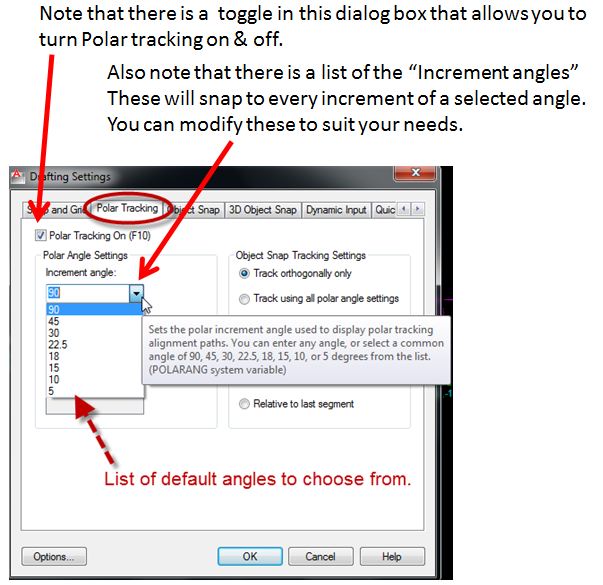
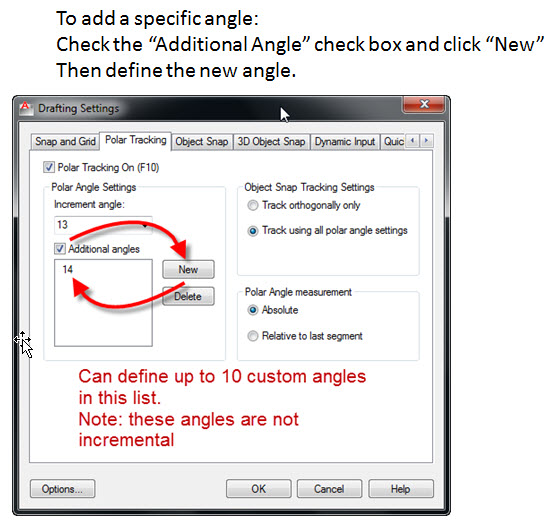
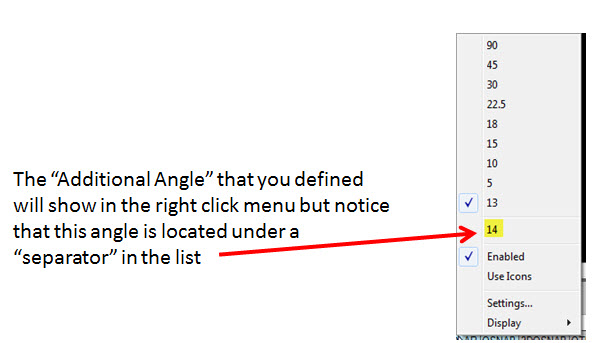
This is probably the most common way to define an angle. It can be a fast solution when selecting from the default angles but requires prior setup for custom angles.

Polar tracking is located in the “Drafting Settings” buttons in the lower left of the screen.


To change how the icons are displayed (as shown above) click this post: https://autocadtips.wordpress.com/2010/11/03/drafting-settings-buttons-in-the-status-bar/


Posted in BASICS, Customization | 1 Comment

AutoLISP: Create a Roof Pitch Symbol

If you need to create a roof pitch symbol this routine will surely help.

Here’s how:

  • PS <enter> to start “Pitch Symbol”
  • Select a line that has the slope that you need to calculate
  • Specify the base length of the symbol. (This is the horizontal line of the triangle). this can be done by entering a value in the command line or by picking 2 points
  • Specify what side of the line you want the symbol to be placed on.
  • Move the symbol into place

Note that the symbol created is not a block, it is a group


;;   PITCH.LSP

(defun c:pitch_symbol (/ a b c f g h i j k l m n p oldosmode)
   (if (= (getvar "dimscale") 0) (setvar "dimscale" 1))
   (setq oldosmode (getvar "osmode"))
   (setvar "osmode" 0)
   (cond
      ((not (setq a (entsel "\nSelect LINE: "))))
      ((/= "LINE" (cdr (assoc 0 (setq c (entget (car a)))))) (alert "Object selected is not a LINE segment."))
      ((not (setq b (angle (cdr (assoc 10 c)) (cdr (assoc 11 c))))))
      ((apply 'or (mapcar '= (list 0 (* pi 0.5) pi (* pi 1.5) (* pi 2)) (list b b b b b))) (alert "Object selected has no pitch value."))
      (t
         (if (not PITCH_BASE) (setq PITCH_BASE (getvar "dimdli")))
         (if (not (setq c (getdist (strcat "\nBase length <" (rtos PITCH_BASE) ">: "))))
            (setq c PITCH_BASE)
            (setq PITCH_BASE c)
         )
         (setq h (* (getvar "dimscale") (getvar "dimgap")))
         (setq d
            (angle
               (setq e (cdr (assoc 10 (setq b (entget (car a))))))
               (setq f (cdr (assoc 11 b)))
            )
         )
         (setq a (inters e f (cadr a) (polar (cadr a) (+ d (* pi 0.5)) 12) nil))
         (if
            (or
               (< (* 0.25 pi) d (* 0.75 pi))
               (< (* 1.25 pi) d (* 1.75 pi))
            )
            (progn
               (setq e (/ (abs (cos d)) (abs (sin d))))
            )
            (progn
               (setq e (/ (abs (sin d)) (abs (cos d))))
            )
         )
         (setq g "12" f (rtos (* e 12.0) 4 4))
         (setq f (if (= f "1'") "12" (setq f (substr f 1 (1- (strlen f))))))
         (if (< pi d (* 2 pi)) (setq d (- d pi)))
         (cond
            ((< 0 d (* pi 0.25))
               (setq f
                  (list
                     (list (+ d (* pi 0.5)) pi c (* pi 1.5) (* e c) (list "C" (* pi 0.5) g) (list "MR" pi f))
                     (list (+ d (* pi 1.5)) (* pi 1.5) (* e c) pi c (list "ML" 0 f) (list "TC" (* pi 1.5) g))
                  )
               )
            )
            ((<= (* pi 0.25) d (* pi 0.50))
               (setq f
                  (list
                     (list (+ d (* pi 0.5)) pi (* e c) (* pi 1.5) c (list "C" (* 0.5) g) (list "MR" pi f))
                     (list (+ d (* pi 1.5)) (* pi 1.5) c pi (* e c) (list "ML" 0 f) (list "TC" (* pi 1.5) g))
                  )
               )
            )
            ((< (* pi 0.50) d (* pi 0.75))
               (setq f
                  (list
                     (list (+ d (* pi 1.5)) 0 (* e c) (* pi 1.5) c (list "C" (* pi 0.5) f) (list "ML" 0 g))
                     (list (+ d (* pi 0.5)) (* pi 1.5) c 0 (* e c) (list "MR" pi g) (list "TC" (* pi 1.5) f))
                  )
               )
            )
            ((<= (* pi 0.75) d pi)
               (setq f
                  (list
                     (list (+ d (* pi 1.5)) 0 c (* pi 1.5) (* e c) (list "C" (* pi 0.5) g) (list "ML" 0 f))
                     (list (+ d (* pi 0.5)) (* pi 1.5) (* e c) 0 c (list "MR" pi f) (list "TC" (* pi 1.5) g))
                  )
               )
            )
         )
         (setq ad nil jp nil cp nil)
         (foreach j f
            (setq p1 (polar a (car j) h))
            (setq p2 (polar p1 (cadr j) (caddr j)))
            (setq p3 (polar p2 (cadddr j) (nth 4 j)))
            (setq ad (append ad (list (list 256 p1 p2 p2 p3 p3 p1))))
            (setq jp (append jp (list (list (nth 5 j) (nth 6 j)))))
            (setq cp (append cp (list p1 p3)))
         ) 
         (setq p1 (car cp) p2 (cadr cp) p3 (caddr cp) p4 (cadddr cp))
         (setq d1 (car ad) d2 (cadr ad) t1 d1 t2 0)
         (grvecs d1)
         (princ "\n[DRAG] Pitch symbol and [PICK]: ")
         (grread 5)
         (while (/= 3 (car (setq l (grread 5))))
            (if (= 5 (car l))
               (progn
                  (setq n (distance (cadr l) (inters (cadr l) (polar (cadr l) (+ d (* pi 0.5)) 12.0) p1 p2 nil)))
                  (setq m (distance (cadr l) (inters (cadr l) (polar (cadr l) (+ d (* pi 0.5)) 12.0) p3 p4 nil)))
                  (if (< n m)
                     (if (not (equal t1 d1))
                        (progn
                           (grvecs t1)
                           (grvecs d1)
                           (setq t1 d1 t2 0)
                        )
                     )
                     (if (not (equal t1 d2))
                        (progn
                           (grvecs t1)
                           (grvecs d2)
                           (setq t1 d2 t2 1)
                        )
                     )
                  )
               )
            )
         )
         (grvecs t1)
         (setq d1 (cdr t1))
         (setq f (mapcar 'getvar '("highlight" "cecolor")))
         (command "._pline" (setq p1 (nth 0 d1)) "w" "0" ""
            (setq p2 (nth 1 d1))
            (setq p3 (nth 3 d1)) "c")
         (setq e (entlast))
         (setq t2 (nth t2 jp))
         (setq d1 (polar p1 (angle p1 p2) (/ (distance p1 p2) 2)))
         (setq d1 (polar d1 (cadr (car t2)) h))
         (setq d2 (polar p2 (angle p2 p3) (/ (distance p2 p3) 2)))
         (setq d2 (polar d2 (cadr (cadr t2)) h))
         (if (>= (atoi (getvar "acadver")) 12)
            (setvar "cecolor" (itoa (getvar "dimclrt")))
         )
         (command "._text" "j" (car (car t2)) d1 (* (getvar "dimscale") (getvar "dimtxt")) "0" (caddr (car t2)))
         (command "._text" "j" (car (cadr t2)) d2 (* (getvar "dimscale") (getvar "dimtxt")) "0" (caddr (cadr t2)))
         (if (and e (>= (atoi (getvar "acadver")) 13))
            (progn
               (setvar "highlight" 0)
               (setq d (ssadd e))
               (while (setq e (entnext e)) (setq d (ssadd e d)))
               (command "._-group" "_create" "*" "Pitch Symbol" d "")
            )
         )
         (mapcar 'setvar '("highlight" "cecolor") f)
	 (setvar "osmode" oldosmode)
      )
   )
   (princ)
)
(defun c:ps () (c:pitch_symbol))
(princ "\nC:Pitch_Symbol is now loaded.")
(princ"\nType PS to start command.")
(princ)

Posted in AutoLISP, AutoLISP: Creating | 6 Comments