AutoLISP: Delete Outside of Window

Link to AutoCAD Tips

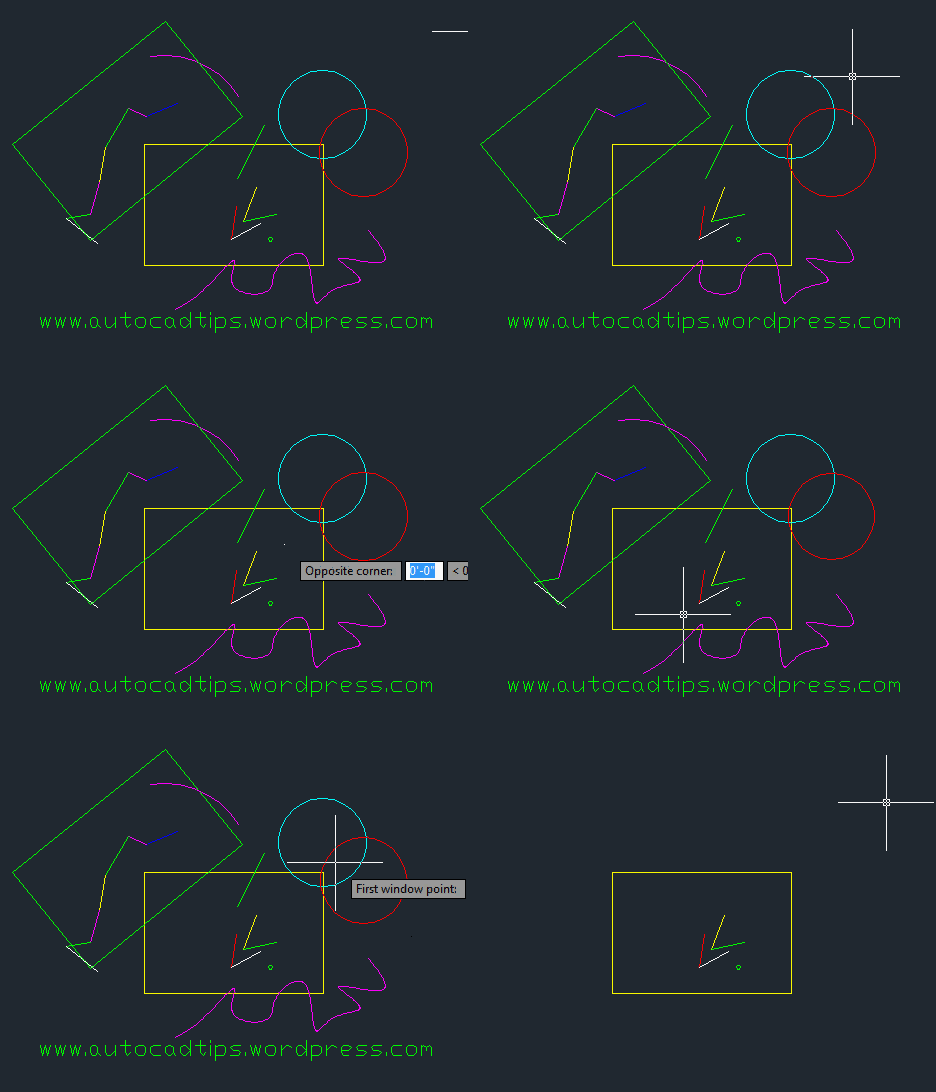
Here’s is a great little routine that will erase everything that is outside of or crosses a selection window that you create.

This is useful for erasing objects that may have gone astray in a layout tab…

Here’s How:

  • DOUT <enter> to start
  • Make a window selection. Note: Doesn’t matter what type of selection window ex. crossing…

Everything the crosses the window and lies outside of the window will be erased.

~enjoy
;------------------------------------------------------------------------------
; PROCEDURE NAME: DOUT.LSP
;
; FUNCTIONAL DESCRIPTION: This is a complement of ERASE WINDOW.
; It will delete all entities OUTSIDE OF or CROSSING a selected window.
;
; CALLED BY: interactive
;
; CALLS: none
;
; PARAMETERS: none
;
; INPUT: interactive
;
; OUTPUT: none
;
; HEADER FILES: n/a
;
; RETURN VALUES: none
;
; CREATED BY / DATE: Daniel J. Squires, CADENCE May 92 p. 89
; UPLOADED BY: M. Shrout, CDOT R-4 Design (303) 350-2155 06/02/92
;
; MODIFIED BY / REASON / DATE:
;
; PRECONDITIONS, POSTCONDITIONS:
;
; SIDE EFFECTS / EXCEPTIONS: If any portion of an entity is outside of the
; selected window, that entity will be deleted (as in a "crossing"
; selection set).
;------------------------------------------------------------------------------
; The program
(defun c:DOUT (/ ss1 ss2 ss3)
(setq cmd (getvar "CMDECHO"))
(setvar "CMDECHO" 0)
(setq picked nil)
(setq cntr1 0)
(setq cntr2 0)
(setq cntr3 0)
(setq cntr4 0)
(setq cntr6 0)
(setq ss3 (ssadd))
; Define selection set #1 (entities to be retained)
(while (not picked)
(prompt "\nWindow entities to be retained: ")(prin1)
(setq pt1 (getpoint "\nFirst window point: "))
(setq pt2 (getcorner pt1 "\nOpposite corner: "))
;
(setq ss1 (ssget "w" pt1 pt2))
(if (/= ss1 nil)
(progn
(prompt "\nWorking...")(prin1)
(setq ss1lng (sslength ss1))
(setq picked 0))
(progn
(prompt "\nERROR: No Entities Found - Select Again...")
(prin1))
)
)
; Find all layers in current drawing
(setq lyr (tblnext "layer" T))
(while (/= cntr3 nil)
(if (and (or (= (cdr (assoc 70 lyr)) 64)
(= (cdr (assoc 70 lyr)) 0)
)
(/= (minusp (cdr (assoc 62 lyr))) T)
)
(progn
(setq incrval (itoa cntr4))
(setq cntr4 (1+ cntr4))
(set (read (strcat "lyr" incrval)) (cons 8 (cdr (assoc 2 lyr))))
(setq lyr (tblnext "layer")))
(setq lyr (tblnext "layer"))
)
(cond
((= lyr nil)
(setq cntr3 nil))
)
)
; Build delection set #2 & #3 (of displayed entities)
(setq cntr5 (1- cntr4))
(setq cntr4 0)
(while (<= cntr4 cntr5)
(setq incrval (itoa cntr4))
(setq ss2 (ssget "x" (list (eval (read (strcat "lyr" incrval))))))
(if (/= ss2 nil)
(progn
(while (< cntr6 (sslength ss2))
(setq enty (ssname ss2 cntr6))
(setq ss3 (ssadd enty ss3))
(setq cntr6 (1+ cntr6))
)
)
)
(setq cntr4 (1+ cntr4))
(setq cntr6 0)
)
; Determine if entities exist in both selection sets (#2 & #3)
(setq ss2 (ssadd))
(while (< cntr2 (sslength ss3))
(setq entnm3 (ssname ss3 cntr2))
(if (not (ssmemb entnm3 ss1))
(progn
(setq ss2 (ssadd entnm3 ss2))
(setq cntr2 (1+ cntr2)))
(setq cntr2 (1+ cntr2))
)
)
; Delete all entities outside of defined window
(if (/= (sslength ss2) 0)
(progn
(command ".ERASE" ss2 "")
(prompt "\n\n")
(princ (sslength ss2)) (princ " entities found & DELETED...")
(prin1))
(progn
(prompt "\nNO entities found outside defined window...")
(prin1))
)
(setvar "CMDECHO" cmd)
(prin1)
)
Posted in AutoLISP, AutoLISP: Modify | 7 Comments

AutoLISP: Combine Text

Link to AutoCAD Tips

Here is a useful way to combine two text objects. You can even combine DTEXT objects with MTEXT and vice-versa…

Here’s how:

  • CT <enter> to start Combine Text
  • Select the first text object. (this will be the base text object that the next text object will be added to)
  • Select the second text object.

~enjoy

(princ "\CT.LSP (Combine Text) - Matt Pittman\n")
(defun C:ct (/ );1strg text1 t1 spc 2strg text2 t2 comb)
(setq 1strg (entget (car (entsel "\nPick 1st Text.. "))))
(setq text1 (assoc 1 1strg))
(setq t1 (cdr (assoc 1 1strg)))
(setq spc " ")
(setq 2string (entsel "\nPick 2nd Text.. "))
(setq 2s (car 2string))
(setq 2strg (entget (car 2string)))
(setq text2 (assoc 1 2strg))
(setq t2 (cdr (assoc 1 2strg)))
(entdel 2s)
(setq comb (strcat t1 spc t2))
(setq comb (cons 1 comb))
(setq 1strg (subst comb text1 1strg))
(entmod 1strg)
(princ)
)
Posted in AutoLISP, AutoLISP: Modify, AutoLISP: Text, Modifying, Text | 4 Comments

AutoLISP: Select Text, Rename Layout Tab

Link to AutoCAD Tips

I used this LISP routine frequently for my old job. It is a routine that I found at www.cadalyst.com and is very helpful. What it does is let you rename the current layout tab by selecting a text object that is on the layout tab. The text object can also be an attribute.

Here’s how:

  • NLAY <enter>
  • Select a text object (DTEXT, MTEXT or an ATTRIBUTE)

That’s it. Now your layout tab matches the sheet title or whatever other text on the layout tab…

~enjoy

;;; CADALYST 09/08 www.cadalyst.com/CADtips
;;; Nlay.lsp Rename Layouts (c) 2008 Jim Sturgess
;NLay.lsp Written by Jim Sturgess 14-April-2008
;
;Renames the Current Layout Tab to Match Selected Attribute or Text
(DEFUN C:NLay (/ Match Text)
(WHILE (= Match NIL)
(SETQ Match (NENTSEL "\nSelect Attribute or Text: "))
(IF (= Match NIL)(ALERT "Please Select Attribute or Text..."))
);Ends WHILE Function
(IF (/= NIL Match)
(PROGN
(SETQ Match (ENTGET (CAR Match)))
)
);Ends IF Function
(IF(SETQ Text(CDR(ASSOC 1 Match)))
(COMMAND "layout" "rename" "" Text)
);Ends IF Function
(SETVAR "cmdecho" 1)
(princ)
);Ends DEFUN
(princ)
Posted in Attributes, AutoLISP, AutoLISP: Attributes, AutoLISP: Text, Layout, Paper Space, Text, TIPS | 3 Comments

3D Visual Styles

link to AutoCAD Tips

When you are working a 3D environment, it is helpful to be able to look at your drawn objects as 3D objects instead of simple wireframe outlines… Even though view your drawing in “2D Wireframe” is a common practice and may improve your computer’s performance, I personally can’t stand working in 3D and getting lost in a maze of wires.

Here is how to change your active visual style:

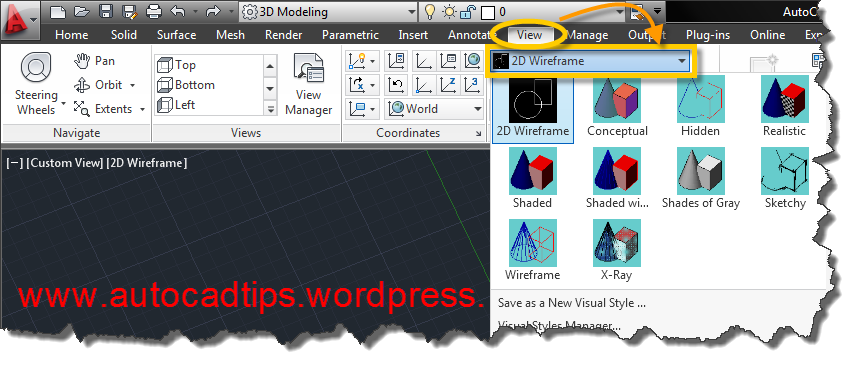
From the View tab of the ribbon, select the Visual Styles dropdown list that is located in the “Visual Styles” panel.

Introduced in AutoCAD 2012 is the new “In-canvas” controls that are familiar to 3DS Max users.

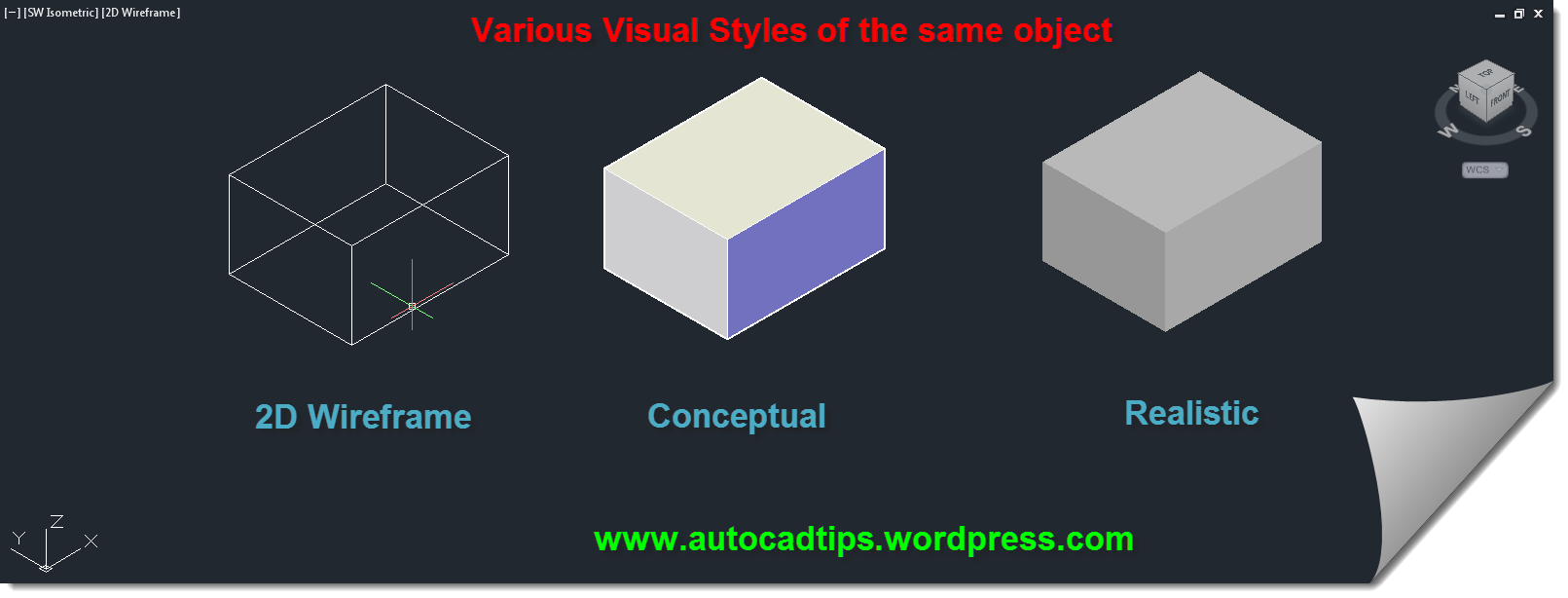
Shown below is an object with various visual styles:

One tip to keep in mind if you switch back and forth from working in 2D & 3D:

Selected objects have a feature that shows up depending on the visual style. Something called the “Gizmo” appears when you are in a visual style other than “2D Wireframe.” This “gizmo” will be covered in another post so in the mean time, just be aware that the gizmo looks like a colorful UCS icon with arrows on the ends.

This gizmo appears at the center of selected objects.

Below shows a single selected object in “2D Wireframe” compared to a 3D visual style:

When multiple objects are selected, the gizmo will appear at the center of the selection set (shown below).

Posted in 3D Intro | 4 Comments

Intro to 3D: Change Workspace

Well, this has been a long time in the making and I think that it is time to start posting tips regarding 3D.

The first thing to learn is to switch workspaces. A workspace changes the display of ribbons and toolbars. If you have certain toolbars/panels ribbon arrangements… that are located in certain places on your screen, you can save a workspace and have that arrangemnet apply to whatever profile that might be loaded.

For the purposes of learning 3D in these 3D blog postings, I will be using the “3D Modeling” workspace. Refer to the pictures below to see where to switch workspaces. Or the command to use in the command line is WSCURRENT <enter>. Then you enter the name of the workspace.

Posted in 3D Intro, BASICS, Manage, Workspaces | 1 Comment

DIMBREAK Break Dimension Lines

Here is a useful command that lets you easily add clarity to your dimensions. If you have ever dealt with dimension lines that cross over other dimension lines, you might recognize that these dimension lines can easily be confused for objects in the drawing. The old way of dealing with this was exploding a dimension and then adding a break to one of the lines. This tool adds the break and yet keeps the dimension intact and associative.

Plus, this tool will keep your drafting instructor at school happy…

Here’s how:

  • DIMBREAK <enter> at the command line or
  • Annotate tab on the ribbon > Dimensions panel > “Break” tool (as seen below)
  • Select the dimension line that you want the break applied to
  • Select the dimension line that crosses the first line. Where these dimension lines cross is where the break will occur.

To change the size of the break that this command creates:

Open the Dimension Style Manager

  • At the command line: D <enter> or DIMSTYLE <enter>
  • Or on the ribbon: click the diagonal arrow in the bottom of the “Dimension” panel of the Annotate tab of the ribbon
  • Once in the Dim Styles manager:
  • Select the Dimension Style that you want to change and then click “Modify”
  • Then click the “Symbols & Arrows” tab
  • Then at the bottom left of the dialog box, you can change the size of the break (as seen below)

Click here to learn how to remove dimbreaks from objects

Posted in Dimensions, Modifying | 2 Comments

AutoLISP: Delete Invisible Attributes

Link to AutoCADtips

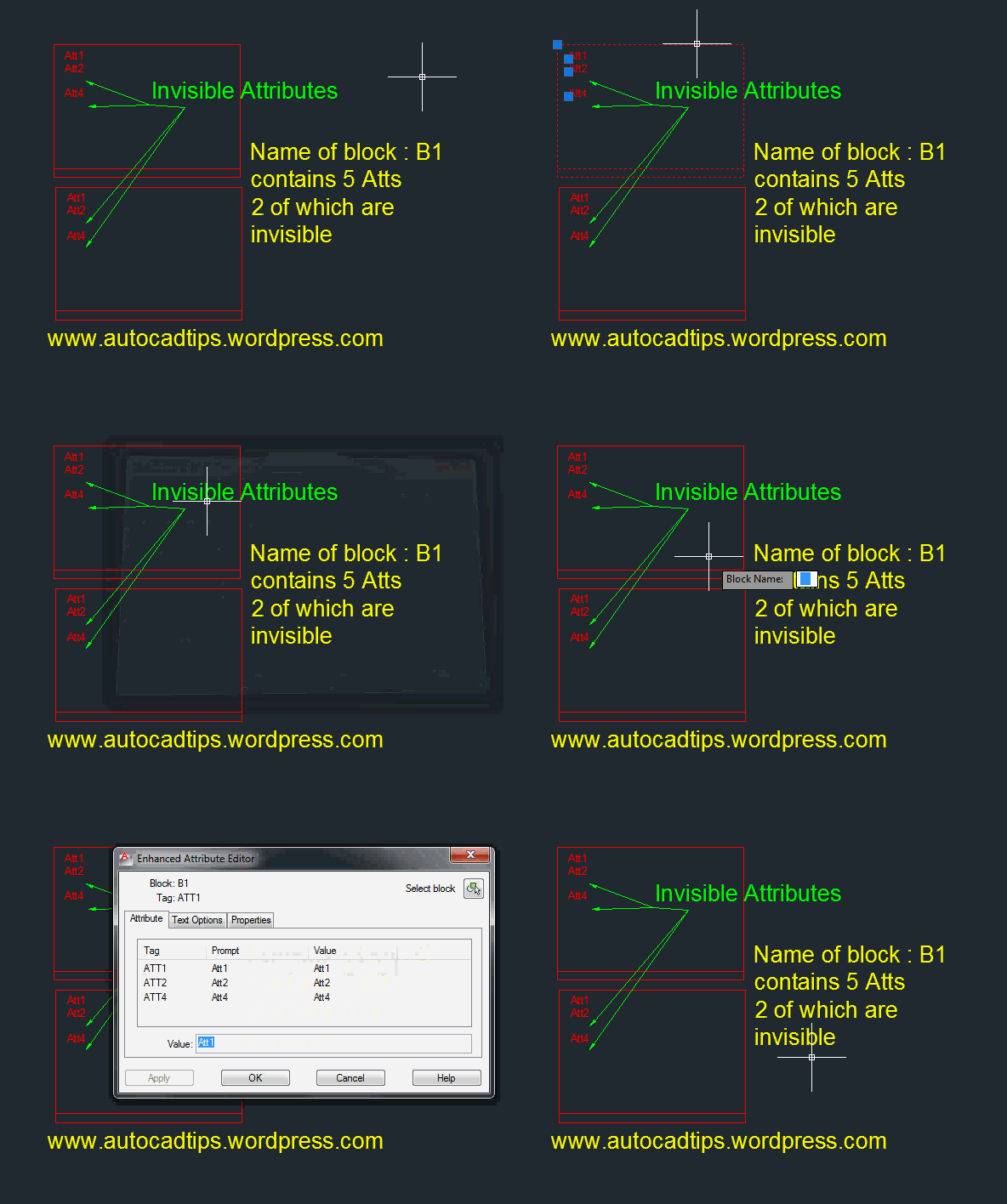
There are times when sending or submitting drawings to client or another drafter when the blocks in your drawings contain many attributes – some of which may be set to Invisible. And if you have ever wanted to delete invisible attributes, this routine is for you.

Warning: this does not work when trying to delete ALL attributes even if they are all set to invisible. At least one attribute has to be set to visible for this routine to work.

In case you are wondering how to set Attribute Visibility:

When creating an attribute you can toggle the visibility (as seen below)

Or when using the BATTMAN command you can edit which attributes are visible or invisible (seen below)

Another LISP routine [found here] allows you to select different instances of a block and toggle the visibility. Note: the DIA.lsp routine uses the command ATTSYNC which will synchronize all instances of a block based on the one you select.

Here’s how:

  • DIA <enter> to start
  • Type in the name of the block <enter>

that’s it

;;; By Lee-Mac http://www.theswamp.org/index.php?topic=36280.0
(defun delInvisAtts ( bname ) (vl-load-com)
(if (tblsearch "BLOCK" bname)
(vlax-for obj
(vla-item
(vla-get-blocks
(vla-get-activedocument (vlax-get-acad-object))
)
bname
)
(if (and (eq (vla-get-objectname obj) "AcDbAttributeDefinition")
(eq (vla-get-invisible obj) :vlax-true)
)
(vla-delete obj)
)
)
)
)
(defun c:DIA ( / bn )
(delInvisAtts (setq bn (getstring t "\nBlock Name: ")))
(vl-cmdf "_.attsync" "_N" bn)
(princ)
)
Posted in Attributes, AutoLISP, AutoLISP: Attributes, AutoLISP: Modify, Blocks, Modifying | 1 Comment

DIMROTATED:

This is a tip that I just saw from Lynn Allen’s blog [found here]and thought that I would share it here as well.

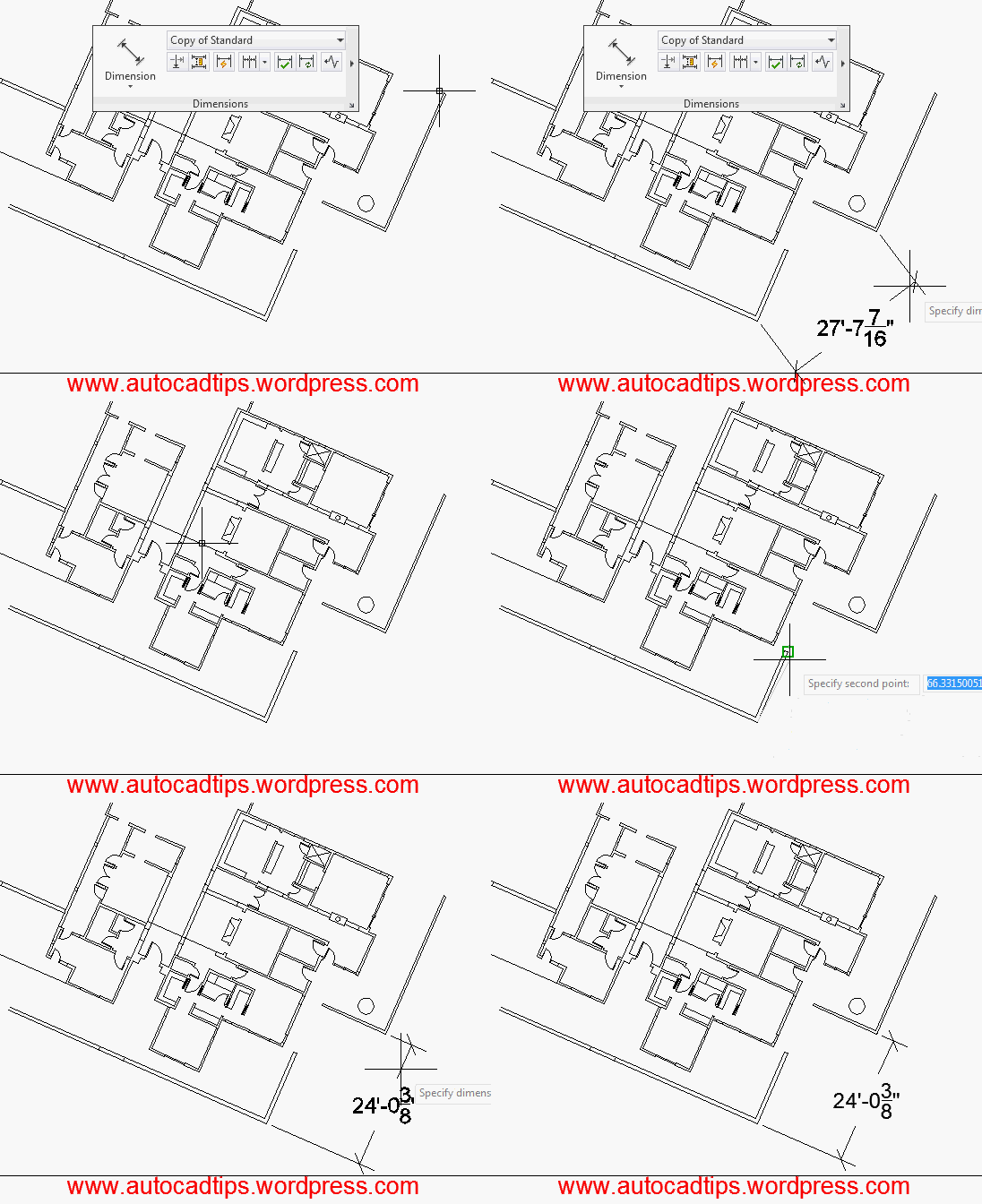
Imagine trying to dimension something that doesn’t have parallel or perpendicular pick points. So when you pick the 2 points for the dimension, it will normally create the dimension so that it is perpendicular to those 2 points.

With the command DIMROTATED you can now specify the angle that you want the dimension to be perpendicular to.

Here’s how:

  • DIMROTATED <enter>
  • Specify the angle that you want the dimension to be perpendicular to by picking 2 points
  • Pick the 2 points to start the dimension
  • Place the dimension

Posted in BASICS, Dimensions, TIPS | 3 Comments

Control PDF Layers

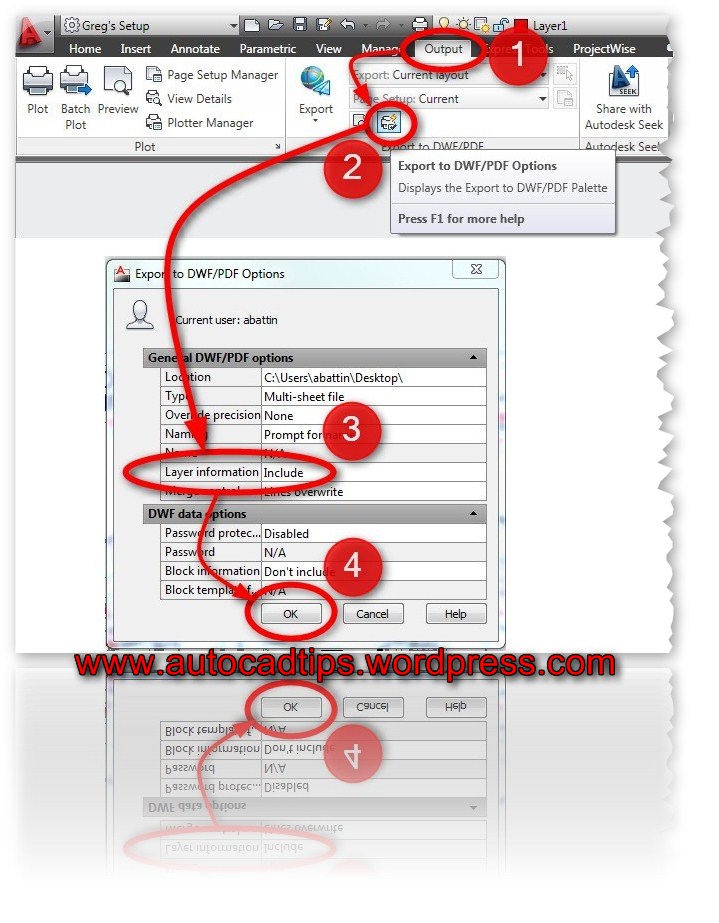
The ability to have control over layers while in a PDF is a cool/useful feature but there are times when you might not want to include them. Here’s how to turn OFF (or on) layers when creating PDFs.

(Below is an example of a PDF with Layers)

When the Plot dialog box is open: Select the “DWG To PDF.pc3” plotter and then click the “Properties” button that is next to where you selected the plotter.

  • Click the “Device and Settings” tab
  • Select “Custom Properties”
  • Click the “Customize Properties” button at the bottom

  • Uncheck the box next to “Incude layer Information”
  • Click OK

From the Export option:

  • Open the Application menu (Big red A)
  • Click “Export”
  • Select “PDF”
  • In the “Save as PDF” dialog: CLick the “Options” button
  • Switch the option that is next to “Layer Information” to “Include” or “Do not Include”

From the Output Tab: (quickest way)

  • Click the “Output” tab of the ribbon
  • Click on the “Export to DWF/PDF Options” button that is located in the “Export to DWF/PDF” panel
  • Switch the option that is next to “Layer Information” to “Include” or “Do not Include”

Posted in Layers, Manage, Printing - Plotting | 11 Comments

Replace Selected Blocks

[Original link to AutoCAD tips blog]

The Express Tool called “Replace Block” or command line = BLOCKREPLACE <enter> has been mentioned [HERE] and found on the ribbon (as seen below)

This tool is helpful for replacing blocks globally (through out the entire drawing) but what if you need to simply replace a few selected blocks?…

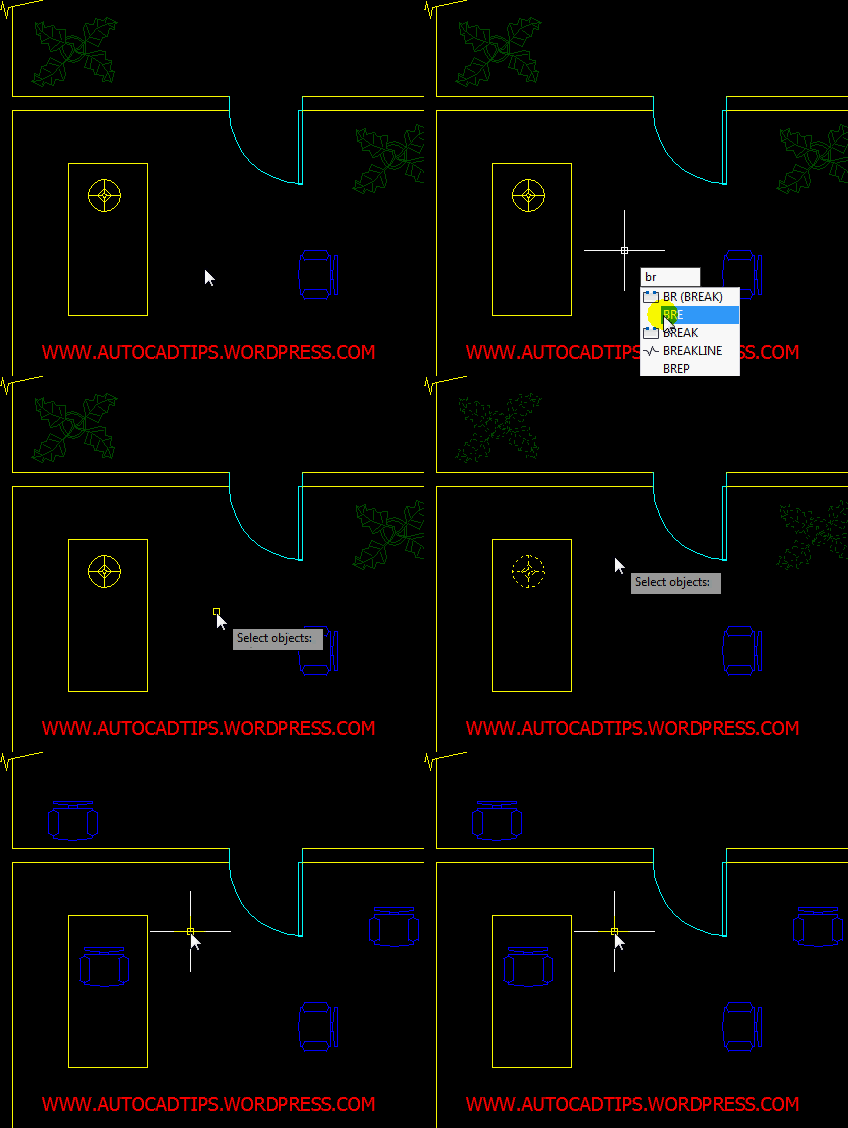
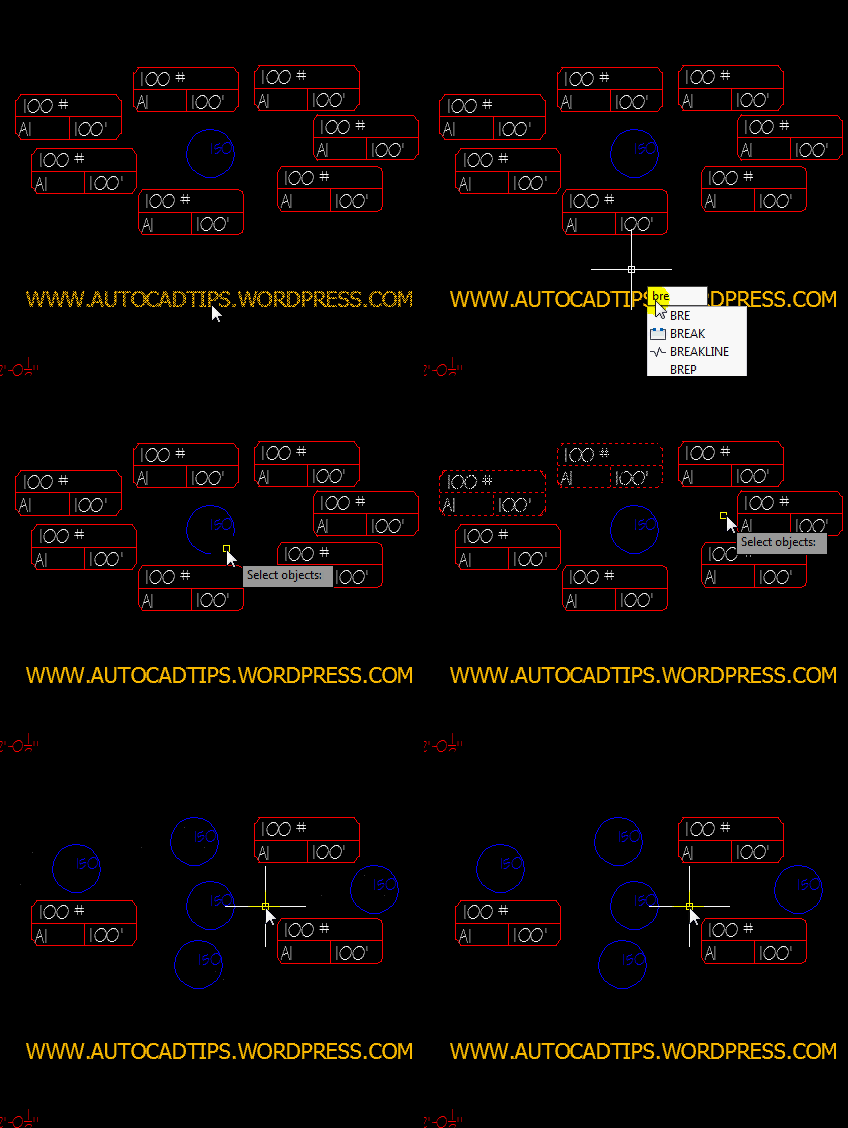
Alan T. has made an awesome LISP routine called BRE.lsp to accomplish just that.

Here’s how:

  • BRE <enter>
  • Select the block that you want to replace the other selected blocks.
  • Select the blocks that you want replaced
  • <enter> when finished

~enjoy

(defun c:BRE (/ *error* blk f ss temp)
;; Replace multiple instances of selected blocks (can be different) with selected block
;; Size and Rotation will be taken from original block and original will be deleted
;; Required subroutines: AT:GetSel
;; Alan J. Thompson, 02.09.10
;; Found at: http://www.cadtutor.net/forum/showthread.php?48458-Replace-Selected-Block-Or-Blocks-With-Another-Block
(vl-load-com)
(defun *error* (msg)
(and f *AcadDoc* (vla-endundomark *AcadDoc*))
(if (and msg (not (wcmatch (strcase msg) "*BREAK*,*CANCEL*,*QUIT*,")))
(princ (strcat "\nError: " msg))
)
)
(if
(and
(AT:GetSel
entsel
"\nSelect replacement block: "
(lambda (x / e)
(if
(and
(eq "INSERT" (cdr (assoc 0 (setq e (entget (car x))))))
(/= 4 (logand (cdr (assoc 70 (tblsearch "BLOCK" (cdr (assoc 2 e))))) 4))
(/= 4 (logand (cdr (assoc 70 (entget (tblobjname "LAYER" (cdr (assoc 8 e)))))) 4))
)
(setq blk (vlax-ename->vla-object (car x)))
)
)
)
(princ "\nSelect blocks to be repalced: ")
(setq ss (ssget "_:L" '((0 . "INSERT"))))
)
(progn
(setq f (not (vla-startundomark
(cond (*AcadDoc*)
((setq *AcadDoc* (vla-get-activedocument (vlax-get-acad-object))))
)
)
)
)
(vlax-for x (setq ss (vla-get-activeselectionset *AcadDoc*))
(setq temp (vla-copy blk))
(mapcar (function (lambda (p)
(vl-catch-all-apply
(function vlax-put-property)
(list temp p (vlax-get-property x p))
)
)
)
'(Insertionpoint Rotation XEffectiveScaleFactor YEffectiveScaleFactor
ZEffectiveScaleFactor
)
)
(vla-delete x)
)
(vla-delete ss)
(*error* nil)
)
)
(princ)
)
(defun AT:GetSel (meth msg fnc / ent good)
;; meth - selection method (entsel, nentsel, nentselp)
;; msg - message to display (nil for default)
;; fnc - optional function to apply to selected object
;; Ex: (AT:GetSel entsel "\nSelect arc: " (lambda (x) (eq (cdr (assoc 0 (entget (car x)))) "ARC")))
;; Alan J. Thompson, 05.25.10
(setvar 'errno 0)
(while (not good)
(setq ent (meth (cond (msg)
("\nSelect object: ")
)
)
)
(cond
((vl-consp ent)
(setq good (cond ((or (not fnc) (fnc ent)) ent)
((prompt "\nInvalid object!"))
)
)
)
((eq (type ent) 'STR) (setq good ent))
((setq good (eq 52 (getvar 'errno))) nil)
((eq 7 (getvar 'errno)) (setq good (prompt "\nMissed, try again.")))
)
)
)
Posted in AutoLISP, AutoLISP: Blocks, AutoLISP: Modify, Blocks, Modifying | 35 Comments