
Not everything that we draft or model in AutoCAD is at 90 degree increments. For this reason when we want to make our model aligned with the sheet of paper.
Shown below is a house that has 2 major axis. One axis happens to be aligned on the zero degree axis and the other is not. And it so happens that the portion that is not aligned to zero needs to have a viewport aligned to it and dimension applied to it.
Side Note: A simple approach that might be applicable can be found here: VPROTATEASSOC. This method rotates the entire viewport and the view of objects shown in the viewport.
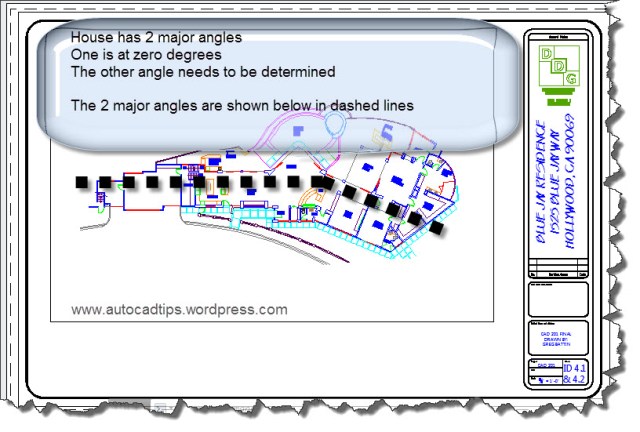
The method of rotating the view within a viewport that is described in this post is called “DVIEW with a Twist”. And it should be noted that this does not rotate any objects thus modifying any of the objects. It merely rotates the view of the objects.
Before we begin, you will need to find out the angle that the view will be rotated by. We will need to do this seperately because there is not an option for a reference like there is in the Rotate command (shown here)
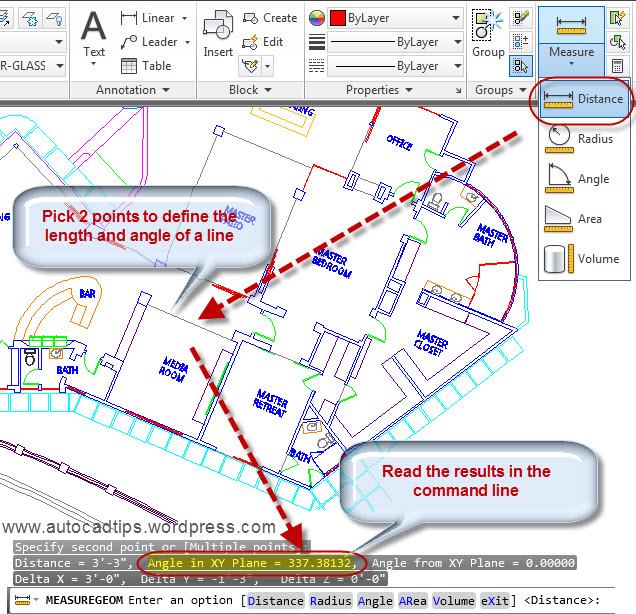
To find out the angle of the existing objects, use either the LIST or DISTANCE (aliases: LIST = LI, DISTANCE = DI) command on an objects that represents the desired angle. In the picture shown below, I used the DISTANCE command and picked 2 points. Then I noted the angle that is shown in the command line.

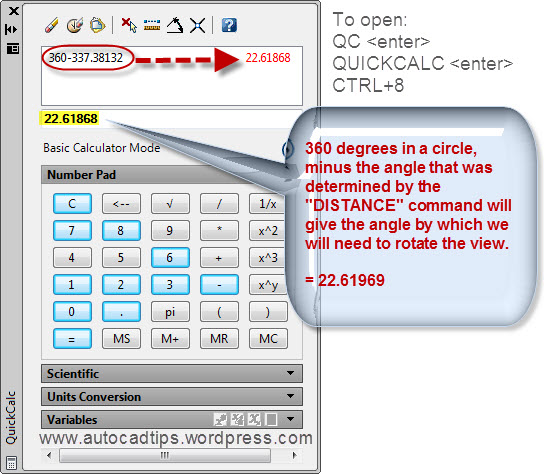
Open the Quick Calculator by using any of the following:
- QC <enter>
- QUICKCALC <enter>
- CTRL + 8
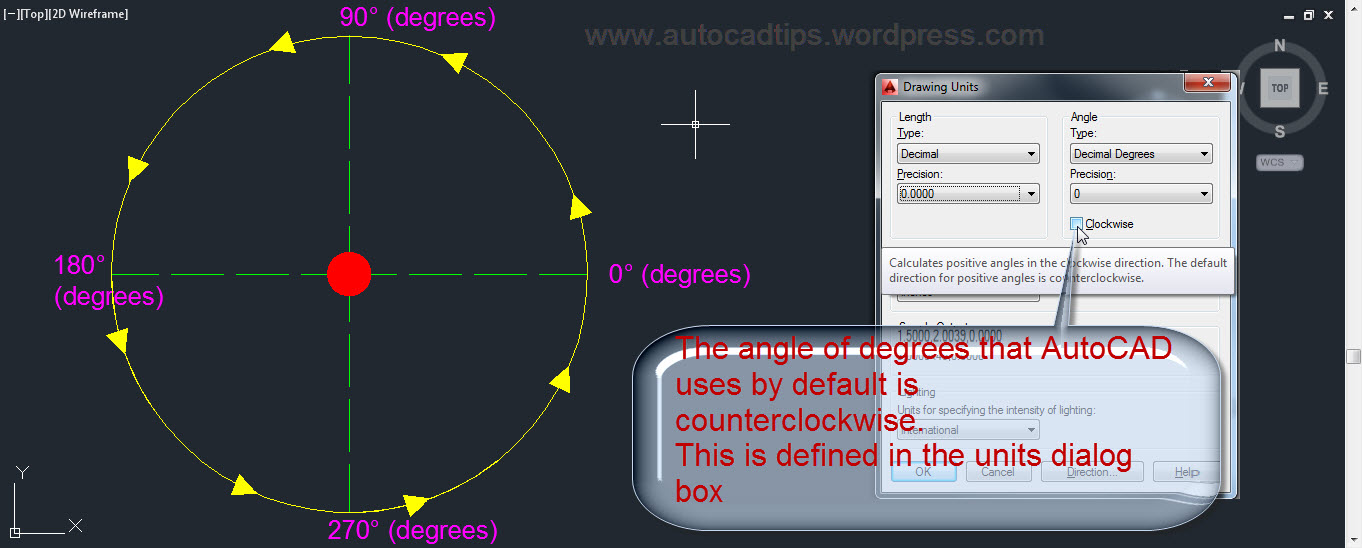
Because the view needs to be rotated is in the positive direction (counter-clockwise), the angle that was noted from the “Distance” command will be subtracted from 360.
Copy this total to your clipboard by highlighting it and then right click > copy
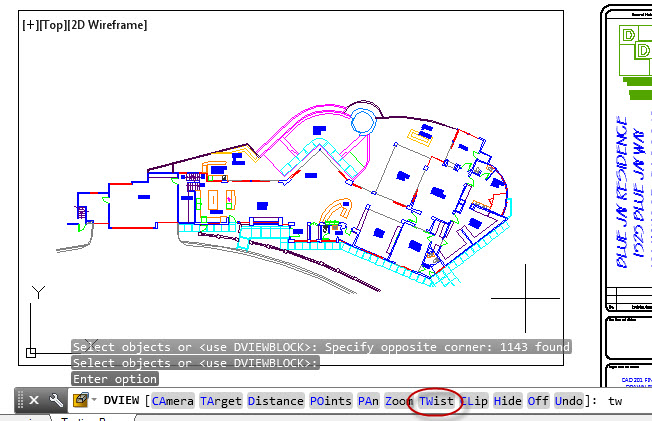
We can now start the DVIEW command
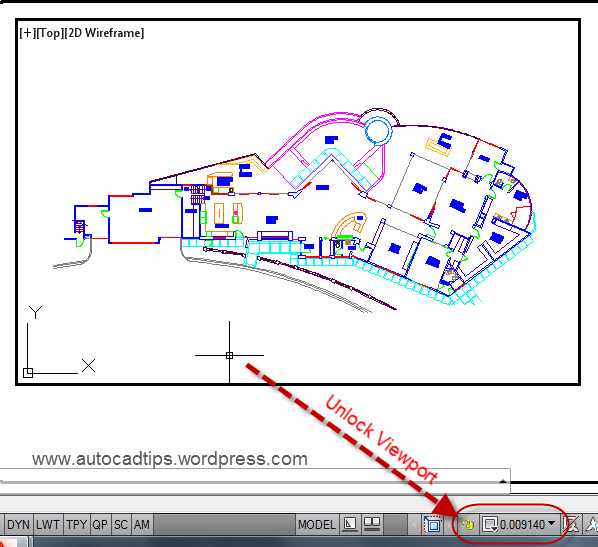
Before you launch the DVIEW command, activate the viewport and make sure that the viewport is unlocked (shown below)
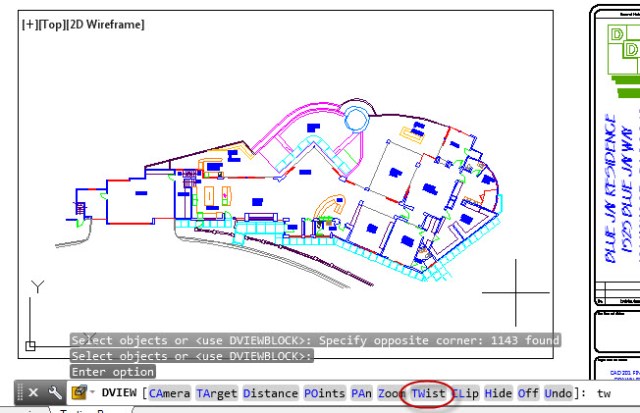
- Select objects that are to be included in the “Twist” operation by using a window or crossing selection.
- hit <enter> when finished selecting objects
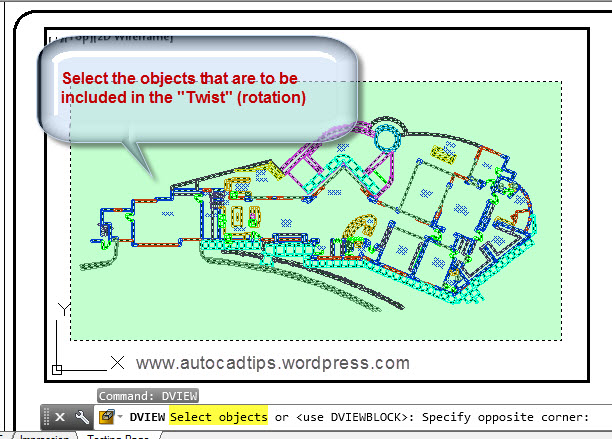
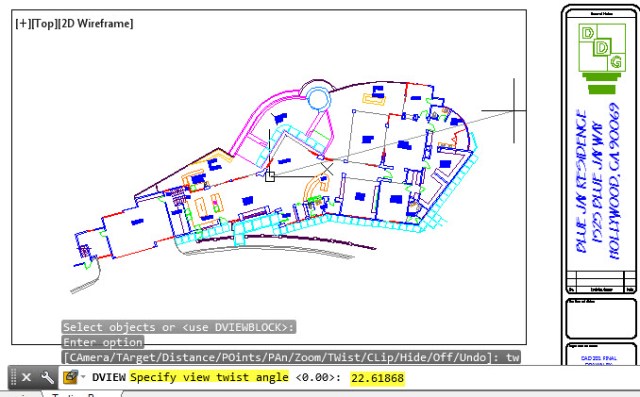
- Specify the angle to rotate the view. If you know the angle enter it in the command line. If you used the QuickCalc and copied it to the clipboard, simple paste it into the command line and hit enter.
Note that the center point of rotation is located at the center of the viewport, not the center of the objects selected.
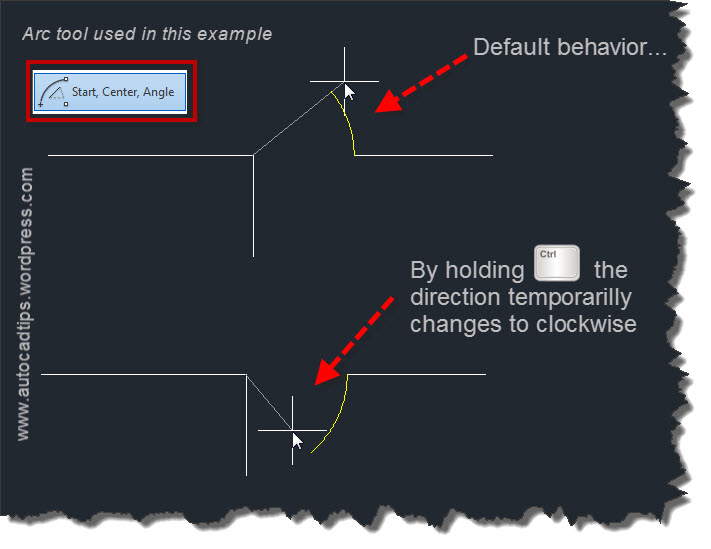
Also note: If the angle of rotation needs to be a clockwise rotation, you simply apply a minus sign in front of the angle. Ex. -45 will rotate the view in the clockwise rotation 45 degrees.
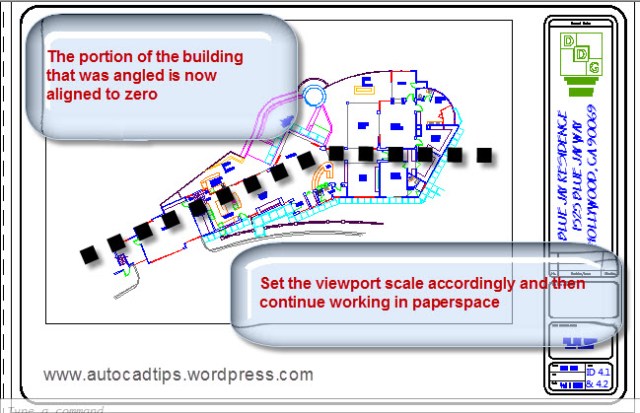
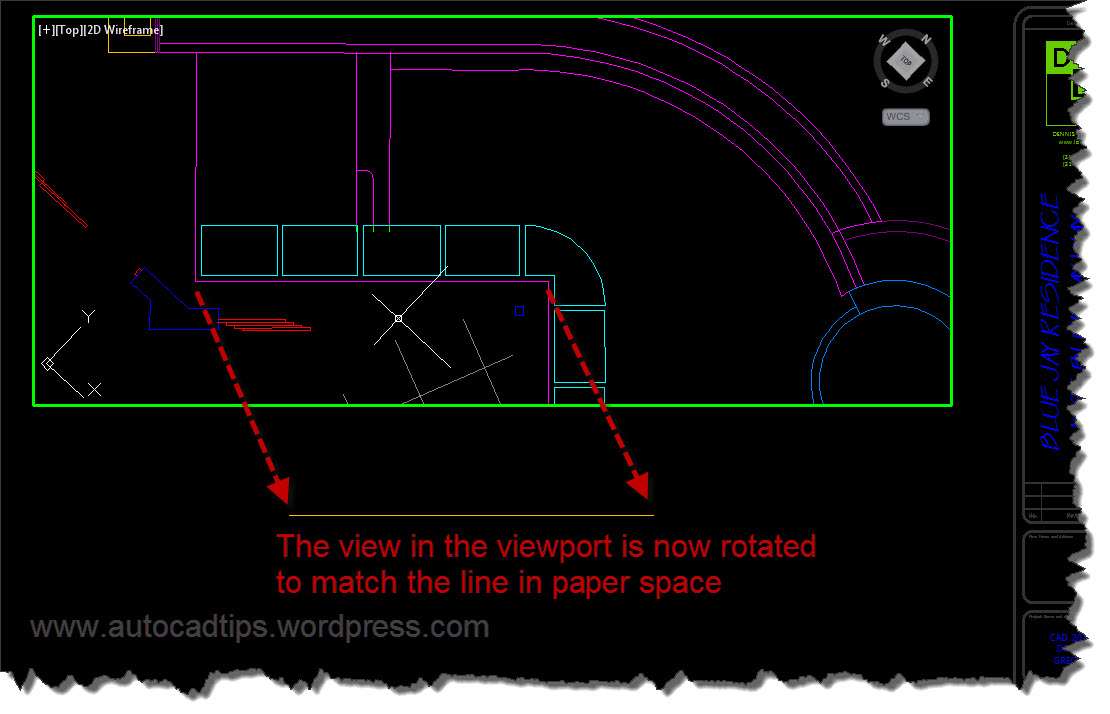
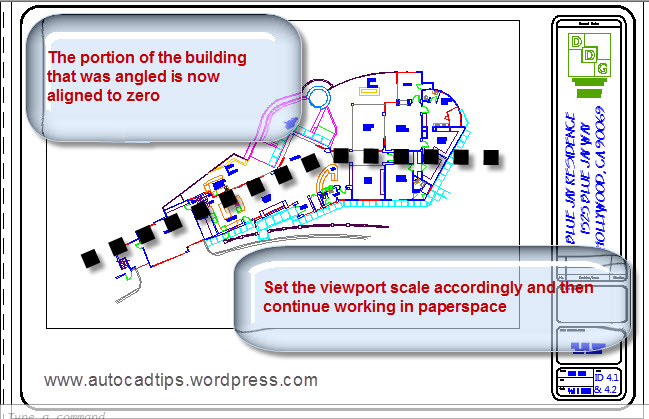
The portion of the building that was earlier at an odd angle is now lined up at zero degrees. You can now center that portion of the building in the viewport and set the viewport scale to begin placing dimensions and text in paperspace.














 AutoCAD Tips