Outbreak of Riots – Bring Back our Status Bar Text!!!

My first blog post ever on this blog [found here in Nov 03 2010] was about making your status bar icons display as text. When you have the icons displayed, you end up wasting time hovering over an icon and waiting for text to display to make sure that you are about to toggle the correct buttons like POLAR or OTRACK.

People warned Autodesk to consider the consequences of taking the text option away – the seemingly simple letters that we hold dear… I did my part by explaining that since the Ribbon makes use of text by placing it next to an icon that the result is that we can quickly identify what tools are what by simply reading the text. I even showed the size comparison from 2014 which was the last release to have the ability to change between text and icons and 2016 to show that there wasn’t much size difference (shown below). But it fell on deaf ears… and sadly,  with the release of AutoCAD 2015 they took this ability away.

Text Option Comparison

But they “done-did-it” for the second year in a row!! and they tried to show us that they have “improved” the status bar by having it “self wrap” which had the opposite effect and made us even more mad.

Status Bar Wraps


3-13-2015 12-58-56 AM


Which leads us to today on April 1st 2015 – there are reports of massive riots and looting around the world because people want Autodesk to give back the text option.

From the initial news reports shown on TV and seen online suggests that people are breaking down store fronts and taking cookies for some reason. Some rioters have even come back to the scenes from which they just stole the cookies, and then stole milk…

Police believe that the mastermind and instigator of these riots is shown below – a self described AutoCAD user. If you happen to see this individual, proceed with caution and do not approach him especially if you happen to have any cookies in your possession. He tends to go into fits of rage when he is around them for some reason.

And to think – all of this could have been avoided if Autodesk simply provided Status Bar text as an option. Be careful out there…

~Greg


Posted in April Fools | 2 Comments

Happy Monday

Here is a happy song to help your Monday. It has helped me

Sorry it is not AutoCAD related…

~Greg

Posted in Uncategorized | 9 Comments

AutoCAD Grips

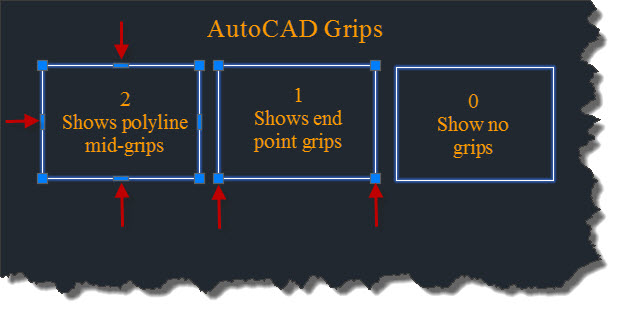
AutoCAD grips have come a long way over the years. With the addition of the polyline mid-point grip, I can’t live without them.

If for some reason, your grips are not behaving correctly, here’s how to get them back to “normal”

  • GRIPS <enter>

PS – “Normal” for me is <2>

AutoCAD Grip Settings

Here is the description provided by the System Variable editor:

Controls the display of grips on selected objects.

Value Description
<0> Hides grips
<1> Displays grips
<2> Displays additional midpoint grips on polyline segments

To adjust the size of the grips and the effective selection area used by the cursor when you snap to a grip, use GRIPSIZE.

Note: This setting is saved in the registry and not in the drawing. There have been times when I have opened a drawing and I thought that the grip settings changed on me. It was more likely changed because of a LISP routine or something that I used.

~Greg

Posted in BASICS, TIPS | 4 Comments

Split Dimensions in AutoCAD 2016

No Lisp routine needed for this functionality – If you have an existing dimension, you can pull a dimension that meets at the original dimension line and be prompted on how to handle the result. And one of the options is to split the dimension.

~enjoy

2016 Split Dims

Posted in Dimensions, Modifying, New in 2016 | 3 Comments

AutoCAD 2016 XREF Layer Controls

This new feature in AutoCAD 2016 is by far my favorite.

Here is the scenario:

Your drawing (electrical) references two other discipline’s drawings (Structural & Mechanical)

The problem comes when you print your drawing. Your electrical content is hard to differentiate from the other discipline’s. If the other disciplines used their layers “BYLAYER” you could easily change how they display in your drawing.

But since some of their layer colors have been “overridden” meaning that someone changed the color from “BYLAYER” to something else. It is difficult to get the desired result for your drawing without having to open their drawing…

With AutoCAD 2016, you can easily see what layers are in you drawing vs what layers belong to the XREFs both in the Layers “Properties Palette” and in the “Layers Dropdown” (both shown below)

XREF layers 2016 1


XREF layers 2016 2


Here is the great part!! You can now control those overridden layers by changing a brand new “System Variable” named XREFOVERRIDE and it is basically a toggle. So:

  • <0> = off (default)
  • <1> = on

Here is the more in depth description from the System Variables editor:

Controls the display of object properties on referenced layers.

  • 0 (zero) When the properties of the objects (such as color, linetype, linewidth, transparency, or plot style) on the external reference drawing are set to ByLayer, any changes to the xref layer properties are displayed in the current drawing (legacy behavior)
  • 1 When the visual properties of the objects on the external reference drawing are not set to ByLayer, objects on xref layers are treated as if their properties are set to ByLayer and every external reference layer can have its own set of layer overrides

Note: The XREFOVERRIDE system variable only applies to DWG xrefs, not to other references such as underlays.

Posted in Layers, Linetypes, New in 2016, Printing - Plotting, XREFs | 7 Comments

It’s About Time… Text Frame and Background mask for Text

This new feature only works on MTEXT but that should be fine for most people.

With AutoCAD 2016 Mtext can now have a text frame that dynamically sizes itself as you edit the text.

Simply select the MTEXT

In the Properties palette, under the “Text” area, notice the new “Text frame” option and change  it from “No” to “Yes”

Note: the size of the text frame is determined by the size of the background mask offset factor. Which brings another great possibility – combining the new TEXT FRAME option with a background mask.

Text Frame for mtext


Posted in BASICS, New in 2016, Text | 5 Comments

AutoCAD 2016 New Dimension Tool

Disclaimer: The dimension tool has been overhauled and is kind of “new”

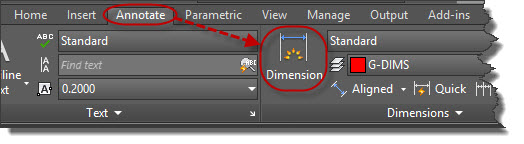
The DIM tool (as shown below) is a one-stop-shop for most of your dimensions.

New DIM tool

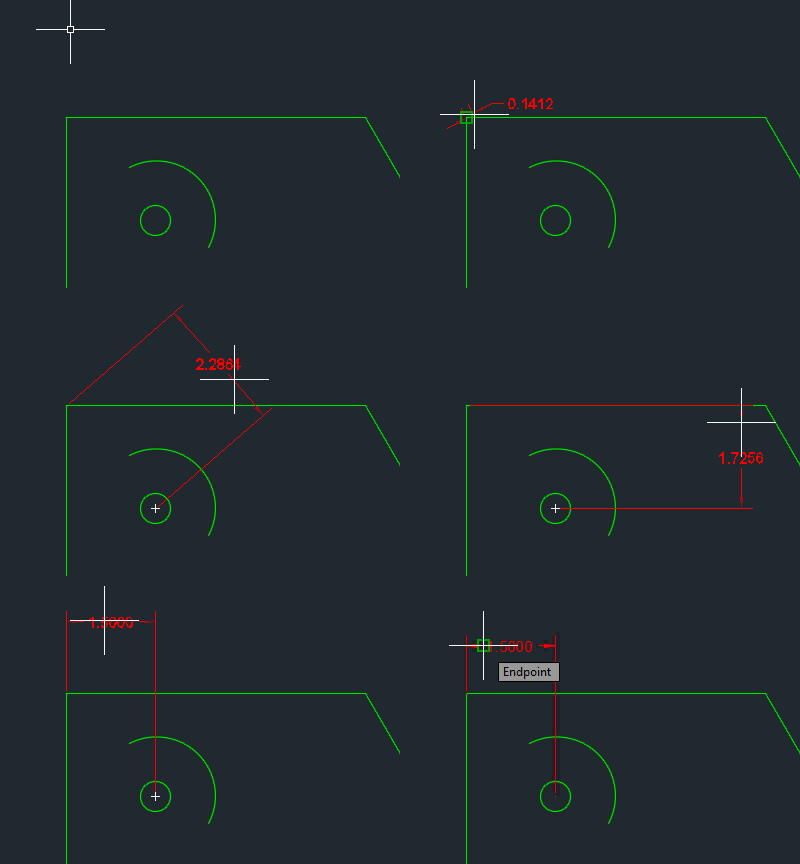
You simply launch the tool and start selecting objects or if your OSNAPS are on, you start picking points and it will recognize if you are trying to create aligned or linear dimensions.

DIM tool one-stop-shop

DIM tool one-stop-shop

  • Also shown above is the common dimensions for arcs and circles.
    • Arcs are generally dimensioned with the “R” radius marking.
    • Circles are generally dimensioned with the ∅ diameter symbol

Circles Arc Dimension

Shown below – selecting 2 points and then placing the dimensions are either aligned or linear.

Aligned or Linear dimesnsions

Aligned or Linear dimesnsions

Posted in BASICS, Dimensions | 4 Comments

AutoCAD 2015 Function Keys and Status Bar

Here is a quick snap shot of the AutoCAD 2015 Status Bar and the corresponding “Function Keys”

AutoCAD 2015 Function Keys on Status Bar

Posted in AutoCAD 2015, BASICS, TIPS, Workspaces | Leave a comment

AutoCAD 2015 Controlling the Status Bar Icons

With AutoCAD 2015 came the annoyance of being able to display the status bar icons as text. And even more frustrating is that not all of the normal Status Bar icons that we are used are even displayed.
See this previous post on displaying these icons as text (note: works on previous AutoCAD versions including 2014)

https://autocadtips.wordpress.com/2010/11/03/drafting-settings-buttons-in-the-status-bar/

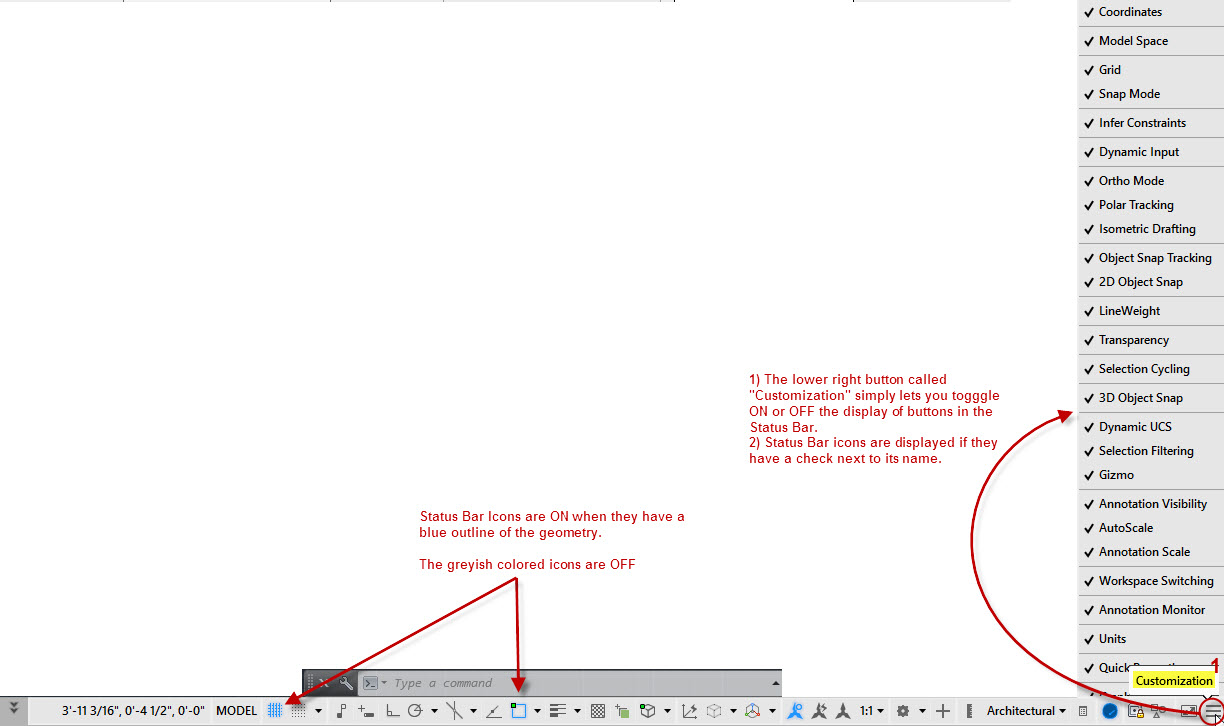
To toggle a certain status bar icon, use the bottom left corner button with 3 stacked lines called “Customization” It looks just like the “Customize” button in Google Chrome…

Customization Button

When you click on this button, you will  see a menu pop up along the right side of the screen. It is from this menu that you check or uncheck the various buttons to be displayed in the Status Bar.

2015 Status Bar Icon visibility

Some of the status bar icons that are not visible are the very ones that I usually toggle off until I need them – Like Dynamic Input, Transparency, Dynamic UCS… So be patient and let’s hops that Autodesk and the AutoCAD bring back the Text option, but meanwhile, I thought that this might be handy…


Posted in BASICS, Customization, New in 2015, TIPS | 6 Comments

AutoLISP: Updated Code for “Break Along Curve” or “Break At Distance”

I’ve simply updated the AutoLISP code for an earlier post from Alan Thompson that lets you select a Line, Arc, Polyline, Spline and make breaks at the user specified distances along the object.

https://autocadtips.wordpress.com/2011/09/24/autolisp-break-at-distance/

Posted in AutoLISP, AutoLISP: Modify, Updated | Leave a comment