Adding a .DWF file to Power Point

This is a pretty cool tip for those of you who may need to do Power Point presentations. You can add a .DWF file to your PPT  presentations so that you can navigate within it as you can when you are in Design Review or AutoCAD.

.DWF files are Autodesk’s version of the popular PDF file format. You can create DWF files  while in AutoCAD and send these files to people who do not have AutoCAD. The program that they need to open these files is called “Design Review” and is free of charge. It is available at Autodesk’s website [found here].

For this tip to work, both the computer that creates the Power Point file and the computer that will be used to show the presentation need to have Power Point (of coarse) and Design Review.

Please refer to the PDF that is linked below:

Click to access dwfinppt.pdf

~enjoy

Posted in TIPS | Leave a comment

AutoLISP: Find and mark GAPS

here is another LISP routine that is great for teachers & CAD managers. If you suspect that someone has been drafting and not using osnaps to snap to the endpoints of geometry, this routine will find these gaps and mark them with a red circle. It will even make a layer called “GAP” and put these red circles on that layer for you.

Here’s how:

  • GAP <enter> to start
  • Set GAP Limit <enter> this sets the size of gaps that this routine looks for. It will look for gaps the size you specify or smaller.
  • Set Fluff <enter> this sets a small size limit to ignore. If you have tiny gaps that are intentional and you don’t want these to be found by this routine, set their size here.
  • Set Circle Size <enter> This simply sets the size of the circles that are made by this routine
  • Select Objects <enter> or hit enter without selecting objects to select everything in the drawing.
  • If there any gaps in the drawing, this routine will find and mark them.
  • Once you are finished, you can freeze or turn them off or to get rid of these circles and their layer, use the LAYDEL command to erase all objects on the layer and delete & purge the layer from your drawing.

;| GAP.LSP locates and marks the ends of arcs, lines, and plines that are close
but not exactly coincident. Gaps are marked by drawing circles on the GAP layer.
You can select part of a drawing to check or press ENTER to check the whole drawing.
These are the distances to control how the gaps are located
Gap Limit = Gaps less than this, but more than fluff are marked
Fluff = Gaps less than this are not marked
Circle Size = Size of circle to mark gaps with
Original routine by McNeel & Associates
-----------------------------------------------------------------------
-----------------------------------------------------------------------
Modified by J. Tippit, SPAUG President 12/29/98
E-mail: cadpres@spaug.org
Web Site: http://www.spaug.org
-----------------------------------------------------------------------
-----------------------------------------------------------------------
Revisions:
12/29/98 Added ability to change Gap Limit, Fluff, & Circle Size
Added CMDECHO, UNDO, OSMODE, & CURLAY
Added a counter for the number of cicles that are drawn
and other misc. prompts
Changed the Gap layer to be RED
-----------------------------------------------------------------------
|;
(defun dxf (x e) (cdr (assoc x e)))
; Removes entities other than line, pline, arc from a selection set
(defun checkss (ss / i)
(setq i (sslength ss))
(while (> i 0)
(setq i (1- i))
(setq ent (entget (ssname ss i)))
(or
(= "LINE" (dxf 0 ent))
(= "POLYLINE" (dxf 0 ent))
(= "ARC" (dxf 0 ent))
(ssdel (ssname ss i) ss)
)
)
(if (> (sslength ss) 0)
ss
)
)
; Returns the endpoints of lines, arcs and pines
(defun endsofent (ent / v e1 e2)
(cond
((= "LINE" (dxf 0 ent))
(list (dxf 10 ent) (dxf 11 ent))
)
((= "ARC" (dxf 0 ent))
(list
(polar (dxf 10 ent) (dxf 50 ent) (dxf 40 ent))
(polar (dxf 10 ent) (dxf 51 ent) (dxf 40 ent))
)
)
((= "POLYLINE" (dxf 0 ent))
(setq v (entget (entnext (dxf -1 ent))))
(setq e1 (dxf 10 v))
(while (/= "SEQEND" (dxf 0 v))
(setq e2 (dxf 10 v))
(setq v (entget (entnext (dxf -1 v))))
)
(list e1 e2)
)
)
)
; gets a selection set of all entities near a point
(defun ssat (pt dist)
(ssget "c"
(list (- (car pt) dist) (- (cadr pt) dist))
(list (+ (car pt) dist) (+ (cadr pt) dist))
)
)
; Looks through a selection set and finds ends near but not at ends
; of other entities
(defun markgaps (ss / i ends)
(setq i (sslength ss))
(while (> i 0)
(setq i (1- i))
(setq ent (entget (ssname ss i)))
(setq ends (endsofent ent))
(princ ".")
; (princ "\n")
; (princ (car ends))
; (princ " -- ")
; (princ (cadr ends))
(endsnear (car ends) gaplimit)
(endsnear (cadr ends) gaplimit)
)
)
(defun circle (pt r)
(command "circle" pt r)
(if (= CNT nil)
(setq CNT 1)
(setq CNT (1+ CNT))
)
)
; Finds the entities near a point and marks their ends if they
; are also near the point
(defun endsnear ( pt dist / ent ends)
(if (setq sse (ssat pt dist))
(progn
(setq j (sslength sse))
(while (> j 0)
(setq j (1- j))
(setq ent (entget (ssname sse j)))
(if
(setq ends (endsofent ent))
(progn
(setq d (distance (car ends) pt))
(if (< 0.0 d gaplimit)
(circle pt circlesize)
)
(setq d (distance (cadr ends) pt))
(if (< 0.0 d gaplimit)
(circle pt circlesize)
)
)
)
)
)
)
)
; Main control function
(defun c:GAP ( / ss )
(setvar "cmdecho" 0)
(command "._undo" "be")
(setq #OSMOD (getvar "osmode"))
(setvar "osmode" 0)
(setq #CURLA (getvar "clayer"))
(setq CNT nil)
(if (= gaplimit nil)
(or
(setq gaplimit (getdist "\nSet Gap Limit <1.0>: "))
(setq gaplimit 1.0)
)
(progn
(setq gaplimit2 gaplimit)
(or
(setq gaplimit (getdist (strcat "\nSet Gap Limit <" (rtos gaplimit 2 1) ">: ")))
(setq gaplimit gaplimit2)
)
)
)
(if (= fluff nil)
(or
(setq fluff (getdist "\nSet Fluff <0.0001>: "))
(setq fluff 0.0001)
)
(progn
(setq fluff2 fluff)
(or
(setq fluff (getdist (strcat "\nSet Fluff <" (rtos fluff 2 4) ">: ")))
(setq fluff fluff2)
)
)
)
(if (= circlesize nil)
(or
(setq circlesize (getdist "\nSet Circle Size <2.0>: "))
(setq circlesize 2.0)
)
(progn
(setq circlesize2 circlesize)
(or
(setq circlesize (getdist (strcat "\nSet Circle Size <" (rtos circlesize 2 1) ">: ")))
(setq circlesize circlesize2)
)
)
)
(command "._layer" "m" "GAP" "c" "1" "GAP" "")
(princ "\nSelect objects or <ENTER> for all: ")
(or
(and
(setq ss (ssget))
(setq ss (checkss ss))
)
(setq ss (ssget "x"
'((-4 . "<OR")
(0 . "LINE")
(0 . "ARC")
(0 . "POLYLINE")
(-4 . "OR>")
)
)
)
)
(princ "\nChecking for Gaps - please wait")
(markgaps ss)
(princ "done!")
(if (/= CNT nil)
(princ (strcat "\n" (itoa CNT) " Circles drawn."))
(princ "\nNo Gaps found.")
)
(setvar "clayer" #CURLA)
(setvar "osmode" #OSMOD)
(command "._undo" "e")
(setvar "cmdecho" 1)
(princ)
)
(prompt "\nLOCATE GAPS is loaded... type GAP to start!")
(princ)
Posted in AutoLISP, AutoLISP: Manage, Manage, Modifying | 2 Comments

AutoLISP: Reset Selected Dimensions

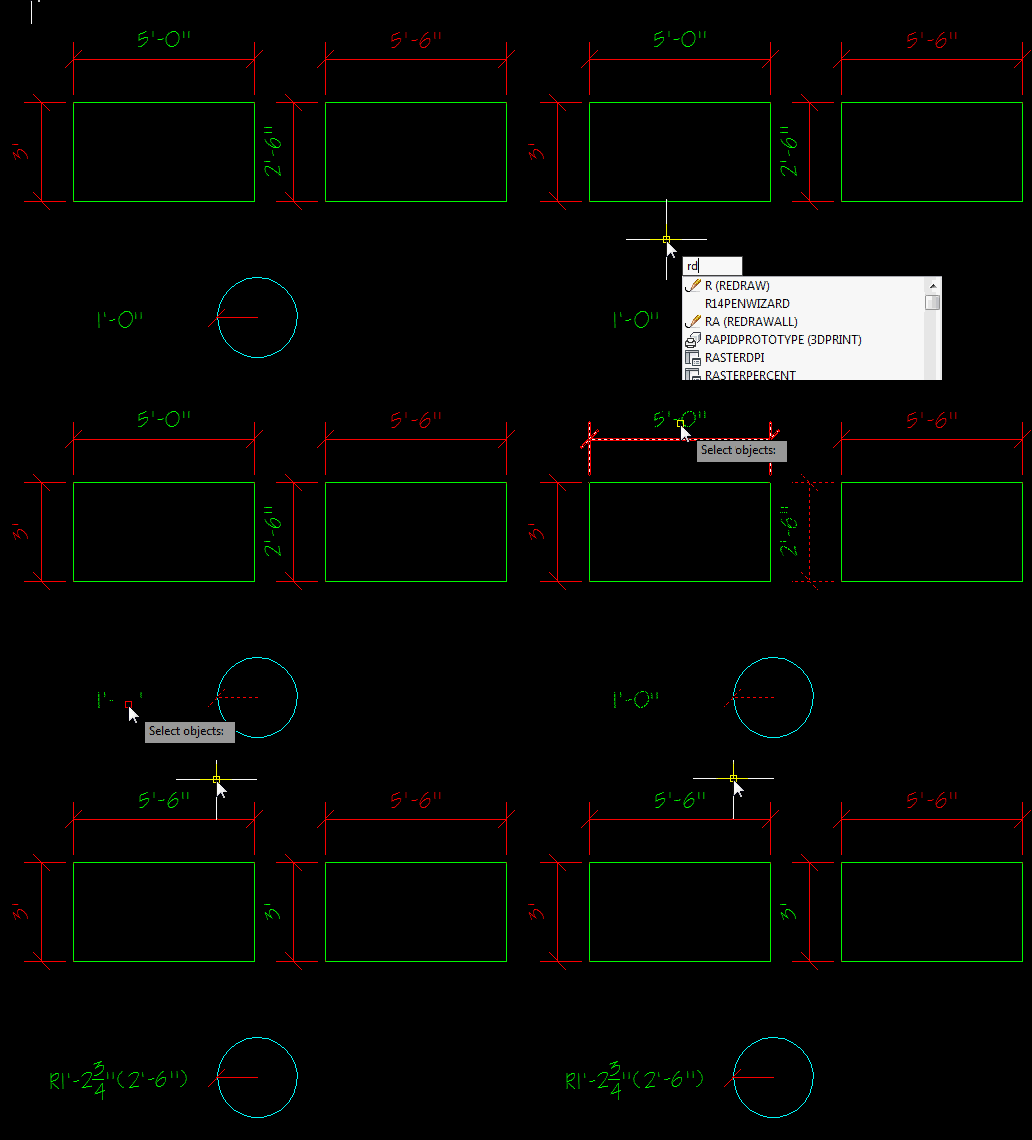
Now that you have located “dodgy” dims in a drawing, you may need to reset them to their original values. There are many LISP routines online that do this globally, but you may need to reset a few of these dimensions. That’s where this routine comes in handy. Instead of doing this manually, this routine does the hard work for you.

BTW, To do this manually, you select the dimension and then in the properties palette, under the text override text-box you enter <>

Here’s how:

  • RDD <enter> to start Reset Dodgy Dims
  • Select the dimensions that you want reset.
  • <enter> to finish

;RDD Reset Dims to actual value

(defun C:RDD (); (c) 2001 Andy Leisk

(prompt "\nRDD to start...\n")

(princ "Selects dims to reset...\n")

(setq ss (ssget))

(command ".DIM1" "NEW" "<>" ss "")

(princ)

)

(princ)
Posted in AutoLISP, AutoLISP: Dimensions, AutoLISP: Manage, Dimensions, Modifying, TIPS | Leave a comment

AutoLISP: Find Dodgy Dimensions

Keeping this whole “Dodgy Dimensions” theme going…. Here’s another routine that you can use to find dimensions that have had their value altered.

It will simply turn the “dodgy” dimension text green, thus distinguishing it from the correct dimensions.

If your dimensions happen to be green already, alter the color in the code to distinguish the “dodgy” dims in your drawings.

Here’s how:

  • FINDDODGYDIMS <enter> to start

That’s it, The routine will do the rest.

To alter the color back to normal (after correcting the wrong dimension value of course…). The color value is found in the properties palette where the dimension was altered in the first place.

(defun c:FindDodgyDims ( / ss ) (vl-load-com)

(if (setq ss (ssget "_X" '((0 . "*DIMENSION") (1 . "*?*"))))

(

(lambda ( i / e )

(while (setq e (ssname ss (setq i (1+ i))))

(vla-put-TextColor (vlax-ename->vla-object e) acgreen)

)

)

-1

)

)

(princ)

)
Posted in AutoLISP, Dimensions, Modifying | Leave a comment

AutoLISP: Match Dimension Style

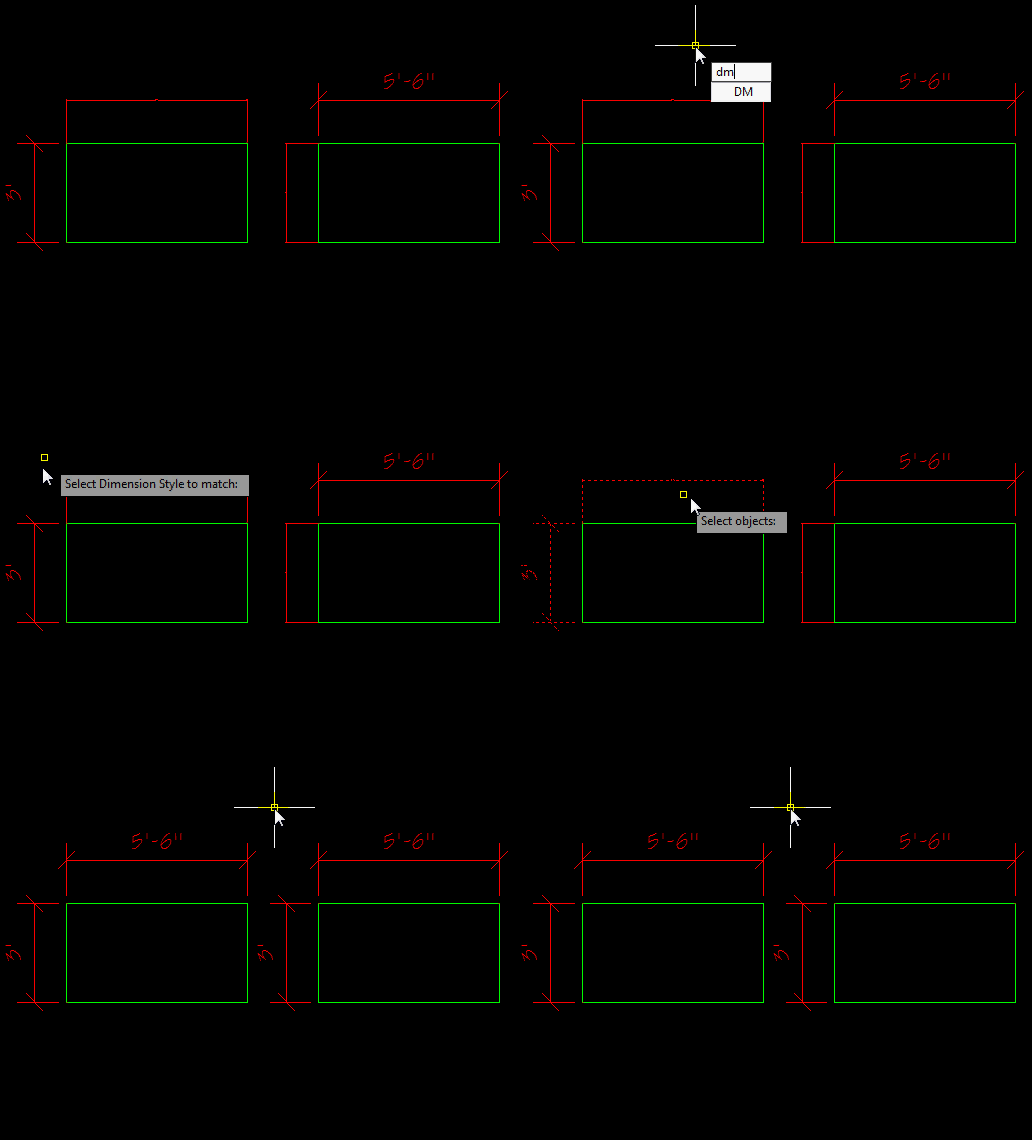
Although you can accomplish the same thing by using the MATCHPROP command, there have been problems with its behavior. This routine simply lets you match the dimension style. There is an added feature that lets you match the text style within the dimension to other text objects like MTEXT or DTEXT but you must first select a dimension to match its properties.

Here’s how:

  • DM <enter> to start Dimension Match
  • Select a dimension that has the properties that you want the other dimensions (or text) to have.
  • Select the other dimensions that you want to take on the dimension style of the first dimension selected.

~enjoy

Link to code here: http://web2.airmail.net/terrycad/LISP/DM.lsp

Note: I have linked to the code because the author makes updates as needed and this makes sure that you (the viewer) get the most current version. Thanks to Terry and all that he does and making these routines available to us. Thank you Terry

Posted in AutoLISP, Dimensions, New in 2011, Text | 6 Comments

AutoLISP: Dodgy Dimension Detector

Recently, The “Mistress of the Dorkness” (AKA Melanie) posted a routine to help the effort in finding dimensions in a drawing that have been deceitfully “fudged” [Found Here]. I remembered that I also found a routine that locates dimensions that have had an “override” applied to them. It appears that this routine was a “Hot Tip Harry” tip from long ago. It is a great routine that not only finds these “dodgy” dims but also makes its own layer called “dodgy” and puts the actual dimension value with its “dodgy” value next to each other and then freezes the other layers so as to highlight these shady dimensions.

This routine is great for CAD instructors or CAD managers who want to catch their drafters in their dubious schemes…

Here’s how:

  • DDD <enter> to start “Dodgy Dimension Detector”
  • That’s it, The routine will do the rest. However, you will need to “Thaw” all of the layers with the “LAYTHW” command so that you can see the rest of your drawing again.

; TIP1116.LSP: DDD.LSP Detect Revised Dimensions (c)1995, Patrick Wheatley

;copy associative dims with modified text to Layer DODGY-DIMS, freeze all

;other layers and update the dimension text to show the "real" dimension

;with the dodgy dimension in brackets then zoom extents

(defun initlayer (LAYERNAME COLOUR)

(if (tblsearch "LAYER" LAYERNAME) ;if exist make current or create it

(command "layer" "thaw" LAYERNAME "on" LAYERNAME

"set" LAYERNAME "")

(command "layer" "make" LAYERNAME "color" COLOUR LAYERNAME "")

);if

(prin1);no nil

);

(defun dxf (CODE ELIST)

(cdr (assoc CODE ELIST)))

(defun C:DDD (/ SET I NUM EN ED TXT DODGY-DIM DD SU)

(command "setvar" "CMDECHO" "0")

(setq SET (ssget "X" '((0 . "dimension")))

I -1

NUM (sslength SET))

(repeat NUM

(setq I (+ I 1)

EN (ssname SET I)

ED (entget EN)

TXT (dxf 1 ED))

(if (/= TXT "") ;if dimension is modified

(setq DODGY-DIM (cons EN DODGY-DIM));add it to list

)

);repeat

(if (/= nil DODGY-DIM) ;if DODGY DIMENSIONS exist

(progn

(initlayer "DODGY-DIMS" "magenta")

(setq I -1)

(repeat (length DODGY-DIM)

(setq I (+ I 1))

(command "copy" (nth I DODGY-DIM) "" '(0 0) '(0 0))

(command "change" "P" "" "P" "LA" "DODGY-DIMS" "")

)

(setq SET (ssget "X" '((8 . "dodgy-dims")))

i -1)

(repeat (sslength SET)

(setq i (+ i 1)

EN (ssname SET I)

ED (entget EN)

DD (dxf 1 ED)

ED (subst (cons 1 "") (assoc 1 ED) ED))

(entdel EN)

(entmake ED)

(command "layer" "f" "*" "" "")

(setq SU (strcat "(" DD ")"))

(command "dim" "dimpost" SU "" "exit")

(command "dim" "update" (entlast) "" "exit");add suffix = DODGY-DIM

)

(setq SU nil)

(command "dim" "dimpost" SU "" "exit") ;reset suffix to nil

(command "zoom" "E")

(prin1)

)

(prompt "\nNo DODGY DIMS in this drawing - take the rest of the day off.")

);IF /= nil DODGY-DIM

); end ddd.lsp
Posted in AutoLISP, Dimensions, Modifying | 1 Comment

AutoLISP: ChangeSpace with Copy

I really like this simple routine. It shows the power of AutoLISP. You can take an existing command in AutoCAD (CHSPACE in this example) and add an option.

The CHSPACE command (CHange SPACE) allows you to move objects from a paper space viewport to model space or from model space to paper space. It moves these objects and keeps their scaling proportional to the viewport scale. The command is limited to moving objects. That’s where this routine comes in handy. With this routine, you now have an easy way to copy objects through viewports in the same manner as the CHSPACE command moves objects.

Here’s how:

  • CHSPACECOPY <enter> to start
  • Select objects to copy to model space or paper space (depending on your current “space”)

hit <enter> to execute and finish

~enjoy

Shown below: Copying objects from model space to paper space.

Shown below: Copying objects from paper space to model space.

(defun c:CHSpaceCopy (/ ss2 ss i)

(vl-load-com)

(if (setq ss2 (ssadd)

ss (ssget "_:L")

)

(progn

(repeat (setq i (sslength ss))

(ssadd

(vlax-vla-object->ename (vla-copy (vlax-ename->vla-object (ssname ss (setq i (1- i))))))

ss2

)

)

(vl-cmdf "_.chspace" ss2 "")

)

)

(princ)

)
Posted in AutoLISP, Modifying | 3 Comments

AutoLISP: XREFs: Remove All Pics

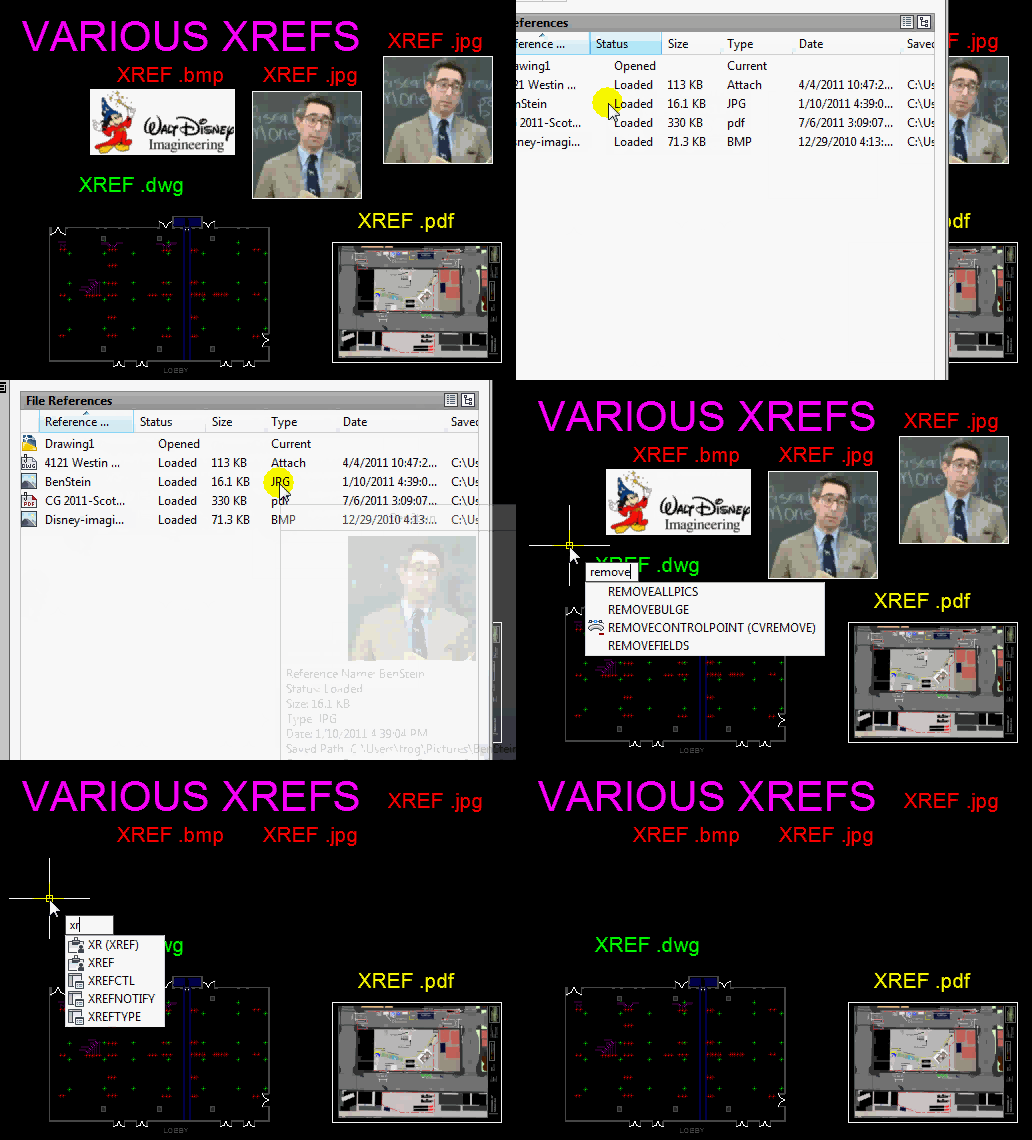
As seen in a previous post [found here] which removes all XREFs in a drawing, the featured routine today only removes any pictures that are in the drawing. As seen in the animated picture below, there are .bmp and .jpg formated pictures in the drawing.

Here’s how:

REMOVEALLPICS <enter> to start

That’s it…

(defun RemoveAllRaster ( doc / _catchapply dict lockd )

(vl-load-com)

(defun _catchapply ( method params / result )

(if

(not

(vl-catch-all-error-p

(setq result (vl-catch-all-apply method params))

)

)

result

)

)

(vlax-for layer (vla-get-layers doc)

(if (eq :vlax-true (vla-get-lock layer))

(vla-put-lock (car (setq lockd (cons layer lockd))) :vlax-false)

)

)

(vlax-for block (vla-get-blocks doc)

(vlax-for object block

(if (member (vla-get-objectname object) '("AcDbOle2Frame" "AcDbRasterImage"))

(_catchapply 'vla-delete (list object))

)

)

)

(if (setq dict (_catchapply 'vla-item (list (vla-get-dictionaries doc) "ACAD_IMAGE_DICT")))

(progn

(vlax-for object dict

(_catchapply 'vla-delete (list object))

)

(_catchapply 'vla-delete (list dict))

)

)

(if (setq dict (_catchapply 'vla-item (list (vla-get-dictionaries doc) "ACAD_IMAGE_VARS")))

(_catchapply 'vla-delete (list dict))

)

(foreach layer lockd (vla-put-lock layer :vlax-true))

(vla-regen doc acallviewports)

(princ)

)

(defun c:RemoveAllPics nil

(RemoveAllRaster (vla-get-activedocument (vlax-get-acad-object)))

(princ)

)

(vl-load-com)
Posted in AutoLISP, Modifying, XREFs | Leave a comment

AutoLISP: Mid-Point of Entire Polyline

Here is a simple and great routine. This routine places a “point” at the mid-point of the polyline. Usually, you can simply snap to the mid-point of a polyline segment. But if you want to simply find the mid-point of the overall length of a polyline, this isn’t such a simple task. That’s where this routine comes in handy. It will place a point at the middle of the polyline. So prior to running this routine, use the DDPTYPE command to set the size and type of point that you would like to use.

Here’s how:

  • MIDPOLY <enter> to start
  • Select the Polyline to place the point at its mid-point.

I found this LISP routine at the following website [click here]. If you do copy the code from the linked website, don’t forget to add (vl-load-com) to the routine in order for it to work.

;; ! ****************************************************************************

;; ! C:MidPoly

;; ! ****************************************************************************

;; ! Function : Determines the mid point of a polyline and draws a point at that

;; ! location

;; ! Author : Rakesh Rao, (C) 2004, Four Dimension Technologies

;; ! Bangalore, India

;; ! Email : rakesh.rao@4d-technologies.com

;; ! Web www.4d-technologies.com

;; ! Updated : March 11, 2004

;; ! ****************************************************************************

(defun c:MidPoly ( / ent ename entl en oname param len hLen MidPt OS )

(vl-load-com)

(setq ent (entsel "\nSelect polyline:"))

(if ent

(progn

(setq

ename (car ent)

entl (entget ename)

en (cdr (assoc 0 entl))

)

(if (member en (list "POLYLINE" "LWPOLYLINE"))

(progn

(setq

oname (vlax-ename->vla-object ename)

param (vlax-curve-getEndParam oname)

len (vlax-curve-getDistAtParam oname param)

hLen (* 0.5 len)

MidPt (vlax-curve-getPointAtDist oname hLen)

)

(vlax-release-object oname)

(setq OS (getvar "OSMODE"))

(setvar "OSMODE" 0)

(command "._Point" MidPt)

(princ "\nPoint object created at mid-point:")(princ MidPt)

(setvar "OSMODE" OS)

)

(princ "\nYou must pick a polyline object only.")

)

))

(prin1)

)

(princ "\nType 'MidPoly' to start.")

(prin1)
Posted in AutoLISP, Polylines | 7 Comments

AutoCAD Version & Windows 7

Quick Tip:

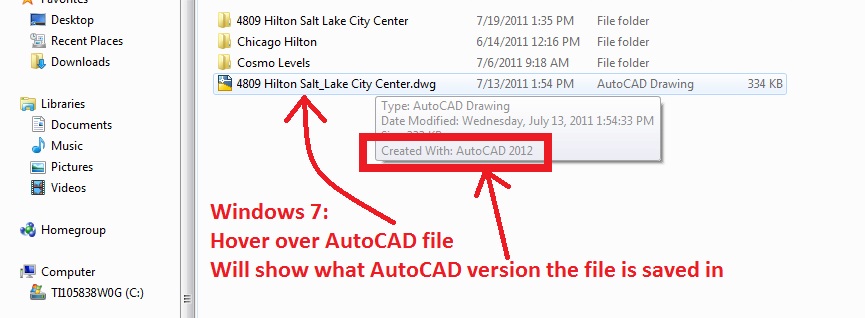
Simply navigate to a folder that has a .dwg file in it (Windows Explorer). Then hover over the file and wait for the tool-tip to appear. It will show you what the last version of AutoCAD was used on that file. This can be helpful to determine if the file can be opened by you if you are using an older version of AutoCAD.

.dwg versions:

  • .dwg 2010
  • .dwg 2007
  • .dwg 2004
  • ,dwg 2000
  • .dwg R14

~enjoy

Posted in BASICS, TIPS | 2 Comments