AutoLISP: Break at Intersections With A Gap

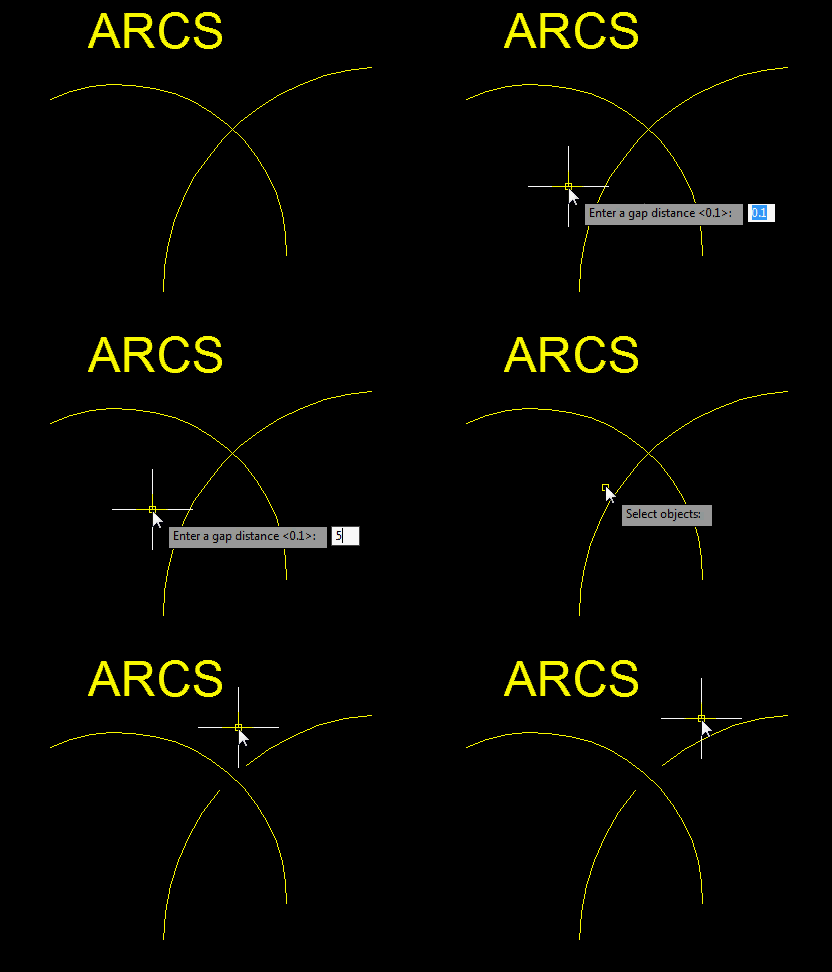
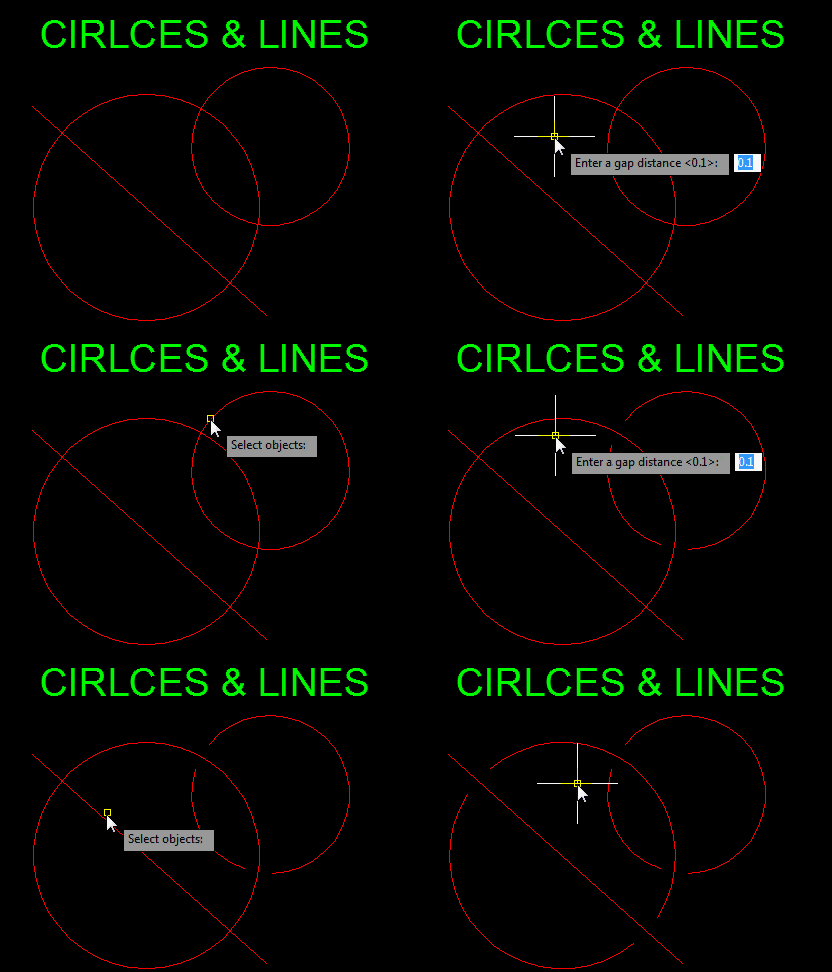
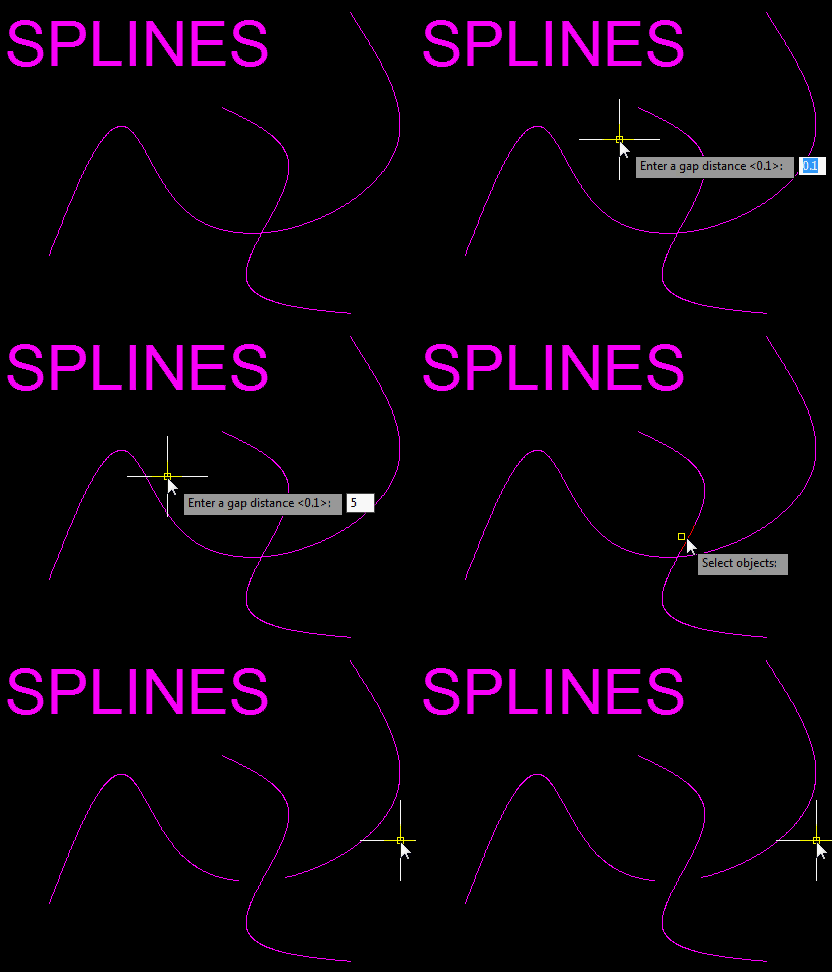
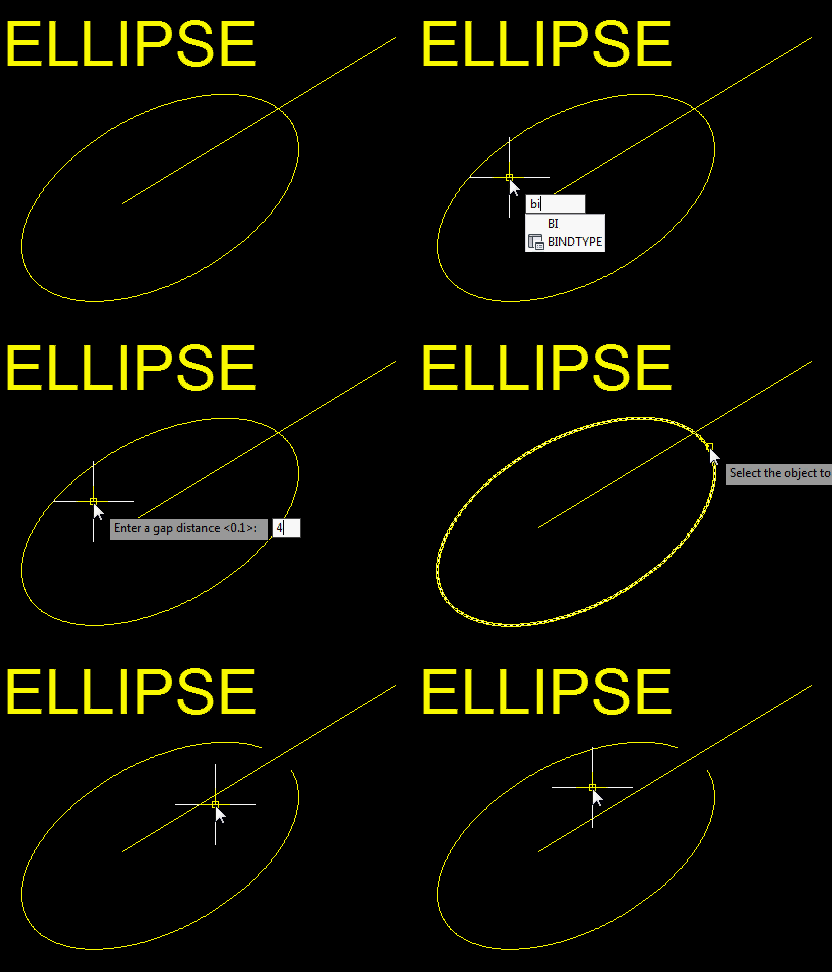
Here is a very useful routine that breaks objects at their intersections and then creates a gap at the intersection on the first object that you select.

Here’s how:

  • BI <enter> to start
  • Specify the gap distance.  <enter>
  • (Note: the gap distance that you specify is actually only half of the total gap distance. So if you specify 5 as the gap distance, the distance from the intersection to one side of the gap. Your total gap distance will be 10…)
  • Select the first object [Don’t click enter] (this object will receive the break)
  • Select the second object to define the intersection <enter> or right-click

(Note: this routine does not work on a polyline that intersects itself)

;Written by: Chris Wade

;2010-02-03

;Breaks objects at intersections

(defun c:BreakInt (/ Ent1 Ent1E EntSS ct IntLst ct2 pt1 pt1a bptlist BDis ct3) (vl-load-com)

(if (not (setq BDis (getreal "Enter a gap distance <0.1>: ")))

(setq BDis 0.1)

)

(if (or (/= (getvar "cvport") 1) (/= (getvar "tilemode") 0))

(setq BDis (/ BDis (getvar "cannoscalevalue")))

;;(setq BDis 0.1) <--commented out

)

(princ "\n")

(while (= Ent1 nil)

(setq Ent1 (entsel "\rSelect the object to break: "))

)

(setq Ent1E (vlax-ename->vla-object (car Ent1)))

(princ "\n")

(while (= EntSS nil)

(princ "\rSelect the objects to break with: ")

(setq EntSS (ssget))

)

(setq ct 0)

(while (< ct (sslength EntSS))

(setq intLst (vlax-invoke Ent1E 'intersectWith (vlax-ename->vla-object (ssname EntSS ct)) acExtendNone))

(cond

((/= intLst nil)

(setq ct2 0)

(while (< ct2 (length intLst))

(setq pt1 (list (nth ct2 intLst) (nth (+ ct2 1) intLst) (nth (+ ct2 2) intLst)))

(setq pt1a (vlax-curve-getdistatparam Ent1E (vlax-curve-getparamatpoint Ent1E pt1)))

(cond

((= bptlist nil)

(setq bptlist (list (vlax-curve-getpointatdist Ent1E (- pt1a BDis))))

)

(T

(setq bptlist (append bptlist (list (vlax-curve-getpointatdist Ent1E (- pt1a BDis)))))

)

)

(setq bptlist (append bptlist (list (vlax-curve-getpointatdist Ent1E (+ pt1a BDis)))))

(setq ct2 (+ ct2 3))

)

)

)

(setq ct (+ ct 1))

)

(cond

((/= bptlist nil)

(setq ct3 0)

(while (< ct3 (length bptlist))

(command "._break" "_non" (trans (nth ct3 bptlist) 0 1) "_non" (trans (nth (+ ct3 1) bptlist) 0 1))

(setq ct3 (+ ct3 2))

)

)

)

)

(defun C:BI ()

(c:breakint)

)

~enjoy

Posted in AutoLISP, Modifying, Polylines | 1 Comment

Cycle Through View Ports using CTRL + R

You may have read that you can cycle through View Ports in books and other websites but if you don’t see it in action, you may not fully understand its usefulness.

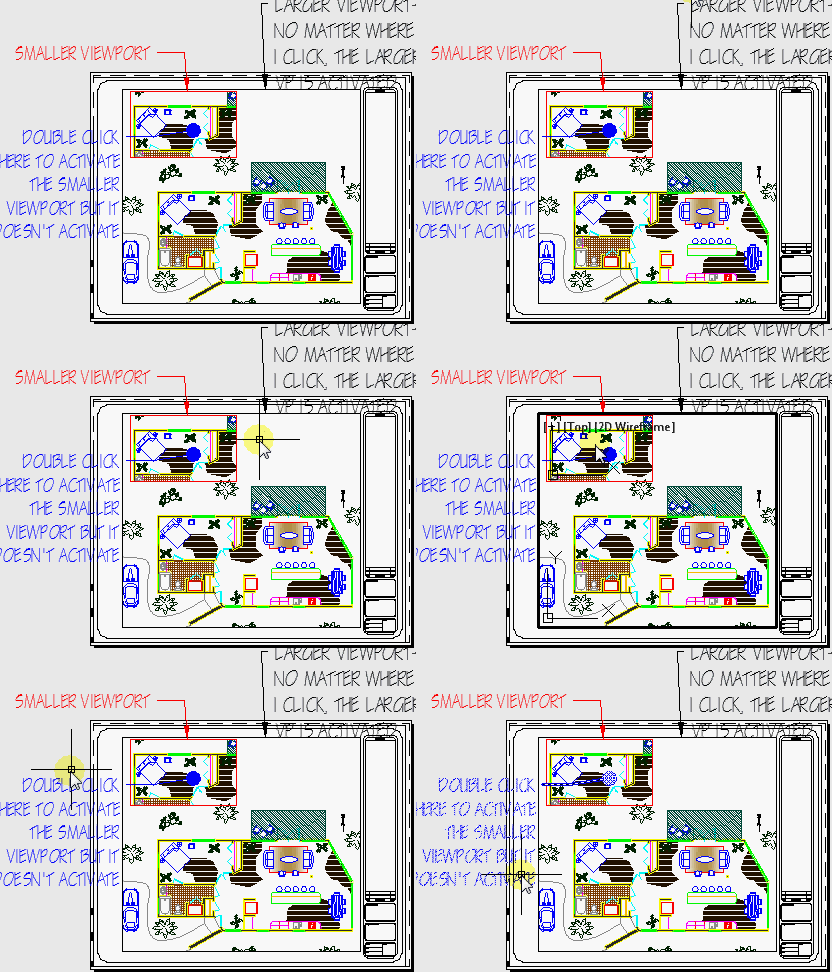
Here is an example of a layout tab that has 2 View Ports on it. 1) a larger View Port that shows the entire 1st floor and 2) a smaller View Port that shows a more detailed view of the bedroom. When you click to activate the larger VP, it is activated without any problem. When you place your cursor over the smaller VP however, you are not able to activate it. Click as much as you want – it wont activate. This is because AutoCAD favors the larger viewport when you have overlapping VPs.

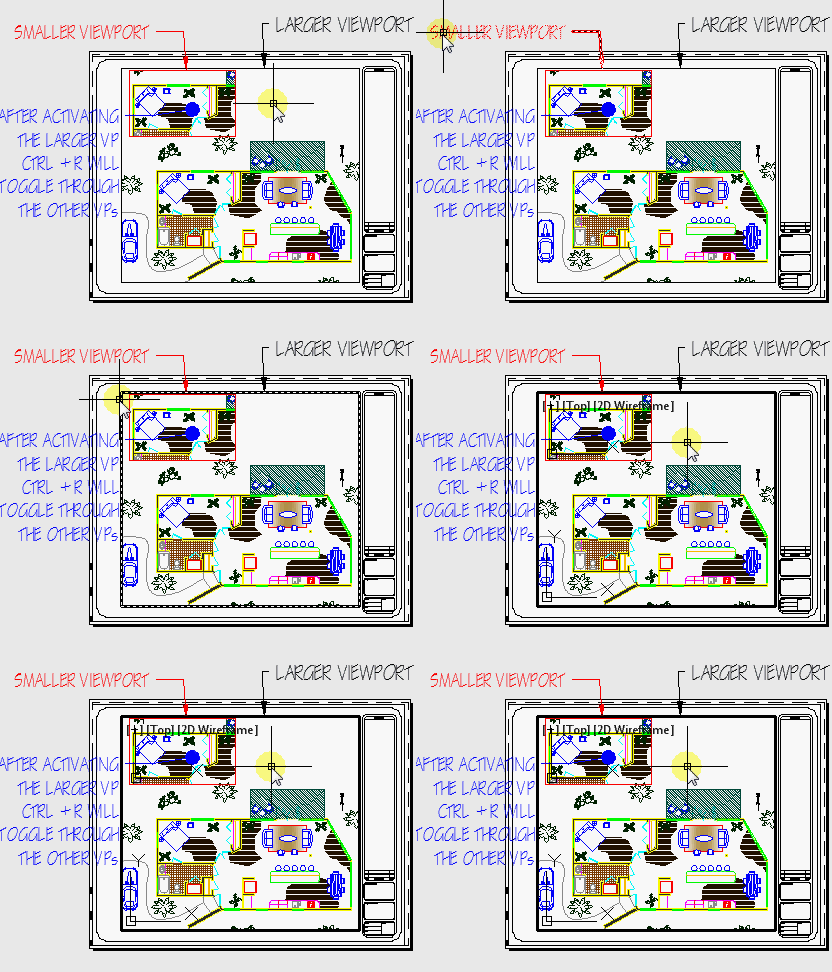
To make the smaller VP active: (as seen below)

  • Activate the larger VP
  • CTRL + R to cycle from the larger VP to the smaller VP

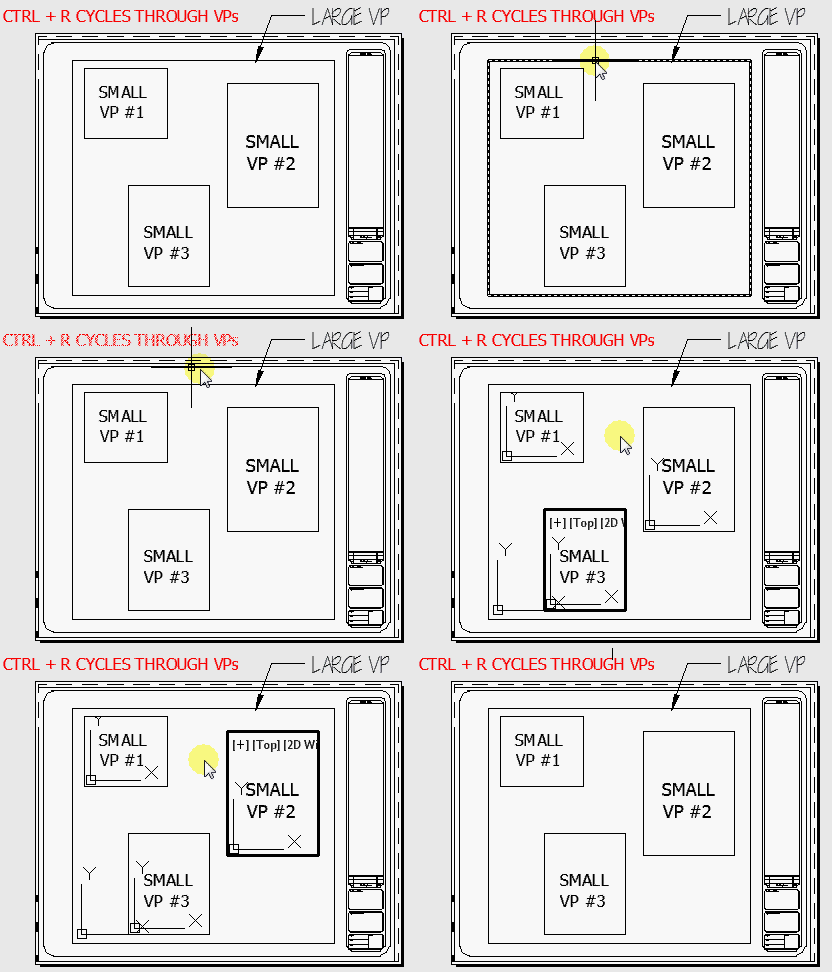
You can also use CTRL + R to toggle between multiple VPs (as seen below)

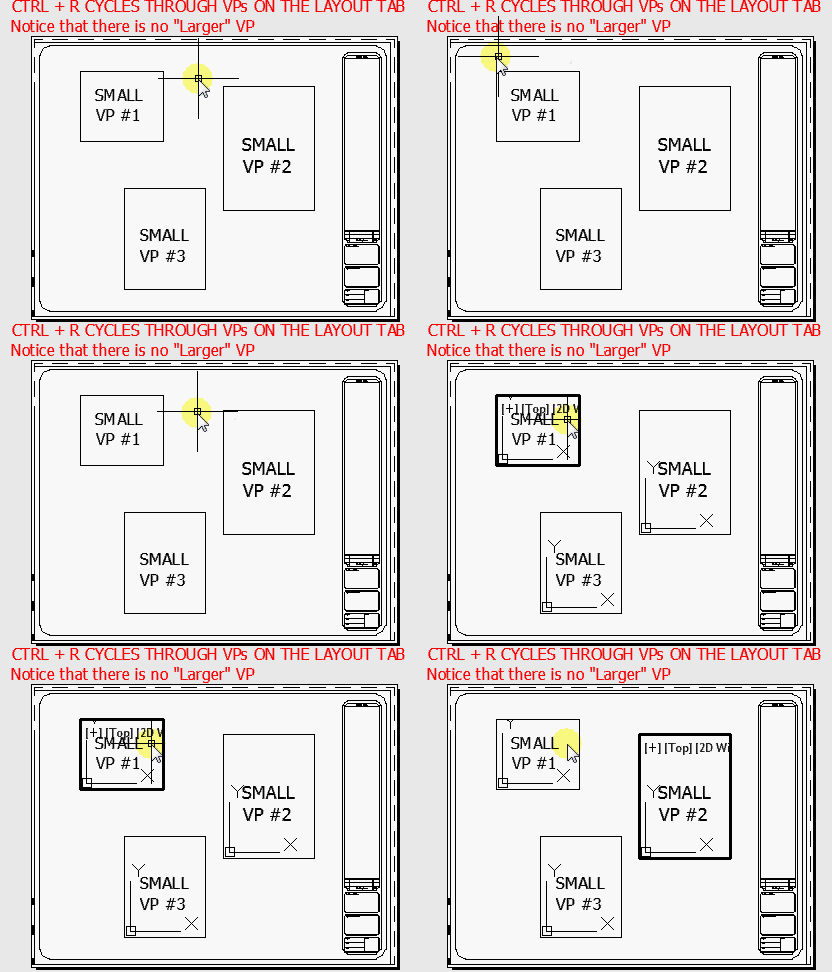
CTRL + R toggles through all the VPs on a layout tab. they don’t have to be overlapping a “larger” VP (as seen below)

Posted in BASICS, Layout, Paper Space, TIPS, Viewports | 1 Comment

Rotate Viewport

Here’s how to rotate a viewport and rotate THE VIEW of the objects within the viewport:

Simply change a system variable.

The variable is VPROTATEASSOCC

As seen below, <0> = OFF & <1> = ON

Posted in BASICS, Layout, Paper Space, TIPS, Viewports | 1 Comment

Function Keys (Drafting Settings) Toggle Over-Ride

I know that the title for this post might be a little much, but I just wanted to call it what it is….

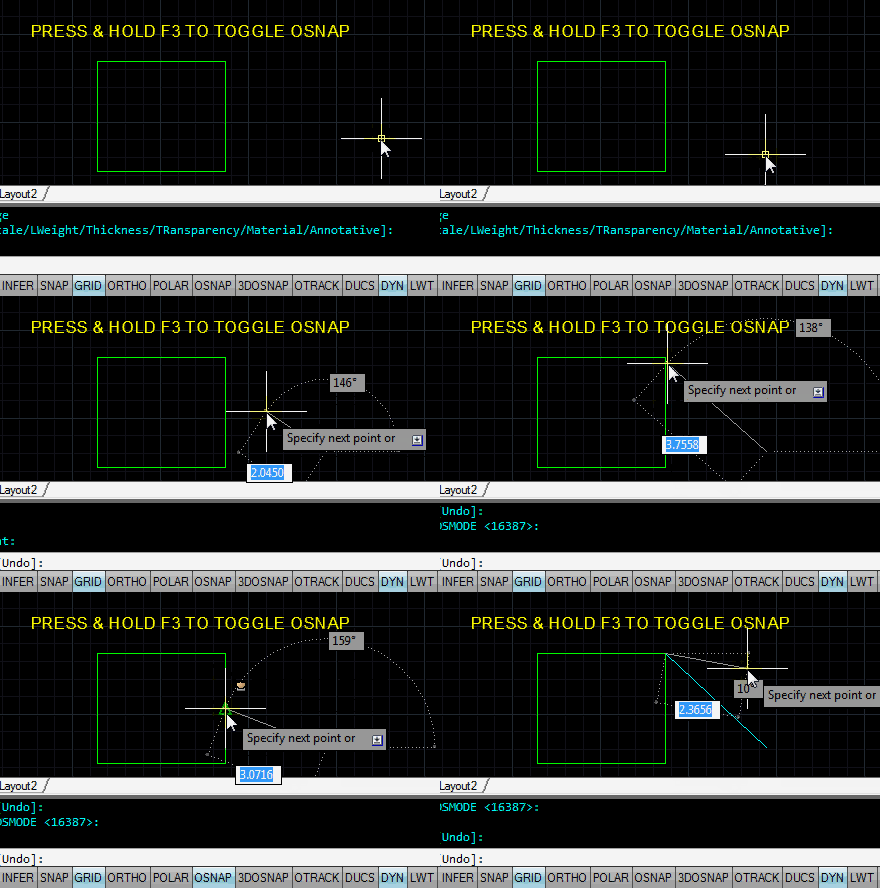
The “Drafting Settings” keys are especially useful when you learn the “Function keys” (ex. the buttons located above the numbers on your keyboard like F3 = OSNAP).

There are times when you may need to keep these on or off while drafting, and then you may need to turn one of these functions on temporarily. Instead of hitting the Funtion key to turn that tool on and then when you are finished, turning it back off… try holding down the Function key when needed. It will toggle this function key either on or off depending on whether or not it is currently on or off.

To see what  Function keys are available:

  • Right click over any of the “Drafting Settings” buttons
  • Then hover over the “Display” flyout.
    • This is also how you can turn on or off some of these toggles. For example, if you never use the “SNAP” button and don’t want to see it. Simply uncheck it from this list…

Below: Example using F3 button

Below: Exmple using F11 button

Posted in BASICS, TIPS | 5 Comments

Restoring a Pop-Up Notification

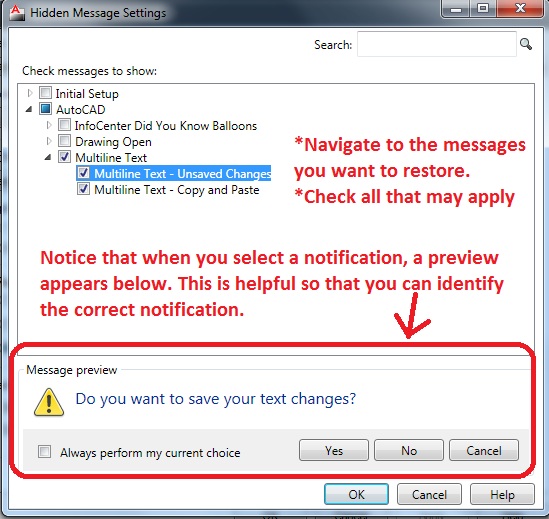
You know the routine… A notification pops-up on your screen and if it has a “don’t show me this again” option, you click it. Believe it or not, there are some notifications that are helpful. And lets say that you chose that “don’t show this again” option and you want to get that notification back. How do you get it back?

Here are two examples of useful notifications:

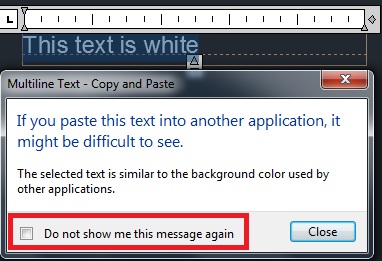
1) Tells you that you are copying text that is white in colorand that if you paste it into a word document, you will not see the white text.

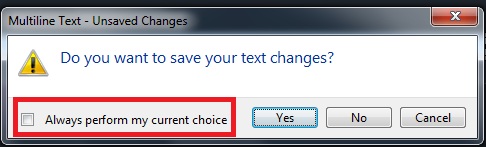
2) Performs that same action every time you exit out of MTEXT

Here’s how:

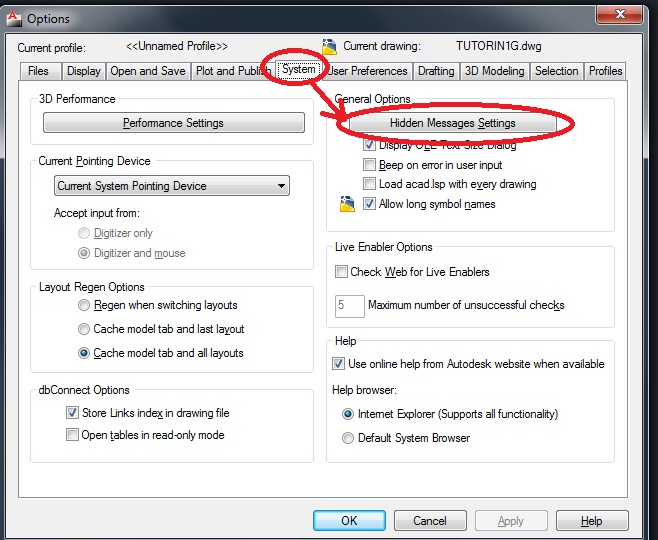
  • Open the Options dialog box by entering OP <enter> or OPTIONS <enter> in the command line. ( or right click in the drawing area and select “Options”)
  • Click the “System” tab
  • Select “Hidden Messages Settings”

  • Navigate to the notifications and check any or all that you want restored.
  • Note: If you cannot remember exactly what notification you want to restore, after selecting one from the list, you will see a preview of that notification at the bottom of the dialog box. This will help you select the right notifcation.

  • Click OK to save the new settings and OK again to exit the OPtions dialog box.

~enjoy

Posted in BASICS, Customization, Modifying, Text, TIPS | Leave a comment

Customize The Pop-Up Notifications

One thing that is great about AutoCAD is that it will tell you if something worked or didn’t work. One way it does this is by showing little pop-up notifications in the lower right hand corner of your screen. The annoying thing about these pop-ups is that they don’t close on their own. They wait for you to click on them in order to close.

Here is how to set these pop-ups to close after a given amount of time.

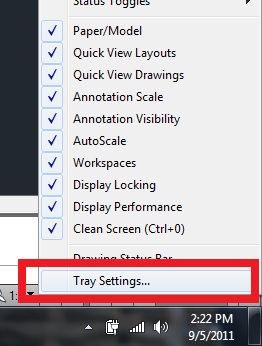
  • The picture below shows what the pop-up notification looks like when you print/plot a sheet.
  • Click on the downward arrow (as noted in the picture)

  • After clicking on the arrow, click on “Tray settings” at the bottom of the list.

With the “Tray Settings” dialog open:

  • 1st Click “Display time:”
  • 2nd Select the amount of time that you want the pop-up to remain open
  • 3rd Click OK

The next time you print or get a notification, it will close itself after the amount of time that you specify.

~enjoy

Posted in Customization, Settling In, TIPS | 1 Comment

AutoLISP: Detach All XREFS

I found this a little while ago and noticed that there is no header – so I don’t know who wrote it. Whoever it was – thank you!!

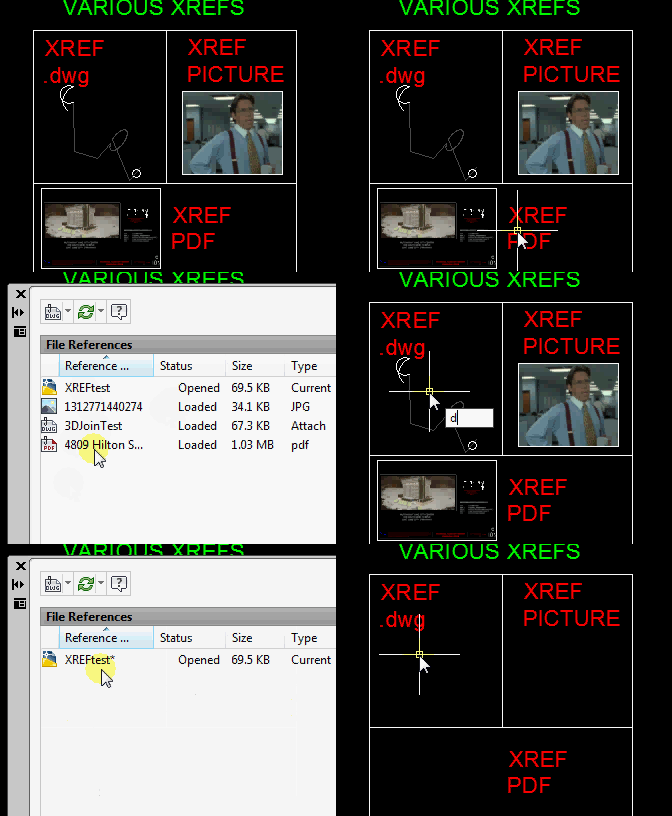
This little routine quickly detaches all XREFS from a drawing. XREFS are not limited to other drawing files. Pictures and PDFs are also considered XREFS. This routine will detach all of these as well.
Here’s how:

  • DETACHALL <enter>
  • That’s it. the routine will remove all XREFs
(defun C:Detachall (/ *error*

mip:layer-status-restore mip:layer-status-save

delete-xref-img-underlay delete-all-dict

)

(vl-load-com)

(defun *error* (msg)

(mip:layer-status-restore)

(princ msg)

(princ)

) ;_ end of defun

(defun mip:layer-status-restore ()

(foreach item *PD_LAYER_LST*

(if (not (vlax-erased-p (car item)))

(vl-catch-all-apply

'(lambda ()

(vla-put-lock (car item) (cdr (assoc "lock" (cdr item))))

(vla-put-freeze

(car item)

(cdr (assoc "freeze" (cdr item)))

) ;_ end of vla-put-freeze

) ;_ end of lambda

) ;_ end of vl-catch-all-apply

) ;_ end of if

) ;_ end of foreach

(setq *PD_LAYER_LST* nil)

) ;_ end of defun

(defun mip:layer-status-save ()

(setq *PD_LAYER_LST* nil)

(vlax-for item (vla-get-layers

(vla-get-activedocument (vlax-get-acad-object))

) ;_ end of vla-get-layers

(setq *PD_LAYER_LST*

(cons (list item

(cons "freeze" (vla-get-freeze item))

(cons "lock" (vla-get-lock item))

) ;_ end of cons

*PD_LAYER_LST*

) ;_ end of cons

) ;_ end of setq

(vla-put-lock item :vlax-false)

(if (= (vla-get-freeze item) :vlax-true)

(vl-catch-all-apply

'(lambda () (vla-put-freeze item :vlax-false))

) ;_ end of vl-catch-all-apply

) ;_ end of if

) ;_ end of vlax-for

) ;_ end of defun

(defun delete-xref-img-underlay (/ count txt)

(mip:layer-status-save)

(vlax-for Blk (vla-get-Blocks

(vla-get-activedocument (vlax-get-acad-object))

) ;_ end of vla-get-Blocks

(if (and (= (vla-get-IsXref Blk) :vlax-false)

(not (wcmatch (vla-get-name Blk) "*|*"))

) ;_ end of and

(progn

(setq count 0

txt (strcat " Erase Xref and Underlay in "

(vla-get-name Blk)

) ;_ end of strcat

) ;_ end of setq

(grtext -1 txt)

(vlax-for Obj Blk

(setq count (1+ count))

(if (zerop (rem count 10))

(grtext -1 (strcat txt " : " (itoa count)))

) ;_ end of if

(if

(and (vlax-write-enabled-p Obj)

(or

(and ;_ XREF

(= (vla-get-ObjectName obj) "AcDbBlockReference")

(vlax-property-available-p Obj "Path")

) ;_ end of and

(and ;_ UNDERLAY

(wcmatch (vla-get-ObjectName obj) "*Reference")

(vlax-property-available-p Obj "UnderlayName")

) ;_ end of and

(= (vla-get-ObjectName obj) "AcDbRasterImage") ;_ IMAGE

) ;_ end of or

) ;_ end of and

(VL-CATCH-ALL-APPLY 'vla-Delete (list Obj))

) ;_ end of if

) ;_ end of vlax-for

) ;_ end of progn

) ;_ end of if

) ;_ end of vlax-for

(mip:layer-status-restore)

) ;_ end of defun

(defun delete-all-dict (dict)

;;; dict - dict name (like "ACAD_IMAGE_DICT", "ACAD_PDFDEFINITIONS" ... )

(vl-catch-all-apply

'(lambda ()

(vlax-map-Collection

(vla-item

(vla-get-dictionaries

(vla-get-activedocument (vlax-get-acad-object))

) ;_ end of vla-get-dictionaries

dict ;_ "ACAD_IMAGE_DICT"

) ;_ end of vla-Item

'vla-delete

) ;_ end of vlax-map-Collection

) ;_ end of lambda

) ;_ end of vl-catch-all-apply

) ;_ end of defun

(vl-load-com)

(delete-xref-img-underlay)

(command "_-xref" "_d" "*")

(while (> (getvar "CMDACTIVE") 0) (command))

(mapcar 'delete-all-dict

(list "ACAD_IMAGE_DICT"

"ACAD_PDFDEFINITIONS"

"ACAD_DWFDEFINITIONS"

"ACAD_DGNDEFINITIONS"

) ;_ end of list

) ;_ end of mapcar

(command "_.regenall")

(command "_.externalreferences")

(princ)

) ;_ end of defun

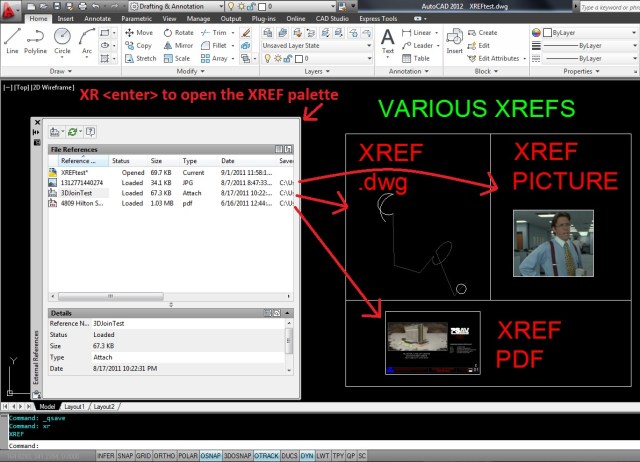
Open the External Reference Dialog/palette by entering XREF or XR at the command line.

This Picture shows the XREFs in the drawing. There is a JPEG (picture), PDF, & drawing file.
In the picture below:
To detach an xref manually – Select the XREF from the list > right click >  select “Detach”

Note: Selecting an xref from the list will highlight that XREF in the drawing area

In the Picture below:
This is how the XREF dialog/Palette looks after running the DETACHALL.lsp or by manually detaching the XREFs from the drawing.

~enjoy

Posted in AutoLISP, Modifying, XREFs | 2 Comments

Disable Viewport Activation

While working in paper-space, you may be wanting to simply move things around. The trouble sometimes is  accidentally activating an unlocked viewport and messing up the correct position or scale of the that viewport. In a perfect world, the viewport should be locked to prevent such accidents. However, if you want to just do the edits without worrying about activating the viewport, here is a secret variable that is undocumented and isn’t shown in the variable editor.

NOTE: If you do change this system variable while editing,  don’t forget to change this system variable back to normal in case someone else needs to activate a viewport.

  • SPACESWITCH <enter>
  • <0> = OFF  – makes it so that you cannot double click within a viewport to activate the viewport.
  • <1> = ON – (default) allows you to double click to activate a viewport.

Posted in Customization, Layers, Modifying, Paper Space, Text, TIPS, Viewports | 2 Comments

Select Individual Polyline Segment

Here’s a useful quickie:

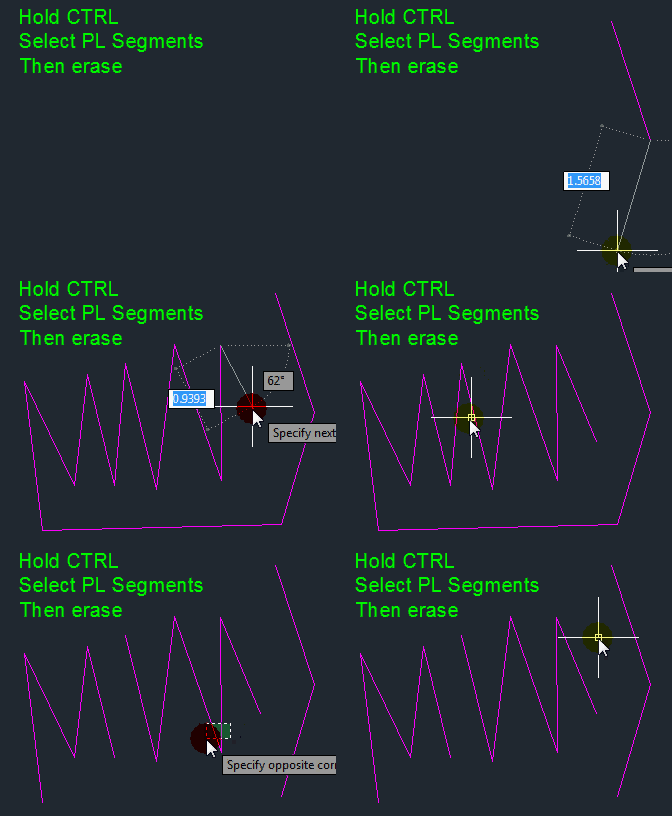
You can select individual segments of a PolyLine and then edit the segments by simply holding the CTRL button and then individually picking the segments.

In the example below, I selected the individual segments and then erased them. the resulting objects are still polylines.

Posted in Modifying, Polylines | 5 Comments

AutoLISP: Swap Text & Attributes

Here is a good quickie that lets you swap text objects – even Attributes that are within the same block and even attributes within different blocks. (Note: the “swapping” of attributes is actually only swapping the “value” of the and not the prompt…)

Here’s how:

  • TV <enter>
  • Select the 1st text object to be swapped
  • Select the second text object…

~enjoy

;Tip1507: TV.LSP Trade Values (c)1999, Leland Leahy

(defun c:TV (/ T1 EL1 TV1 T2 EL2 TV2)

(setvar "cmdecho" 0)

(setq

T1 (car (nentsel "\nPick first text string: "))

EL1 (entget T1)

TV1 (cdr (assoc 1 EL1))

T2 (car (nentsel "\nPick second text string: "))

EL2 (entget T2)

TV2 (cdr (assoc 1 EL2))

EL1 (subst (cons 1 TV2) (assoc 1 EL1) EL1)

EL2 (subst (cons 1 TV1) (assoc 1 EL2) EL2)

)

(entmod EL1)(entupd T1)(entmod EL2)(entupd T2)

(setvar "cmdecho" 1)

(prin1)

)
Posted in Attributes, AutoLISP, Modifying, Text | Leave a comment