How to show hidden folders

This might seem like an odd post but it is helpful because there is an AutoCAD support path that might be hidden thus preventing you from navigating to this location through Windows Explorer.

The desired support location is located within the “AppData” folder. This folder is unique for each user for a computer. The location is C:\Users\UserName\AppData\Roaming\Autodesk\AutoCAD 2013 – English\R19.0\enu\Support

If you navigate to C:\Users\Username folder you may not see the folder called “AppData”

(Note: My username folder is called “Trog”)

Hidden Files 1

  • If you press the ALT button you will see the below menus appear.
  • Click the tools button from the menu and then click “folder options”

Hidden Files 2


Click the “View” tab to make it active

  • Then scroll down and click to toggle to “Show hidden files, folders and drives”
  • This menu is also where you can change how the file types are shown, A file type is the three-letter file extension that is at the end of a file name. For example, a .dwg is an AutoCAD drawing file. Or a .pdf file is a PDF file…

Hidden Files 3


Click OK when you are finished.

You should know see the below folder “AppData”

Hidden Files 4

Posted in BASICS, Manage | 1 Comment

2013 Command Line Width

I really like how little space the new command line takes up in the drawing area (vertically), but did you know that the new command can be sized horizontally?

Simple move your cursor over the right edge to the command line and then click, hold and drag to re-size its width. Now it takes up even less room!!!

(Note that it stretches/shrinks about its mid point)

Posted in AutoCAD 2013, BASICS, Customization, New In 2013, Settling In, Tool Palletes | 2 Comments

Control the Display of The View Cube and Navigation Bar

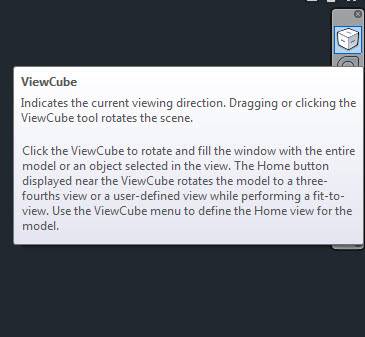
Why is it that some drawings show that cube thingy and other drawings dont? Well here is how to control both the “cube thingy” (ViewCube) and the Navigation Bar (NB) that sits just below the View Cube (VC).


The Navigation Bar and ViewCube also show up when a viewport is activated (double-clicked) in Paper Space.


To control the display of these tools in a View Port or in Model Space the method is the same. Just make sure that the the setting will only affect the current space (model or view port)

View tab > User Interface panel > User interface dropdown > Check or uncheck as needed


A possible configuration is to have the ViewCube be available in the Navigation Bar. This happens by default when you turn off the ViewCube. Notice in the picture below that the top button in the Navigation Bar is a toggle that quickly turns on the ViewCube.


The System Variable for these tools are shown below:

ViewCube System Variable = NAVVCUBDISPLAY
I don’t know how my current value is a negative one. Please notice however that this system variable is saved in the drawing. That is why it might be displayed in one drawing and not displayed in another.


Navigation Bar System Variable = NAVBARDISPLAY

Notice that this system variable is saved in your computer’s registry and will display the same (on or off) in any drawing you open.

Posted in BASICS, Customization, Settling In, TIPS, Viewports | 8 Comments

AutoCAD 2013: Adding the Layout Tab to the ribbon

Today’s tip shows how to add the new ribbon tab called “layout” to the ribbon if it doesn’t exist. If your installation of AutoCAD 2013 doesn’t display this tab it is most likely because during installation, settings were migrated. Because AutoCAD seems to change so much year after year, I suggest not migrating many settings (or any). It might take a while to rebuild the settings for a new version of AutoCAD but I think that it might work better in the long run because those settings are geared around that particular build of AutoCAD.

  • To turn on the “Layout” tab of the ribbon:
  • Set current the workspace to which you want the tab applied
  • CUI <enter>
  • Select the workspace from the upper-left list in the CUI
  • Click “Customize Workspace”


  • Expand the plus sign next to “Ribbon” (shown below – please forgive the typo)
  • Expand the plus sign next to “Tabs” (shown below)


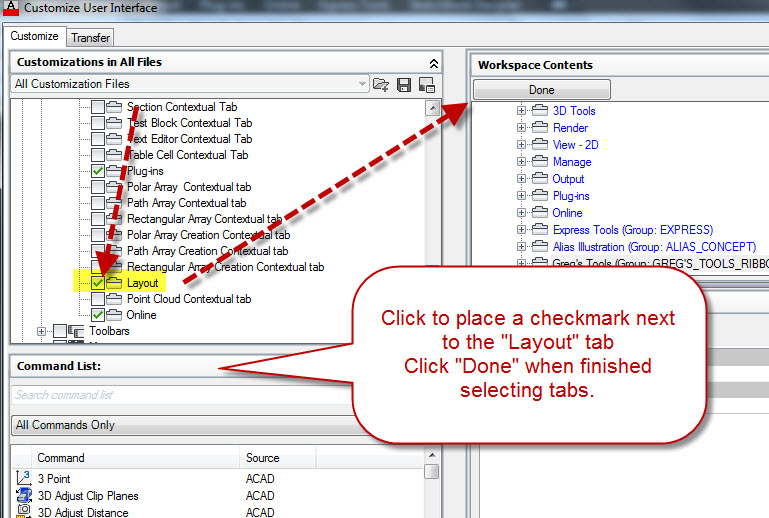
  • Scroll down in the list of tabs and find “Layout”
  • Check the box next to “Layout.” This will display this tab in the current workspace. If there are other tabs you would like displayed, check them now.
  • When you are finished turning on tabs, click “Done” (as shown)
  • To exit the CUI, click “Apply” and “OK”

Posted in AutoCAD 2013, Customization, Layout, Manage, Viewports | 5 Comments

Lost Command Line

With the new command line being a toolbar that is easily drag-able, it is just a matter of time before you lose your command line by dragging it either too far down or dragging it completely off the screen. But don’t worry, you can get it back.

Here’s how:

  • CUI <enter>
  • Select the current workspace (as shown)
  • Expand “Palettes” (as shown)
  • Select “Command Line” (as shown)
  • Then under the “Properties” click the flyout next to “Orientation” and select where you want the position of the command line to be.

Don’t forget to save a custom workspace when you get your tools place where you want them. A workspace will remember the placement of your toolbars and palletes…

You can also lock these item’s position through the through the LOCKUI system variable.

Posted in AutoCAD 2013, BASICS, Customization, Manage, Settling In, TIPS | 11 Comments

Recover a Drawing

When a drawing has something wrong with it it needs to have the AUDIT command run on it so that it can be fixed (as shown in the previous post). But there are times when the drawing that needs help isn’t even able to be opened. For this situation there are a couple of options:

Run the RECOVER command. This command lets you browse to a file (.dwg or .dwt) and it will run the audit command while trying to open the file. If it does find and fix the errors, you will see a report on what it found and fixed once the file has been “recovered.”

The RECOVERALL command lets you repair a drawing that has XREFs and it will fix the XREFs as well. As long as the XREFs were pathed correctly the last time the file was in functional order this command will audit them as well.

Here’s how:

  • Open a new blank drawing
  • RECOVER <enter>
  • Browse to the file and select it from the dialog box and click Open
  • Wait for it to process the drawing. When it is finished, it will show a mini report of how many errors it found and fixed and if it deleted anything.


If this does not work try opening a new blank drawing and inserting the corrupted drawing as a block into the new blank drawing. From there you can explode the block and run the AUDIT command.

The idea can be applied by inserting the drawing into a blank drawing as an XREF and then binding to the drawing. From there you can run the AUDIT command. This method would also need to layer clean up as well..

Posted in Manage, TIPS, XREFs | 3 Comments

Fix Your Drawing with AUDIT

There are times when a drawing starts acting weird. There were two instances this week when user’s drawing were able to be fixed with the AUDIT command that is within AutoCAD. One instance was that a single dimension was not selectable. The other instance was that the user was not able to change the units of the drawing and save that change…

The fix for both issues was to use the AUDIT command. This command is found in the Application menu > Drawing Utilities > Audit


Here’s how:

  • AUDIT <enter>
  • Y <enter> to fix drawing errors

Below is an example of running AUDIT on a drawing and it fixing 15 errors in the drawing

Posted in Manage, TIPS | 5 Comments

Change Text Justification and Retain Position

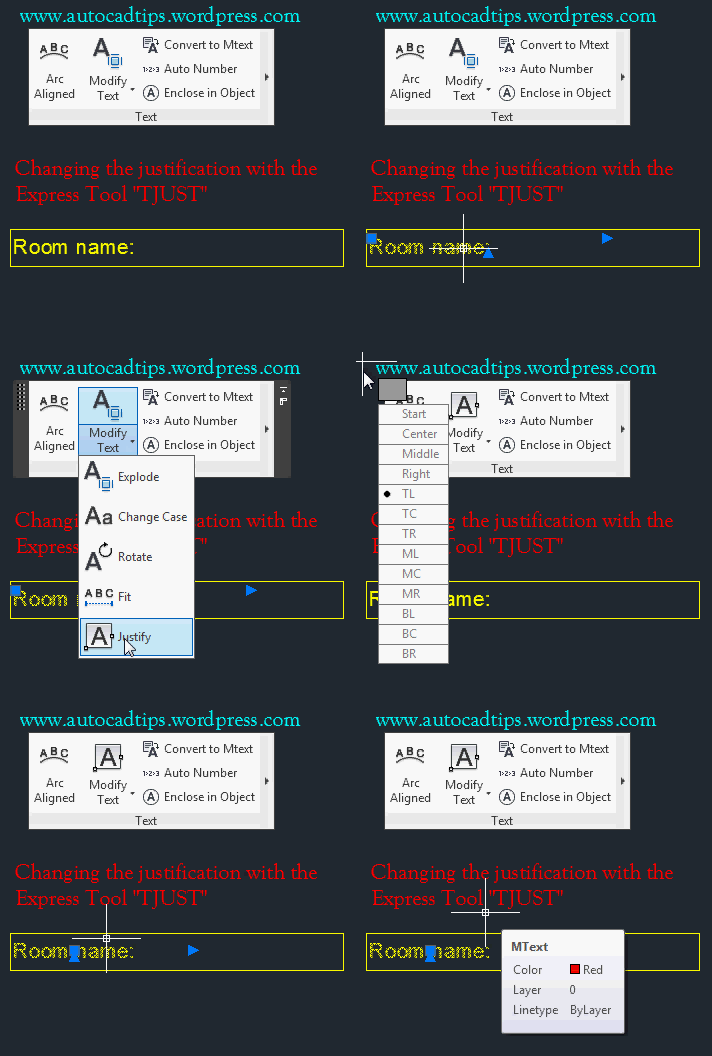
The default functionality of changing the justification of text through the Properties Palette or by changing the properties in the “Edit Text” contextual ribbon will in fact change the justification. But it will also re-position the text based on the new justification point. This might be okay for some instances but if you need to retain the position and change the justification, there is an Express Tool just for this purpose.

The TJUST tool is located in the Express Tools.

Express Tools tab > Text panel > TJUST tool

The picture below shows the normal Text Justification repositioning that happens by changing its properties.

The picture shown below shows how the Express Tool TJUST will change the justification and keep the position of the text.

Posted in Express Tools, Modifying, Text, TIPS | Leave a comment

Pan a Distance Within a Viewport

Need to pan your view within a viewport a specific distance?

Here’s how:

  • Double click the viewport to activate it
  • -P <enter> to start the pan command in the command line
  • Pick a point inside of the viewport to specify the base point
  • Move the cursor in the desired direction of the pan (use ortho)
  • Enter the specific distance and hit <enter>

Thanks to Garreth for the tip!!!

~enjoy

Posted in Layout, Paper Space, Viewports | 9 Comments

Text to Multileader

This routine will allow you to select either an MTEXT or DTEXT (single line text) object and then create a multileader from its contents on the current layer and the current multileader style.

  • Here’s how:
  • AM <enter> to start Add Multileader
  • Select text object (MTEXT or DTEXT)
  • Place the multileader as you normally would…

~enjoy


Links to other multileader routines:

https://autocadtips.wordpress.com/2011/06/17/autolisp-add-leader-to-mtext-or-dtext/

https://autocadtips.wordpress.com/2012/03/12/add-leader-to-text-make-multileader/

https://autocadtips.wordpress.com/2012/03/12/autolisp-covert-dtext-mtext-to-multileaders/


;;; By RonJon
;;; Found at http://www.cadtutor.net/forum/showthread.php?41822-changing-text-mtext-to-multileaders...
(defun c:am (/ newleader pt1 pt2 ss txt x w rjp-getbbwdth)
  (vl-load-com)
  (defun rjp-getbbwdth (obj / out ll ur)
    (vla-getboundingbox obj 'll 'ur)
    (setq out (mapcar 'vlax-safearray->list (list ll ur)))
    (distance (car out) (list (caadr out) (cadar out)))
  )
  (if (setq ss (ssget '((0 . "*TEXT"))))
    (progn (setq txt (apply
		       'strcat
		       (mapcar
			 'cdr
			 (vl-sort
			   (mapcar '(lambda (x)
				      (cons (vlax-get x 'insertionpoint)
					    (strcat (vlax-get x 'textstring) " ")
				      )
				    )
				   (setq
				     ss	(mapcar
					  'vlax-ename->vla-object
					  (vl-remove-if 'listp (mapcar 'cadr (ssnamex ss)))
					)
				   )
			   )
			   (function (lambda (y1 y2) (< (cadr (car y2)) (cadr (car y1))))
			   )
			 )
		       )
		     )
		 w   (car (vl-sort (mapcar 'rjp-getbbwdth ss) '>))
		 txt (apply 'strcat
			    (mapcar 'chr (reverse (cdr (reverse (vl-string->list txt)))))
		     )
	   )
	   (mapcar 'vla-delete ss)
    )
  )
  (if (and (setq pt1 (getpoint "\nSpecify leader arrowhead location: "))
	   (setq pt2 (getpoint pt1 "\nSpecify landing location: "))
      )
    (progn (command "._MLEADER" pt1 pt2 "")
	   (setq newleader (vlax-ename->vla-object (entlast)))
	   (vla-put-textstring newleader txt)
	   (vla-put-textwidth newleader w)
    )
  )
  (princ)
)
Posted in AutoLISP, AutoLISP: Modify, AutoLISP: Text, Leaders, Modifying | 13 Comments