
Here is how to change the setting that allows you to highlighting objects prior to selection. This feature is useful so that you can visibly see what you are about to select prior to actually selecting them.
OPTIONS <enter> or OP <enter>
Make the “Selection” tab current
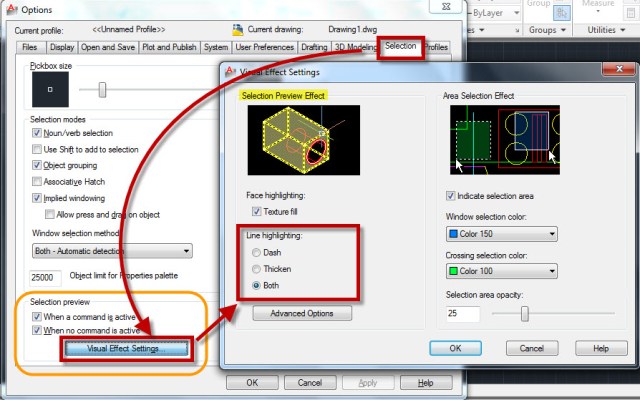
To turn this feature on, make sure that the check marks are checked under the “Selection Preview” area of the “Selection” tab (orange area shown below)
In the “Visual Effect Settings” dialog, you can define how the pre-highlighting is displayed: 1) Dashed lines, 2) Bold, 3) Both (the default = both)
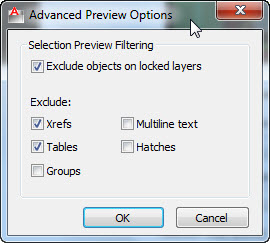
The Advanced options button will display a little dialog box that shows what items are excluded from being pre-highlighted
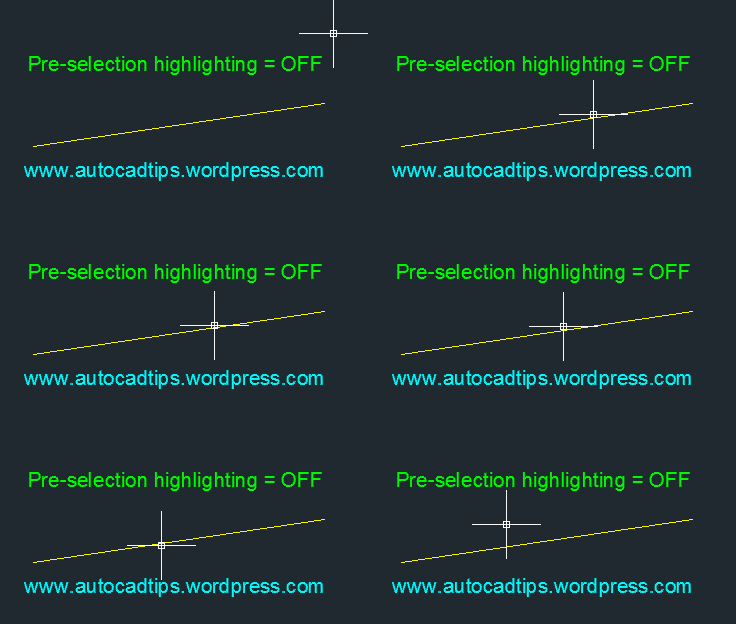
Shown below – hovering the cursor over objects with pre-selection highlighting turned OFF
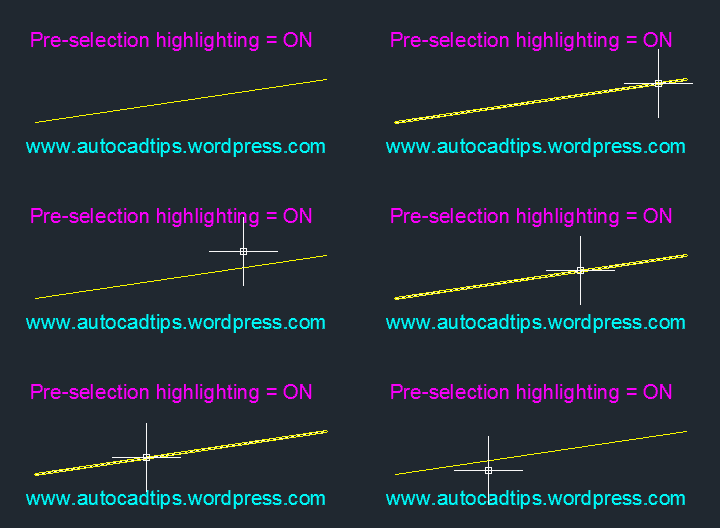
Shown below – hovering the cursor over objects with pre-selection highlighting turned ON

 AutoCAD Tips
exactly what I was looking for! I just began cad drafting for interior design late last year and this helps me a lot! thanks!! :)
When type any command in command line the object/line/any thing selected turns deselect then i have to select it once again. and if same command is to be use consecutive same step has to be be done repeatedly. it is quite disturbing. PLEASE HELP!!!!!
Try entering the command PICKFIRST in the command line then 1
example: PICKFIRST 1
~Greg
I want to master the art of making AutoLISP file which Book will help me..and it should be easy to understand.
Thank You Very Much , Much Appreciated.
I’m glad it helped
~Greg
Finally.. got an answer.. thank you
I know this is an old post, but I use autocad 2018 as a secondary cad app after having used autocad for 20 yrs…. This post is exactly what I am wanting to do but it isn’t working for me… Is there an override somewhere that would keep the selectionpreview and preselectionpreview from working