
When you are working a 3D environment, it is helpful to be able to look at your drawn objects as 3D objects instead of simple wireframe outlines… Even though view your drawing in “2D Wireframe” is a common practice and may improve your computer’s performance, I personally can’t stand working in 3D and getting lost in a maze of wires.
Here is how to change your active visual style:
From the View tab of the ribbon, select the Visual Styles dropdown list that is located in the “Visual Styles” panel.
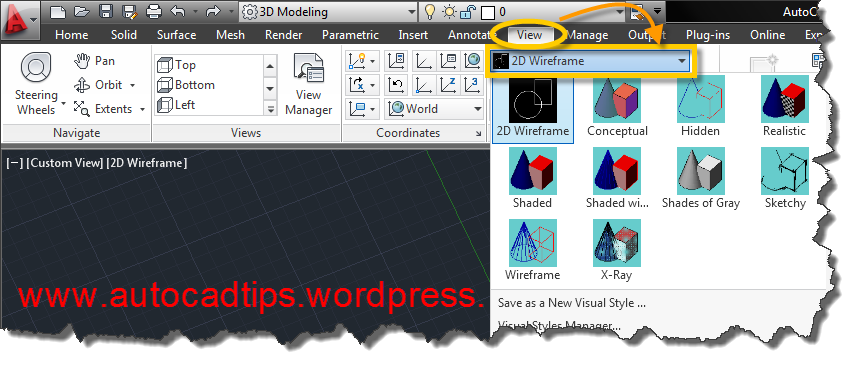
Introduced in AutoCAD 2012 is the new “In-canvas” controls that are familiar to 3DS Max users.

Shown below is an object with various visual styles:
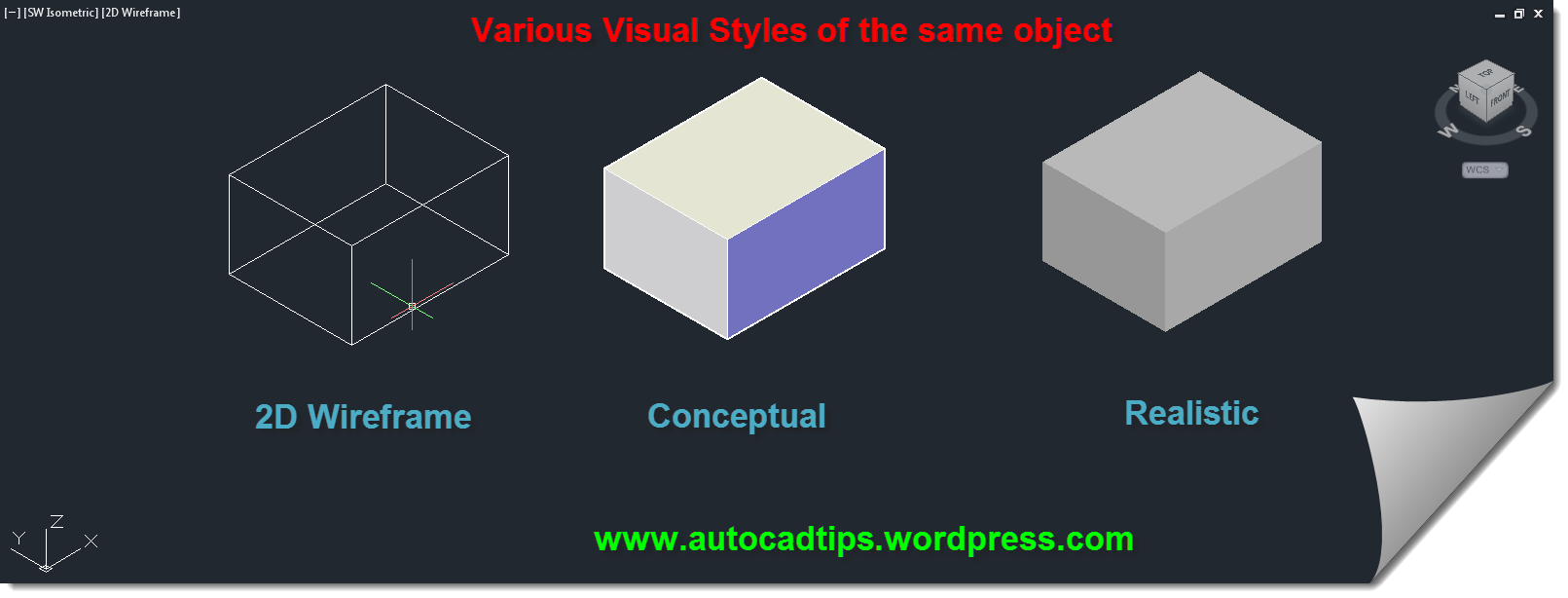
One tip to keep in mind if you switch back and forth from working in 2D & 3D:
Selected objects have a feature that shows up depending on the visual style. Something called the “Gizmo” appears when you are in a visual style other than “2D Wireframe.” This “gizmo” will be covered in another post so in the mean time, just be aware that the gizmo looks like a colorful UCS icon with arrows on the ends.
This gizmo appears at the center of selected objects.
Below shows a single selected object in “2D Wireframe” compared to a 3D visual style:

When multiple objects are selected, the gizmo will appear at the center of the selection set (shown below).


 AutoCAD Tips
Pingback: 3D Modelling Update – Environment Progress « Fingers On Buttons
OK, the image above with ‘various styles of the same object’. How do you achieve that? Individual boxes have different visual styles without making the whole lot the same?
I did that by copying the screen shots into one picture. Since the background color is the same, they look like they are all there at the same time…
Thanks for your reply. Am I correct in saying that AutoCAD can’t generate different visual styles within one drawing? I am attempting an exploded assembly diagram in 3D and I would like some components to be wire-frame, some to be hidden and some to be realistic.