AutoLISP: Break 3D line through User defined Plane

This routine was made by Chen Qing Jun, qjchen and is found at http://www.theswamp.org/index.php?topic=40494.msg457913#msg457913

It is quite handy if you happen to need to break a line that passes through a “plane.” I am using the term “plane” loosely because it doesn’t have to be a 3d object like a face or a solid. You define the “plane” by picking 3 points without having to use a different UCS…

Here’s how:

  • PBL
  • Pick 3 points to define the plane
  • Select the Line(s) to be broken – (Note: they must pass through the defined plane)
  • Thank you Chen!!

    Break 3d Line through Plane


    ;;;Break 3d lines by a 3d Plane
    ;;;Author: Chen Qing Jun, qjchen
    ;;;Programed by: South China University of Technology
    ;;;date: 2011.12.19
    ;;;Note: the intersection function of Line and Plane, has the parameter of nil and T
    ;;;      For T, the line segment should pass through the plane
    ;;;      but it is not necessary for the nil parameter.
    ;;;      The plane defined by 3p is infinite.
    ;;; 
    ;;; http://www.theswamp.org/index.php?topic=40494.msg457913#msg457913
    ;;;
    ;;;_Some vector function, some get from gile's great function________________
    ;;;
    (defun q:geo:is-3p-plane(p1 p2 p3)
     (> (q:vec:Len (q:vec:Norm (q:vec:cross* (q:vec:- p2 p1) (q:vec:- p3 p1)))) 1e-6)
    )
    (defun q:geo:is-samepoint(p1 p2) (< (distance p1 p2) 1e-5) )
    (defun q:vec:+(v1 v2) (mapcar '+ v1 v2) )
    (defun q:vec:-(v1 v2) (mapcar '- v1 v2) )
    (defun q:vec:*c(v a) (mapcar '(lambda(x) (* x a)) v) )
    (defun q:vec:dot*(v1 v2) (apply '+ (mapcar '* v1 v2)) )
    (defun q:vec:cross*(v1 v2)
      (list (q:det:2 (cadr v1) (caddr v1) (cadr v2) (caddr v2))
            (q:det:2 (caddr v1) (car v1) (caddr v2) (car v2))
            (q:det:2 (car v1) (cadr v1) (car v2) (cadr v2))) 
    )
    ;;;;cal determinant
    ;;;;|a1 a2|
    ;;;;|b1 b2|
    (defun q:det:2(a1 a2 b1 b2)  (- (* a1 b2) (* a2 b1)))
    ;;;;Normalize a vector
    (defun q:vec:Norm(v / l)
      (if (not (zerop (setq l (distance '(0 0 0) v))))
      (mapcar '(lambda(x) (/ x l)) v))
    )
    ;;;;Vector Length
    (defun q:vec:Len(v / l)  (distance '(0 0 0) v))
    ;;;;a normal to a plane, 
    (defun q:geo:normal.to.3p(p1 p2 p3)
      (if (q:geo:is-3p-plane p1 p2 p3)(q:vec:cross* (q:vec:- p2 p1) (q:vec:- p3 p1)))
    )
    ;;p1 p2 are two points,V is the normal of the plane, VP is one point on the plane
    ;;ref:   http://en.wikipedia.org/wiki/Line-plane_intersection
    ;;       http://softsurfer.com/Archive/algorithm_0104/algorithm_0104B.htm
    (defun q:geo:line-intersect-plane-1(P1 P2 V VP F / d l n)
     (setq n (q:vec:Norm V) l (q:vec:Norm (q:vec:- P2 P1)))
     (if (not (zerop (q:vec:dot* l n)))
       (progn
         (setq d (/ (q:vec:dot* (q:vec:- VP P1) n) (q:vec:dot* l n)))
         (setq res (q:vec:+ P1 (q:vec:*c l d)))
         (setq temp (q:vec:Len (q:vec:- P2 P1)))
         (if (and F (or (< d 0) (> d (q:vec:Len (q:vec:- P2 P1))))) (setq res nil)) 
       )
     )
     res
    )
    ;;;;;;______end of Vector function__________________________________;;;
    (defun q:entmake:point(pt layer)
      (entmake (list (cons 0 "POINT")(cons 8 layer)(cons 10 pt)))
    )
    (defun q:mulentmod (ent numlst contentlst / i x)
      (setq i 0)
      (foreach x numlst
        (if (/= (assoc x ent) nil)
          (setq ent (subst (cons x (nth i contentlst)) (assoc x ent) ent ) )
          (setq ent (append ent (list (cons x (nth i contentlst))) ) )
        )
        (setq i (1+ i))
      )
      (entmod ent)  ;(entupd ent)
    )
    ;;;;;stdlib from Reini Urban
    (defun std-sslist (ss / n lst)
      (if (eq 'pickset (type ss))
        (repeat (setq n (fix (sslength ss))) ; fixed
          (setq lst (cons (ssname ss (setq n (1- n))) lst))
        )
      )
    )
    ;;;???______by qjchen____________________________;;;
    (defun c:PBL()
      (setq p1 (getpoint "\nThe first point:") p2 (getpoint "\nThe second point:") p3 (getpoint "\nThe third point:"))
      (if (q:geo:is-3p-plane p1 p2 p3)
        (progn 
          (setq c (std-sslist(ssget '((0 . "LINE")))))
          (setq pn (q:geo:normal.to.3p p1 p2 p3))
          (foreach x c
           (setq pa (cdr (assoc 10 (entget x))) pb (cdr (assoc 11 (entget x))))
           (setq int (q:geo:line-intersect-plane-1 pa pb pn p1 T))
           
           (if (and int (not (q:geo:is-samepoint int pa))(not (q:geo:is-samepoint int pb)))
    	  (progn
    	    (q:mulentmod (entget (entmakex (entget x))) (list 62 11) (list 1 int))
    	    (q:mulentmod (entget (entmakex (entget x))) (list 62 10) (list 2 int))
    	    (entdel x)
    	    (q:entmake:point int "0")
    	 )
    	 )
          )
        )
        (princ "\n These three points can not form a plane.")
      )
    )
    
    (princ)
    (princ "\n Break 3d lines by a 3d Plane,by qjchen,the command is :test")
    (princ)
    
    Posted in AutoLISP, AutoLISP: 3D, AutoLISP: Modify, Modifying | 3 Comments

    Number of Lines of Command History on the Command Line

    Prior to the new “floating” command line, if you wanted to see more or fewer lines on the command line, you could simple drag the edge of the command line up or down (as shown below – and if your command line is “docked” it will behave the same way with 2013 or newer versions…
    Docked Command line


    But if you try the same thing with the new “Floating” command line, it will obscure your your drawing area. So what you may want to do is increase or decrease the amount of command line history that is shown but then fades away.

    To do this, click on the “wrench” on the command line and then select “Lines of Prompt History.” This will launch the command/variable CLIPROMPTLINES. The default value is 3. Change to the desired number.

    Floating Command Line

    Command line history variable


    ~enjoy

    Posted in BASICS, Settling In | 1 Comment

    AutoCAD for MAC Hot Keys & Command Aliases

    A while back I did a post on regular “Vanilla” AutoCAD “Hot Keys” and Aliases that was produced by Autodesk [found here].

    But what about all you AutoCAD Mac users?
    Here is a link to the same type of list of Aliases and Hot Keys.
    http://www.autodesk.com/store/autocad-for-mac/autocad-for-mac-shortcuts

    As was pointed out in the post regarding Vanilla AutoCAD, Mac users should take advantage of learning these time savers as well.

    Thanks to the AutoCAD for Mac team for putting this together.
    ~Greg

    Posted in AutoCAD for Mac, BASICS, Settling In, TIPS | 1 Comment

    AutoLISP: Make Perpendicular Line Between Two 3D Angles

    This Lisp was found at http://paulbourke.net/geometry/pointlineplane/int2.lsp and has been a great help in 3D and sometimes being off by a little bit can be very frustrating. You can always us the distance command and then look for the specific X distance or Y distance, but what if the objects are not aligned with your UCS?… That’s where this tool really helps. I’ve tried using the Perpendicular OSNAP from one object and then tried to snap to the second object with perpendicular but it wont work (for me) and like I said, what if the lines are not in a perpendicular plane

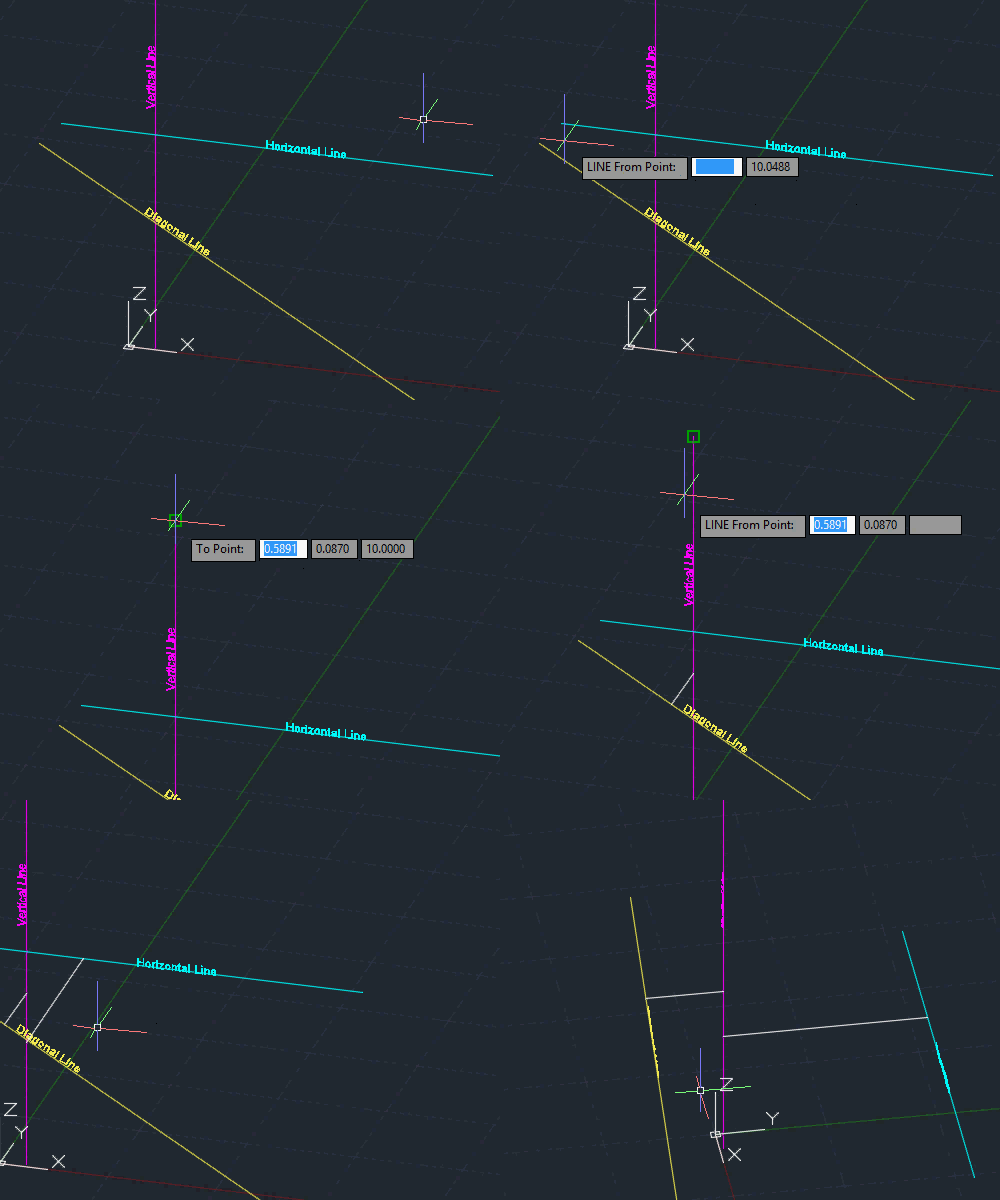
    Shown below are 3 lines that are not parallel, yet I want to find the apparent intersection with a line that represents the distance between the 2 lines.

    3D View of Lines

    3D View of Lines

    Here’s how to use INT2

    INT2 [enter]

    Pick 2 points to define the first line

    Pick 2 points to define the second line

    Lines Between Angled lines

    As long as there is a possible intersection, a line will be created.

    Thanks to Paul Bourke’s website with many mathematical approaches to solving geometrical scenarios: http://paulbourke.net/

    ~enjoy


    ;;;   int2.lsp
    ;;;   http://paulbourke.net/geometry/pointlineplane/int2.lsp
    ;;;   Finds the intersection of two non-parallel lines in 2D or 3D, OR the
    ;;;   closest points between the two non-intersecting lines in 3D.
    ;;;
    ;;;   Based on Algorithm by Paul Bourke / Autolisp version by Andrew Bennett.
    ;;;
    ;;;   See Paul Bourke's discussion at:
    ;;;   http://local.wasp.uawa.edu.au/~pbourke/geometry/lineline3d/
    ;;;   Uses algorithm derived from the fact that the closest point between two
    ;;;   lines is a new line perpendicular to both.
    ;;;
    ;;;   On the XY plane of Autocad's current UCS, two non-parallel vectors will
    ;;;   always intersect, therefore the various object snaps (osnap) or
    ;;;   Autolisp's (inters) function are all you need.
    ;;;
    ;;;   Outside the UCS plane in the 3D environment however, these intersection
    ;;;   functions are over precise and can easily fail (see Paul Bourke's
    ;;;   discussion) leaving you with no further information.
    ;;;
    ;;;   Int2.lsp addresses this problem by working as follows:
    ;;;
    ;;;   As with Autocad/Autolisp, the program will find the intersection point
    ;;;   between two (non-parallel) lines in 2D, or if it exists, in 3D.
    ;;;
    ;;;   In 3D, where there may not be a precise intersection, it finds the
    ;;;   closest points between the two lines and draws a new line between them.
    ;;;
    ;;;   In both cases, the resultant point(s) are set by invoking the
    ;;;   Autocad 'Line' command which draws a rubber-band line from the last
    ;;;   point set to the current cursor position. This feature allows the
    ;;;   intersection/closest point(s) to be clearly visible on screen even if the
    ;;;   point(s) have been set outside the current drawing window.
    ;;;
    ;;;   If the two lines are parallel, then they are also equidistant, so there
    ;;;   is no intersection, and no specific closest point, and so the program
    ;;;   will end by giving an appropriate informative message. 
    
    
    (defun c:int2
                 (
                   /                       ; local variables used in defun
                   acad_err                ; temporary error handler
                   oldsnap                 ; saved snap settings
                   nearzero                ; a very small number
                   currentP                ; list containing 3 reals
                   checkP
                   retn_val                ; value returned after defun call
                   getPt_msg               ; message string
                   P1 P2 P3 P4             ; xyz coordinate lists (reals)
                   X1 X2 X3 X4 X5 X6       ; x value (real)
                   Y1 Y2 Y3 Y4 Y5 Y6       ; y value (real)
                   Z1 Z2 Z3 Z4 Z5 Z6       ; z value (real)
                   RelX21 RelY21 RelZ21    ; relative x, y, and z values of P2-P1
                   RelX43 RelY43 RelZ43;                                    P4-P3
                   RelX13 RelY13 RelZ13;                                    P1-P3
                   dot1343 dot4321         ; dot products of Relative xyz values
                   dot1321 dot4343 dot2121 ; dot products of Relative xyz values
                   denom numer             ; denominator & numerator of equation
                   closedist               ; closest distance between two lines
                   u21 u43                 ; scale factors line21 or line43 length
                  )


      (init_err) ; set up temporary error handler and save previous system settings
    
    (setq transp_cmd (getvar "cmdactive"))    ; Test value
      (if (> transp_cmd 0)                    ; if Autocad commands running
      (princ "Program cannot not be run as a transparent command") ;Then END
    
    
      (progn                              ; Else continue with the program
    
      (setvar "cmdecho" 0)                ; Turn off command prompt
      (setq nearzero 0.00001)             ; a very small number
    
      (setq
        P1 (getpt nil "\nLINE From Point: ") ;call getpt function
        P2 (getpt P1 "\nTo Point: ")
        P3 (getpt nil "\nLINE From Point: ")
        P4 (getpt P3 "\nTo Point: ")
      );setq
    
      (setq oldsnap (getvar "osmode"))    ; check & save current osnap settings
      (setvar "osmode" 0)                 ; before clearing all osnaps
    
      (setq
        ;; Strip xyz coordinates from lists P1, P2, P3 and P4, assign to variables
        X1 (car P1)    X2 (car P2)    X3 (car P3)    X4 (car P4)    ; x value
        Y1 (cadr P1)   Y2 (cadr P2)   Y3 (cadr P3)   Y4 (cadr P4)   ; y value
        Z1 (caddr P1)  Z2 (caddr P2)  Z3 (caddr P3)  Z4 (caddr P4)  ; z value
    
        ;; Calculate Relative coordinates of XYZ21, XYZ13 and XYZ43
        RelX21 (- X2 X1)  RelX43 (- X4 X3)  RelX13 (- X1 X3)        ; rx value
        RelY21 (- Y2 Y1)  RelY43 (- Y4 Y3)  RelY13 (- Y1 Y3)        ; ry value
        RelZ21 (- Z2 Z1)  RelZ43 (- Z4 Z3)  RelZ13 (- Z1 Z3)        ; rz value
    
    
        ;; Calculate the various dot products and denominator
        dot1343 (+ (* RelX13 RelX43) (* RelY13 RelY43) (* RelZ13 RelZ43))
        dot4321 (+ (* RelX43 RelX21) (* RelY43 RelY21) (* RelZ43 RelZ21))
        dot1321 (+ (* RelX13 RelX21) (* RelY13 RelY21) (* RelZ13 RelZ21))
        dot4343 (+ (* RelX43 RelX43) (* RelY43 RelY43) (* RelZ43 RelZ43))
        dot2121 (+ (* RelX21 RelX21) (* RelY21 RelY21) (* RelZ21 RelZ21))
    
        denom (- (* dot2121 dot4343) (* dot4321 dot4321))
      );setq
    
      (if (< (abs denom) nearzero)  ; are lines parallel?
    
        ;; Display message, exit loop, program ends
        (princ "\nLines Parallel and Equidistant, No intersection point exists")
    
        (progn
    
        (setq
    
          numer (- (* dot1343 dot4321) (* dot1321 dot4343))
    
          ;; u21 scale factor up line 1 to closest point to line21
          ;; if 0 > u21 < 1 closest point is within line section
          ;; if u21 < 0 closest point is beyond P1 end
          ;; or u21 > 1 closest point is beyond P2 end
    
          u21 (/ numer denom)
    
          ;; u43 is the scale factor up Line43 and works in the same way as u21
    
          u43 (/ (+ dot1343 (* dot4321 u21)) dot4343)
    
          X5 (+ X1 (* u21 RelX21))
          Y5 (+ Y1 (* u21 RelY21))
          Z5 (+ Z1 (* u21 RelZ21))
    
          X6 (+ X3 (* u43 RelX43))
          Y6 (+ Y3 (* u43 RelY43))
          Z6 (+ Z3 (* u43 RelZ43))
    
          ; Calculate the distance between the points
          closedist (distance (list X5 Y5 Z5) (list X6 Y6 Z6))
    
        );setq
    
          (if (< closedist nearzero)  ; are points nearly touching?
    
            (progn
    
              ;; intersection point found
    
              (princ "\nIntersection, Point set")     ; print message
              (princ)                                 ; suppress return nil
              (command "line" (list X5 Y5 Z5))        ; set point
    
            );progn
    
            (progn
    
              ;; No intersection point found,
              ;; new line will be drawn at closest point to both lines
    
              ; Print message and length of line section
              (princ (strcat "\nNo intersection, Line drawn at closest point, Length: "
                             (rtos closedist)))
              (princ)                                           ; suppress return nil
              (command "line" (list X5 Y5 Z5) (list X6 Y6 Z6))  ; set a line section
    
            );progn
    
          );if
    
        );progn
    
      );if
    
      (reset_err)  ; Restore standard handler and previous system settings
    
      );progn
    
      );if (Transparent command message)
    
      (princ)      ; suppress return value
    
    );defun


    ;; Uses (getpoint) function to get valid lists of coordinates
    ;; Uses (initget) function to prevent ENTER being pressed accidently
    ;;
    ;; Syntax (getpt checkP/nil getpt_msg)
    ;; Parameter list (checkP getpt_msg currentP retn_val nearzero)
    ;;
    ;;   (checkP)    Coincidence check with previous point 
    ;;   (nil)       No coincidence check with previous point
    ;;   (getpt_msg) Message to display at the Command prompt
    ;; 
    ;; Returns retn_val to calling function as list of reals
    ;;
    ;;   example:
    ;;
    ;;   (setq P1 (getpt nil "\nPoint: ") ; returns P1, no coincidence check
    ;;         P2 (getpt P1 "\nLINE From Point: ") ; returns P2, check with P1
    ;;         P3 (getpt P2 "\nTo point: ")) ; returns P3, check with P2
    
    (defun getpt (checkP getpt_msg)
    
      (setq currentP nil)                   ; initialise currentP
      (while (null currentP)                ; start loop
        (initget 1)                          ; disallows null input
        (setq currentP (getpoint getpt_msg)) ; Type/set a valid coordinate
        (if (null checkP)                   ; Do/Don't compare with previous point
          (setq retn_val currentP)          ; return currentP to calling function
          (progn
          (if (equal checkP currentP nearzero) ; compare with check point
            (progn
            (princ "\nPoints touch, Do again")    ; both points set in same place
            (setq currentP nil)                   ; nil currentP to repeat loop
            ); progn
            (setq retn_val currentP)        ; return currentP to calling function
          );if                              ; currentP nil, repeat loop
          );progn
        );if
      ); while                            ; currentP boundp, get out of loop
    
    );defun
    
    
    ;;;************************** error trap functions ****************************
    
    
    ;; Function sets up temporary error handler and saves previous system settings
    
    (defun init_err ()
     
     (setq acad_err *error*)  ; save standard error handler
     (setq *error* temp_err)  ; redirect error call to temporary error handler
     
     (setq oldsnap (getvar "osmode")) ; save osnaps, keep them on
     (setvar "cmdecho" 0)               ; turn off command echoing
     (princ)
     
    );defun
    
    
    ;; Function invokes temporary error handler
    ;; Restores standard handler and previous system settings
    
    (defun temp_err (msg)
    
    (setq transp_cmd (getvar "cmdactive")); Test value
      (if (> transp_cmd 0)                ; if Autocad commands running
       (command)                          ; then cancel them
     );if
     
     (if 
       (or 
         (/= msg "Function cancelled")    ; if user cancelled
         (= msg "quit / exit abort")      ; or program aborted
       );or
       (princ)                            ; then exit quietly
       (princ (strcat "\nError: " msg))   ; else report error message
     );if
     
     (setq *error* acad_err)              ; restore standard error handler
     
     (setvar "osmode" oldsnap)            ; restore object snaps
     (setvar "cmdecho" 1)                 ; restore command echoing
     (princ)
     
    );defun
    
    
    ;; Function restores standard handler and previous settings
    
    (defun reset_err ()
     
     (setq *error* acad_err)             ; restore standard error handler
     
     (setvar "osmode" oldsnap)           ; restore previous osnap settings
     (setvar "cmdecho" 1)                ; restore command echoing
     (princ)
     
    );defun
    
    ;***********************************************************************
    
    (princ "int2.lsp loaded. Type INT2 to run program")
    (princ)
    
    Posted in AutoLISP, AutoLISP: 3D, AutoLISP: Creating | 1 Comment

    Navisworks – Update your DWG Loader Version

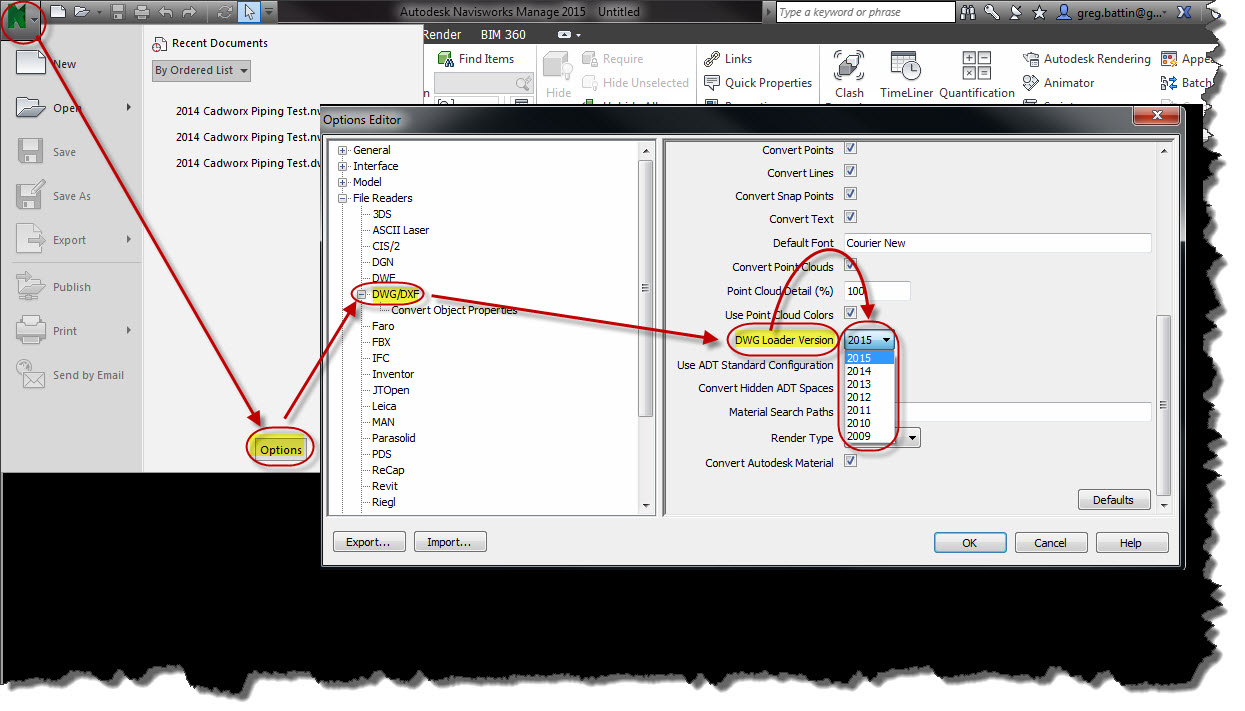
    When you update AutoCAD and/or Navisworks and then try to open your your drawing in Navisworks, you might run into issues. One thing to check is making sure that the version of AutoCAD that created the DWG is set correctly in Navisworks. Sometimes with alrge companies with multiple projects using multiple versions, it could be difficult but here is how you set your “DWG Loader Version”:

    • Click the “Application Menu” (Big Green A) in the upper left
    • Click “Options
    • Click on “DWG/DXF” in the left column
    • Adjust the year (Version) next to “DWGLoader Version

    Navisworks DWG Loader Version

    Posted in Navisworks | Leave a comment

    Making CADWorx Piping Intelligence Display in Navisworks

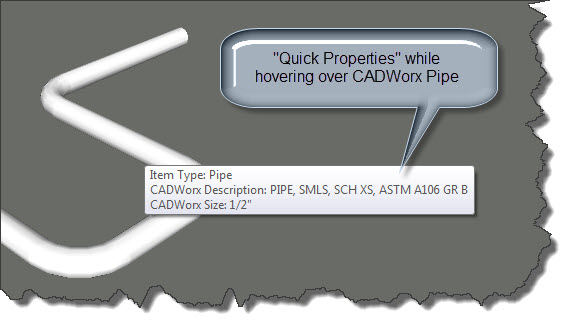
    When you upgrade your version of Navisworks, you want to be able to hover over a piping component from CADWorx and have certain CADWorx properties display near your cursor.

    Today’s tip describes this.

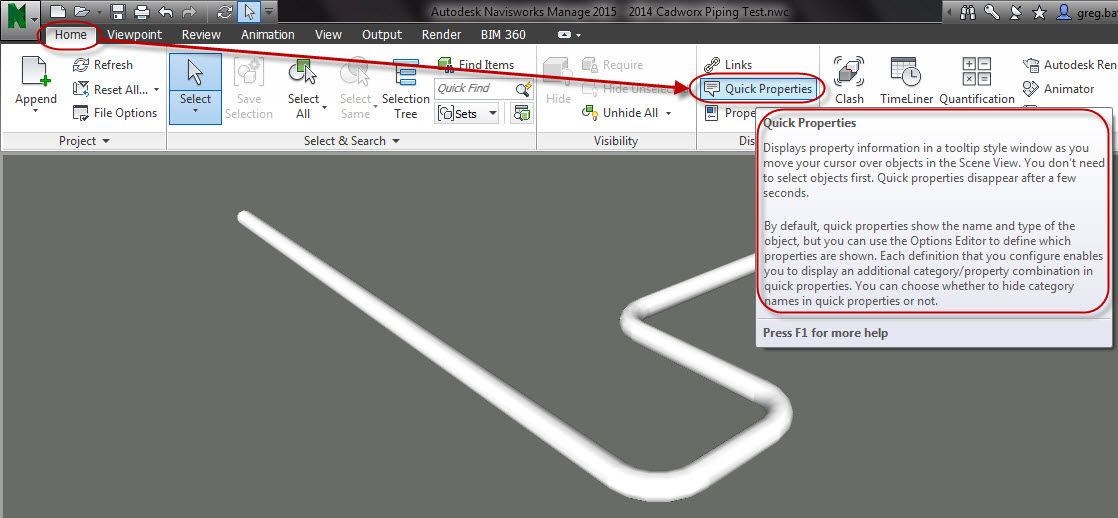
    From the Home Tab of the ribbon, click “Quick Properties” on the “Display” panel. (it is active if it is blue).

    Click to turn on "Quick Properties"

    Click to turn on “Quick Properties”

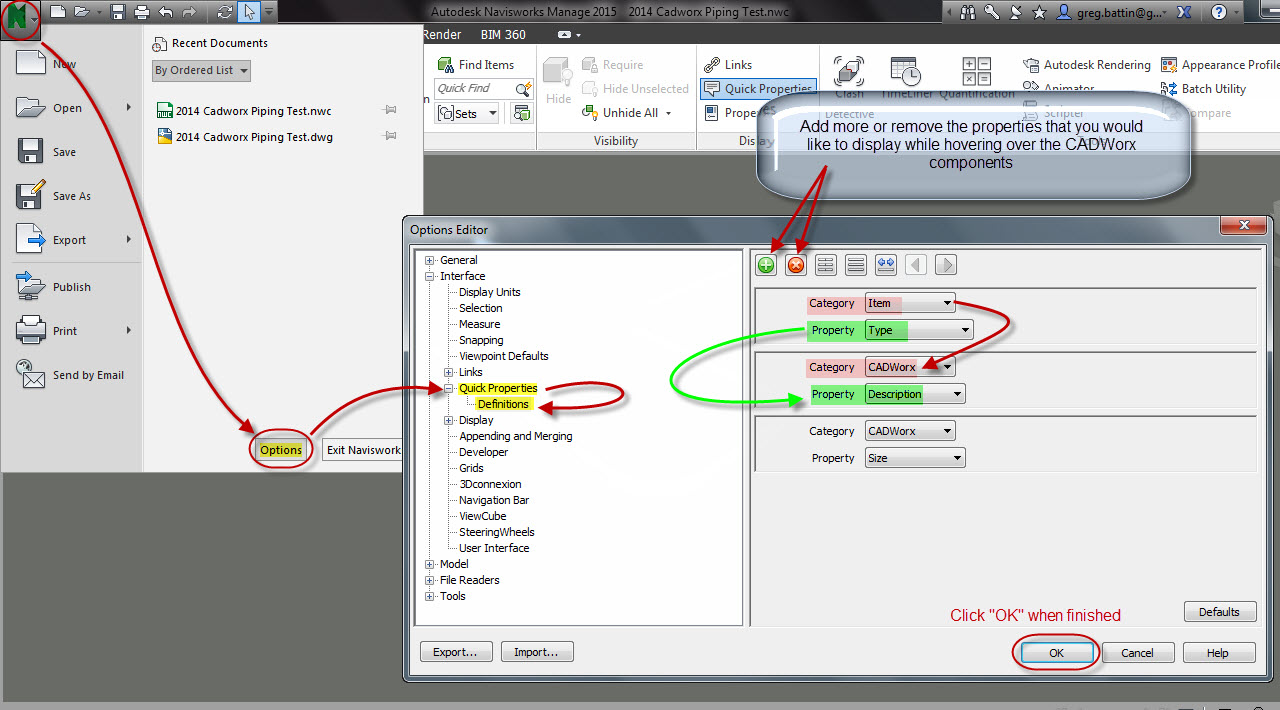
    Now we need to tell the “Quick Properties” to display CADWorx information.

    • Click the “Application Menu” (Upper left – Big Green N)
    • Click “Options
    • The “Options Editor” will open. Expand “Quick Properties
    • Click “Definitions
    • Change the dropdown list “Category” from “Item” to “CADWorx
    • Then Change the dropdown list “Property” to whatever CADWorx property you would like to display while hovering.
    • If you would like to add more properties, click the Green plus sign. Or if you would like to remove one, use the Red “X”

    NW CADWorx Properties 2

    After making these changes and clicking “OK” you should be able to hover over the CADWorx components and have the properties that you defined display as shown below.

    NW CADWorx Properties 3


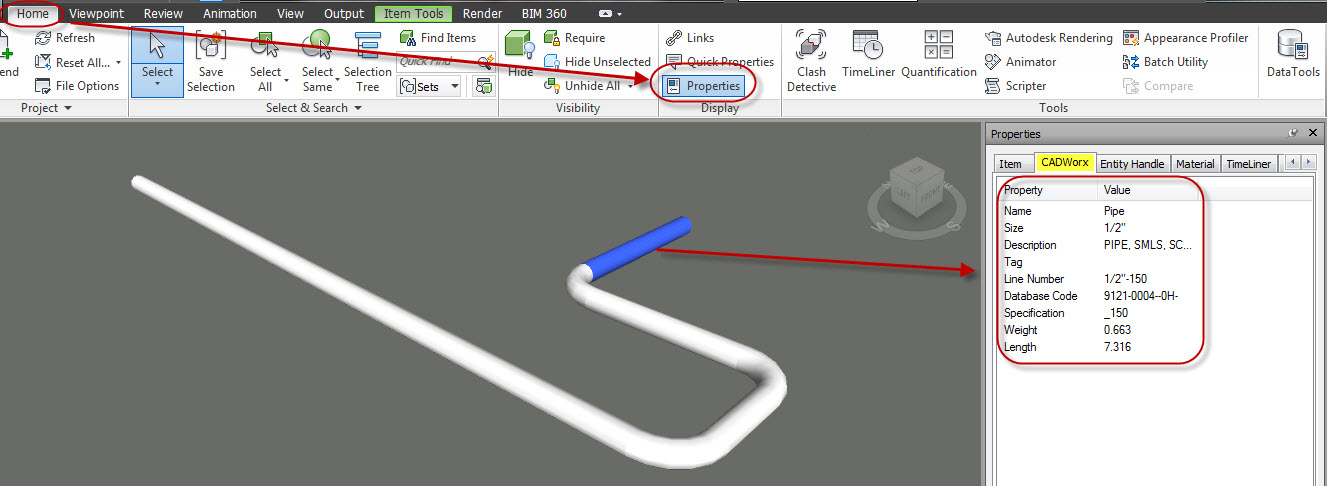
    If this isn’t working and you need to simply see the CADWorx properties, you can always Turn on the “Properties” palette  and make the “CADWorx tab” current so that when you select an object, its properties are displayed.

    This isn’t the optimal solution since it takes up room from your drawing area and you have to select the CADWorx objects.

    NW CADWorx Properties 4

    Posted in CADWorx, Navisworks | 2 Comments

    Tip for Autodesk University Attendees

    Last year on Twitter, I posted this simple tip for those attending AU and since I am luck enough to be going this year I want to stress the importance of the tip from last year.

    Tip: LOOK UP AND MEET THE PEOPLE AROUND YOU.

    Looking At your Phone

    When you watch old videos from previous Autodesk University sessions. People talk about how great it was way back when (back in the good ol’ days) because they met new people and made connections that they wouldn’t have had done so easily on their own. Think about how many thousands of people attend this “CAD Nerd Conference” and their vast experience and knowledge. If you meet a few people and then follow up with them after the conference you may end up making a friend or at least someone who might be good at something that you may need help with later on down the road.

    At my last AU in 2012, I arrived early to the exhibit hall. It was prior to the doors being opened so there was a lot of people waiting around for the doors to open and I noticed how eerily quiet it was considering the amount of people there were in that hallway. The one common thing i noticed is that most everyone had their eyes peeled on their phones or tablets. I was convicted because I was doing the same thing. So I put my phone down and shoved it in my pocket and approached a couple of people to start some small talk and I noticed that they didn’t want to talk or quickly looked around for someone else…

    These devices are not bad in and of themselves but I am afraid that people are loosing their people skills and their desire to meet new people. If you are interested in reading an article that discusses this called “Alone in the Crowd” (READ HERE).

    This year, I will be checking my emails through the day while at the conference, but I am making the decision to keep it to an minimum and meet as many people as I can. And I suggest that you do the same. If you are Attending the conference and happen to see me. Please stop and say “hi”. I would love to meet you and talk “CAD Nerd” stuff with you.

    I would really like to meet some of the people that visit my blog as well. I hope that it has served you in some way.

    Below is a picture of me: My name is Greg Battin and my email address is greg.battin@gmail.com I don’t care that I posted my email address because I do it all the time and I am excited to meet you and I don’t want to feel “Alone In the Crowd”.

    ~Greg

    Greg

    Posted in TIPS | 6 Comments

    AutoCAD 2015 Tray Settings for Print Pop-Up

    After you print in AutoCAD, there is a little annoying notification that stays open in the bottom right of the screen until you click to close it. This is the default setting. This setting can be changed so that it stays open for a designated amount of time. I have made a post about it before but the method of invoking the dialog box in that old post (found here) is no longer available in AutoCAD 2015. But luckily, there is a command to get to the “Tray Settings” dialog box.

    Here is an example of the “annoying” pop-up that stays open until you close it.

    TRAY sETTINGS 1

    Here is an example of how to change this setting in AutoCAD 2014:

    TRAY SETTINGS 2

    But to change this setting in AutoCAD 2015, simply use the command TRAYSETTINGS

    and you will get the familiar dialog box where you can set the time for the dialog box to remain open (shown below):

    TRAY SETTINGS 3


    Posted in BASICS, Customization, New in 2015, Printing - Plotting, TIPS | 2 Comments

    AutoLISP: Updated Heal Line/Polyline

    There were 2 posts from a while back that did the same thing – Erase a selected block and then heal the LINE or POLYLINE, but the annoying thing was that only one routine would work for LINES and you would need another LISP routine for it to work for polylines.

    Someone asked if these could be combined into 1 LISP routine over at CADTutor.net and luckily PBE came up with the solution:

    Please see the previous posts to see examples (animated gifs) of what the routine does:

    https://autocadtips.wordpress.com/2012/06/29/autolisp-heal-erase-block-heal-polyline/

    https://autocadtips.wordpress.com/2012/06/29/autolisp-heal-erase-block-heal-line/

    Use the command EE to start

    
    ; by PBE
    ; http://www.cadtutor.net/forum/showthread.php?73328-Joining-2-commands
    ; erase a block and join the lines that the block broke
    (defun c:hint ()
       (if	(setq ss (ssget '((0 . "INSERT"))))
       		(repeat (setq i (sslength ss))
    		  	(setq pt  (cdr
    				 (assoc  10
    				   (entget
    				     (setq e (ssname ss (setq i (1- i))))
    				   ))))
    		  	(command "_rotate" e "" "_non" pt "180")
    		  )
         )(princ)
       )
    
    (defun c:ee (/ pea $blk block i ll ur objs p1 p2)
      (vl-load-com)
      (setq pea (getvar 'Peditaccept))
      (setvar 'PeditAccept 1)
      (if (setq $blk (ssget '((0 . "insert"))))
    	  (repeat (setq i (sslength $blk))
    	    	(setq e (ssname  $blk (setq i (1- i))))
    	  	(vla-getboundingbox (vlax-ename->vla-object e) 'll 'ur)
    	    	(entdel e)
    	  (setq objs (ssget "C" 
    	      (setq p1 (vlax-safearray->list ll))
    	      (setq p2 (vlax-safearray->list ur))
    	      )
    	  )
    	(if (eq (cdr (assoc 0 (entget (ssname objs 0)))) "LWPOLYLINE")
    		  (command "_.pedit"  "_m"  objs
    			   ""  "_join" "_Joint"
    			   "_Both" (distance p1 p2)
    			   "" )
    		  (command "_.join" (ssname objs 0) (ssname objs 1) "")
    		)
    	    )
        (princ "\nNo Blocks Selected")
        )
    	  (setvar 'PeditAccept pea)
    	  (princ)
    	)
    
    Posted in AutoLISP, AutoLISP: Blocks, AutoLISP: Modify, AutoLISP: Polylines, Modifying, Uncategorized | 2 Comments

    Manage CADWorx Project Resources with Symlinks

    This tip is not limited to CADWorx. It can be applied to many types of files that CAD users may need, I have simply decided to demonstrate how “Symlinks” can help a common frustration for CADWorx users and CADWorx administrators.

    First – What is a “Symlink”?

    Symlinks can be manually created using the Windows command line as shown here: http://php.net/manual/en/function.symlink.php

    I personally don’t like using the Windows command line because it always seems to be so touchy and easy enter an error. So with a little help from a quick google search, there happens to be a nice (free) user interface dialog box that lets you create Symlinks with all of the options that are available to symlinks in the Windows command line.

    Link to the free symlink creator: https://code.google.com/p/symlinker/

    SymLink Creator Link


    Here is a suggestion for how to administer a project using CADWorx and its various modules like P&ID, Plant, Equipment and even Electrical available here: http://www.ecedesign.com/ElectroMOD

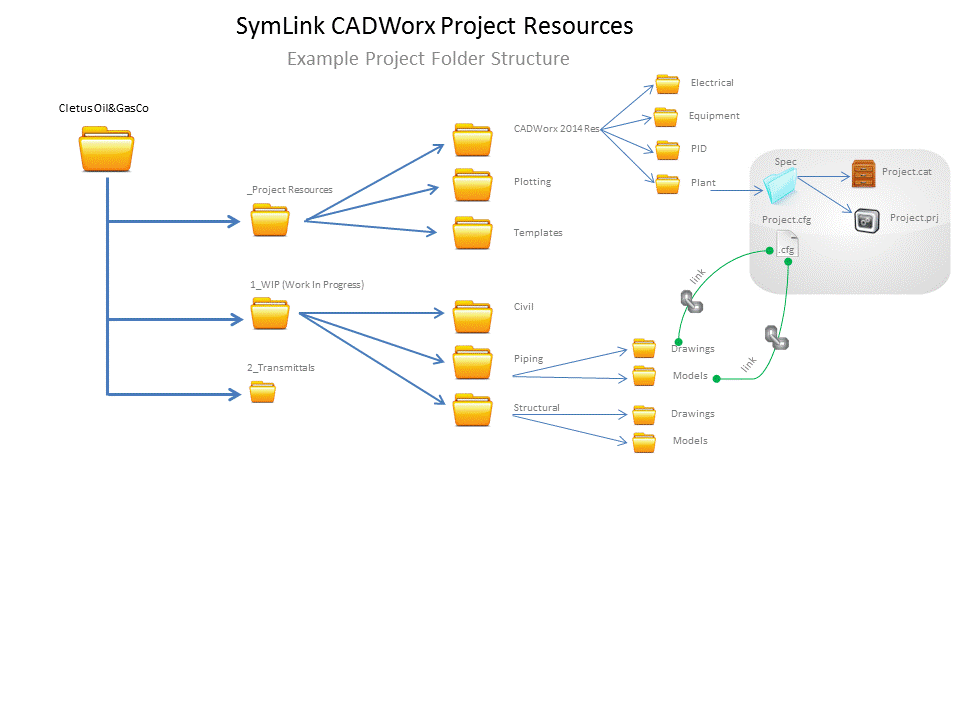
    As shown below, a sample folder structure for an oil & gas company named “Cletus Oil & Gas Co”.

    Notice that under the the main folder that contains the name of the Client & Project, there are 3 folders. This varies from company to company, but there is usually a “WIP” folder (Work In Progress). This is where the designs and CAD files are placed. In the example I have shown, I think that it makes sense to control the order of these folders. That is why there is a “1” before “WIP” and an underscore before “Project Resources” These are the 2 folders that are relevant to this post.

    _Project Resources is the folder where the CAD admin could place the needed files that the client has either provided and/or you have created for them in order to use their standards… The “Plotting” folder normally contains the needed .ctb files for the project. The “Templates” folder could contain the various .dwt files as well as title blocks. But for the example for CADWorx, notice the CADWorx folder and how it is broken up into sub-folders of the various modules of CADWorx.

    In each of these folders, there are mainly 3 files that we are concerned with:

    1. .cfg file – Configuration file that defines various settings for CADWorx but also lists the path where the next 2 files can be found.
    2. .cat file – Catalog file defines parts or “Components” that are found in actual manufacturers parts catalogs. a multitude of additional information can be defined in the .cat file
    3. .prj file –  Project file defines what parts (“Components”) are needed for a project. This file pulls the components from the .cat file and also defines what information needs to be pulled from the catalog and how it should be displayed.

    SymLink CADWorx Project Resources

    As you might know, the folder in which you open a .dwg file is also considered a “support path,” So a common practice, is to copy the .cfg files into the various WIP folder so that the CADWorx users can have the proper components for a project. The more complex the project, the more these files can be scattered about a project. An obvious issue is how sloppy this can be and difficult to manage. If something were to change in the .cfg file, you will need to make sure to re-copy it into the many WIP folders so that they all get the updates as well.

    This is where adding a symlink to the various .cfg files can be a real life saver and also a clean way to make changes to one file and all of the other files receive the updates automatically. Some of the benefits are obvious but you might need to take the extra time needed to set the project up in the beginning and communicate to the team how this works.

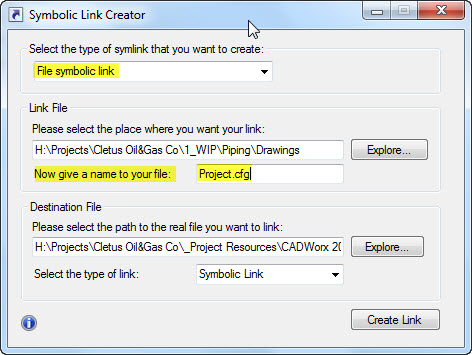
    Launch the “Symbolic Link Creator” tool

    Change the top drop-down list to “File symbolic link” this will allow you to create the symlink to a specific file. In our case, the .cfg file

    Link File Area (middle area of dialog box). Click the “Explore” button and navigate to the folder where you want the link to go. IMPORTANT – Give the file a name INCLUDING the file type extension. Sidenote – CADWorx looks for the first .cfg file in its support paths and if the file is named “Project.cfg” that one takes precedence. That is why I named it “Project.cfg”.

    “Destination File (Lower portion of the dialog box). Click the “Explore” button to navigate to the .cfg file you want to be the “Master” file located under the “_Project Resources” folder.

    Repeat for the various folder that you want to have “copies” of the .cfg file

    Symbolic Link Creator Dialog box

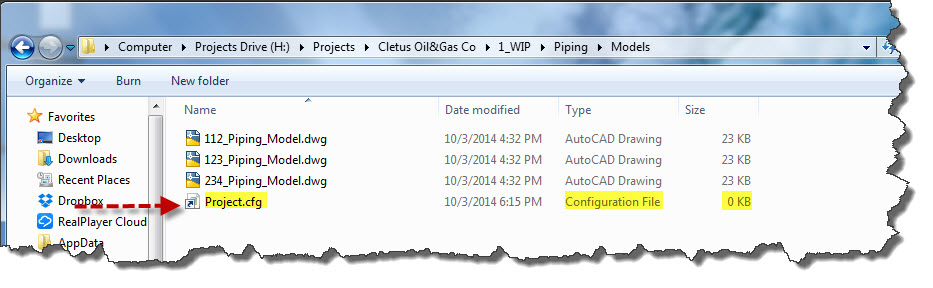
    Note that the file that is created in the various folders does have the correct Icon as a .cfg file but it has a little arrow in the lower left of the icon that you normally see on desktop icons. It also doesn’t have any file size and under the “Type” column it shows as a “Configuration File”

    Link In Folder

    When CADWorx sees this file in the folder, it is actually reading from the .cfg file located under the “_Project Resources” folder. This is important to understand and communicate to the rest of the project team. If they make changes to the .cfg file in their folder, it is going to make those changes to the “Master” file and therefore make changes to the rest of the folders that have links to the “Master” .cfg file.

    I think that after some good documentation and communication to the people working on the project, the benefits of using symbolic links will pay off and also add value to the project by knowing that changes to the project are live and everyone will get the most up to date changes.

    What other uses can you think of that Symbolic Links can be used for? Share your thoughts below in the comments section.

    SymLink CADWorx Project Resources2

    Click to Enlarge

    Posted in CADWorx, Customization, Manage, TIPS | 4 Comments