AutoLISP: Change Hatches to Solid Hatches

Today’s featured routine will help you if you need to change some or all hatches to the solid hatch pattern.

Here’s how:

  • HATCH2SOLID <enter>
  • Create a selection set by either individual selection or window/crossing selection.
  • Or
  • As shown in the animation: type ALL <enter> in the command line to select all hatches in the drawing.
  • Hit <enter> once more to except the selection set.

~enjoy


(defun c:Hatch2Solid (/ ss)
;;; Tharwat 01. April. 2012 ;;;
(vl-load-com)
  (cond ((not acdoc)
         (setq acdoc (vla-get-activedocument (vlax-get-acad-object)))
        )
  )
  (if (setq ss (ssget "_:L" '((0 . "HATCH") (2 . "~SOLID"))))
    (progn
      (vla-StartUndoMark acdoc)
      ((lambda (i / sn)
         (while
           (setq sn (ssname ss (setq i (1+ i))))
            (vla-setPattern
              (vlax-ename->vla-object sn)
              acHatchPatternTypePreDefined
              "SOLID"
            )
         )
       )
        -1
      )
      (vla-EndUndoMark acdoc)
    )
    (princ)
  )
  (princ)
)
Posted in AutoLISP, AutoLISP: Modify, Hatch, Modifying | Leave a comment

AutoLISP: Easily Make Isometric Text

If you need to create isometric text  and you are tired of using so many different styles, today’s tip will be your new best friend. Note that this routine only works with DTEXT (single line text).

Here’s how:

  • ISOTEXT <enter>
  • Select the DTEXT object
  • Hit the Tab button to tab through the various isometric slants until you have found the correct one.
  • Once the text looks correct, hit enter
  • Re-position the text accordingly

~enjoy


;; Lee Mac
;; ONLY WORKS ON DTEXT
;; Found @ http://www.theswamp.org/index.php?topic=37429.0
(defun c:isotext ( / e i j k)
  (vl-load-com)
 ;(setq i (/ pi 6.) j -1.)
  (setq i 0 k (/ pi 6.) j -1.)
  ;; © Lee Mac 2011
  (if
    (and
      (setq e (car (entsel "\nSelect Text: ")))
      (eq (vla-get-Objectname (setq e (vlax-ename->vla-object e))) "AcDbText")
      (princ "\nPress [Tab] to Change Projection <Accept>")
    )      
    (while (= 9 (cadr (grread nil 14 0)))
     ;(vla-put-rotation     e i)
      (vla-put-rotation     e (* k (1- (* 2 (setq i (rem (+ i (max 0 (setq j (- j)))) 3))))))
     ;(vla-put-obliqueangle e (setq i (* i (setq j (- j)))))
      (vla-put-obliqueangle e (* j k))
    )
  )
  (princ)
)
Posted in AutoLISP, AutoLISP: Creating, AutoLISP: Modify, AutoLISP: Text, Isometrics | 4 Comments

Load Express Tools for 2013

This post works the same for AutoCAD and AutoCAD Architecture.

Upon installing AutoCAD you may not have installed the Express Tools…

Here is how to load them:

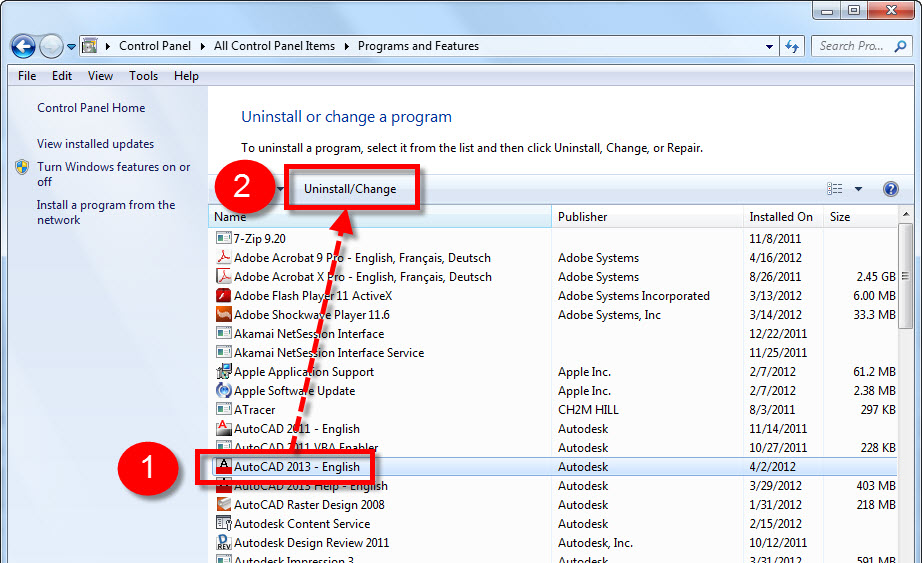
  1. Click Start
  2. Click “Control Panel”

Click on “Programs and Features” Note: if you want to see this list as shown below set the icons to “small” (shown)

  1. Select your AutoCAD 2013 product from the list
  2. Click “Uninstall/Change” Note: we will not be uninstalling but rather using the “Change” feature…

Click “Add or Remove Features”

  1. Check the checkbox next to “Express Tools”
  2. Click “Update”

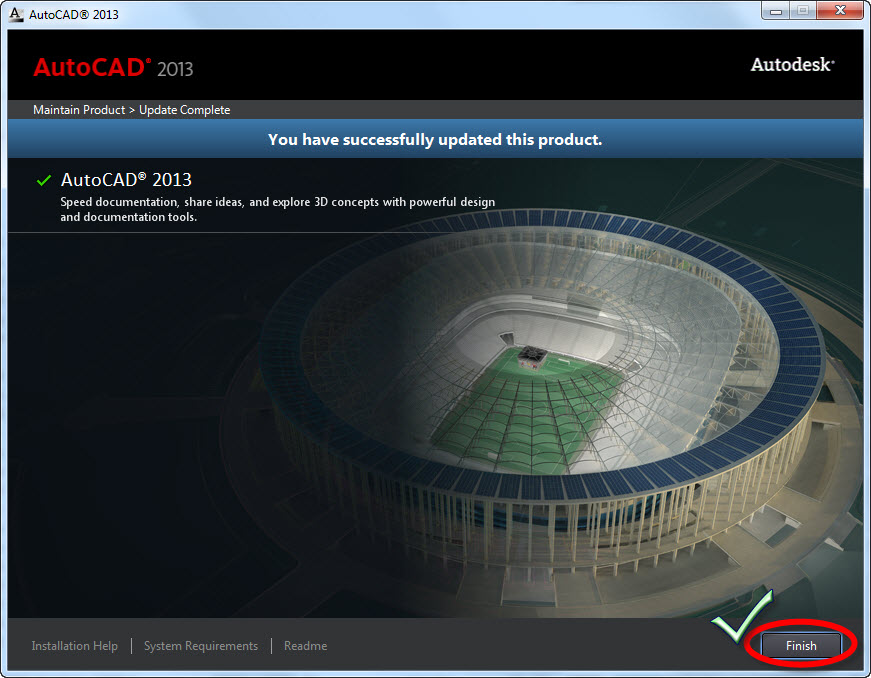
After the update finishes installing click “Finish”

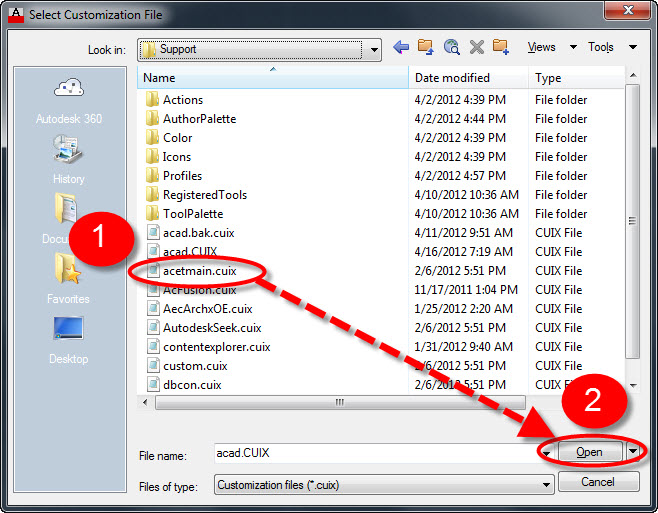
Open AutoCAD and enter the command MENULOAD

  1. Select “acetmain.cuix” from the list Note: “acetmain” = “AutoCAD Express Tools Main
  2. Click Open

  1. Click “Load” and then verify that the Express Tools menu loaded by checking the list of loaded menus
  2. Click “Close”

Now enjoy your Express Tools…

Posted in AutoCAD 2013, Customization, Express Tools, Manage, New In 2013, TIPS | 75 Comments

Create Rotated or Aligned MTEXT

If you’ve gone to school for CAD or ever dealt with a good manager then you’ve undoubtedly heard them remind the CAD users to “Look at your options in the command line…” Today’s tip is a good example of this. If you have needed MTEXT to be aligned with an object, you may have depended upon a lisp routine or some other custom tool to do this. After today you may not need these custom tools. However, This tip is good for creating new text that needs to be aligned. It doesn’t work for aligning existing text.

(DTEXT already has an option to rotate)

Here’s how:

  • Start the MTEXT command T <enter>
  • Place the starting point for the MTEXT (note: if you are aligning the text to a straight object, snap to a point on that object.)
  • Before placing the second point that defines the text box width notice the options that you have in the command line. We will use the “Rotation” option.
  • R <enter>
  • Define the angle of the rotated text by either typing in an angle or snapping to an object.
  • Then define the width of the text box
  • Type the text
  • Exit the MTEXT editor by either CTRL + <enter> or by clicking outside of the text.

If you would like some more robust text alignment programs – check these out from Lee-Mac. They are free but feel free to drop him a donation if you can. He makes some sweet routines for free.

Dynamic Text Align even curves

Another Dynamic Text Align. Note: this routine will make your text objects “stick” to an object…

Posted in BASICS, Text, TIPS | 3 Comments

Express Tools: CLIPIT

I recently showed how to create an XCLIP for XREFs (found here) but today’s tip gives you some more options. The Express Tool CLIPIT will clip reference objects – not just XREFed drawings. It will work on the following objects:

  1.  Images
  2. Wipeouts
  3. XREfs/blocks

CLIPIT will also use round objects like circles and ellipses as the defining boundary whereas XCLIP will not.

Here’s how:

  • CLIPIT <enter>
  • Select the object that defines the clipping border (shown below = circle)
  • Select the reference object
  • Specify the arcs smoothness (like VIEWRES or WHIPARC) <enter>

~enjoy

Posted in Blocks, Manage, Modifying, TIPS, Wipeouts, XREFs | 3 Comments

Turn Shape Objects into Blocks

If you have a drawing that contains shape objects and then you try to send that drawing to someone else, those shape objects will be missing from their drawing. Today’s tip features an Express Tool called SHP2BLK which simply lets you turn these shape object into blocks. (Note: this does not help which linetypes that depend upon shape files)

Here’s how:

  • SHP2BLK <enter>
  • Select the SHAPE object that will be turned into a block (note: even though you select only one instance of the shape object, this tools works globally for that shape object).
  • Specify the name that you want the block name to be. By default it is the name of the shape object. <enter>

~enjoy

Posted in Blocks, Express Tools, Manage, Modifying | 1 Comment

XCLIPFRAME

Here are the options (system variables) for how your XCLIP frame is shown and/or printed.

The variable is XCLIPFRAME <enter> and the default setting is <2>

Posted in BASICS, Customization, Manage, Modifying, XREFs | 3 Comments

Invert XCLIP

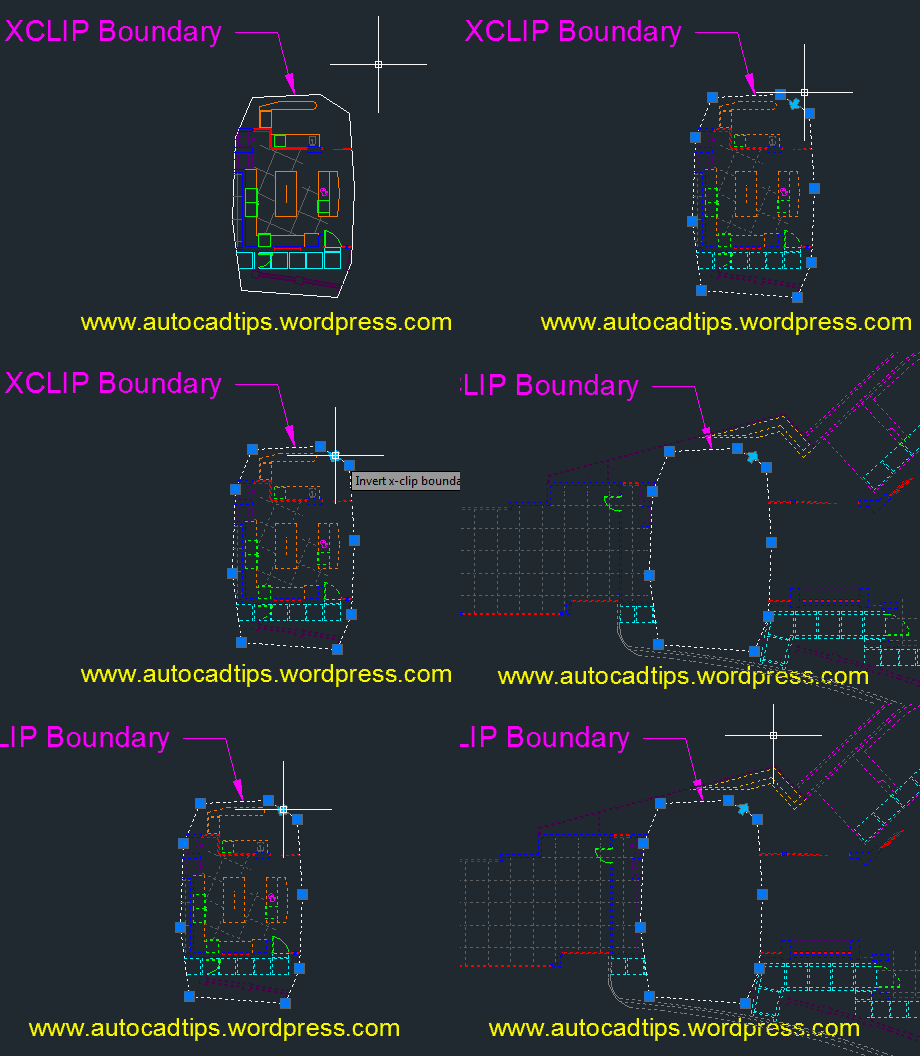
Once you have an XCLIP created, you can can invert the XCLIP so that the area that is inside of the defined XCLIP border will be hidden and the area outside will be shown.

Here’s how:

  • Select the XCLIP boundary
  • The boundary of the XCLIP will show its grips along with an arrow grip
  • Hover over the arrow grip and notice the text that appears “Invert x-clip boundary” Click this arrow to invert the xclip.

Posted in Manage, Modifying, XREFs | 1 Comment

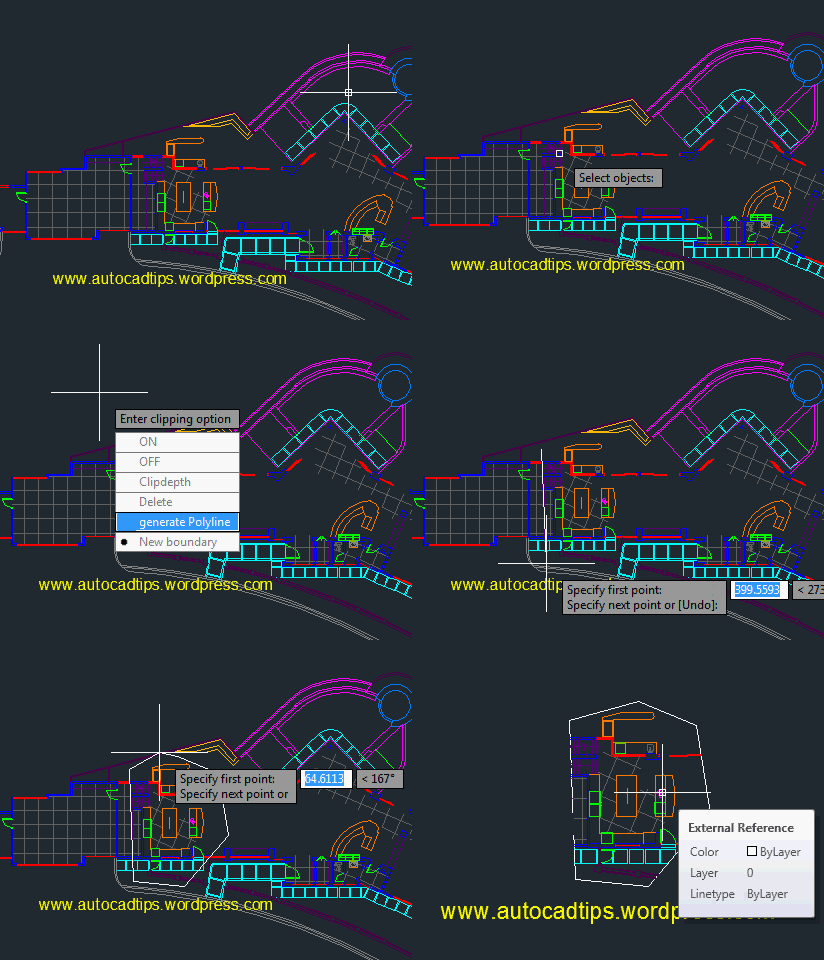
Create an XCLIP

For those who use XREFs, there may be times when you do not need the entire XREF to be brought into your drawing especially if the XREF is rather large. With the command XCLIP you can create a boundary around the area that you want to show (kind of like a viewport) and the outer area is “clipped” out.

Here’s how:

  • XCLIP <enter>
  • Select the XREF to which you want to apply the XCLIP <enter>
  • N <enter> for New boudary
  • Then select an option for generating the border for the XCLIP
  • “Select polyline”  = Select an existing polyline that defines the border of the XCLIP
  • “Polygonal” = (Shown in animation) lets you create a closed polyline
  • “Rectangular” = Pick 2 points to define the XCLIP border

Shown Below –  contextual ribbon tab when XCLIP is selected

Posted in Manage, Modifying, XREFs | 19 Comments

Recently Open Files in Application Menu

In the Application Menu (AKA “Big Red A”) there is a list of recently open drawings that lets you easily open these drawings.  By default, this drawing list is populated by the last 9 drawings that you have opened. But what if you want to have a drawing that remains in this list regardless of how many drawings you have opened? Luckily you can pin this drawing to the list (shown below).

You can control the number of recently open drawings that are shown in the Application Menu by changing the number in the “Open and Save” tab of the Options dialog box (shown below).

Posted in BASICS, Customization, TIPS | 1 Comment