AutoLISP: Background Text Mask (Mtext Only)

Here is a quick way to turn on the text background to MTEXT. (Note: this routine works with MTEXT only.)

Click here to see how to add Background Text Mask to Dimensions and MLeaders as this routine does not allow for these objects.

here’s how:

  • TMASKON <enter> to turn on the text mask
  • TMASKOFF <enter> to turn off the text mask
  • Select the MTEXT objects
  • <enter> when finished selecting

;Maska Mtextu ano/ne - www.cadforum.cz

(defun C:TMaskOn (/ ss x ob1)

(vl-load-com)

(setq ss (ssget '((0 . "MTEXT"))))

(if ss

(mapcar '(lambda (x)

(setq ob1 (vlax-ename->vla-object x))

(if (= (vla-get-backgroundfill ob1) :vlax-false)

(vla-put-backgroundfill ob1 :vlax-true)

)

)

(vl-remove-if 'listp (mapcar 'cadr (ssnamex ss)))

)

)

(prin1)

)
(defun C:TMaskOff (/ ss x ob1)

(vl-load-com)

(setq ss (ssget '((0 . "MTEXT"))))

(if ss

(mapcar '(lambda (x)

(setq ob1 (vlax-ename->vla-object x))

(if (= (vla-get-backgroundfill ob1) :vlax-true)

(vla-put-backgroundfill ob1 :vlax-false)

)

)

(vl-remove-if 'listp (mapcar 'cadr (ssnamex ss)))

)

)

(prin1)

)

(defun C:TMaskOnOff (/ ss x ob1)

(vl-load-com)

(setq ss (ssget '((0 . "MTEXT"))))

(if ss

(mapcar '(lambda (x)

(setq ob1 (vlax-ename->vla-object x))

(if (= (vla-get-backgroundfill ob1) :vlax-true)

(vla-put-backgroundfill ob1 :vlax-false)

(vla-put-backgroundfill ob1 :vlax-true)

)

)

(vl-remove-if 'listp (mapcar 'cadr (ssnamex ss)))

)

)

(prin1)

)
Posted in AutoLISP, Modifying, Text | 3 Comments

How to Exit Text

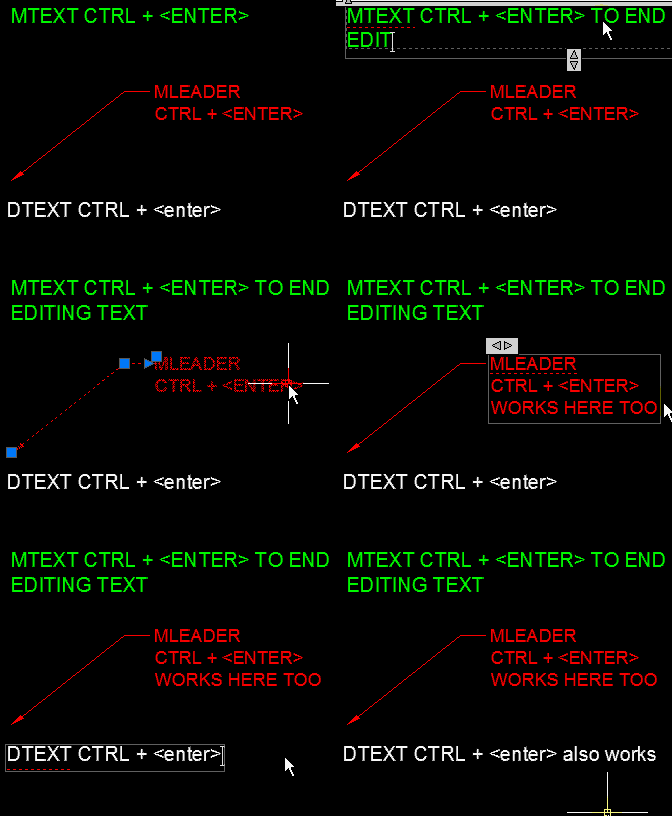
You may know that after you finish editing or entering MTEXT, all you need to do to exit the MTEXT is to click outside of it. But if you do that when working with DTEXT (Single Line text) you will not exit the text but rather start a new line of DTEXT wherever you pick.

Here is a great way to exit whatever type of text you are in without having to go back to your mouse.

When you are done entering or editing text, simply hold the CTRL button and then hit <enter>

It’s that simple

~Enjoy

Posted in BASICS, Text | 9 Comments

Tab Through OSNAPS

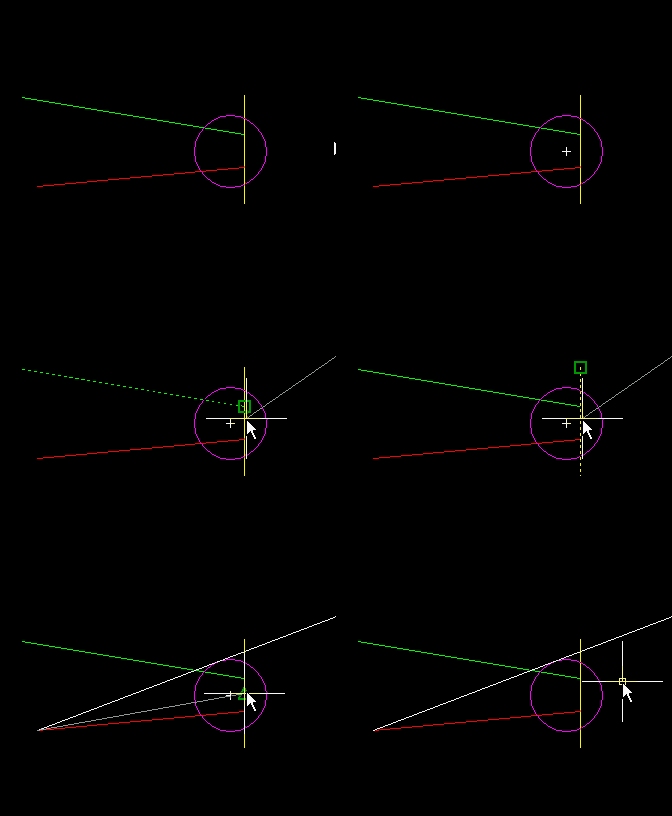
Depending on what OSNAPS you currently have turned on, you can simply cycle through them without having to move your cursor over the exact snap that you need.

(This is really helpful in your drawing is cluttered and you want to snap to the correct object)

In the example below, I have the following OSNAPS turned on:

EndPoint, MidPoint, Center, & Intersection

  • I started a line and then hovered my cursor over an object
  • I then hit the TAB button until I saw the certain OSNAP over the object that I wanted to snap to.
  • I then left-click the mouse to connect the line to that snap.

Posted in BASICS, TIPS | Leave a comment

Use TRIM to Extend

Let’s face it – we use the TRIM command a lot and we rarely use the EXTEND command. In fact, we use it so rarely that we tend to forget how it works. Luckily, you can use the TRIM command to extend objects.

Here’s How:

  • TR <enter><enter> (Hit <enter> twice)
  • Hold SHIFT
  • Click on the side of a line to extend that side of the line to the nearest intersecting object.

Posted in BASICS, Modifying, TIPS | 1 Comment

Snap Overrides (Illustrated)

I recently was asked to better explain a tip that I posted a while ago. And since I love making those handy-dandy animated pictures – here ya go.

If you have a lot of snaps turned on or if you have none of your OSNAPS turned on or even yet, if you don’t have a certain OSNAP turned on, this tip is for you.
This snap override is limited to only a couple of OSNAPS but they are the most used ones:

  1. End Point
  2. Mid Point
  3. Center (circles and arcs)

Lets say that you start a line and want to snap to only the end point of objects – you simply hold the SHIFT button and the E button at the same time. It doesn’t matter if you have your OSNAPS turned off or if you have every single one turned on, you will only be able to snap to the end points of objects. When you hold the SHIFT button and one of these letters, you will see a little icon near your cursor. this indicates that you are indeed using a snap override.

Example 1) End Point

SHIFT+E

Example 2) Mid Point

SHIFT + M

Example 3) Center

SHIFT + C

Posted in BASICS | Leave a comment

Delete objects with the Delete Button. Big Woop…

Big surprise!!!! Huh?

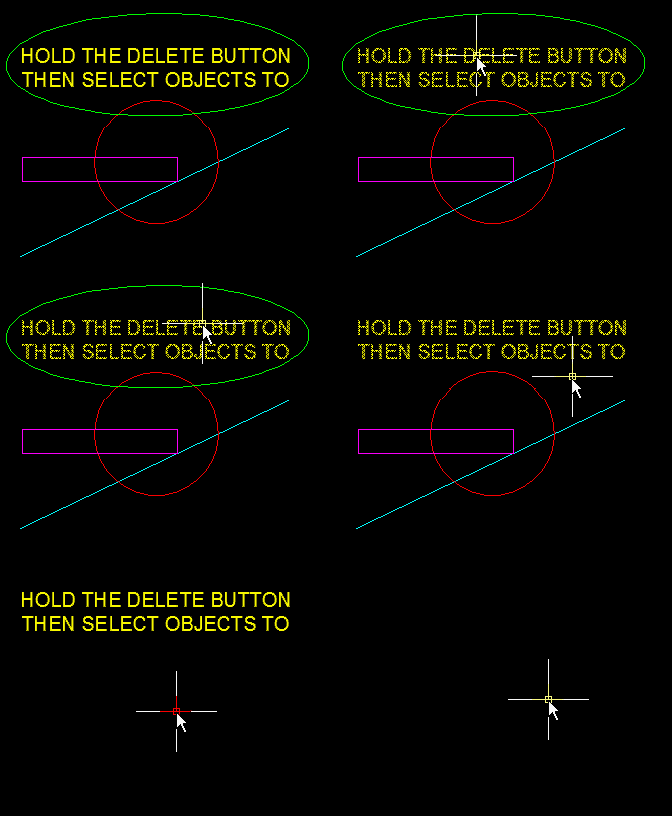
I know that you all know that if you select objects and hit the DELETE button the selected objects are erased. But did you know that if you hold the DELETE button and then pick individual objects, they get erased as you pick them?

I just found this tip as well. This tip is limited to only allowing single picks (no window selections). But still, it’s pretty cool…

Posted in BASICS, Modifying, TIPS | Leave a comment

Hatch Gap Tolerance

If you need to insert a hatch in an area that isn’t completely “closed” this may be your new favorite friend. Instead of temporarily making a line to close off the area and then inserting the hatch and then going back to erase the temporary line (which you may forget about) you can change this setting. By default, this setting is set to zero which means that a hatch area has to be completely closed. You can set this to a value up to 5,000.

There are a number of ways to change this setting.

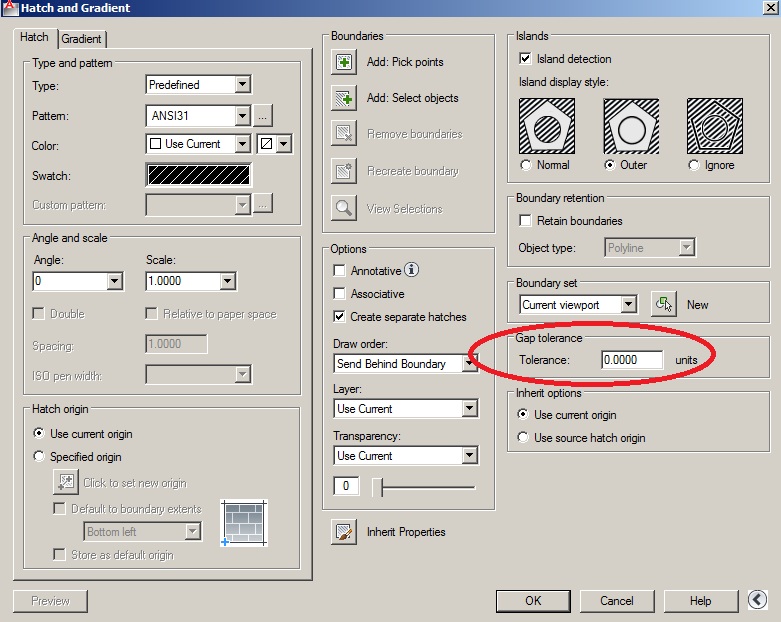
AutoCAD Classic: via the Hatch Dialog Box:

If you have a newer version of AutoCAD that uses the RIBBON, you can get to the old Hatch Dialog box by clicking on the diagonal arrow on the “Options” panel (as seen below)

To expand the Hatch Dialog box, Click the Arrow that points to the right (as seen above).

Now you can see the Gap tolerance are and make any changes in this area (as seen below)


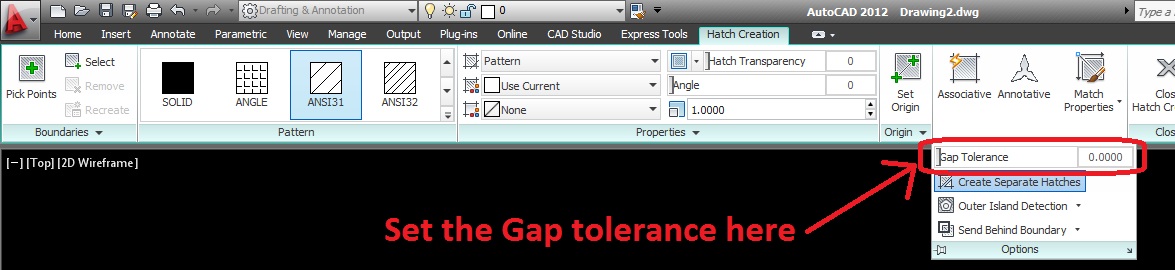
From the Ribbon:

Expand the Options panel on the Hatch Ribbon and change the Gap Tolerance setting (as seen below)

From the command line (as seen below)

  • HPGAPTOL <enter>
  • Change the value

As  you can see above, there is a gap of 0.7 units. I changed the setting to “ignore” gaps that equal 0.7 or less when I hatch an area.

Posted in BASICS, Customization, Hatch, Modifying, Settling In, TIPS | 4 Comments

Add A Block Definition to A Drawing

This tip is one that I wish I new a while back. You can add just the block definition to a drawing without placing the block in the drawing. This may not seem all that useful but if you have ever tried making a template and wished that the template had the needed blocks already in it so that you don’t have to locate them on a computer or on a network, this is very helpful. In my previous job, I didn’t have a network to work off of, but I would have used this tip because I could load these definitions into a drawing before I forgot what they were or where they were.

Here’s how:

  • I <enter> to start the INSERT command
  • Click the “browse” button to find the block on a computer or network.
  • Select the block that is to be inserted and click “ok”
  • Instead of clicking, to place the block in the drawing, hit the ESC (escape) button to escape out of placing the block.

Now if you di the INSERT command once again, you will notice that the block that you just brought in (but didn’t place) is available to you in the drawing.

Posted in BASICS, Blocks, Customization | Leave a comment

Fillet Radius Override

As seen in the previous post, setting your fillet radius to zero is very helpful. But there may be times when you have the fillet radius set to a value that you may forget if you set it to zero. Therefore, you need a way to set it to zero without losing the important radius value.

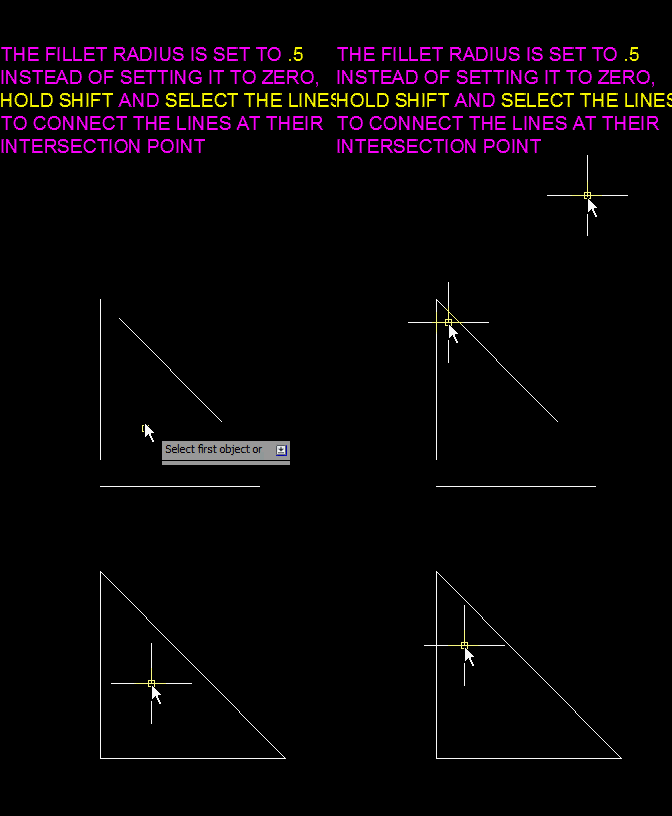
All you do to accomplish this is hold the SHIFT button when you select the 2 objects.

  • F <enter> or FILLET <enter> to start the fillet command
  • Hold the SHIFT button
  • Select the 2 objects that need their intersections “cleaned up”

Once you have finished the command, the previous radius value will still be there!!! (as seen in the clip below)

Posted in BASICS, Modifying | Leave a comment

Fillet Radius Set To Zero

If you have ever received drawings that had disconnected intersections, this tip will help you with your sanity. I have received drawings where the corner of a wall looked correct when I was zoomed out, but when I was zoomed in while doing some cleaning up, i noticed that these walls were drawn such that they never actually touch. This is extremely frustrating and should not be acceptable drafting practice.

An easy way to help fix this is to use the FILLET command. Usually, this command creates an arc at a given radius that connects the two objects. These objects can either be overlapping or not touching at all. And their endpoints are either extended or trimmed to meet at the arc (fillet). So what would happen if you were set the radius of this FILLET to zero? What it does is just trim or extend the endpoints of the two objects to where they meet.

By setting the radius to zero, you are able to use the FILLET command repeatedly to cleanup intersections.

Here’s how:

  • F <enter> OR FILLET <enter> to start the FILLET command
  • R <enter> or if you have Dynamic Input turned on, use the down arrow and select “radius”
  • 0 (zero) <enter> to specify the new fillet radius
  • Select the 2 objects to clean up their intersections

Once you have set the FILLET radius, the next time you use the command, it will remember the previous radius setting.

Posted in BASICS, Modifying | 5 Comments